This topic explains how to use the Coursebox Calendar to create events, manage availability, and control who can view and participate in calendar activities. It covers adding individual users and groups to your calendar, creating events, and managing shared visibility across your learning community.
Set Calendar and Users
The Calendar Course provides a powerful way for you to create events and view calendar of other community members.

Add User’s Calendar
You can sync your calendar with other user’s calendars by adding them to your calendar.
On the right hand side column, go to Add user to calendar section and search for the user and press enter.

Once you have added a user, their names will appear below with different colour codes.
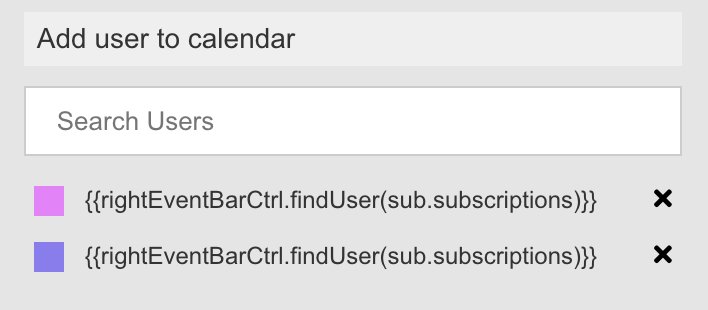
On the calendar, different user’s event will appear besides your event in different colour.

Create a Calendar Event
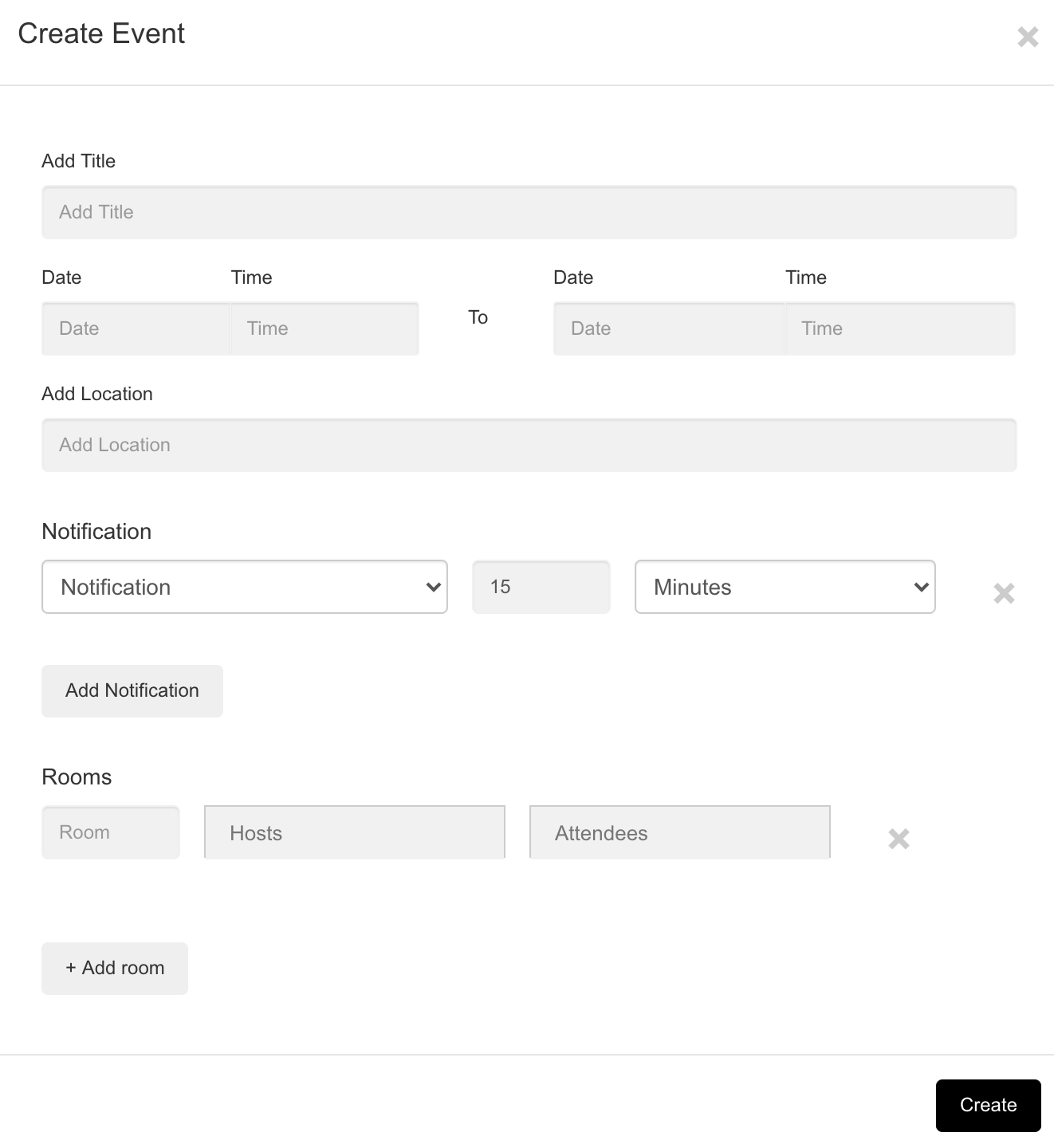
Click on Add Event to create a new calendar event.
Fill in the details about the event like:
- Event Name
- Date and Time
- Location,
- Notification Settings
- Attendees
After completing the event details, click on the Create button to save the event. You can view your new event in the calendar.
Group Calendars
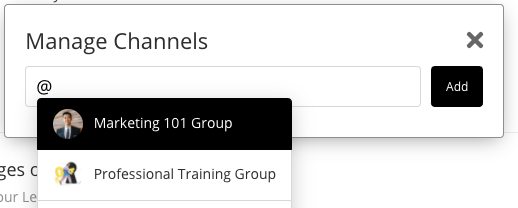
Click on the 'Channels' option to invite all the members of a Group.
Start typing ‘@’ to view the list of the Group. Choose the Group and click on the Add button to send the invite.
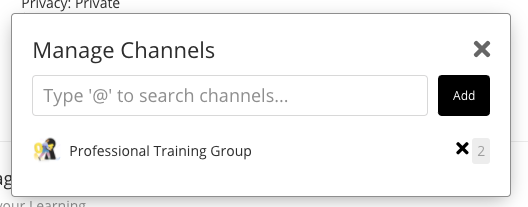
You will be able to see the Groups added to the invite list. You can remove it from clicking on the icon.
icon.
Note: that when you enrol Group in your course, then the new members of the Group will automatically be enrolled in the course, and he/she will receive a notification.Was this article helpful?
That’s Great!
Thank you for your feedback
Sorry! We couldn't be helpful
Thank you for your feedback
Feedback sent
We appreciate your effort and will try to fix the article