Accessing and managing your Coursebox portal is quick and secure. Whether you’re logging in with your Google account, using Single Sign-On (SSO), resetting your password, or managing your account settings, the steps below will guide you through everything you need. This includes how to manage or cancel your subscription and how to delete your account safely and confidently. Follow this guide for smooth, secure control over your Coursebox experience.
Watch the Tutorial Videos found in our YouTube Video Library.
Log In to Coursebox
To get started with Coursebox, follow the steps below, keeping in mind there are two types of access depending on your setup:
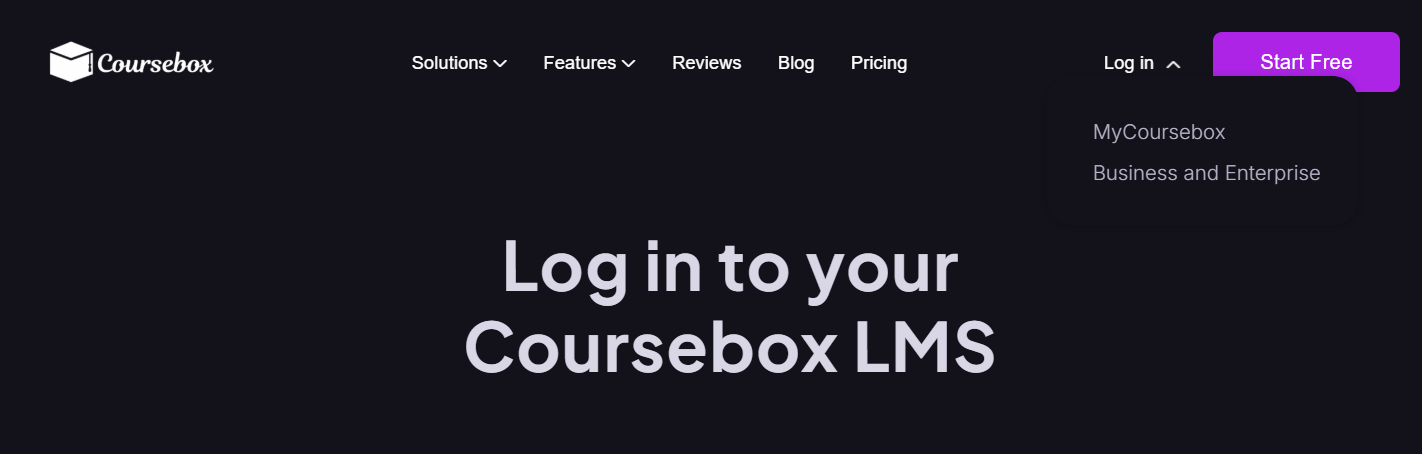
Option 1: My Coursebox (Most Users)
- Navigate to https://my.coursebox.ai
- Enter your email address and password.
- Click Log In.
Option 2: Business and Enterprise ( Branded Community)
- If your organisation has a custom-branded Coursebox portal
- Log into https://www.coursebox.ai/lms-login
If you’re a new user, click “Register” or follow the link provided in your onboarding email.
Note: Forgot your password? Click “Forgot Password” to receive a reset link.
Password Requirements
When you create your password, it must be:
At least 12 characters long
Include letters and numbers
Include at least one special character (e.g. ! @ # $ %)
If any of these are missing, you’ll see a password error even if your password looks long enough.
Manage, Cancel and Delete Account
Upgrade
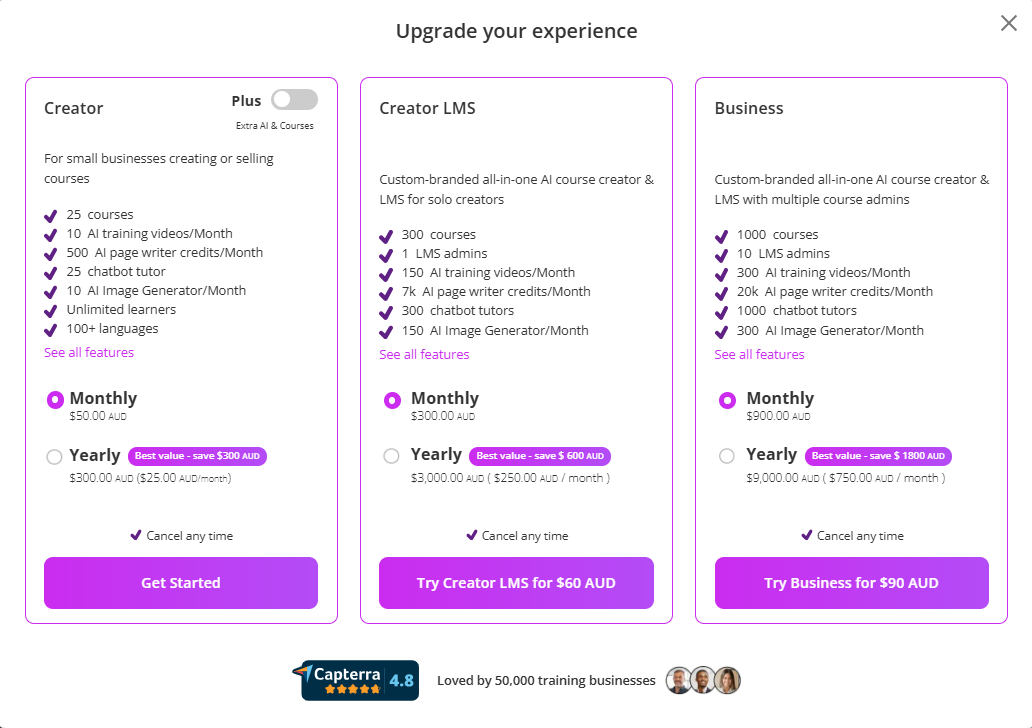
To upgrade your plan, simply access your account and click the "Upgrade" button on the right side of the top bar.

A popup with the different plans will appear. Just select the plan that suits you and follow the steps. Alternatively, choose your pricing plan from the pricing page on our website, ensuring that the email address you enter is the same as the email address of your account.
Downgrade
To downgrade, click on the upgrade button when logged in our select your chosen plan via the pricing page on our website.
Note: Ensure you use the same email address as your account if downgrading via the pricing page.My Credits
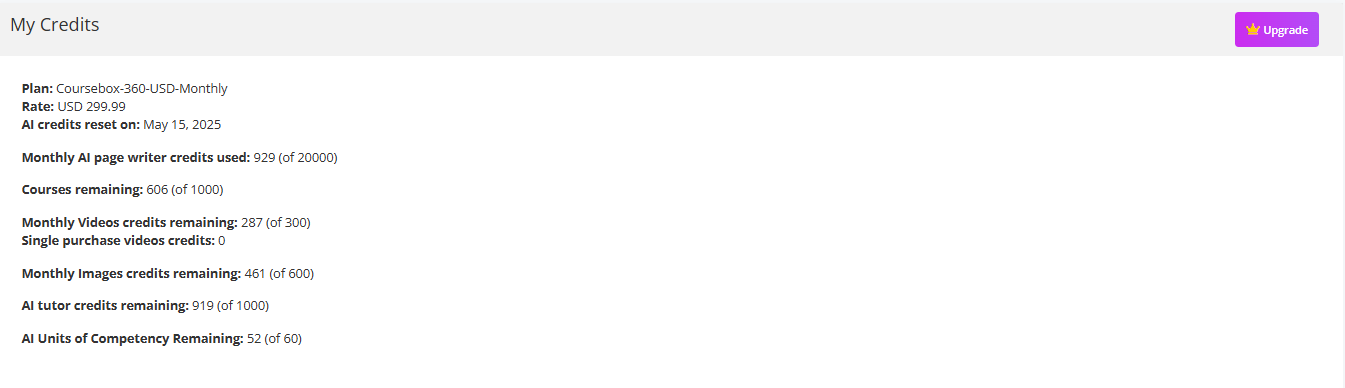
You will see your current credits on the payments section when logged in.
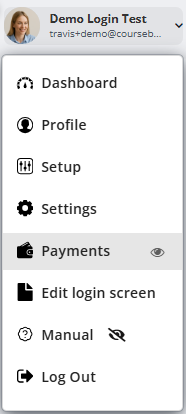
- Access the payments page by clicking the drop down arrow in the top right corner.
- Select Payments
- Scroll down to the bottom of the page and you will see your credits. If you need more, click upgrade.
Change my payment details
If you have a subscription and need to change your credit card or payment details click here: https://courseboxai.chargebeeportal.com/portal/v2/login?forward=portal_main
Cancel your plan
Before deleting your account, you must cancel your active plan.

Cancel MyCoursebox Plan
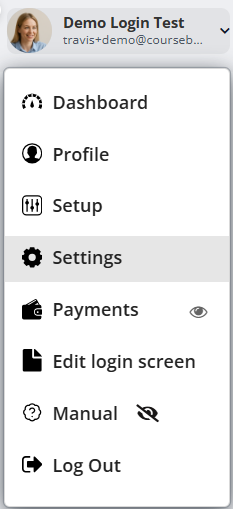
To cancel any my.coursebox.ai plan (not branded training platform), access your account and go to the settings section using the menu in the top right corner. Here click the "Cancel Plan" button.
Steps to Cancel Your Plan:
- Go to Settings → Manage Account.
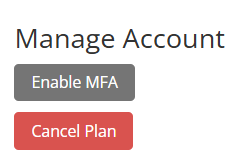
- Click the Cancel Plan button (red).
- A confirmation message will appear to ensure the cancellation is intentional.
- Follow the prompts to confirm your plan cancellation.
Note: Cancelling your plan stops future billing and access to premium features, but your account remains active until deleted.
Cancel (and Delete) your Branded Training Platform
For Enterprise and Business Accounts
To cancel a Branded Training Platform or LMS installation click here: https://courseboxai.chargebeeportal.com/portal/v2/login?forward=portal_main
Note: When cancelling a Branded Training Platform all data will be hard deleted and not recoverable
Deleting Your Account
You can only delete your account after cancelling your plan.
Steps to Delete Your Account:
- After your plan is cancelled, return to Settings → Manage Account.
- Click Delete Account.
- A confirmation message will appear:
“Do you really want to delete your account?
To delete your account, you must first cancel your plan. - If your plan is already cancelled, confirm to permanently delete your account.
Note: If you change your mind, click Never mind (green button) to cancel the deletion process.
How can I get more support?
To get more support:
- You can chat with our helpful bot, Coursebox Support, by clicking here.
- You can manage your Coursebox account settings directly from your profile menu. This includes enabling Multi-Factor Authentication (MFA), cancelling your plan, or deleting your account.
Migrate Courses to Your New Coursebox LMS
For Business & Enterprise Accounts only. To upgrade your account go to: https://www.coursebox.ai/pricing
When you upgrade from my.coursebox.ai (Creator / Approved Expert) to your own Coursebox LMS (Business, Creator LMS, or similar), a new and separate installation is created.
This means your:
- Courses
- Users
- Certificates
from the previous plan will not automatically appear in your new LMS dashboard.
Recovering Previous Data
All previous data can be migrated, but it must be transferred from your old my.coursebox.ai account into your new LMS installation. This process is completed by the Coursebox Support Team.
There is currently no self-service option to migrate courses, users, or certificates between platforms. To ensure accuracy and a smooth transition, Coursebox offers free migration for core learning content.
To request migration, email: support@coursebox.ai
The free migration service includes transferring:
- Course content (modules, lessons, assessments, media)
If you also require:
- User accounts
- Certificates (issued or regenerated)
to be moved or recreated, Coursebox can provide a custom quotation.
User accounts may also be exported and imported manually via CSV, however this method does not transfer existing course progression.
Once your migration is complete, all transferred content will appear in your new LMS as expected.
Prepare by Learning Your New LMS
While migration is being completed by the Coursebox team, you can familiarise yourself with how to manage your new LMS environment.
The LMS setup and management videos cover how to:
Configure your LMS
Manage courses and lessons
Add, update, and enrol users
Issue and regenerate certificates
Understanding these features will help you validate your migrated data once it appears in your system.
Watch the videos here:
https://www.youtube.com/playlist?list=PLxM93G7HhapjpW92LlHVU3bupisFeqFkA
What to Check After Migration
When the Coursebox Support Team confirms that your migration is complete, review the following areas:
Course Content
All modules, lessons, attachments, and assessments are present.
Media files load correctly.
User Accounts
All users have been successfully brought across.
Roles and permissions are correct.
Users are enrolled in the correct courses.
Certificates
Issued certificates are visible.
Certificates can be re-issued or regenerated if needed.
Note: If you notice any issues, contact support for adjustments.Was this article helpful?
That’s Great!
Thank you for your feedback
Sorry! We couldn't be helpful
Thank you for your feedback
Feedback sent
We appreciate your effort and will try to fix the article