This topic explains how to view and manage your user profile in Coursebox. It covers updating personal details, showcasing your experience and expertise, managing account credentials, and accessing learning activity, connections, and reports—all from one central profile area.
Watch the Tutorial Videos found in our Demonstration Video Library.
Set your Profile
In this section, you can view all the details about your profile and edit them.
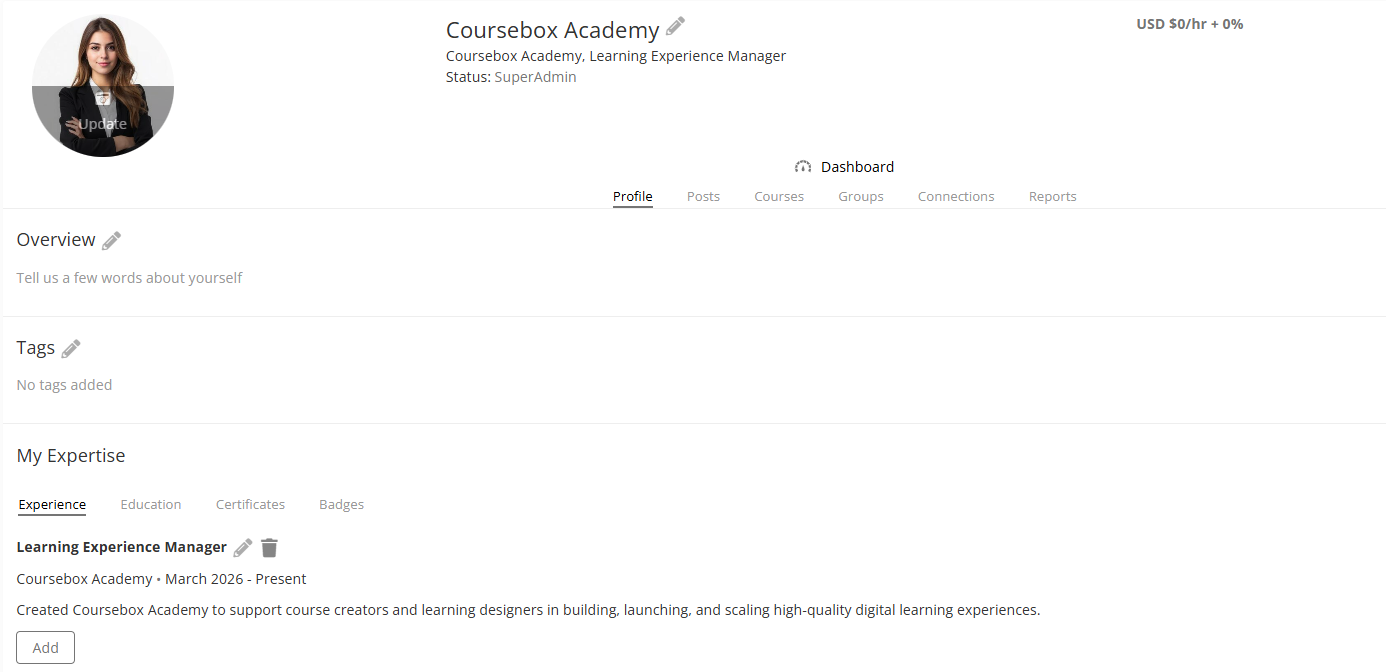
Profile Overview
Learners can use their profile to showcase their background, track their learning progress, and connect with others in the Coursebox community.
Overview
Learners can write a brief summary describing their professional background and interests.
Tags
This section allows learners to add tags that represent their skill sets—such as Marketing Expert or eLearning Specialist—making it easier for others to discover them based on specific expertise.
My Expertise
Learners can update this section with details about their professional experience, educational background, and any certifications they hold.
Experience
Learners can list their work experience, including roles and responsibilities, to provide insight into their career journey.
Education
This area is used to record educational qualifications and academic achievements.
Certificates
All certificates earned through Coursebox courses will automatically appear here, allowing learners to easily track their completed learning.
Posts
This section displays all posts made by the learner in groups and on news feeds, showcasing their engagement with the platform community.
Courses
Learners can view all courses they are enrolled in or have admin access to, providing a central hub for their learning activities.
Groups
This section lists all the groups learners are part of or manage within the platform.
Connections
Learners can see a list of all members they have followed, helping them build and maintain a network within the Coursebox community.
Reports
This area provides access to course progress and performance reports, supporting learners in monitoring their development.
Change the Name Shown to Learners (Profile Display Name)
You can control how your name appears to learners across the platform. This is useful if you prefer to show a business name, first name only, or a pen name instead of your full personal name.
Log in to https://my.coursebox.ai.
Click your arrow down in the top-right corner of the screen.
From the dropdown menu, select Profile.
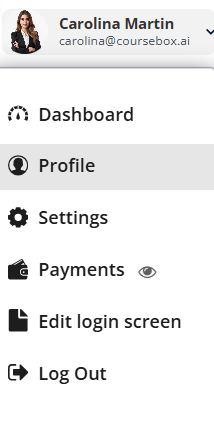
On your Profile page, click the edit (pencil) icon next to your name.

Update the name fields:
Enter a business or brand name (for example, Coursebox Academy), or
Use a first name only, or
Enter a pen name you want learners to see.

Save your changes.
- Your updated name will now appear to learners on your courses.
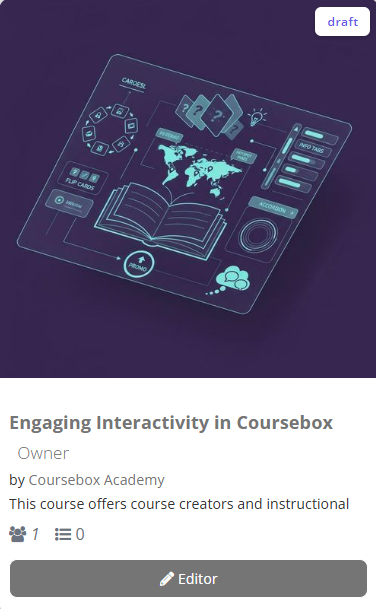
Edit your Password and Email
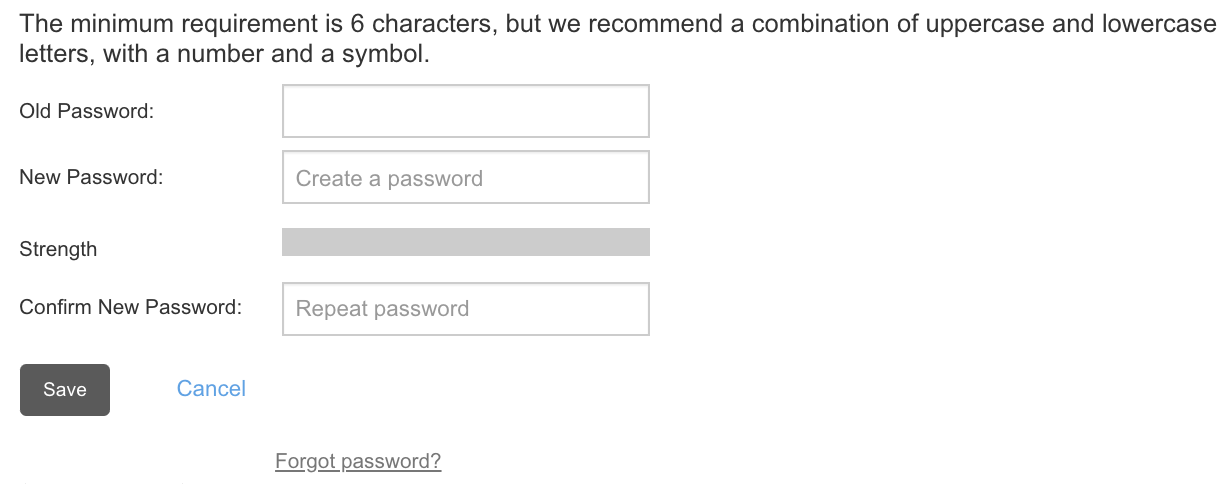
For Business & Enterprise Accounts only. To upgrade your account go to: https://www.coursebox.ai/pricingThe Super Admin can change the password or the email associated with the account.
Click onbutton in order to change the password. You can only change the password if you have access to the Old Password.
If you have forgotten the password, click on ‘Forgot password?’ link to reset the password.
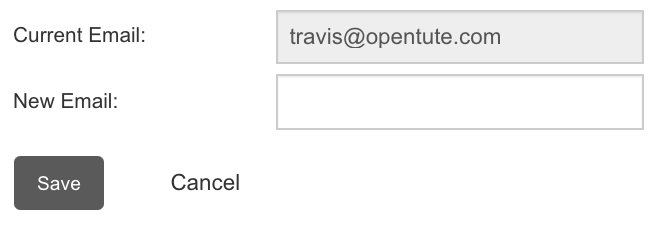
Click onbutton in order to change the email address associated with the account.
Enable Two-Factor Authentication (2FA)
Two-Factor Authentication (2FA) adds an extra layer of security to your Coursebox account. When enabled, you’ll need to enter a one-time code from an authenticator app each time you log in, in addition to your password.
Click on the arrow down icon in the top navigation bar
Select Settings from the dropdown menu
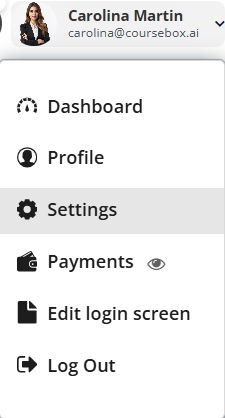
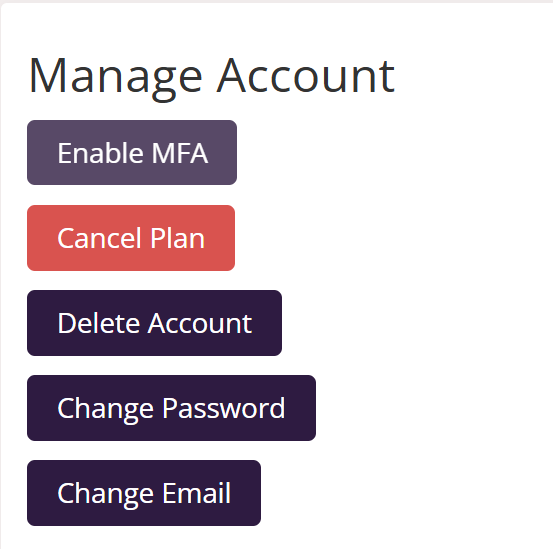
On the Manage Account screen, you’ll see several account options.
Click Enable MFA
This will open the Two-Factor Authentication setup window
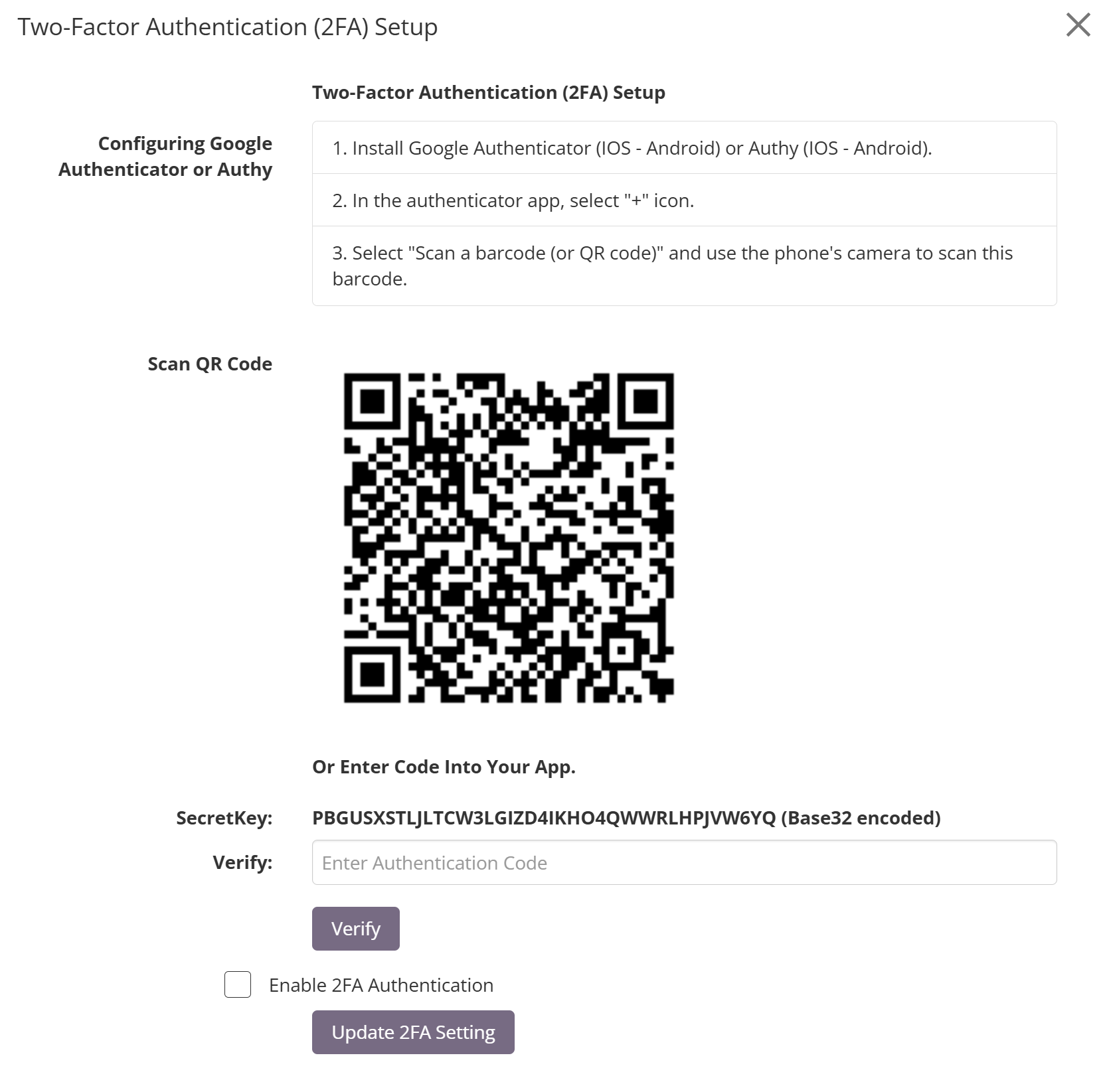
To complete setup, you’ll need an authenticator app such as:
Google Authenticator (iOS / Android)
Authy (iOS / Android)
Follow these steps:
Install an authenticator app on your mobile device
Open the app and tap the “+” icon
Select Scan a QR code
Scan the QR code displayed on screen, alternatively, you can manually enter the Secret Key shown
Verify and Enable 2FA
Enter the 6-digit code generated by your authenticator app into the Verify field
Click Verify
Tick Enable 2FA Authentication
Click Update 2FA Setting to save
Once enabled, 2FA will be required each time you log in.
Was this article helpful?
That’s Great!
Thank you for your feedback
Sorry! We couldn't be helpful
Thank you for your feedback
Feedback sent
We appreciate your effort and will try to fix the article