For Business & Enterprise Accounts only. To upgrade your account go to: https://www.coursebox.ai/pricing
In the Theme settings, you can upload logos (desktop, mobile, email), adjust header colours, fonts, and menu icons. You can also change SCORM menu colours and set a branded background for consistency across your courses and portal.
The following items are for users who have upgraded from a My.coursebox.ai account to become a super admin on a Branded Training Platform, which is a stand-alone database and installation of the Coursebox platform.
In your course home page click the Edit Branding button at the top left to get started.

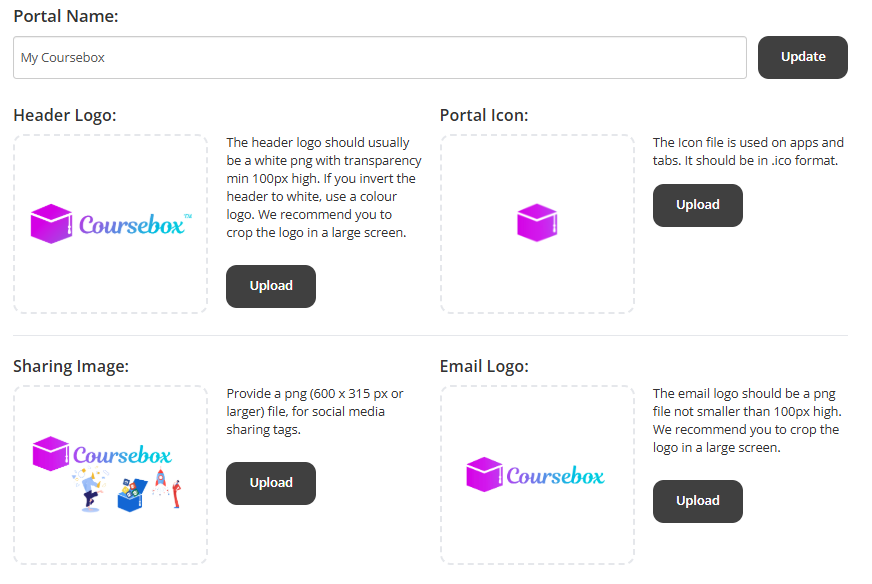
Right away you will see a selection of elements that you can modify
- Portal name: Enter the desired name for your portal. This will be used in all the communication Groups like emails, notifications, browsers etc.
- Header Logo: The header logo should usually be a white png with transparency min 100px high. If you invert the header to white, use a colour logo. We recommend you to crop the logo in a large screen.
- Portal Icon: The Portal Icon file is used on apps and tabs. It should be in .ico format.
- Sharing Image: For the sharing image, provide an image file which will appear as a thumbnail while sharing on social networking sites like Facebook, Twitter and LinkedIn.
- Email Logo: The email logo should be a png file not smaller than 100px high. We recommend you to crop the logo in a large screen.
Colours
You are able to edit the colour scheme across your portal and courses individually in two drop down menus shown below
- Here you will be able to edit the colours across the entire theme of your portal.
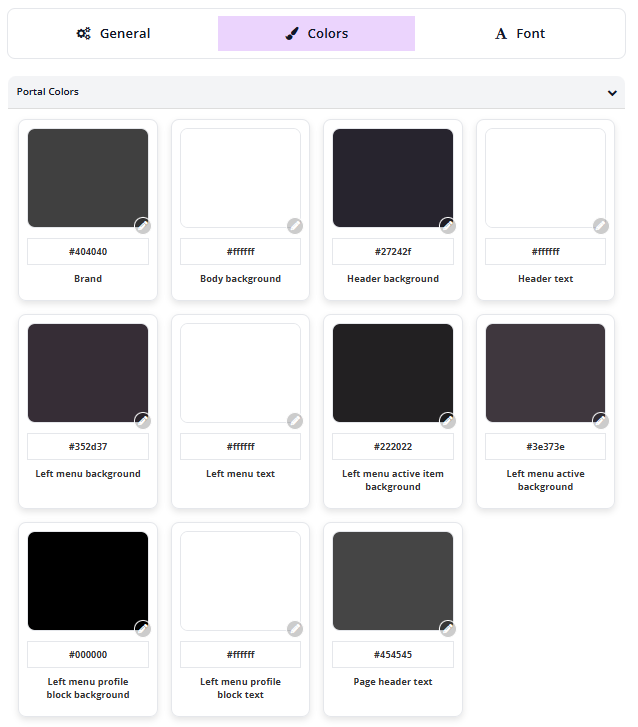
- You can also modify the colour scheme for your Course Colours

Font
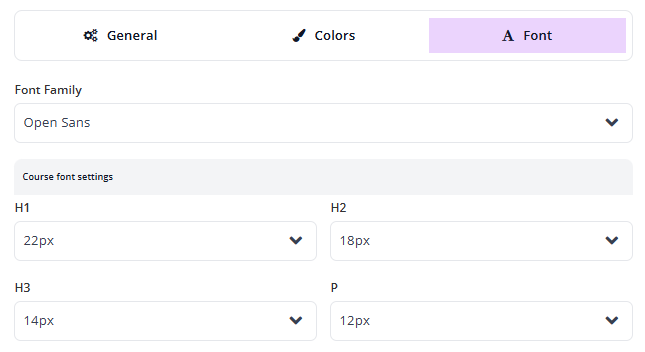
Here you are able to edit the font details shown within your courses. The letters below indicate;
- H1-3: Heading 1-3 font sizes
- P: This is the standard text (or paragraph)
Form more information on themes go to: Managing Platform Theme - Enterprise & Business
Was this article helpful?
That’s Great!
Thank you for your feedback
Sorry! We couldn't be helpful
Thank you for your feedback
Feedback sent
We appreciate your effort and will try to fix the article