This topic provides an overview of how to move around the Coursebox platform and find what you need quickly. It introduces the main navigation areas, explains how content is organised across the platform, and shows how to locate courses, resources, groups, and reports—helping users confidently navigate Coursebox as learners, creators, or administrators.
Watch the Tutorial Videos found in our Demonstration Video Library.
Navigate the Platform
The left-hand menu in Coursebox provides quick and intuitive access to all key areas of the platform. From this navigation panel, users can manage courses, access shared and personal resources, collaborate in groups, ask or answer questions, join community discussions, view calendar events, and generate reports. Each section expands to reveal more specific tools, helping users stay organised and engaged. Whether you're a learner, facilitator, or admin, this menu serves as your central hub for navigating the Coursebox learning environment efficiently.
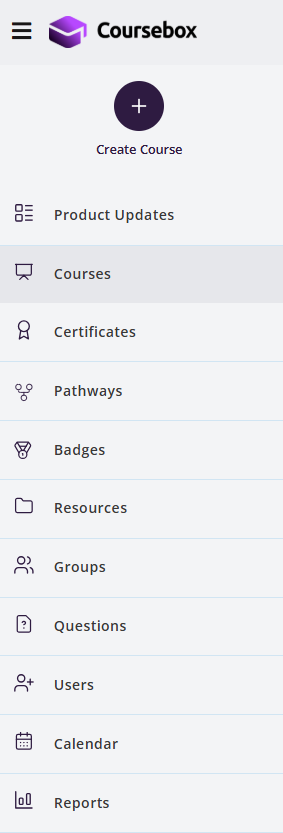
Note: Some of these sections are only available for Enterprise & Business Account
Newsfeed
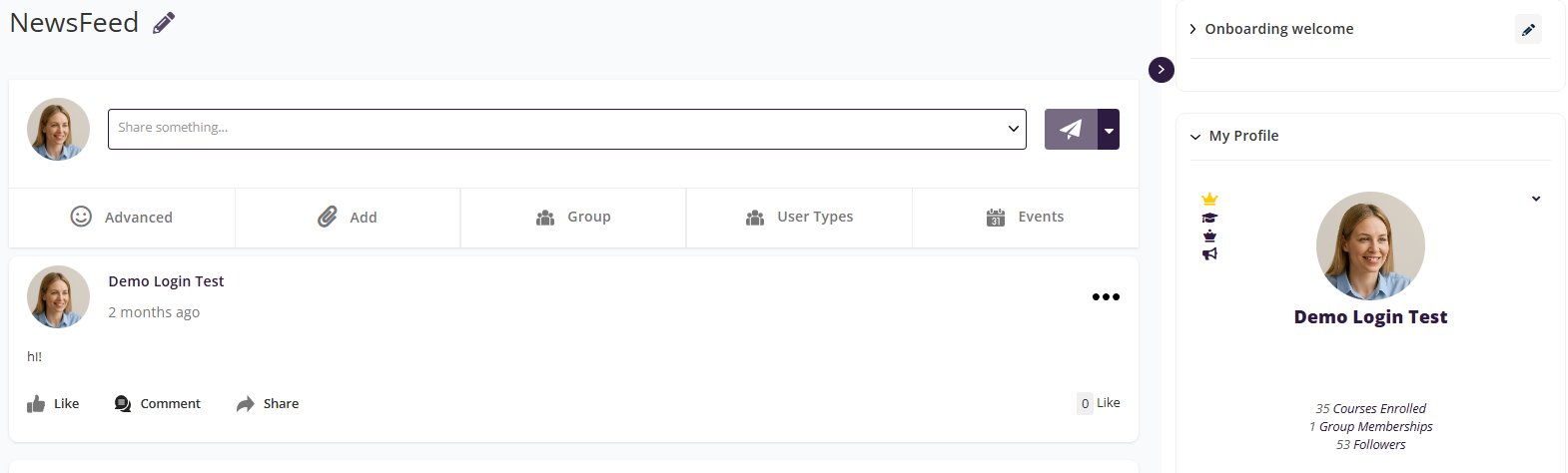
For Business & Enterprise Accounts only. To upgrade your account go to: https://www.coursebox.ai/pricingThe Newsfeed section is your central communication hub. Here, admins, facilitators, and learners can share updates, announcements, and reflections. Posts may include:
- Simple text updates
- Attached files or images
- Embedded videos or links
- Interactive HTML content (e.g., forms, iframes)
Learners can like, comment on, or react to posts, creating a dynamic and social learning environment. You can also schedule posts or mark them for inclusion in email broadcasts.
Courses
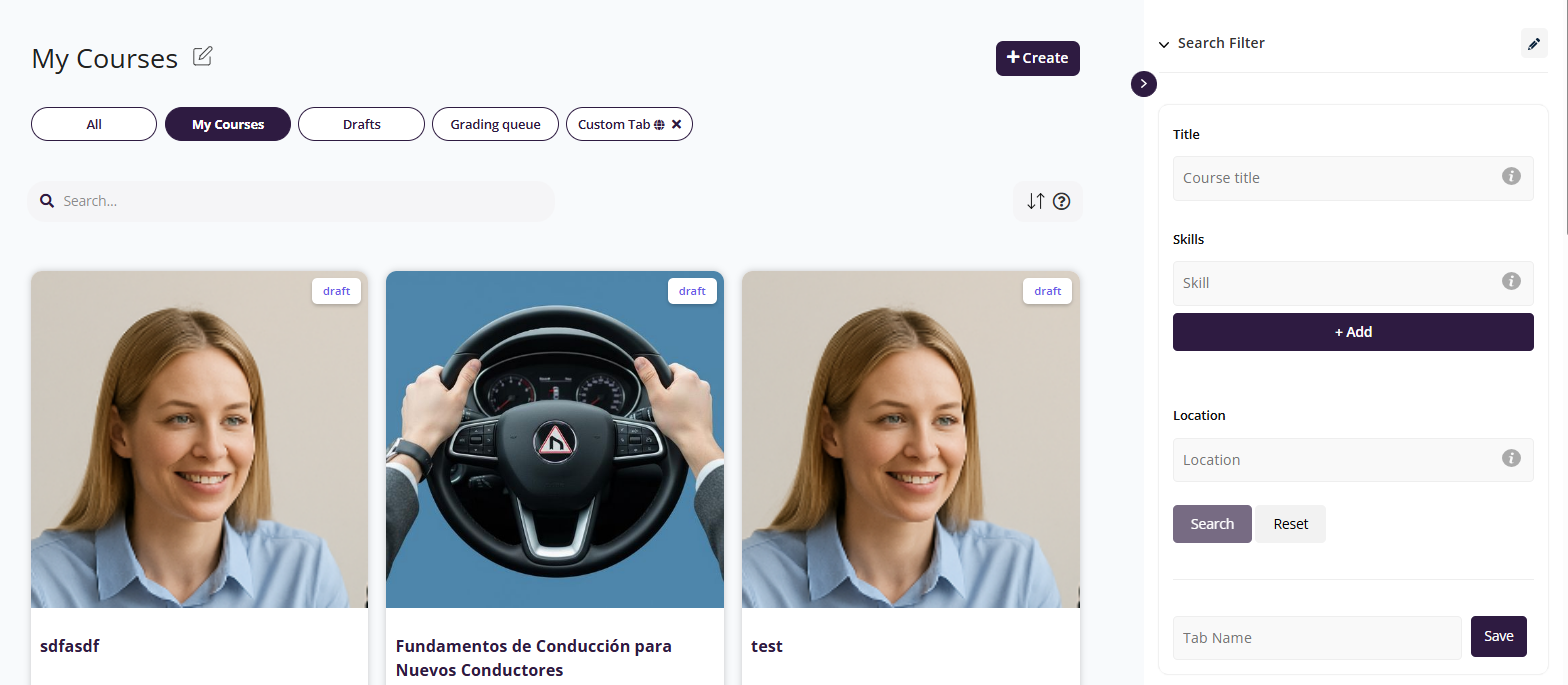
The Courses area is where learning happens. This section allows you to create, edit, and manage your online training programs. Each course can include:
- AI-generated or manually built lesson structures
- Multimedia content such as video, audio, slides, and PDFs
- Assessments like quizzes and assignments
- Embedded discussion prompts and interactive activities
Courses can be public, private, VIP-only, or shared via SCORM or LMS integrations. You can also control enrollment, pacing, and access settings per course.
Resources
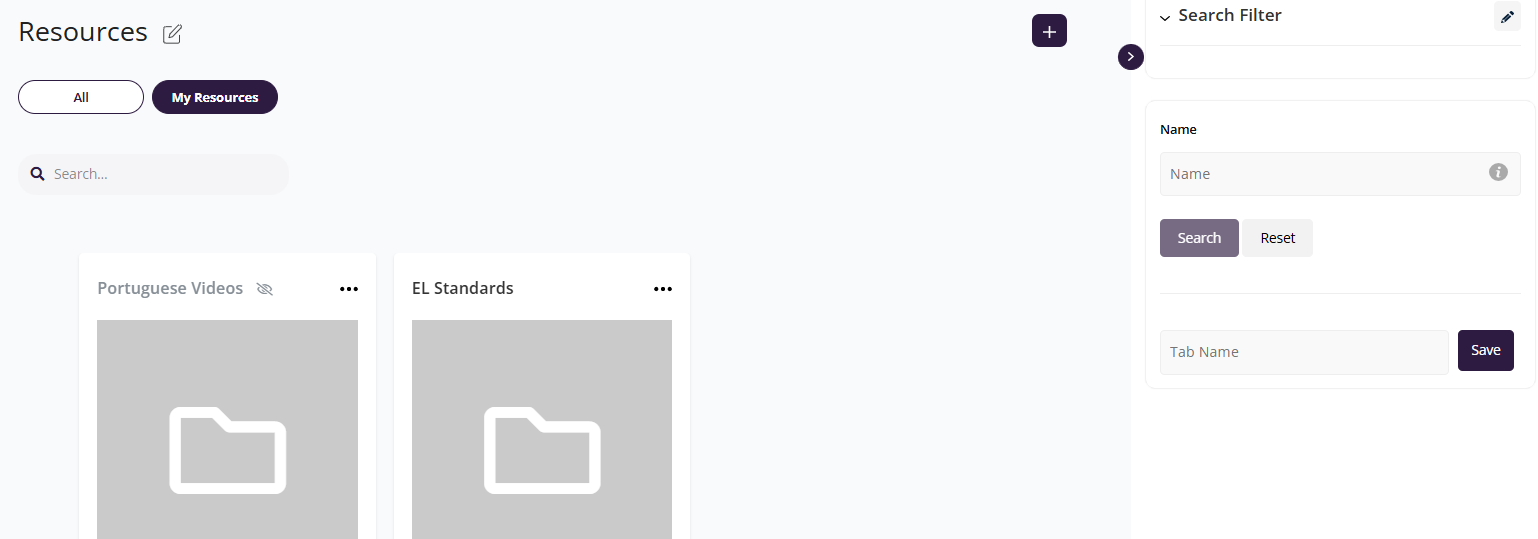
For Business & Enterprise Accounts only. To upgrade your account go to: https://www.coursebox.ai/pricingThe Resources section allows users to access, manage, and share important course-related files and folders. Whether you're uploading reference materials, assessments, or multimedia content, this area serves as a central hub for organising your educational assets. You can create folders, adjust privacy settings (private or public), filter and search by name, and quickly access or update individual files. This streamlined interface makes it easy to collaborate, distribute materials, and keep your course content up to date.
Groups
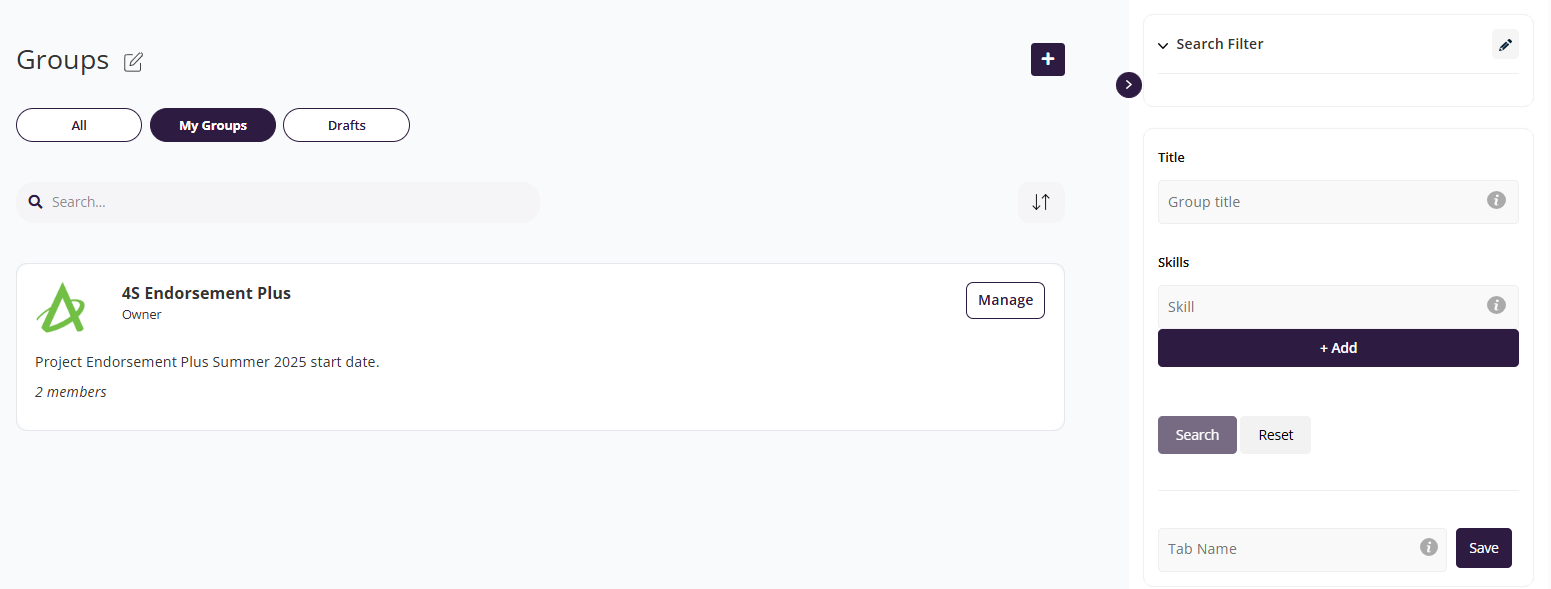
For Business & Enterprise Accounts only. To upgrade your account go to: https://www.coursebox.ai/pricingThe Groups section in Coursebox enables users to create, manage, and participate in collaborative learning communities. Each group acts as a shared space where members can interact, share updates, upload resources, and organise events. From here, users can view all active and draft groups, manage group settings, and filter groups by title, owner (guru), or skill. Whether you're managing project-based teams, course bundles, or community forums, the Groups area supports streamlined communication and organised engagement.
Questions
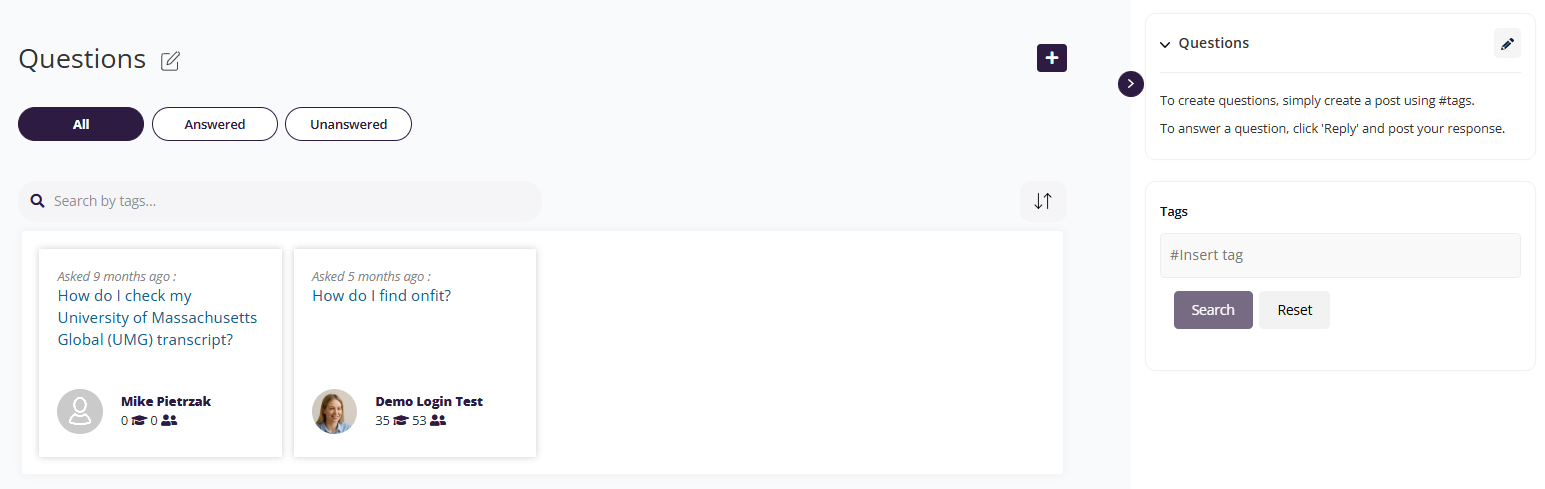
For Business & Enterprise Accounts only. To upgrade your account go to: https://www.coursebox.ai/pricingThe Questions section provides a space for learners, facilitators, and community members to ask and answer questions in a collaborative environment. Users can post queries using hashtags, respond to others by clicking “Reply,” and track which questions have been answered or remain open. This area encourages knowledge sharing and peer-to-peer support, making it a valuable tool for ongoing learning and engagement. Use the search and tag filters to quickly find relevant discussions and contribute to active conversations.
Community
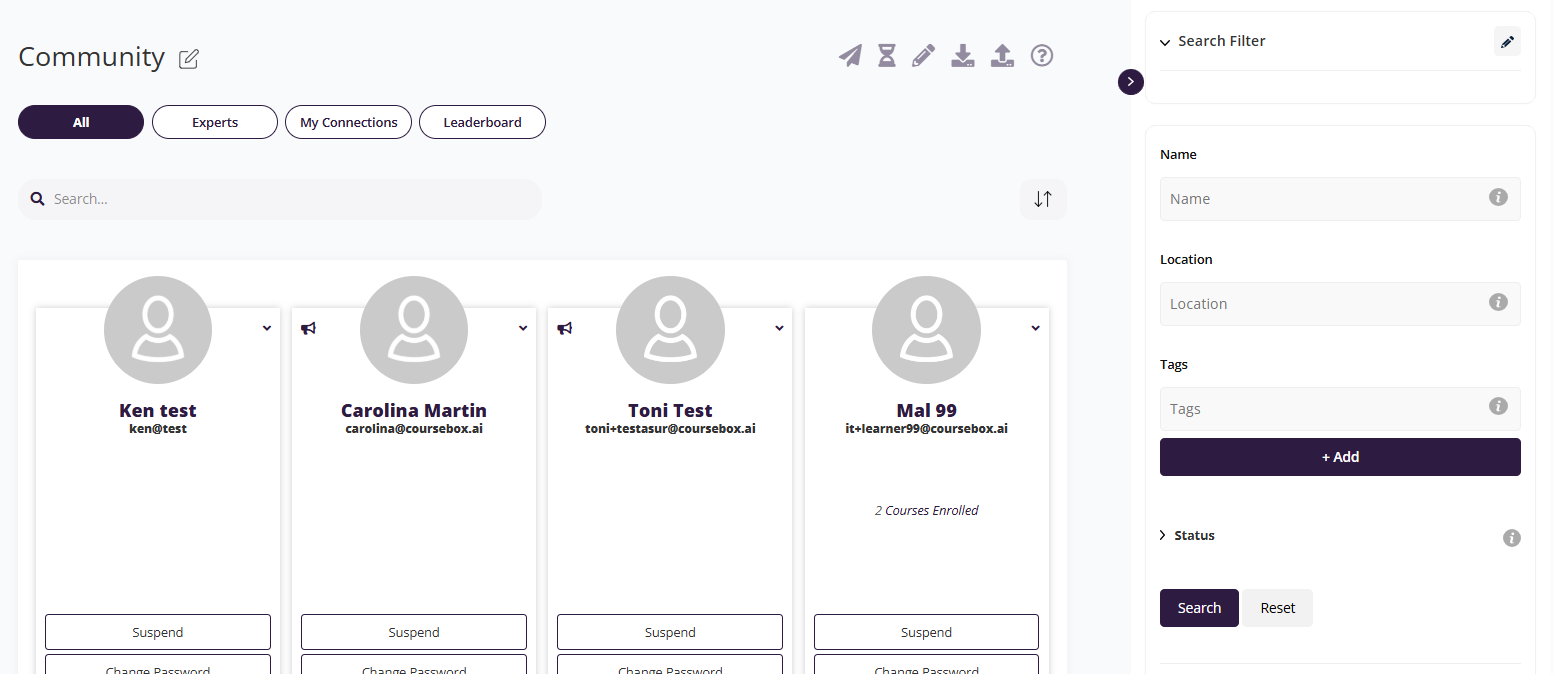
For Business & Enterprise Accounts only. To upgrade your account go to: https://www.coursebox.ai/pricingThe Community section gives learners and educators the opportunity to connect, network, and explore user profiles. Key features include:
- Searching for users based on skills, experience, or tags
- Viewing certificates, course completions, and posts
- Sending connection requests or private messages
This area fosters peer-to-peer learning and professional development through social interaction.
Calendar
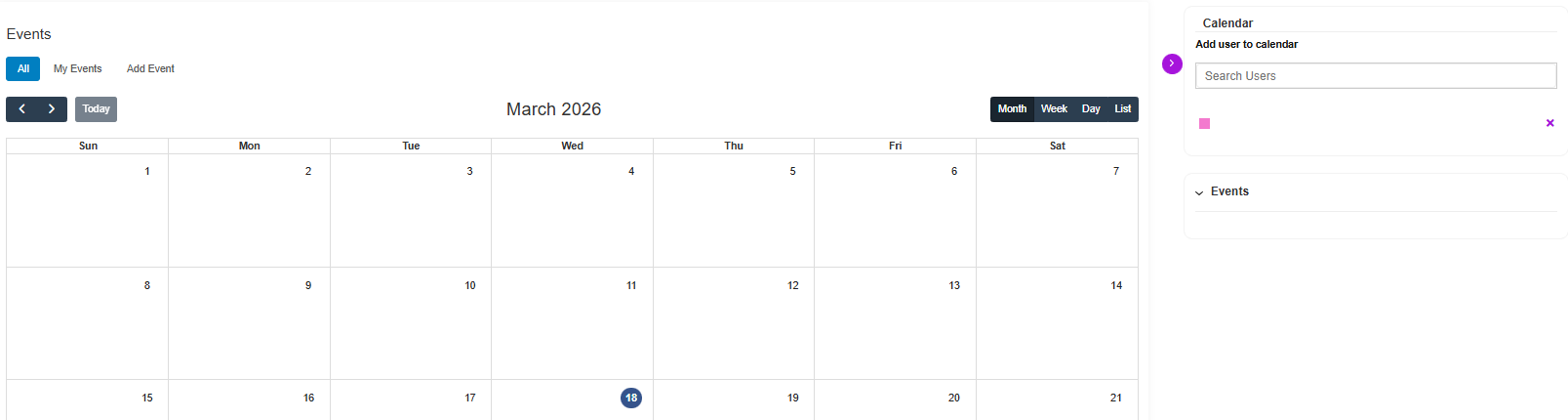
For Business & Enterprise Accounts only. To upgrade your account go to: https://www.coursebox.ai/pricingThe Calendar section provides a visual and interactive way to schedule, view, and manage events within Coursebox. Users can switch between month, week, day, or list views for flexible planning and tracking. You can create personal or group events, invite specific users, and easily monitor upcoming activities. The integrated calendar supports collaboration across courses and groups by keeping everyone aligned on key dates, deadlines, training sessions, and other important milestones.
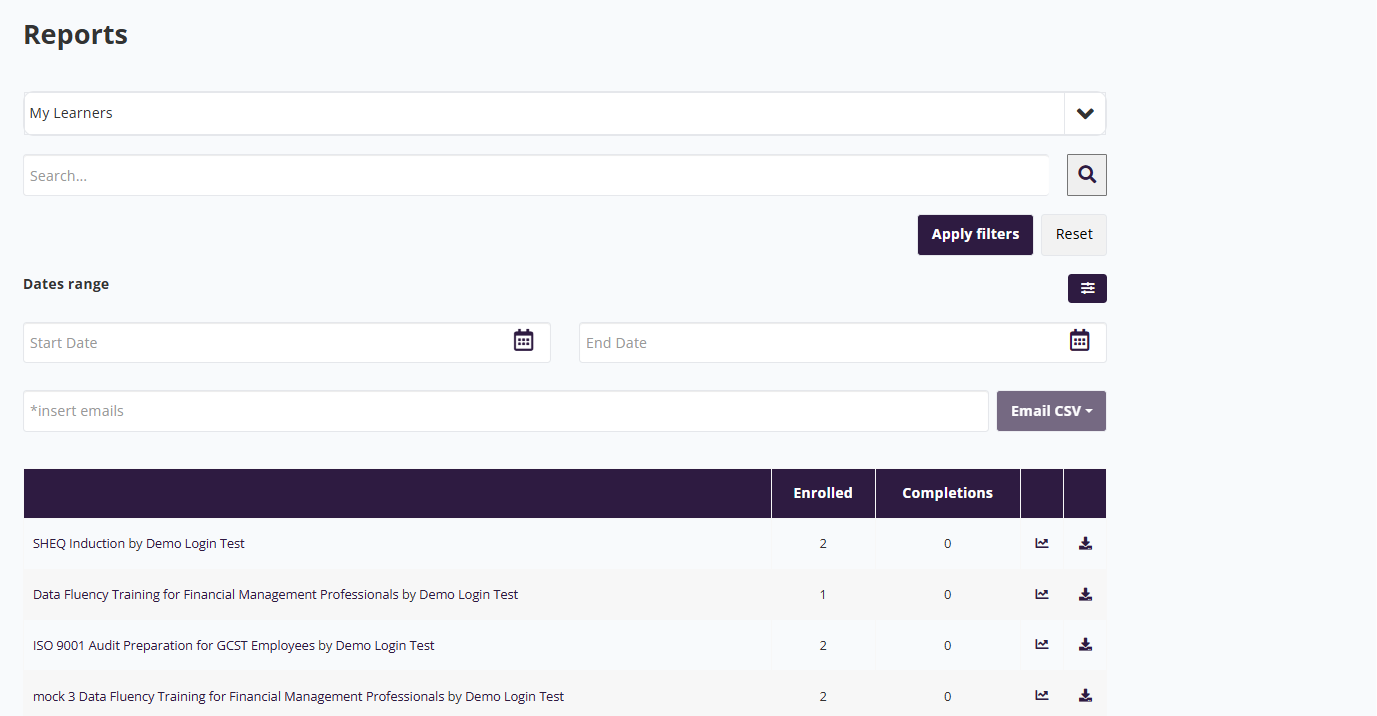
Reports
The Reports section provides powerful analytics on course and learner performance. As an admin or facilitator, you can:
- Track course completions and engagement levels
- Monitor learner progress across multiple courses
- Download CSV reports for deeper analysis
- Segment data by group, cohort, or time period
Report categories include:
- Learning Reports
- Certificate Reports
- Newsfeed and Group Engagement Reports
- Registration Reports
These insights support compliance, impact measurement, and continuous improvement.
Navigate your Courses
Coursebox makes it easy to create, organise, and manage your courses—whether you're browsing available learning content, tracking your own progress, or developing new material. With the key navigation tools and views you can access and customise courses with confidence.
Whether you’re a course creator or an active learner, this guide will help you make the most of Coursebox’s intuitive course navigation features.
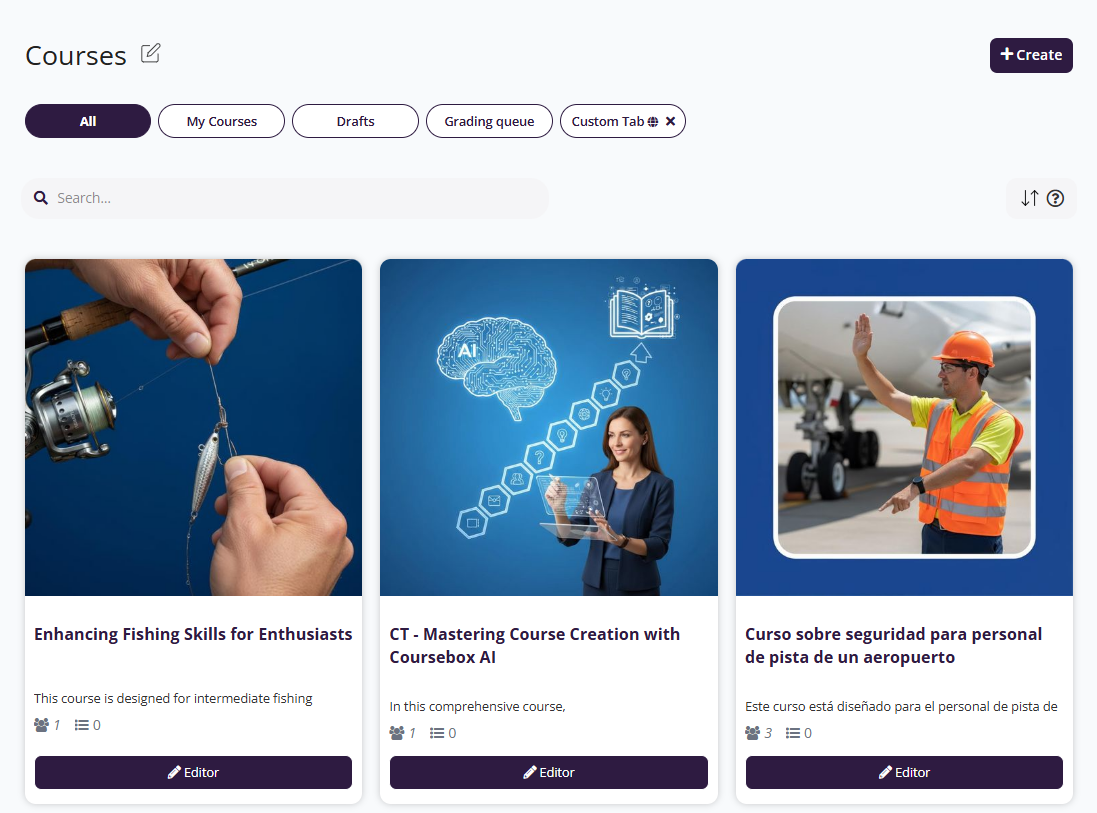
All Courses Tab
Clicking All displays a complete list of available courses that match your area of interest. This view provides an easy way to browse, explore, and select from the full range of courses on offer—helping you find the right content to support your learning journey.
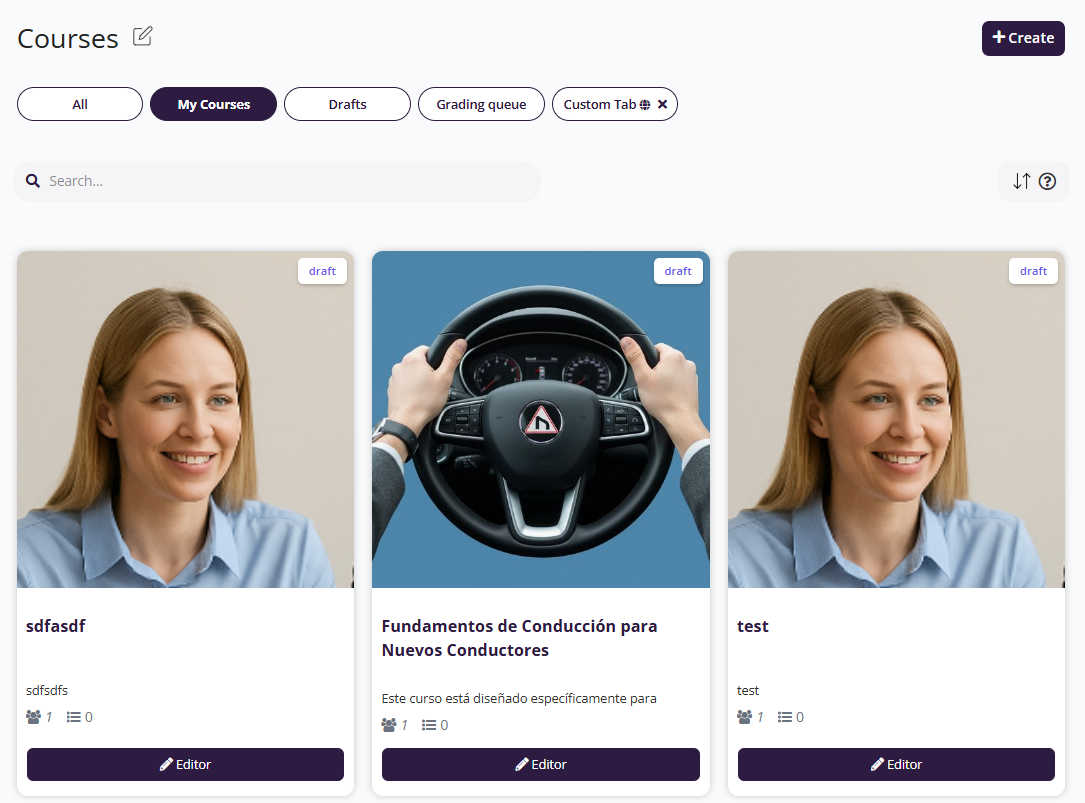
My Courses Tab
The My Courses section shows all the courses you’re currently enrolled in. It’s your personalised learning hub—track your progress, resume where you left off, and stay organised as you work through each course. This view keeps everything you're learning in one convenient place.
Drafts Tab
The Drafts section allows you to manage content that’s still in progress. Whether you're working on a new course or editing existing modules, this is where all unsaved or unpublished changes are stored. Use this area to review, continue editing, or discard drafts before making them live to learners. It's your workspace for refining content before final publication.
Under learning on the left-hand panel go to ‘drafts'.
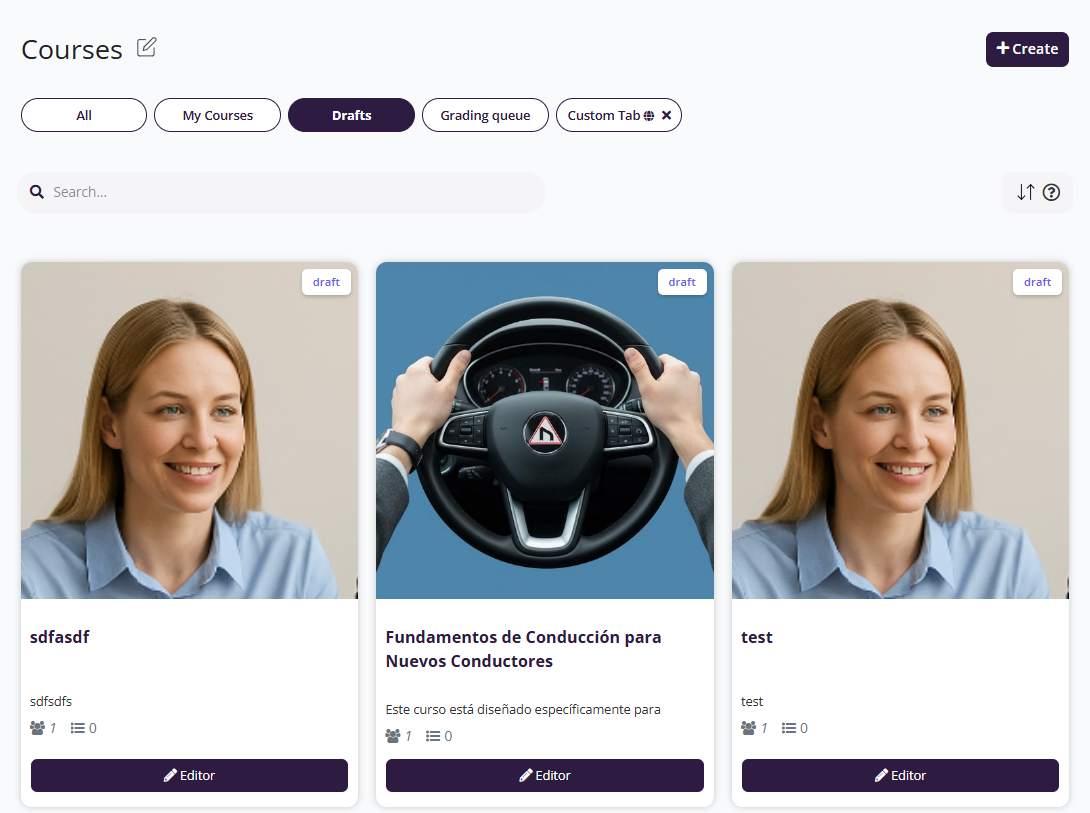
The Drafts section helps you quickly return to content you’re still working on.
The steps are:
- Clicking Drafts takes you back to your saved, unpublished work.
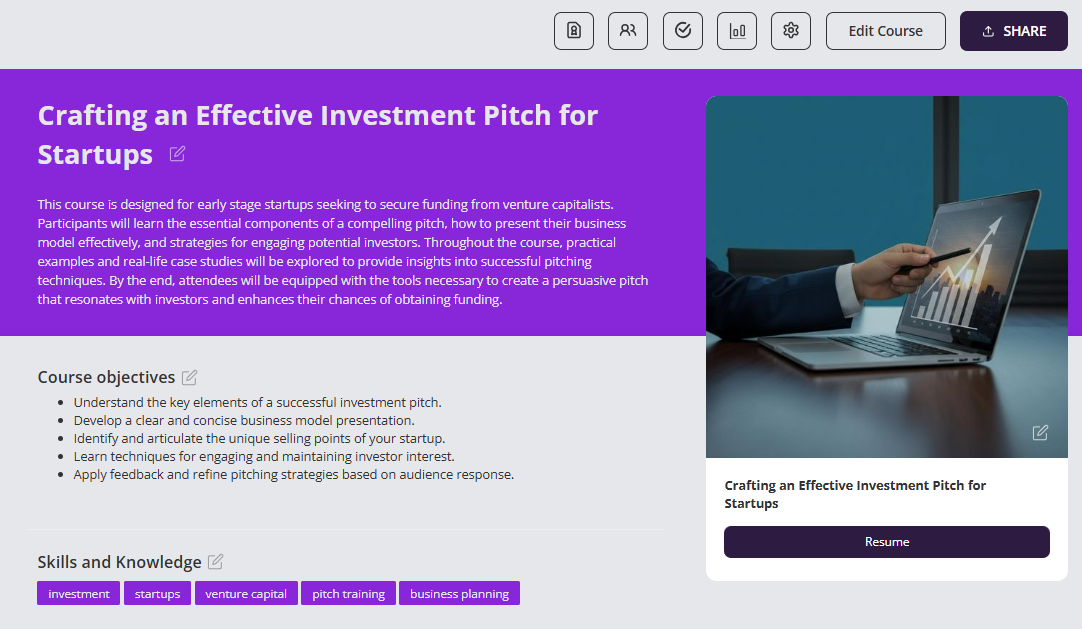
- To preview a draft, click on the selected course you are working on and —this will open the draft’s landing page, allowing you to review and continue editing.
Custom Tabs
Currently, only the Super Admin has the ability to create or delete search filters for the community. These filters apply platform-wide and are visible to all users within the portal.
The Custom Tab feature allows you to personalise the view in the My Courses section by filtering content based on specific criteria, such as course title, skills, or location. This is especially useful if you frequently access particular types of courses or want to create an organised view tailored to your preferences.
From the left menu, click on Courses, then select My Courses.
You will see your list of courses displayed in tile format.
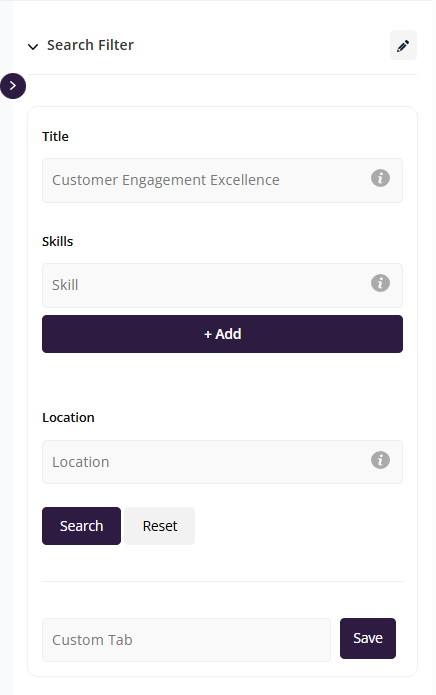
- On the right-hand panel, click the arrow icon or “Search Filter” label to expand the filter options.
In the Title field, type the course title (e.g., Train the Trainer).
(Optional) Use the Skills and Location fields to narrow down your results further.
Click Search to apply the filter.
- Scroll to the bottom of the filter panel.
- In the Tab Name field, enter a name for your custom tab (e.g., Learning College).
- Click Save.
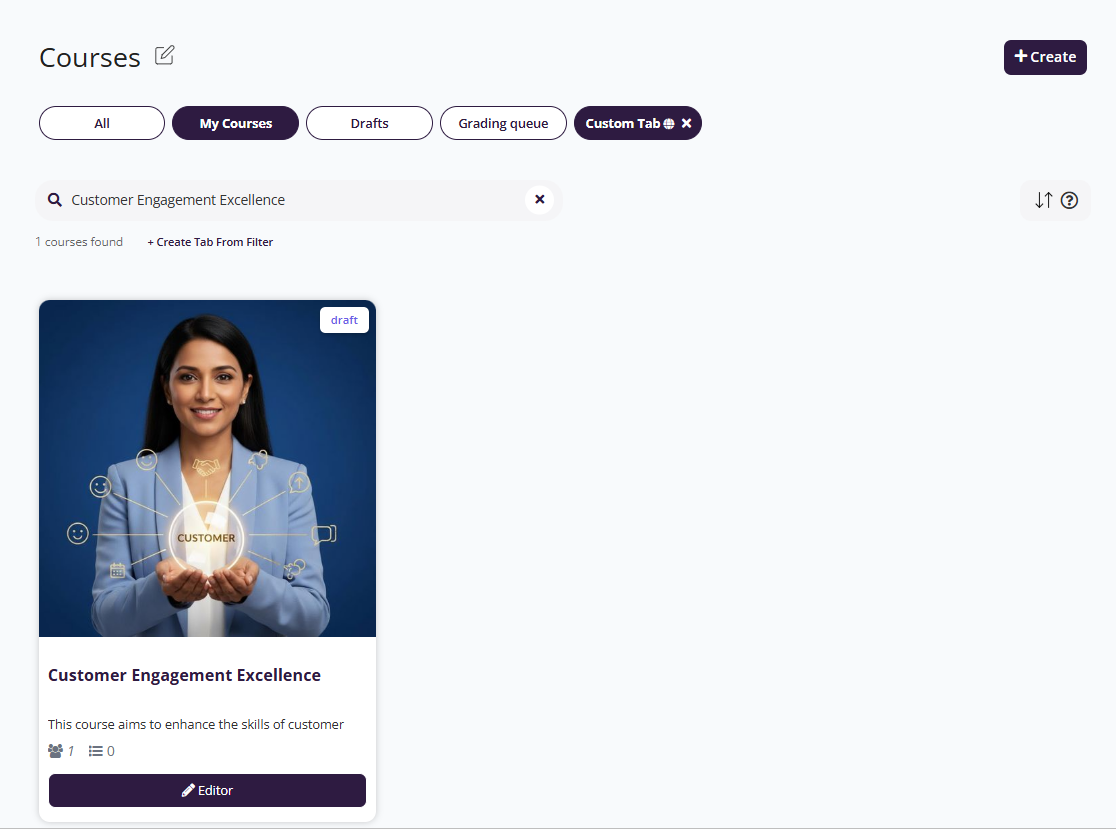
- Your custom tab will now appear at the top of the “My Courses” view next to All, My Courses, and Drafts.
- Click on your newly created tab (e.g., Learning College) to quickly view courses that match the saved filter.
Search for courses
The Search Courses feature helps you quickly find specific learning modules by entering relevant keywords. Whether you're looking for a unit by title, topic, or subject area, the search bar makes navigation fast and efficient. This tool is especially helpful if your course library includes many titles or if you want to jump straight to a course without browsing through all categories.
- From the left-hand menu, click on Courses.
- Select All to view the complete list of available courses.
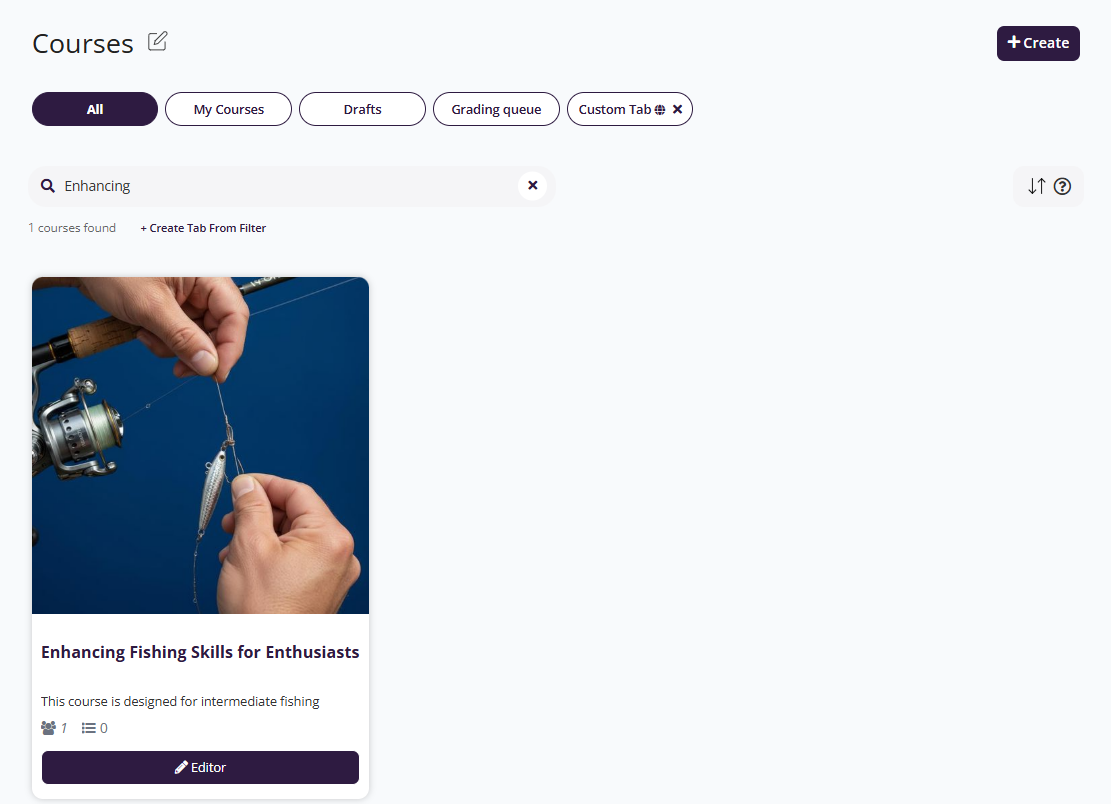
- Locate the Search... bar near the top of the Courses page.
- Click into the search field and begin typing the title or keyword related to the course you want to find.
Example: typing “polishing” will show all courses with that word in the title. - As you type, matching results will automatically display below.
- Scroll through the results and locate the course you’re looking for.
Search by Keywords
The Search function allows you to quickly locate courses, resources, or content within your portal using keywords. This is especially helpful when you have a large number of courses or training materials.
How to Use Keyword Search
At the top-right corner of your portal, click the magnifying glass icon.
A search field will appear.
Type any relevant word or part of a word into the field (e.g., “mast” for “Mastering”).
The system will automatically display results as you type.
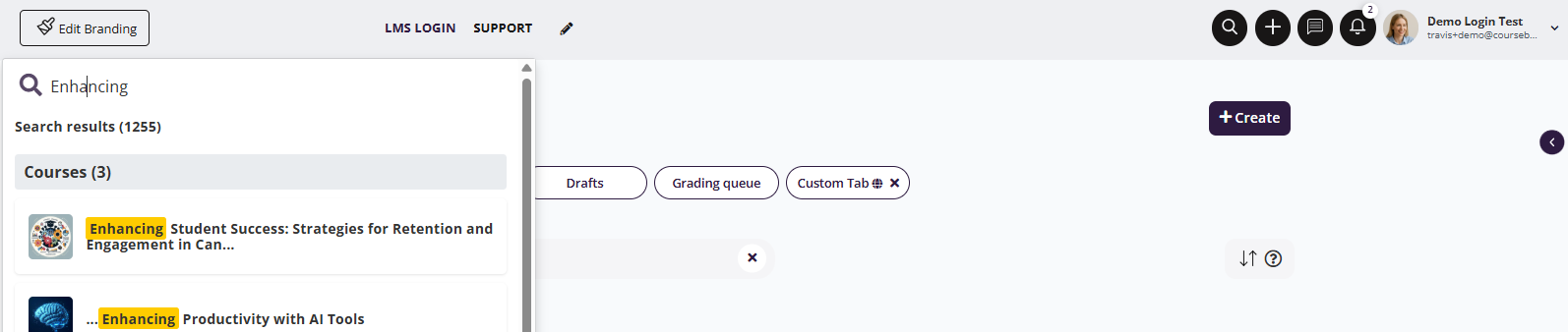
Results will appear in categories (e.g., Courses, Resources, etc.).
The number of total results is shown at the top (e.g., 763 results).
Your keyword will be highlighted in yellow within the titles, making it easier to scan.
Click on the course or resource title that matches what you’re looking for.
This will take you directly to the selected course or item.
Tips for Effective Searching
Use specific keywords to narrow down results.
Try partial words if you’re unsure of the exact spelling (e.g., mast will return all items starting with “Mastering”).
If no results appear, double-check your spelling or try a broader keyword.
Was this article helpful?
That’s Great!
Thank you for your feedback
Sorry! We couldn't be helpful
Thank you for your feedback
Feedback sent
We appreciate your effort and will try to fix the article