Coursebox offers flexible ways to create engaging online courses—whether you prefer the speed of AI or the control of manual design.
You can start from scratch and build your course step by step, or accelerate the process using Coursebox AI, which helps generate a course structure and content based on your topic and learning goals.
This section will guide you through both methods:
- Using AI to instantly generate course outlines and content
- Manual creation for fully custom-built pages, lessons, and learning activities
No matter which method you choose—you’ll have full control to refine, reorganise, and personalise your course for your audience.
Create a course using AI
This section outlines how Learning Designers, Creators, and Administrators can quickly generate a course structure and content using the AI-powered tools available in Coursebox.
Starting Course Creation
To create a course, you can choose one of three quick and easy options.
- Click 'Create Course' on the left hand side navigation
- Click the 'Plus' symbol in the top right and select 'courses'
- Click 'create' on the right hand side of the page.

Starting Course Creation (New Flow)
Creating a course is now faster and more intuitive with the AI prompt interface.
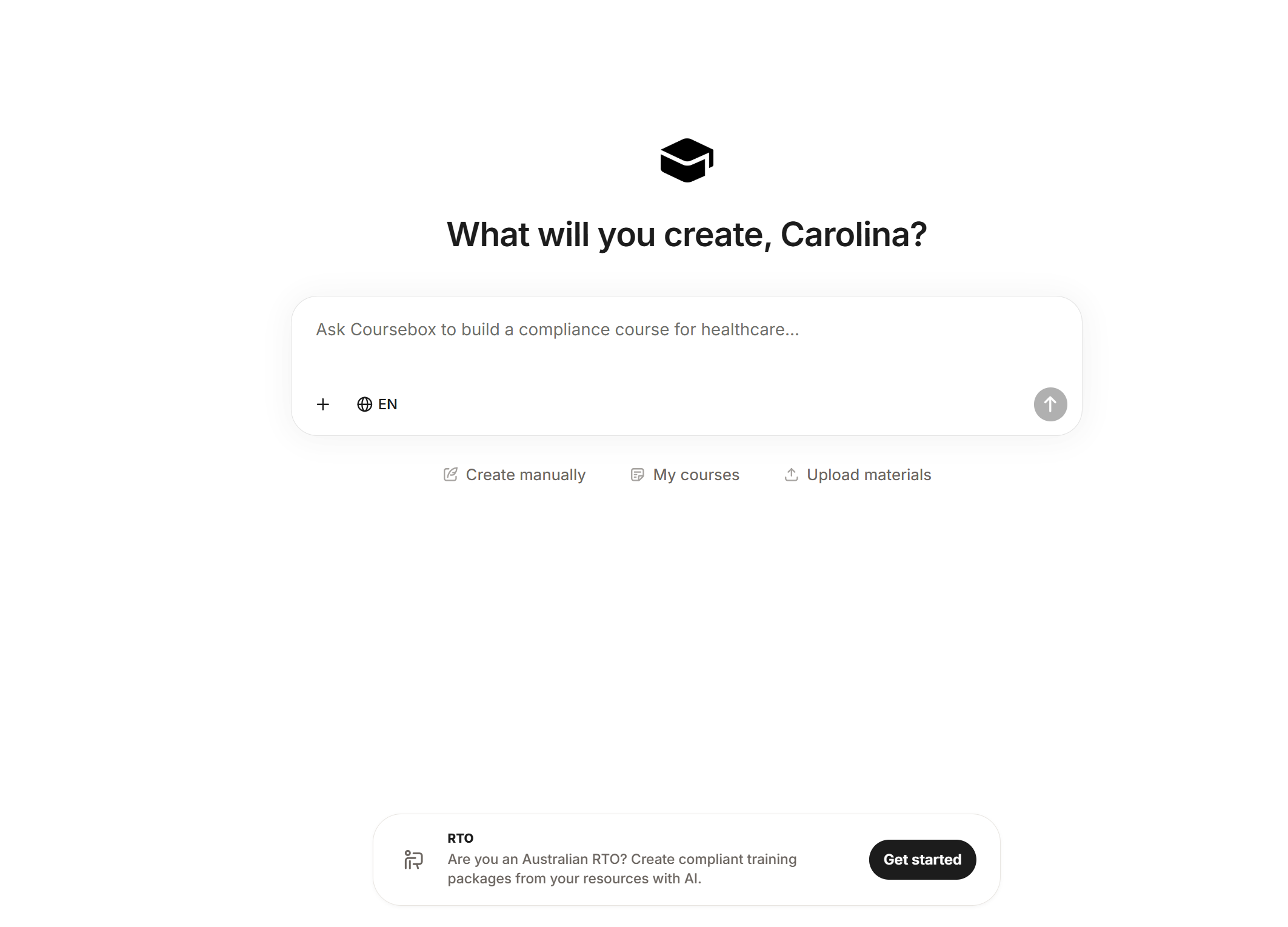
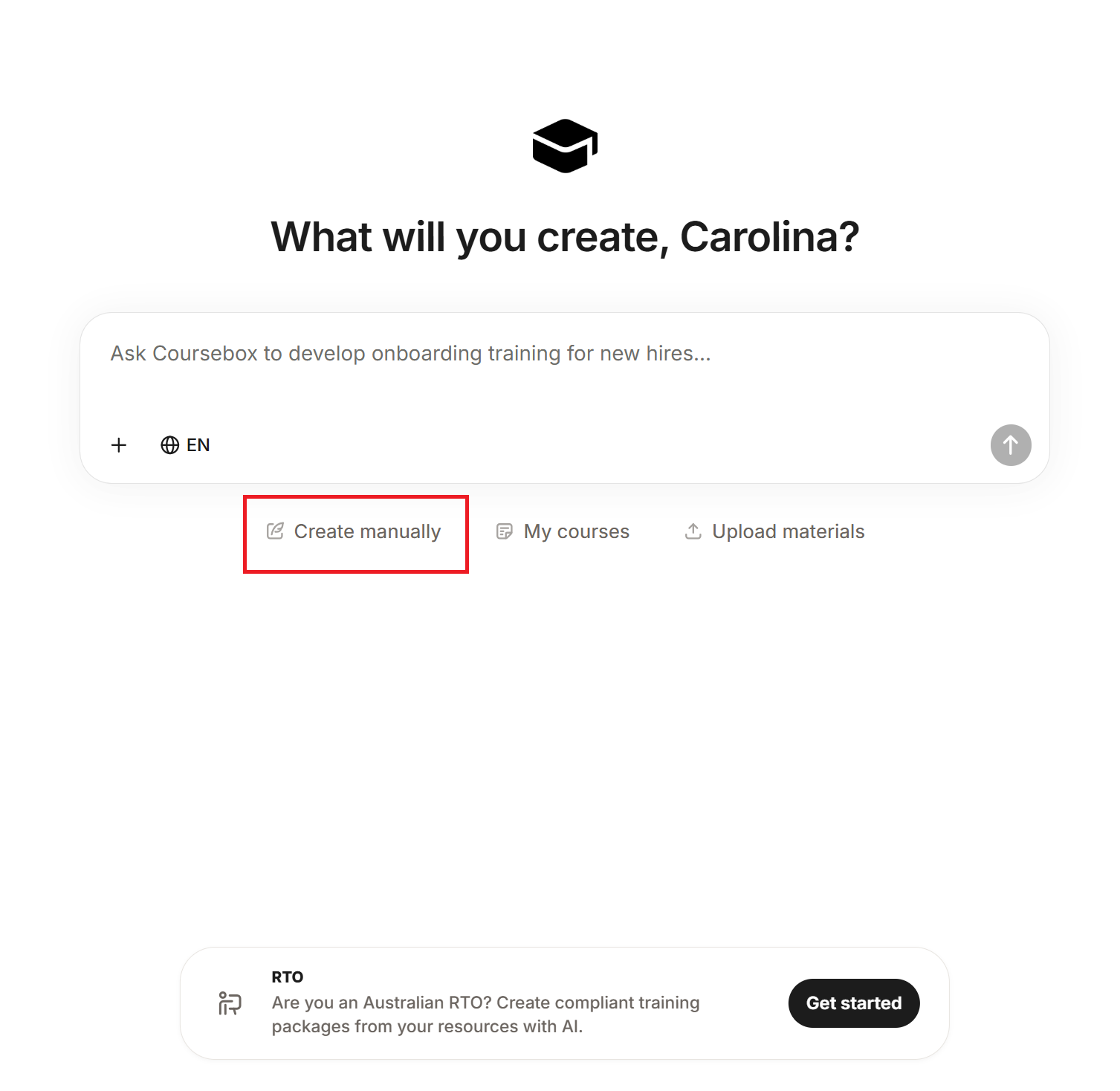
Step 1: Start from the Dashboard
From the main screen, you can begin immediately:
- Use the central AI prompt box (“What will you create?”)
- Or click Create manually if you prefer to build from scratch
- You can also access My courses or Upload materials from the same screen
Step 2: Describe Your Course
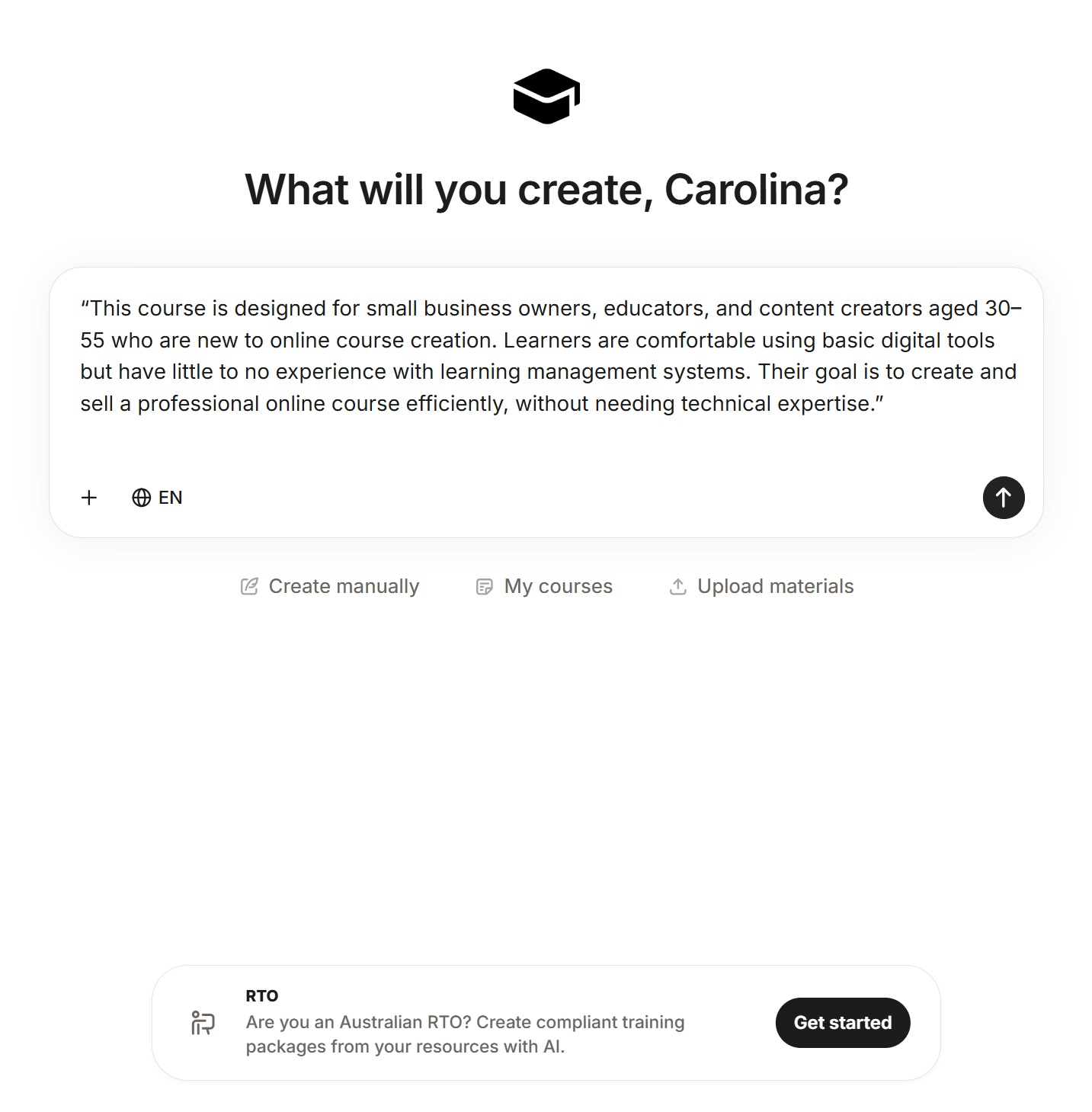
In the AI prompt box:
- Enter a clear description of your course (e.g. “Create a course on digital marketing for beginners”)
- The more detailed your prompt, the better the generated content will be
? Tip: Include audience, goals, and key topics in your prompt for best results.
Step 3: Select Language
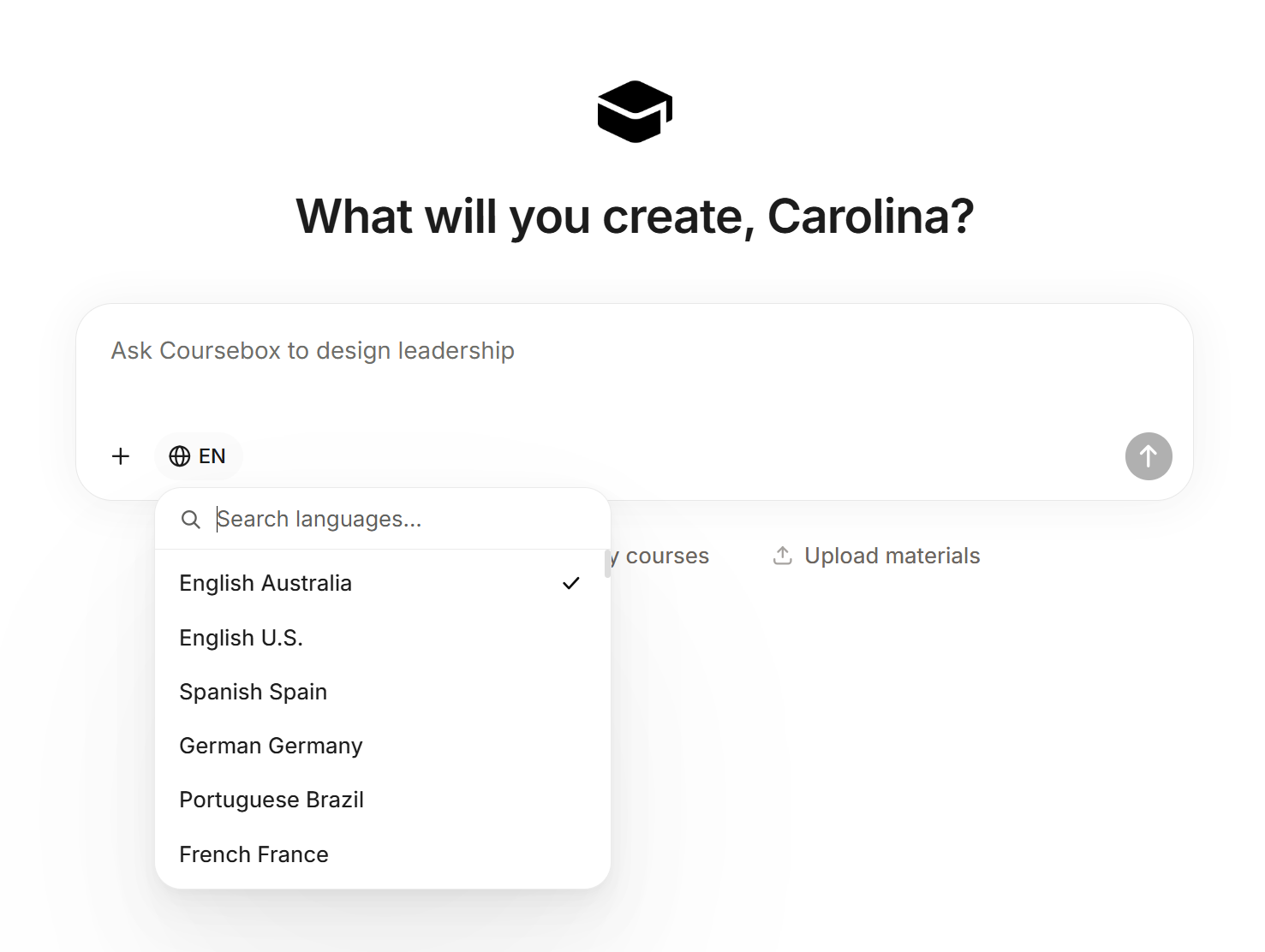
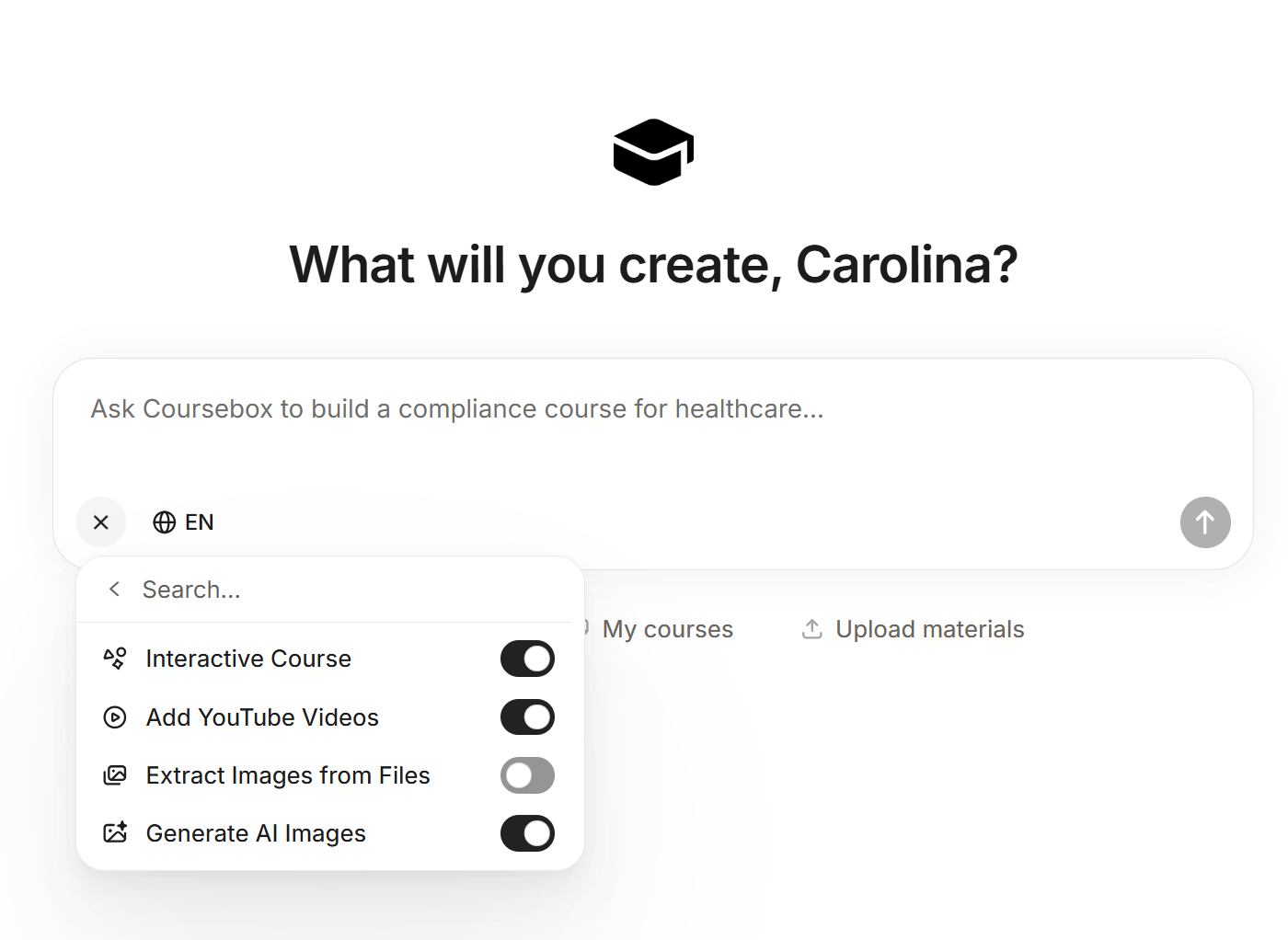
- Click the language selector (EN) below the prompt box
- Choose your preferred language (e.g. English AU, Spanish, German, etc.)
Step 4: Add Source Content (Optional)
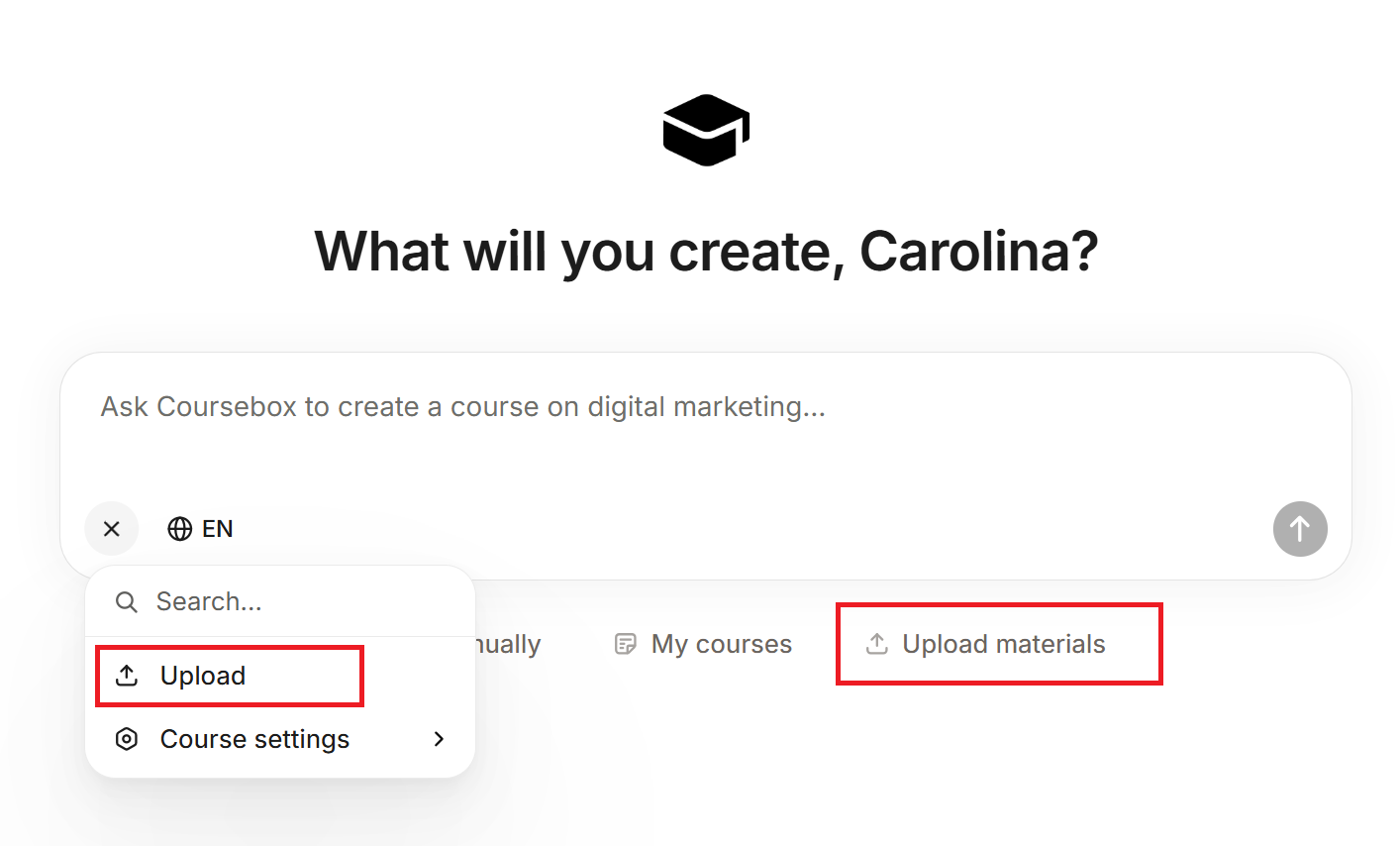
Click the “+” icon to access additional options:
- Upload files to train the AI (PDFs, docs, etc.)
- Add web links to pull in external content
- Access Course settings
This allows the AI to generate more accurate and tailored course material.
Step 5: Configure Course Settings (Optional)
Within Course settings, you can toggle features such as:
- Interactive course elements
- YouTube video integration
- Extracting images from uploaded files
- AI-generated images
These settings help customise how your course is built and presented.
Step 6: Continue the Conversation
Once you’ve entered your prompt, continue refining your course by interacting with the AI chat.
- Answer follow-up questions to clarify your course focus (e.g. content, LMS setup, or selling)
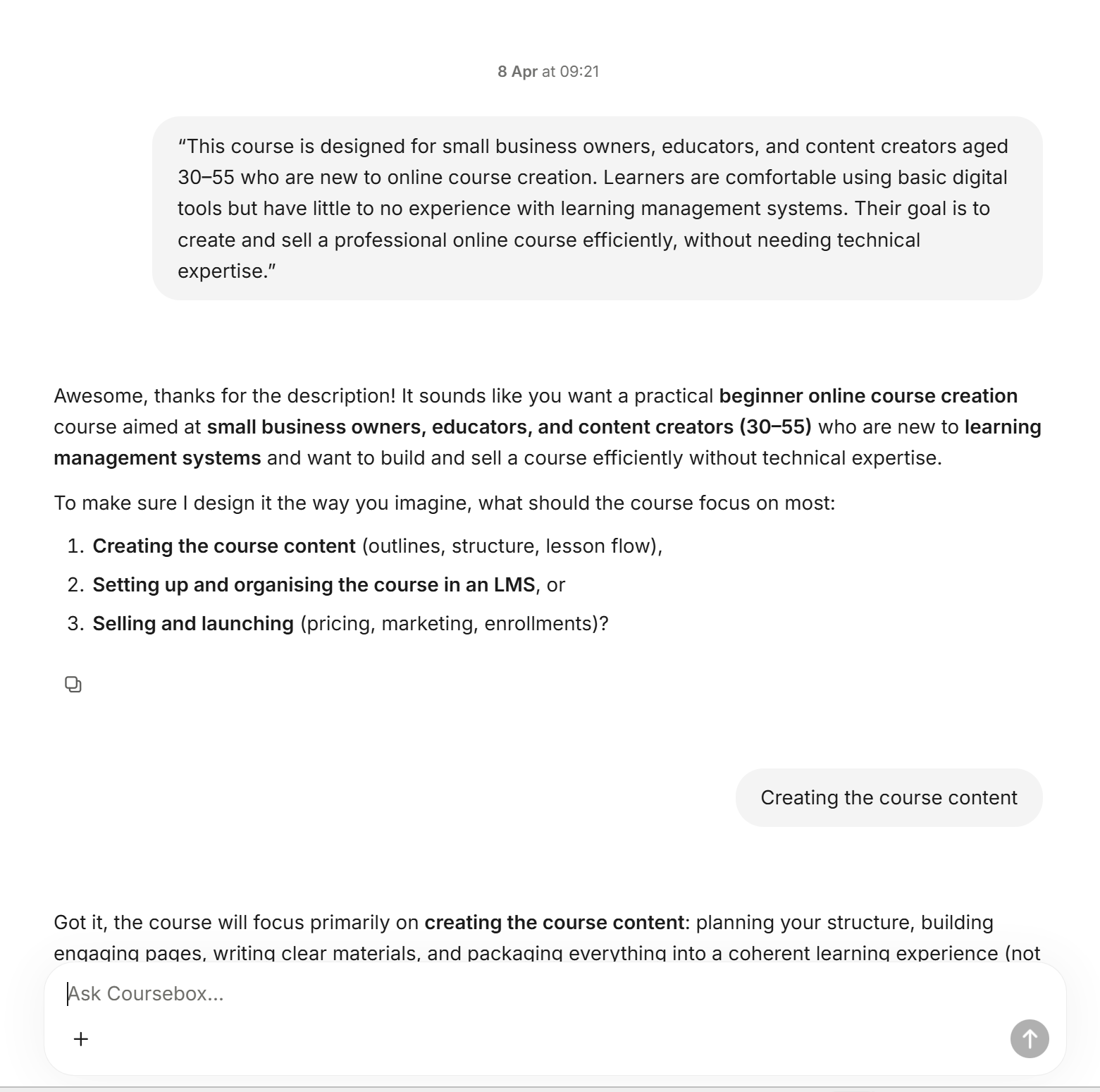
- Review the suggested course structure and provide feedback or adjustments
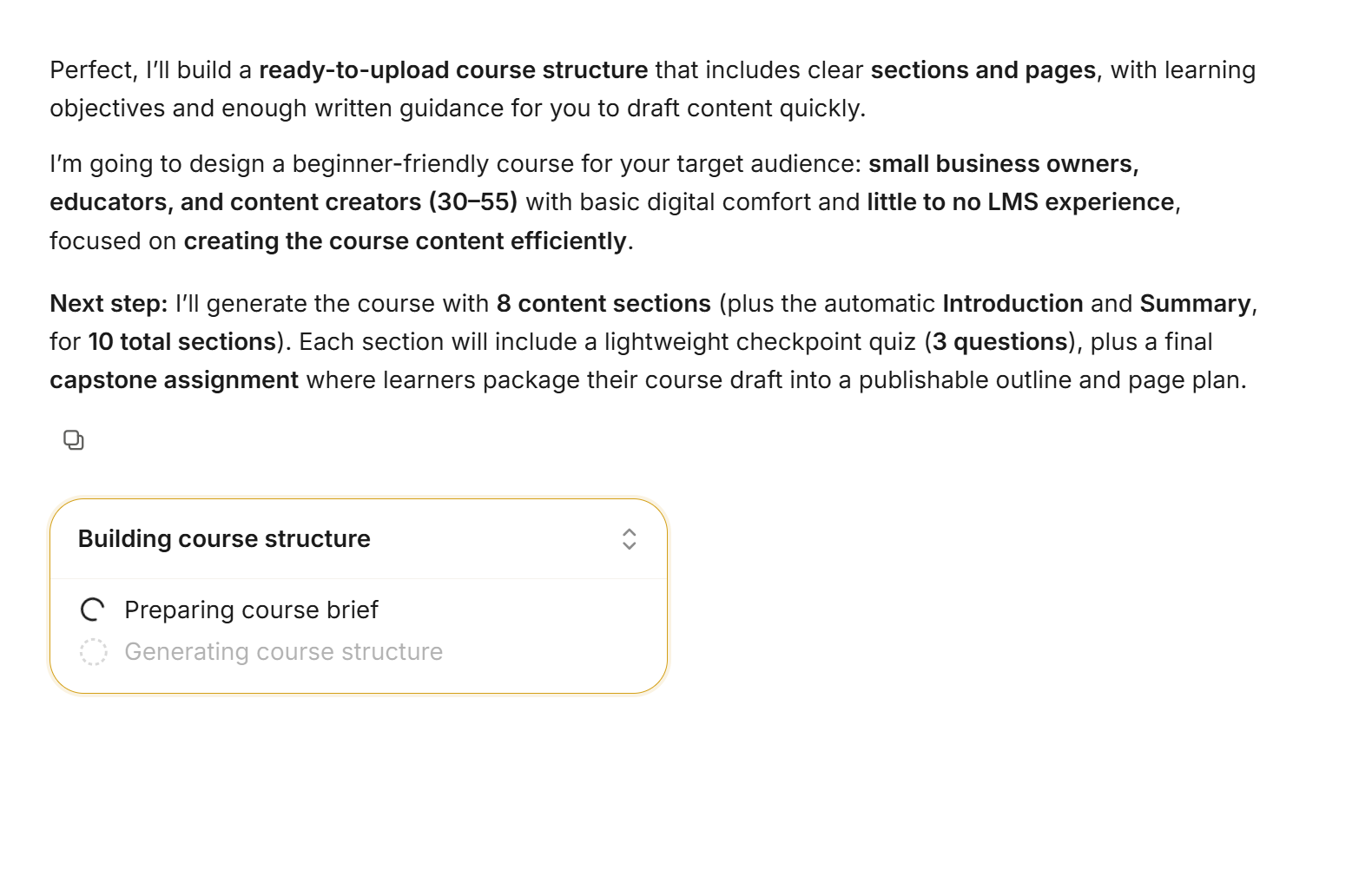
- The AI will progressively build your course, including:
- Course structure
- Sections and pages
- Content and learning activities
? Tip: The more you engage with the chat and provide feedback, the more tailored and accurate your course will be.
Modify Course Structure
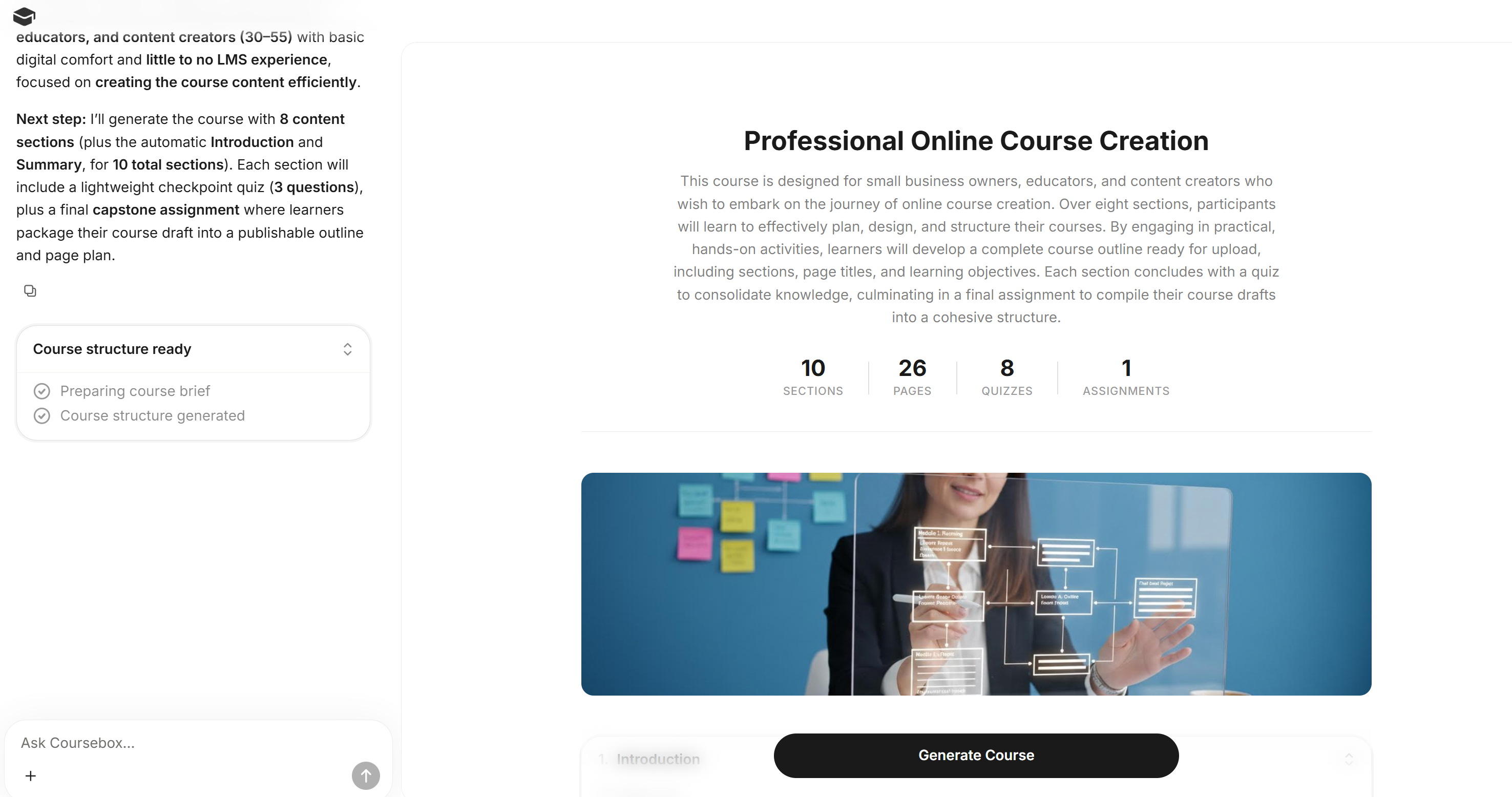
Once your course structure is generated, you can review and refine how your course is organised before finalising it.
You may notice some sections or items still loading—this is normal. The structure will continue to populate as the AI completes each part.
Review and Adjust Your Structure
Continue to use the chat experience to review the structure:
- Expand each section to view included pages and activities
- Review section titles, page names, and quizzes
- Ensure the flow and sequence align with your learning goals
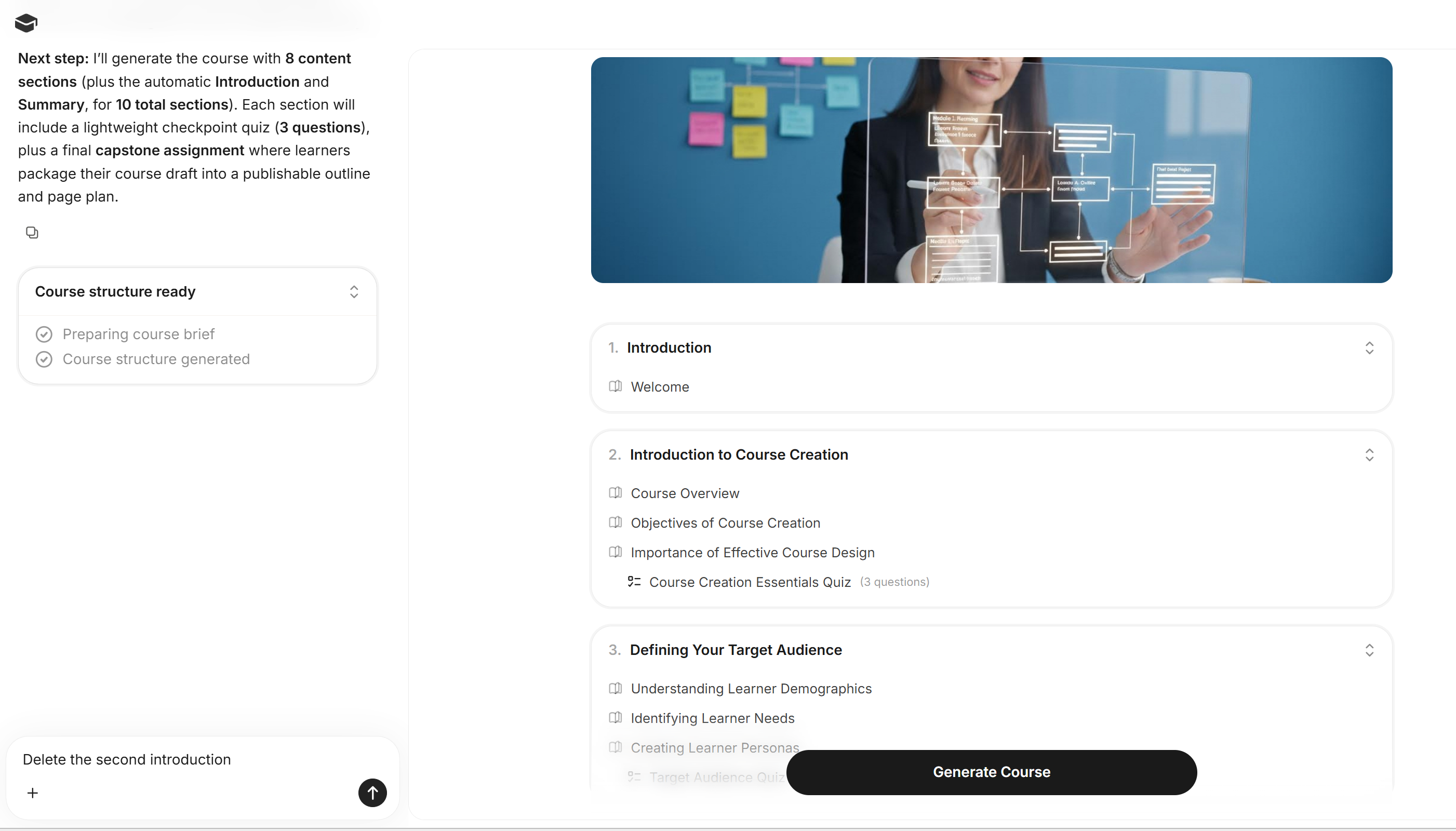
? Tip: Getting the structure right first will make your content more organised and easier to refine later.
Generate Your Course
Once you're happy with the structure:
- Click “Generate Course” to finalise and build out the full content
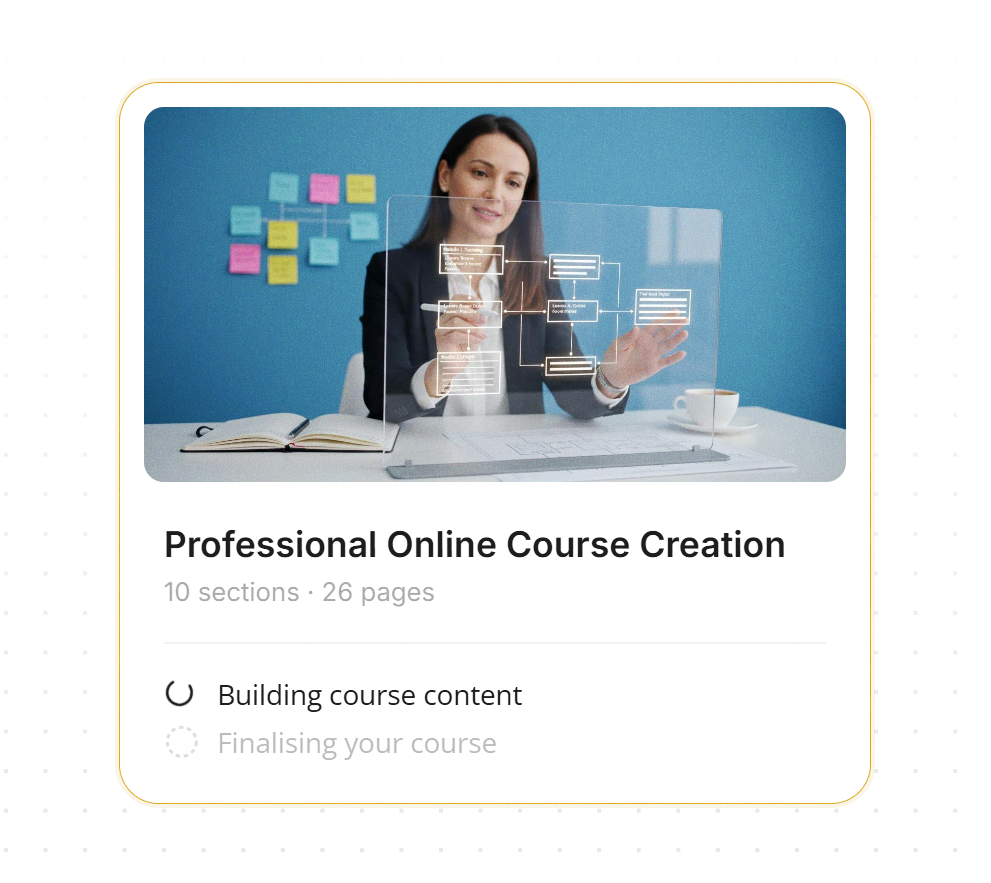
Create a Course Manually
Coursebox allows Learning Designers, Creators, and Administrators to build a course from scratch using the manual course creation option. This gives you full control over the structure, content, and layout from the very beginning.
Step 1: Start Manual Course Creation
- From the dashboard, click Create

- Select Create a course manually to begin building your course from scratch
Step 2: Add Course Title and Description
You’ll first be prompted to define your course:
- Course Title – Enter a clear and engaging name
- Course Description – Explain what the course is about
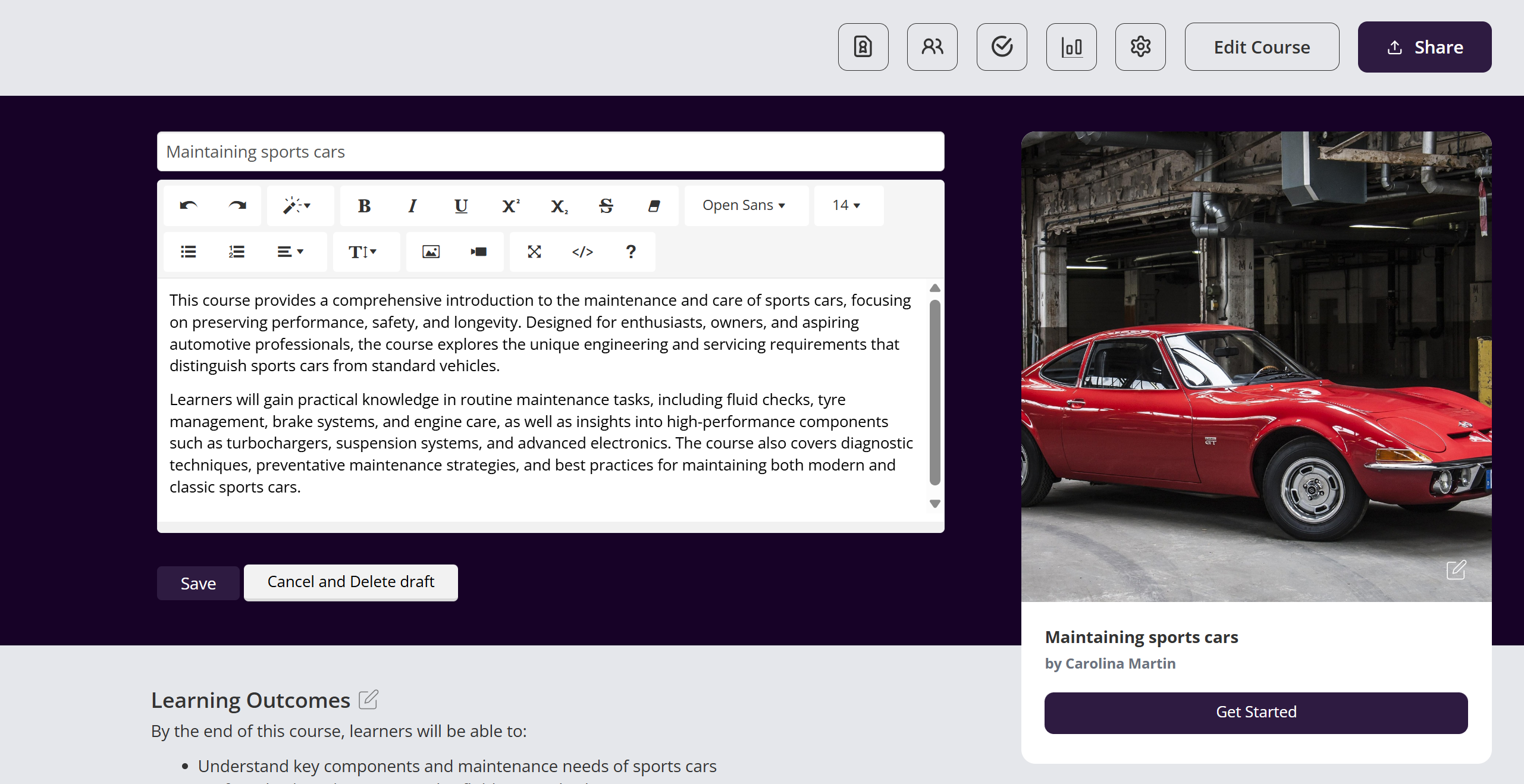
Your description should clearly outline:
- What the course covers
- Who the course is for
- The key skills or outcomes learners will gain
This helps learners quickly understand the value and purpose of your course.
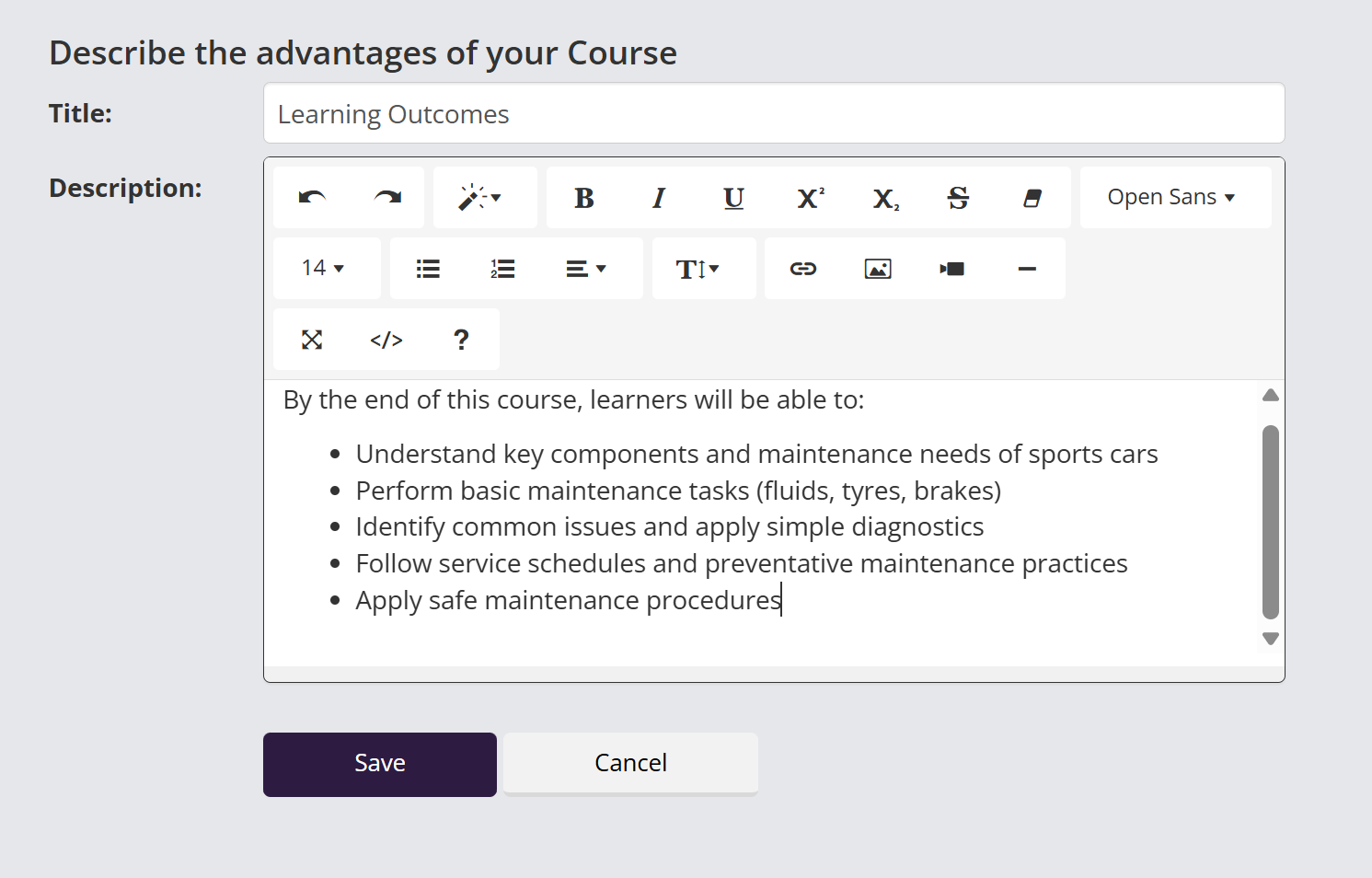
Step 3: Describe Course Advantages
In this section, you can highlight the learning outcomes or key benefits of your course.
- Use the text editor toolbar to format your content
- Add bullet points, links, images, or videos using the available icons
- Structure your outcomes clearly for readability
This section is ideal for listing what learners will be able to do by the end of the course.
Step 4: Add Skills and Knowledge
The Skills and Knowledge section allows you to tag your course with relevant topics.
- Enter keywords (e.g. Safety, Inspection, Maintenance)
- Click Add to include them as tags
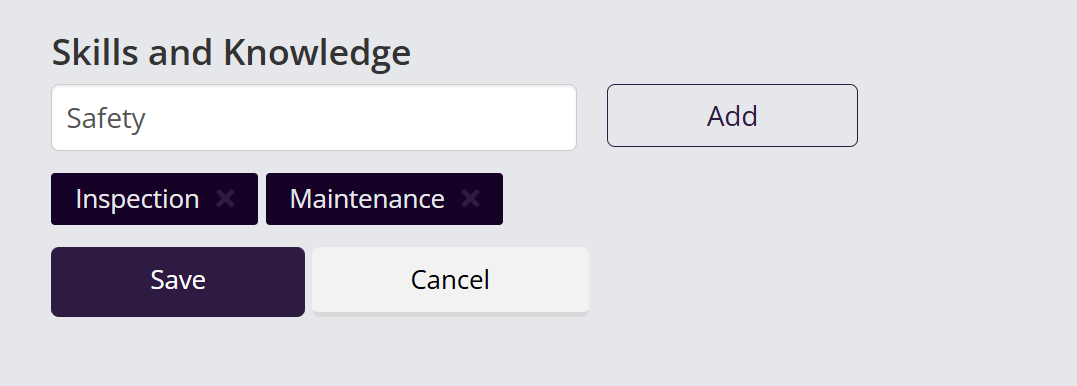
These tags help:
- Improve course discoverability
- Categorise your course content
- Provide clarity on learning focus areas
Step 5: Build Your Course Structure
Use the left-hand panel to manually create and organise your course:
- Click + Add Section to create new sections
- Click + Add Page to add content within each section
- Select a page to open the Text Editor and start adding content
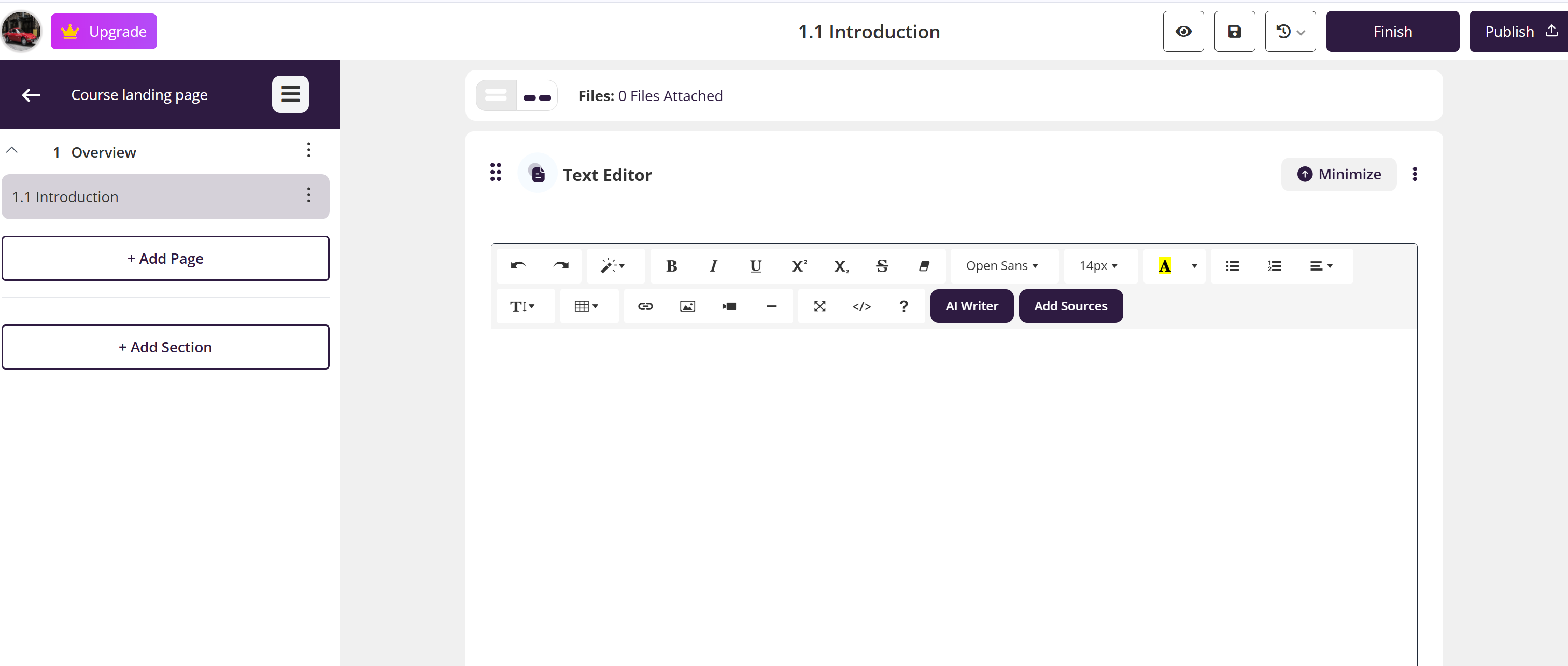
Within the editor, you can:
- Write and format text
- Use the AI Writer for assistance
- Add media, links, and interactive elements
- Upload supporting resources
Final Step: Save and Continue
- Click Save regularly as you build your course
- Continue adding sections, pages, and content until your course is complete
- When ready, you can proceed to publish and share your course
Was this article helpful?
That’s Great!
Thank you for your feedback
Sorry! We couldn't be helpful
Thank you for your feedback
Feedback sent
We appreciate your effort and will try to fix the article