This topic explains how Registered Training Organisations (RTOs) can use Coursebox AI to generate compliant course content directly from a nationally recognised Unit of Competency. It covers creating courses using a training.gov.au URL or an uploaded PDF, helping ensure alignment with unit requirements while streamlining course development.
Watch the video below, or explore more tutorials in our Demonstration Video Library.
Use the Unit of competency from Training.gov.au
When building a course around a nationally recognised Unit of Competency, aligning your content with the required elements, performance criteria, and assessment guidelines is key. Coursebox simplifies this by allowing you to paste the official unit URL from training.gov.au, which it then uses to map your course content accordingly.
To get started:
- Go to training.gov.au and copy the URL of the relevant Unit of Competency.
- In Coursebox, follow the steps under Create a course using AI.
- Paste the unit URL when prompted—Coursebox will fetch and interpret the unit structure, helping you generate a compliant and effective course outline.
This method saves time while ensuring alignment with national training standards.
Describe your course
Use the Application section of the Unit of Competency as the foundation for your course description. This ensures your course clearly communicates its purpose, context, and relevance to learners.
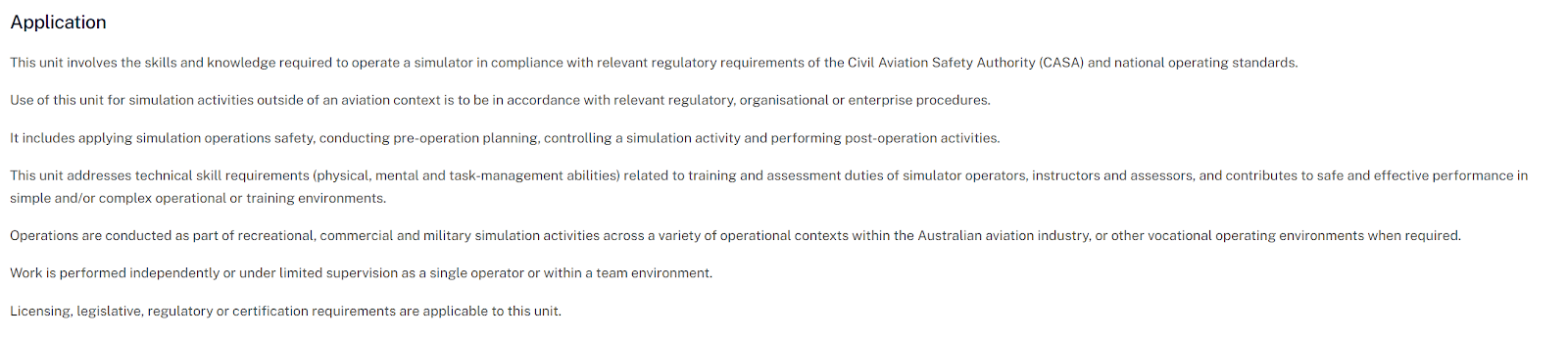
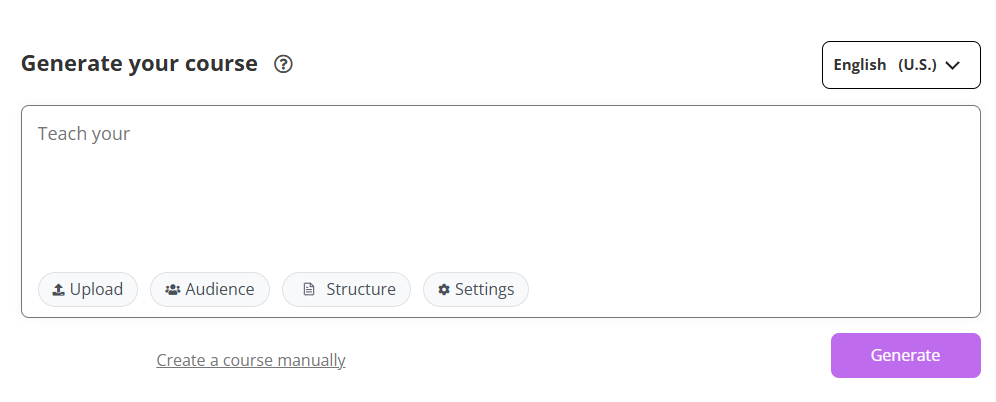
Use URL from Training.gov
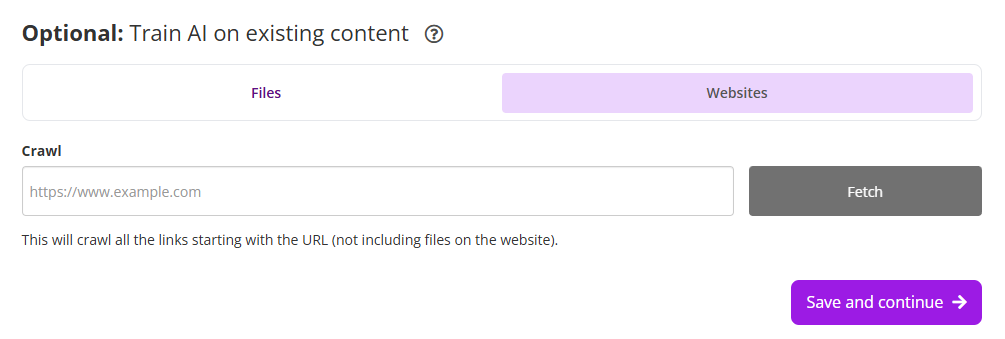
In order to create the course based on the government course curriculum URL, first select the 'upload' button in the main screen. Then select the Websites tab. Paste the URL into the designated area and then click 'fetch'. You can then save and continue.
When Coursebox has found the URL it will appear on the screen and you can click Next.
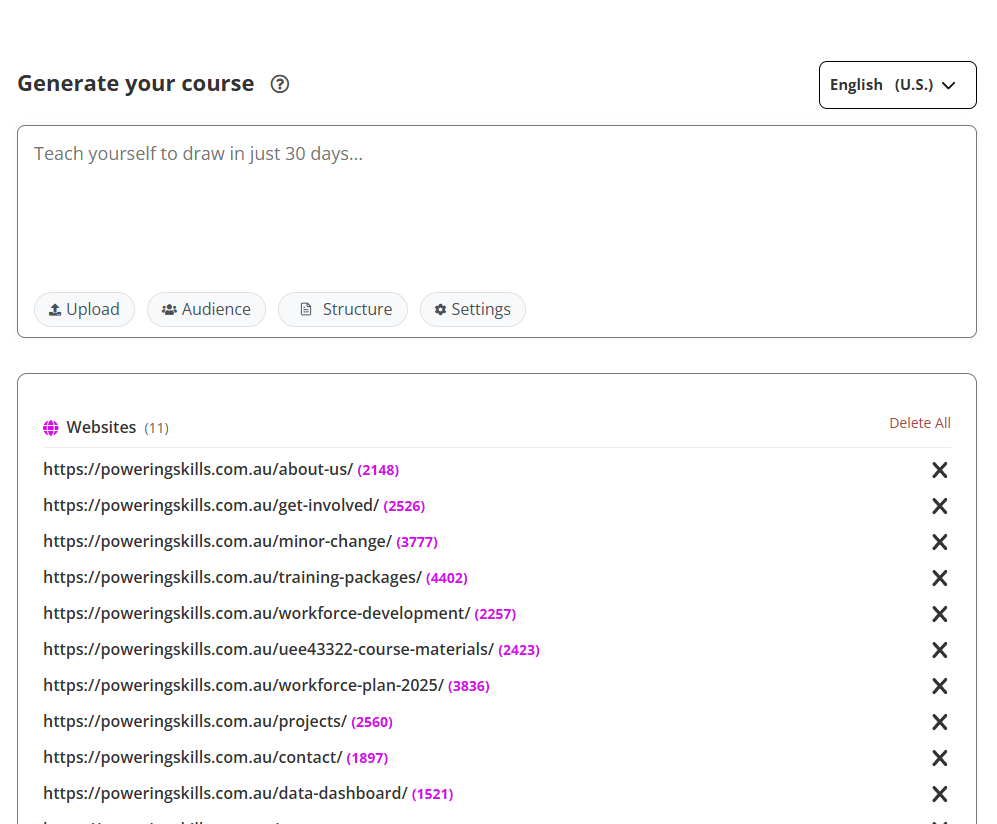
Generate the Course
When you are ready, you can click generate and the course content will be fleshed out based on the Government URL
When creating a course based on a Unit of Competency from a nationally recognised training package, it’s essential to align your course structure with the unit’s elements, performance criteria, and assessment requirements.
Upload a Pdf of the Unit of Competency or Course Outline
Coursebox allows you to upload a PDF of the unit directly, helping you map the content accurately while enhancing it with engaging learning activities, multimedia, and assessments.
To get started:
- Start by selecting the Unit of competency from training.gov.au
- Follow the section above for Create a course using AI.
- Upload the PDF when prompted—Coursebox will analyse the file and help build your course structure automatically based on the unit content.
Describe your course
Use the Application section of the Unit of Competency as the foundation for your course description. This ensures your course clearly communicates its purpose, context, and relevance to learners. 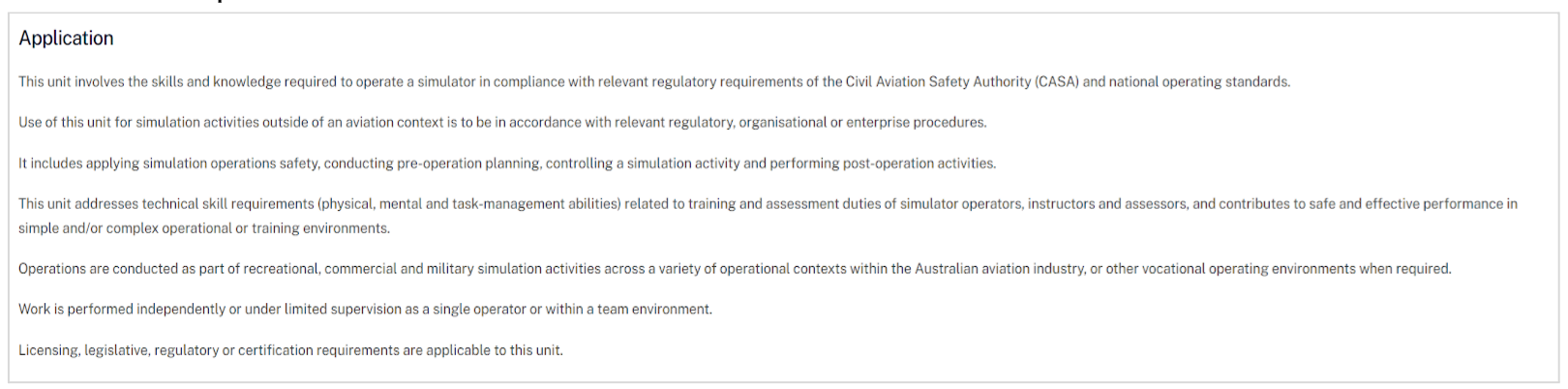
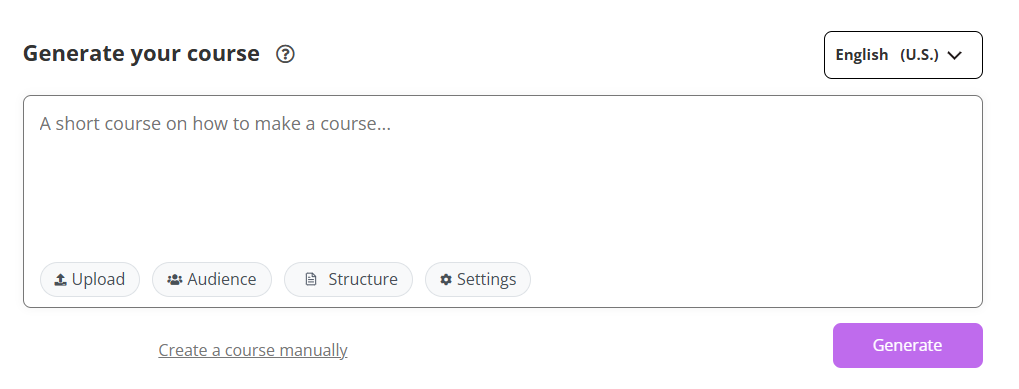
Upload Course Files
Click on the 'structure' button. Then drag and drop any relevant course materials—such as the Unit of Competency from training.gov.au or existing learning resources you plan to include. Once your files are uploaded, click Next to proceed.
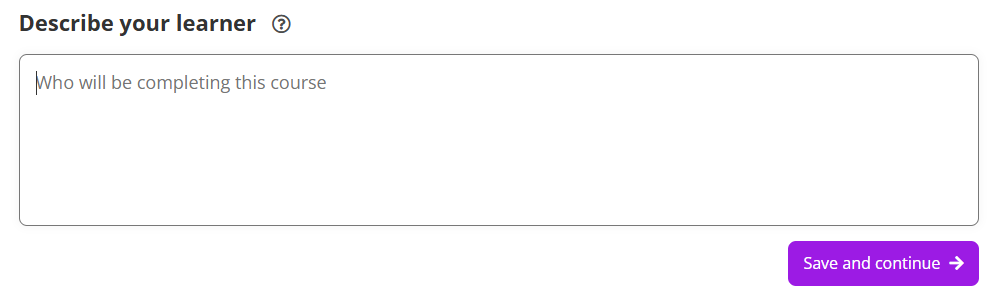
Describe your learner
Then client the 'audience' button. Provide a description of your learner cohort. Consider their background, experience level, and learning needs. You can also refer to the Target Group or relevant sections of the Unit of Competency to help shape your description. Once complete, click Next to continue.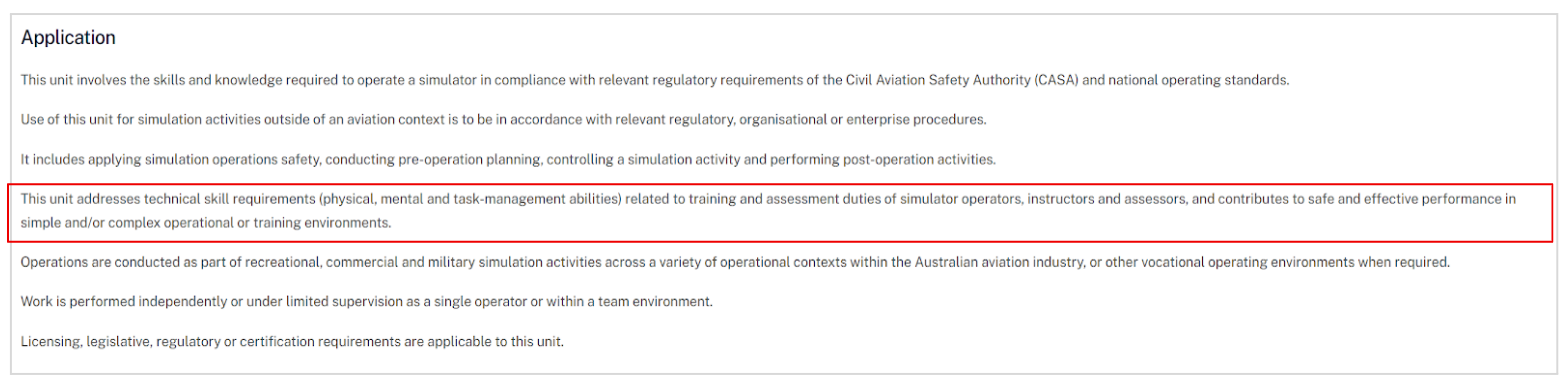
Create the Outline
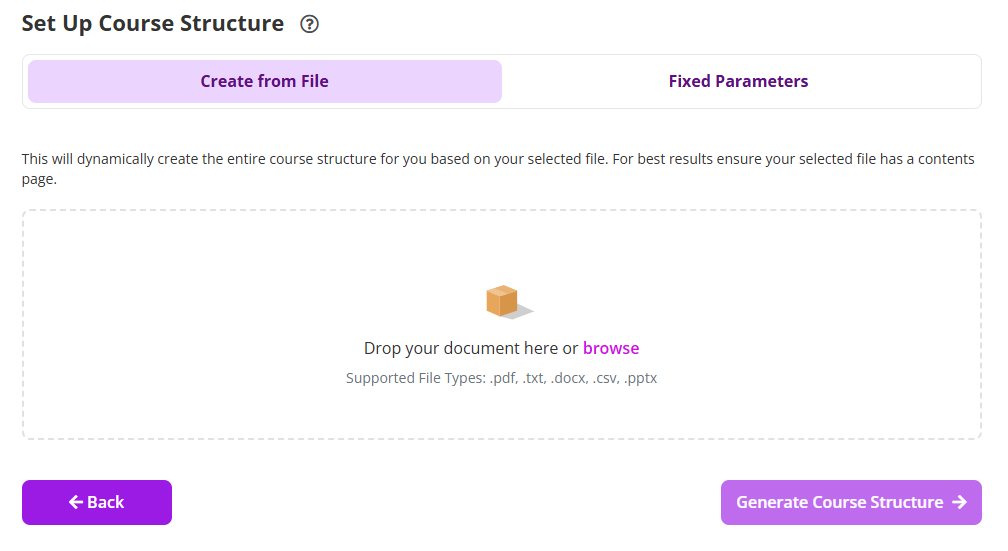
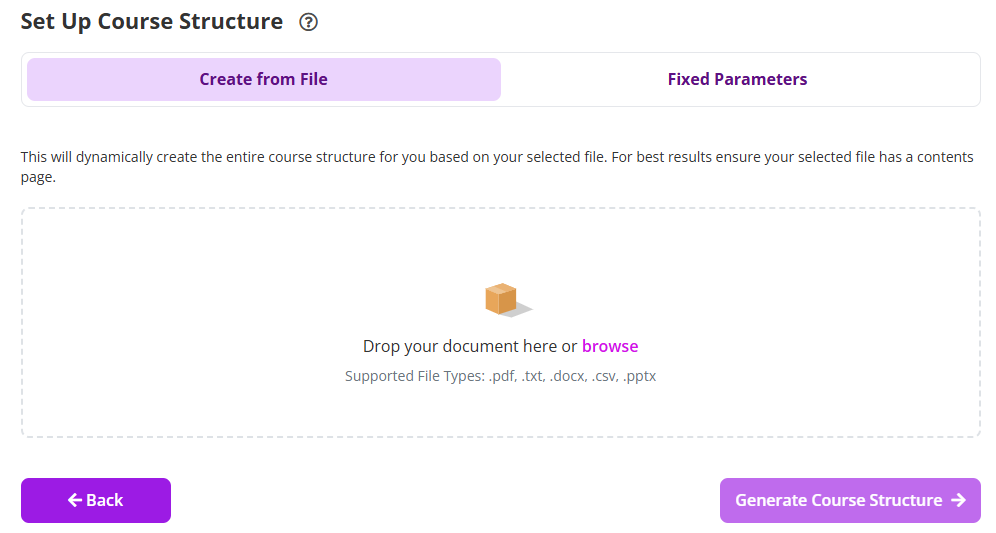
You'll then have the option to modify the settings to choose how you'd like to structure your course. You can build the outline manually or generate it from an uploaded file. To ensure alignment with the unit requirements, consider using the Elements and Performance Criteria from the Unit of Competency as a framework.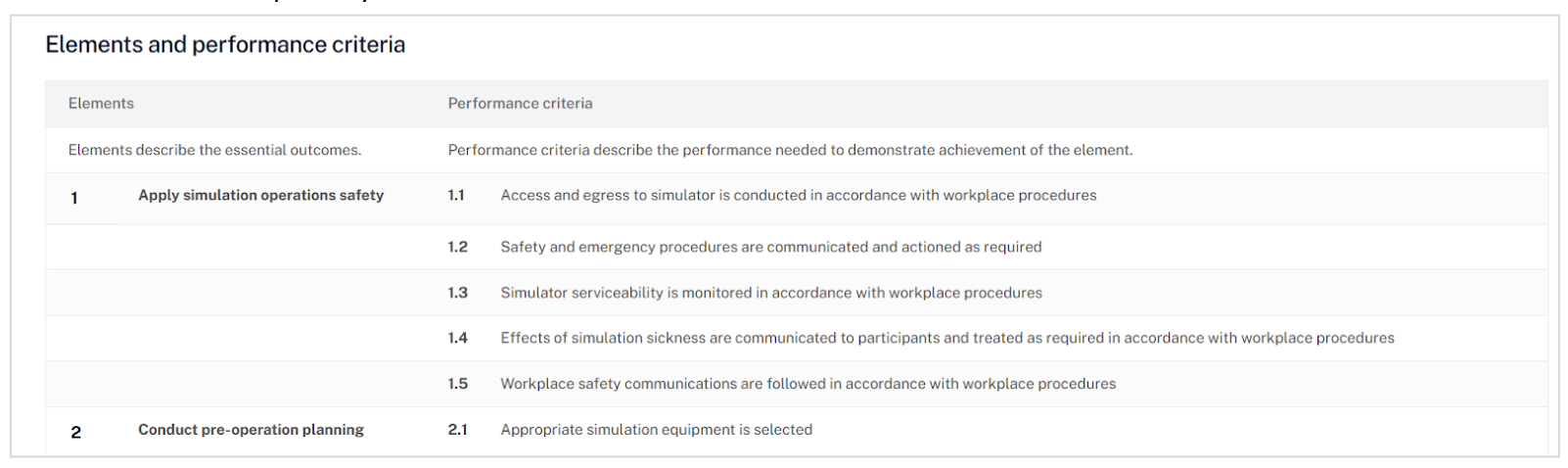
If you wish to build the outline manually click on advanced settings and select your course structure.
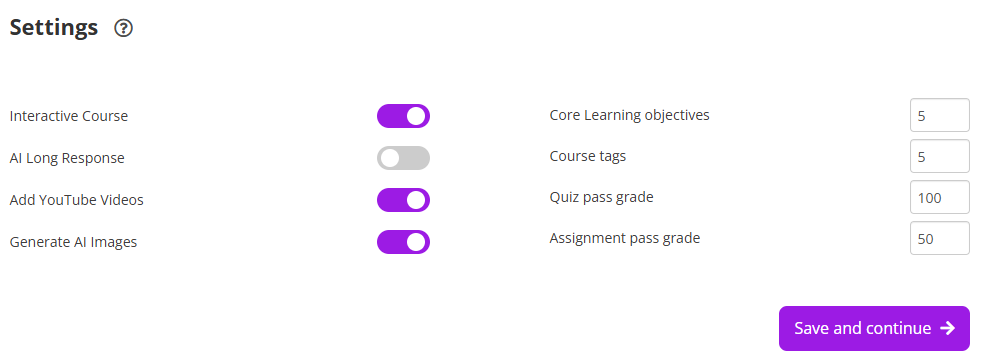
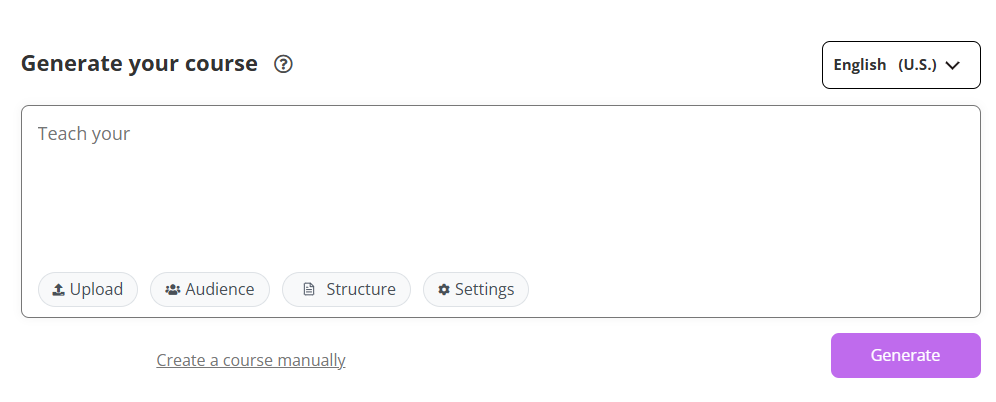
When you're ready, you can either click ‘generate’ on the course creation page or "generate course structure" from the create from file page.

Watch the Tutorial Videos found in our Demonstration Video Library.
Was this article helpful?
That’s Great!
Thank you for your feedback
Sorry! We couldn't be helpful
Thank you for your feedback
Feedback sent
We appreciate your effort and will try to fix the article