Coursebox makes it easy to create, organise, and manage your courses—whether you're browsing available learning content, tracking your own progress, or developing new material. With the key navigation tools and views you can access and customise courses with confidence.
Whether you’re a course creator or an active learner, this guide will help you make the most of Coursebox’s intuitive course navigation features.
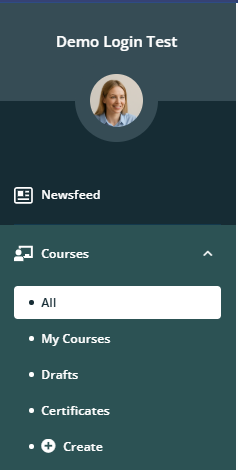
View All Tabs
Clicking All displays a complete list of available courses that match your area of interest. This view provides an easy way to browse, explore, and select from the full range of courses on offer—helping you find the right content to support your learning journey.
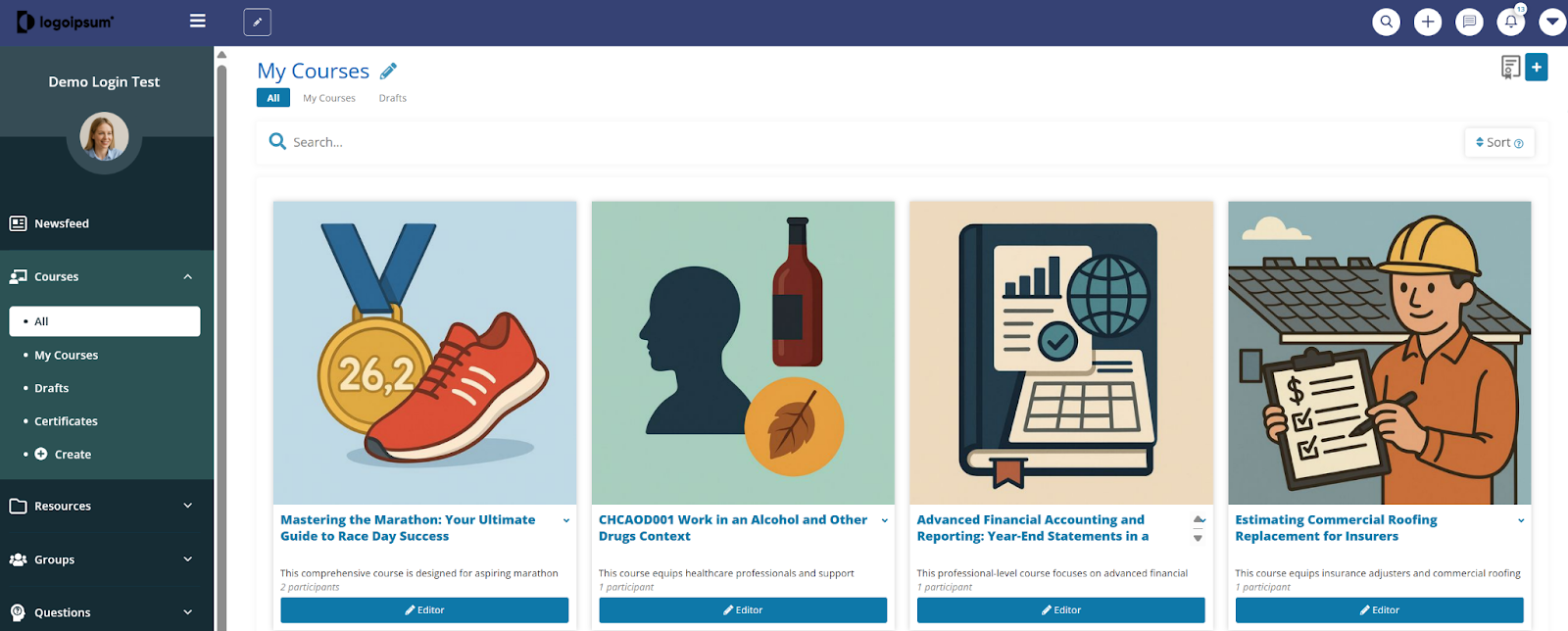
View My Courses Tab
The My Courses section shows all the courses you’re currently enrolled in. It’s your personalised learning hub—track your progress, resume where you left off, and stay organised as you work through each course. This view keeps everything you're learning in one convenient place.
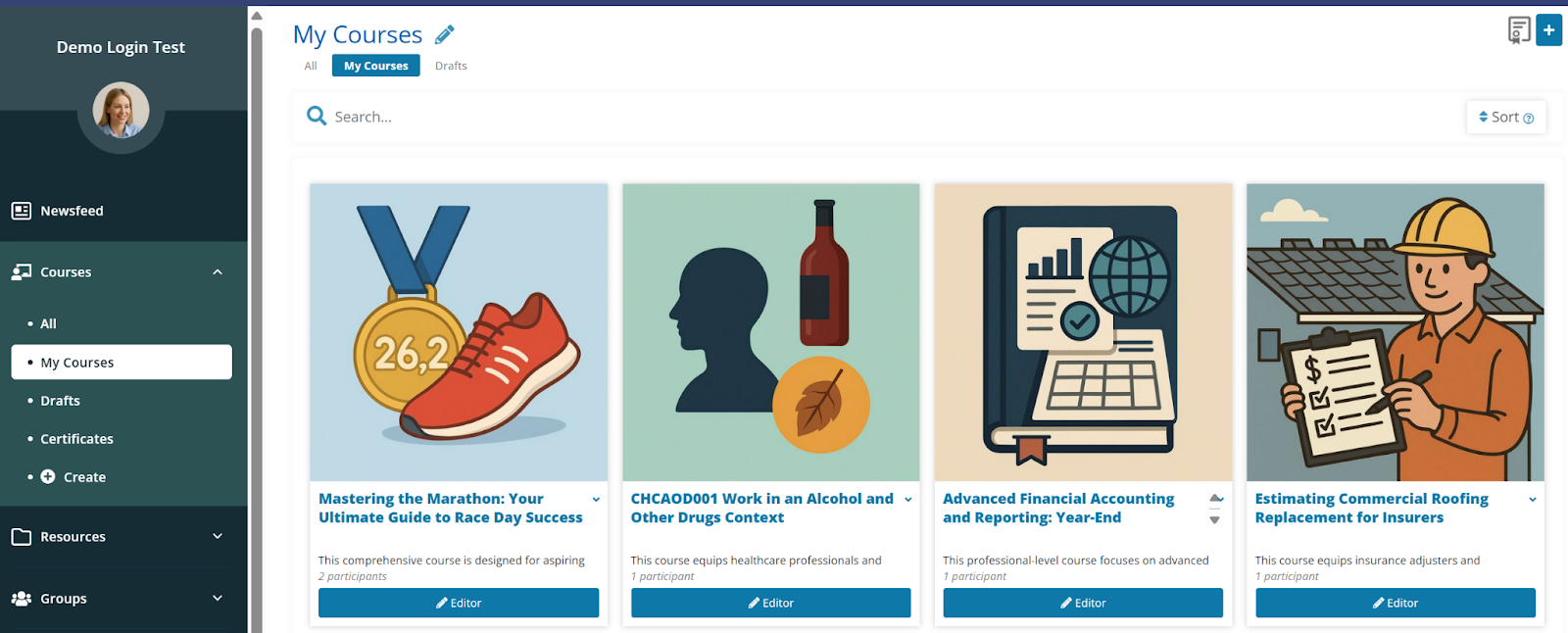
View Drafts Tab
The Drafts section allows you to manage content that’s still in progress. Whether you're working on a new course or editing existing modules, this is where all unsaved or unpublished changes are stored. Use this area to review, continue editing, or discard drafts before making them live to learners. It's your workspace for refining content before final publication.
Under learning on the left-hand panel go to ‘drafts'.
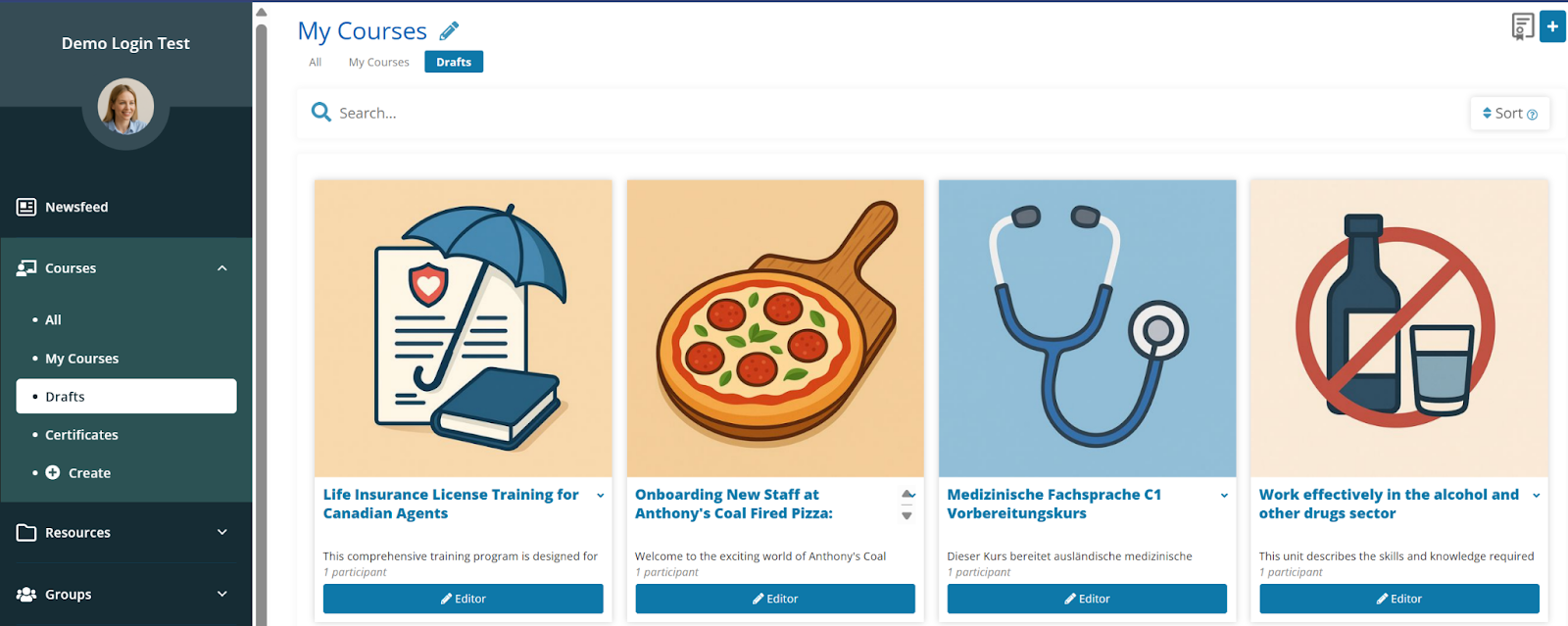
The Drafts section helps you quickly return to content you’re still working on.
The steps are:
- Clicking Drafts takes you back to your saved, unpublished work.
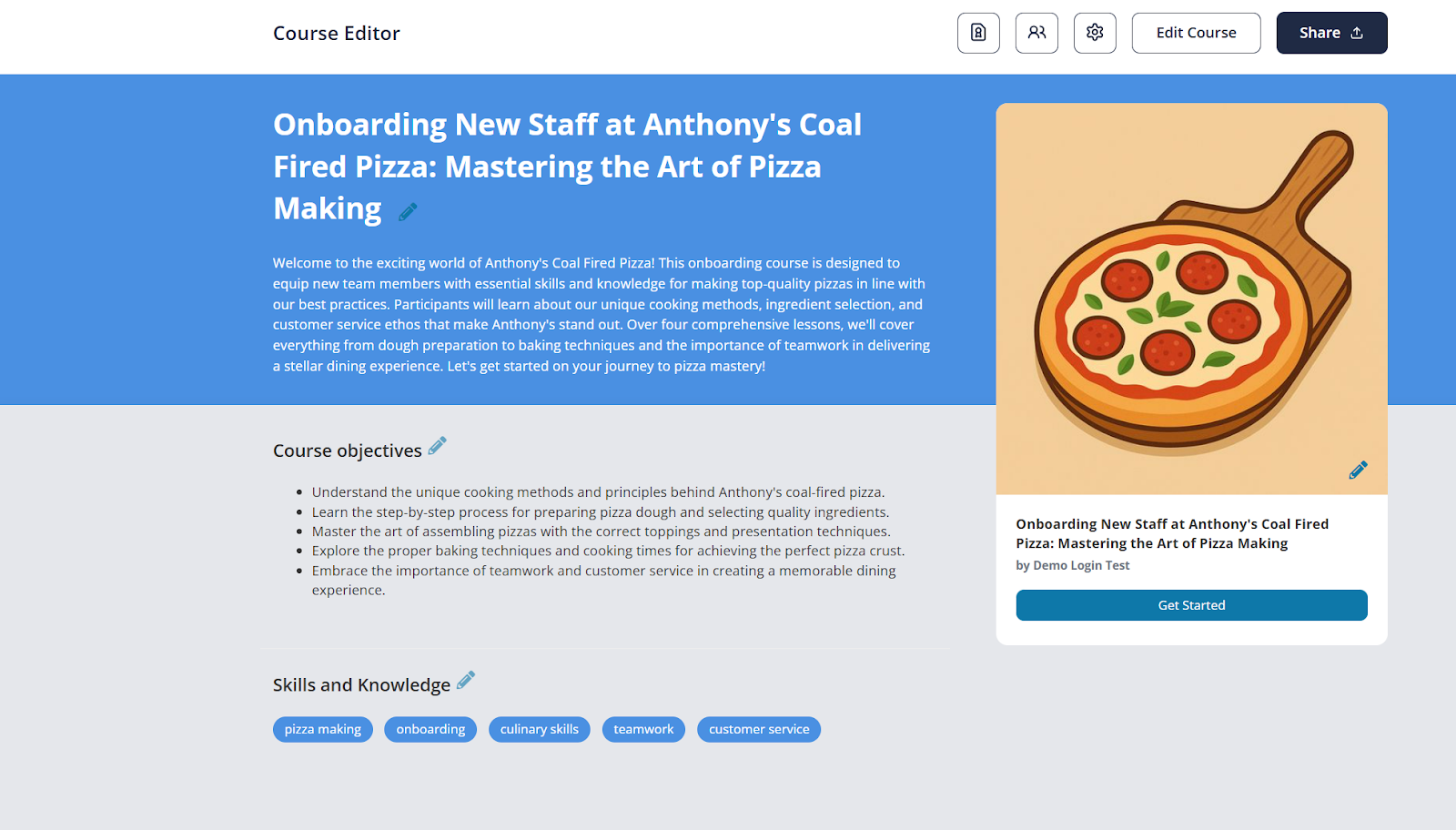
- To preview a draft, click on the selected course you are working on and —this will open the draft’s landing page, allowing you to review and continue editing.
For more information on Navigation go to:
Platform & Course Navigation
Was this article helpful?
That’s Great!
Thank you for your feedback
Sorry! We couldn't be helpful
Thank you for your feedback
Feedback sent
We appreciate your effort and will try to fix the article