Coursebox gives you multiple export options so you can easily share or host your course outside the platform. Whether you're saving a course for offline use, uploading it to a Learning Management System (LMS), or sharing it as a PDF, Coursebox offers flexible formats to suit your needs.
Once your course is ready, Coursebox makes it easy to share it with others in a way that suits your needs—whether you're providing access via a direct link, embedding it on a website, or assigning specific roles to learners and facilitators.
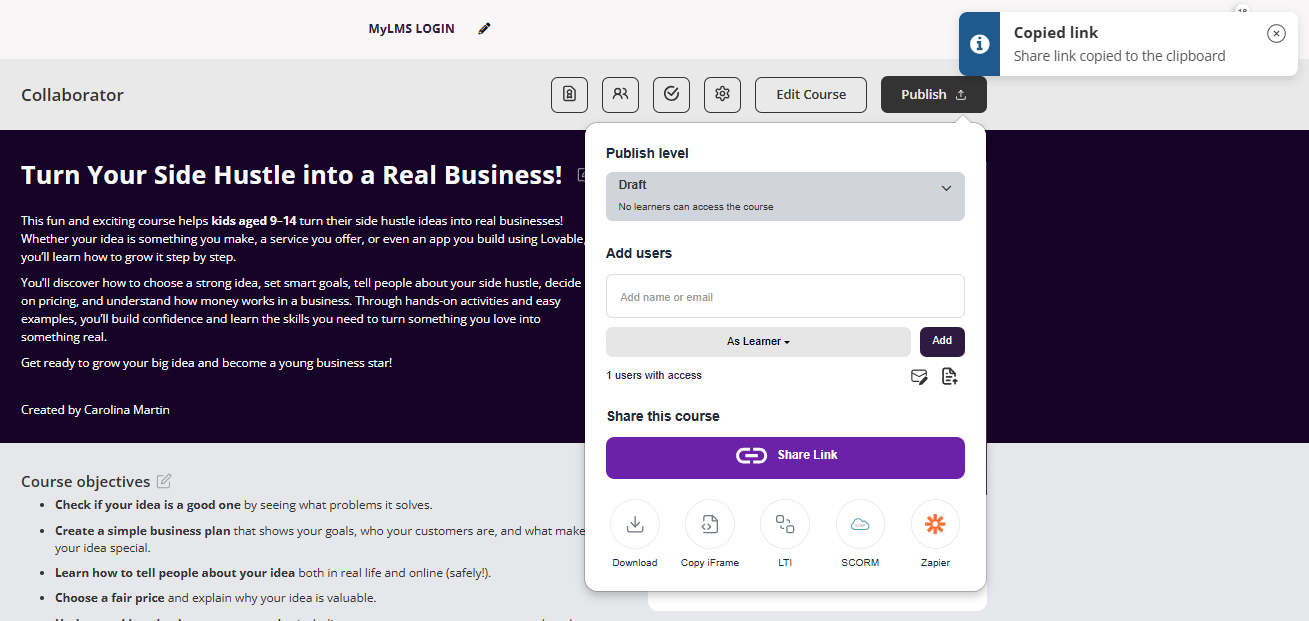
Share a Link to a course
On any course, navigate to the course page and share icon > share the link.
Copy a course iFrame
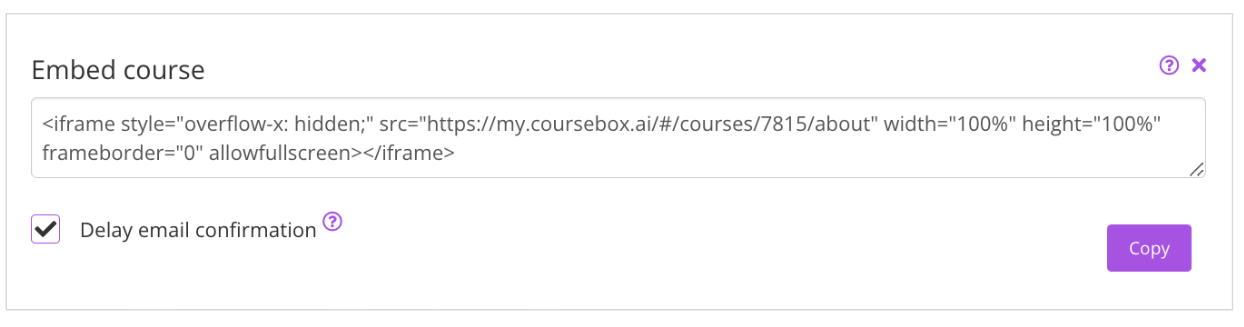
Embedding your Coursebox course on other websites lets you share learning content seamlessly without asking learners to log into multiple platforms. Whether you’re adding it to your company intranet, a WordPress site, or an LMS, the share feature gives you an iframe code that can be pasted anywhere HTML is supported. This makes it easy to showcase your course in the exact environment where your learners already engage.
- On any course, navigate to the course page and click the share icon > copy the iframe to copy the code.
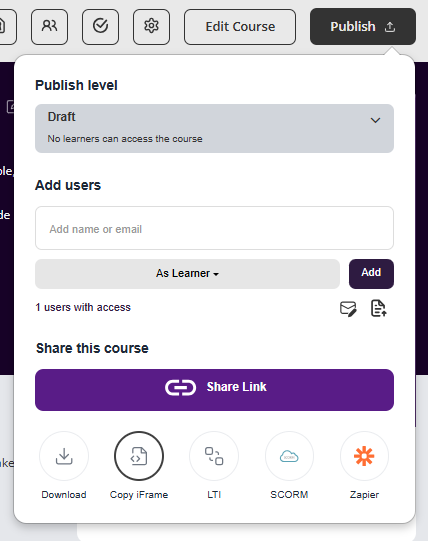
- Then paste this using HTML anywhere on the web.
Share a course to LMS - LTI
Coursebox acts as Provider for LTI 1.3 that enables you to add course box courses into any LTI 1.3 compliant Branded Training Platform. LTI enables a secure communication bridge between the Branded Training Platform and Coursebox to launch the course, pass the grades.
The integration steps are very straightforward and easy,
- Open the Course in Coursebox, click on share button and click on LTI.
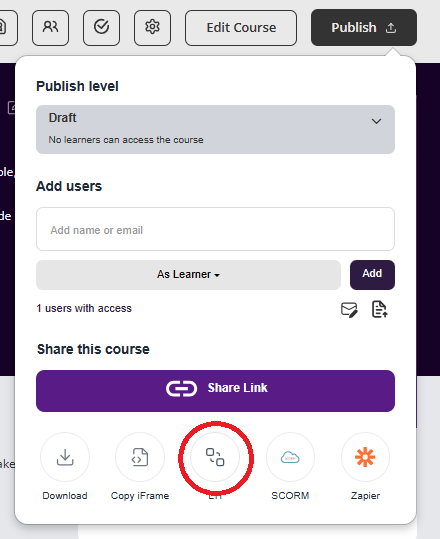
- It will open a popup, where you can add your Branded Training Platform. Click ‘Add New Branded Training Platform’.
- You will see the form with Coursebox LTI details. You will need to use these details to create an LTI Tool in your Branded Training Platform. Fields details are mentioned in the provided Field Labeling Chart below.
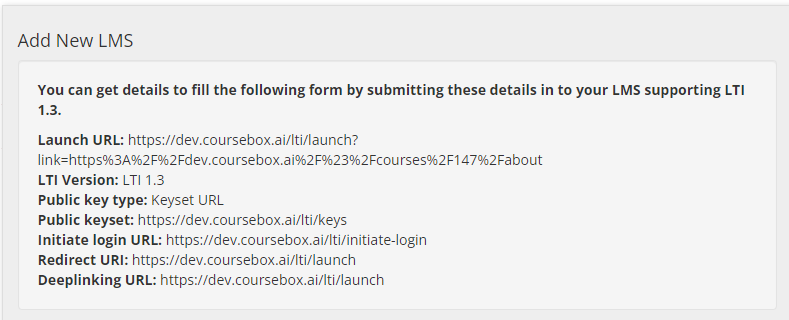
- Once you enter the above details in your Branded Training Platform, you will get details from your Branded Training Platform to fill out the form in Coursebox. Fields details are mentioned in the provided Field Labeling Chart below.
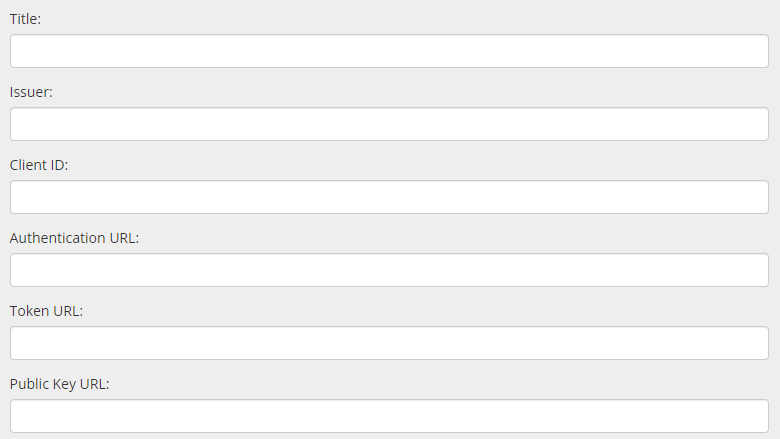
- Now, you can start adding courses using the LTI Tool according to the guidelines provided in your Branded Training Platform Documentation.
Field Labeling Chart:
Following is the chart for field labels to give an idea to handle the LTI Integration process.
Export a Course to SCORM 1.2 and 2004
Coursebox enables experts to export courses as in SCORM format, including 1.2 or 2004.
When you export a Coursebox course as SCORM, you’re packaging your Coursebox pages, media, and completion logic into a standard zip that any SCORM-compliant LMS can play. The learning experience is still powered by Coursebox—the player, navigation, and tracking behaviours come from Coursebox’s authoring and runtime—just delivered through your LMS.
Key things to know:
- Edits after export: If you update the course in Coursebox, you’ll need to re-export and upload the new SCORM package into your LMS.
- Branding: Your Coursebox styling and layout remain intact.
- Tracking: Choose SCORM 1.2 (widely supported for completion/score) or SCORM 2004 (v3/v4) for advanced sequencing and bookmarking.
Export to SCORM
On the publish settings page, publish your course and click the share button to then select the version of SCORM required for upload to your LMS.
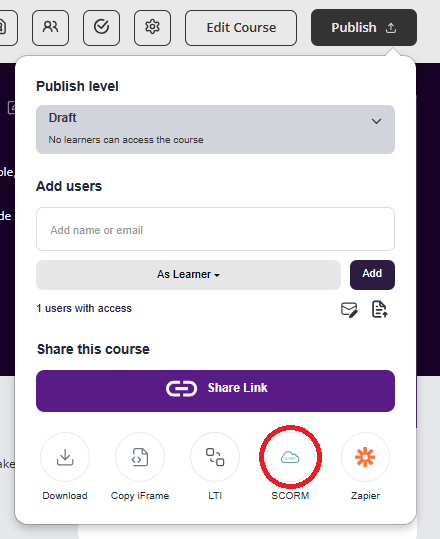
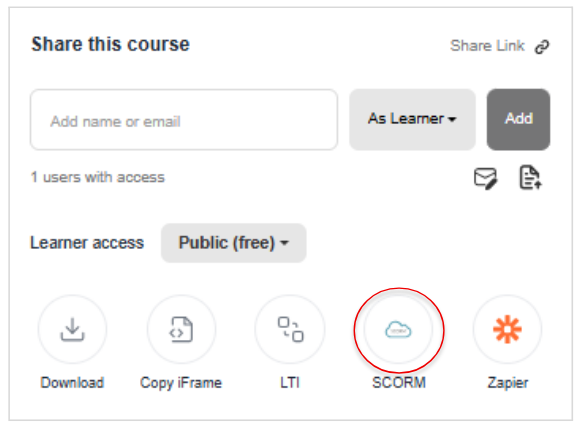
Note that this requires a published live sync to the course to take advantage of the AI and related live features.
Upload to Your LMS
Each LMS has slightly different steps for uploading SCORM packages.
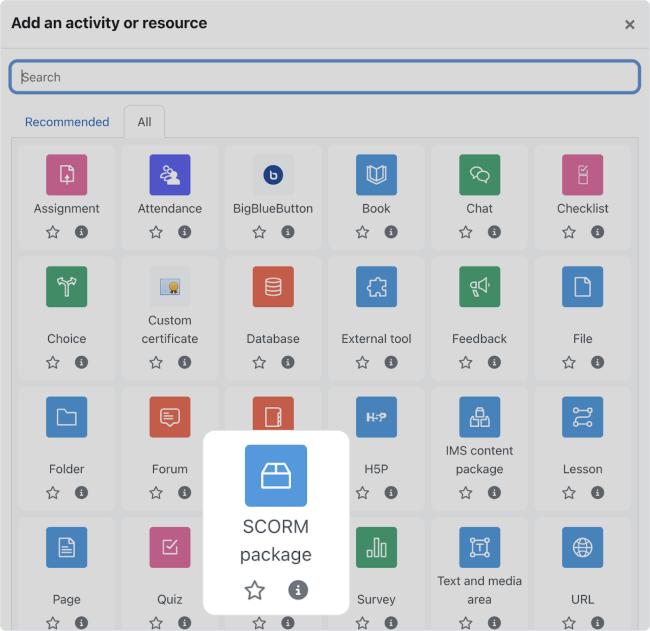
Always follow the official documentation for your platform to ensure compatibility. Below are links to SCORM guidelines for leading LMSs:
Moodle – SCORM activity – MoodleDocs
Blackboard Learn – Add a SCORM content package (Ultra)
Canvas – Import SCORM files as an assignment
D2L Brightspace – Import and Manage SCORM
TalentLMS – SCORM-Compliant LMS Features
SAP Litmos – SCORM-compliant courseware
Absorb LMS – SCORM/AICC/Tin-Can courses – Absorb Help
LearnDash – SCORM and xAPI Support
Schoology – Course Materials: SCORM Packages
Totara Learn – Add a SCORM activity
Open LMS – SCORM Content Creation Overview
Cornerstone OnDemand – Cornerstone SCORM support overview
iSpring Learn – Uploading SCORM to iSpring Learn
SCORM Cloud (testing) – Upload SCORM course to SCORM Cloud
NEW- Anonymous Users via SCORM (where enabled)
Coursebox supports anonymous user access via SCORM when hosted in external LMS environments. This means learners can launch and interact with Coursebox courses embedded in SCORM packages without requiring a Coursebox login.
Use case examples:
SCORM-based compliance training with no user registration
One-click access via corporate LMS with limited tracking
Note: Anonymous SCORM users are available by default and can be enabled using the checkbox in the SCORM export tooltip.
Both anonymous and non-anonymous SCORM exports do not require learners to register in Coursebox.
The key difference is that with anonymous SCORM, no personal data (such as name, surname, or email address) is stored in Coursebox — only the student ID is recorded.
Was this article helpful?
That’s Great!
Thank you for your feedback
Sorry! We couldn't be helpful
Thank you for your feedback
Feedback sent
We appreciate your effort and will try to fix the article