Zapier is an automation tool that connects Coursebox with hundreds of other apps by linking Coursebox to your favourite tools, you can automate repetitive tasks, streamline workflows, and save time across your learning operations.
Zapier works by creating “Zaps”—automated workflows that trigger actions in other apps when something happens in Coursebox (e.g. a new enrolment, course completion, or group registration).
Watch the video below, or explore more tutorials in our Demonstration Video Library.
Here are some practical ways RTOs, educators, and course creators can use Zapier with Coursebox:
Automatically Add Learners to CRM
When a learner enrols in a Coursebox course, automatically add their details to your CRM platform (e.g. Salesforce, HubSpot).Send Welcome Emails
Trigger a personalised email via Gmail or Mailchimp when a new learner joins a course or group.Track Course Enrolments in Google Sheets
Create a running log of learner enrolments or completions in a Google Sheet for easy reporting and compliance tracking.Alert Trainers on Slack
Notify facilitators via Slack when a learner submits an assignment or joins a new cohort.Sync Bookings and Calendars
Link course registrations to calendar tools like Google Calendar or Calendly for session scheduling.
For more information, visit zapier.com.
Popular Zapier Use Cases for Coursebox
1. Calendly → Zapier → Coursebox
Automatically enrol users when they book a session.
Example workflow
Calendly booking confirmed
User invited or updated in Coursebox
Automatically enrolled into a course, event, or channel
Great for: coaching programs, onboarding calls, workshops
? You can also link or embed your YouTube walkthrough video here.
2. Eventbrite → Zapier → Coursebox
Turn event registrations into learning access.
Example workflow
Eventbrite registration
User created in Coursebox
Enrolled into the matching event, course, or resource
Great for: conferences, live workshops, paid events
3. Facebook Posts → Zapier → Coursebox
Trigger learning actions from social activity.
Example workflow
New Facebook post published
Unlock a resource or notify learners
Enrol users into a related course or channel
Great for: communities, content releases, campaigns
4. Salesforce → Zapier → Coursebox
Sync learning with your CRM.
Example workflow
Deal marked “Closed Won”
Contact invited to Coursebox
Enrolled into onboarding or enablement training
Great for: customer onboarding, partner training, sales enablement
5. HubSpot → Zapier → Coursebox
Automate learning based on lifecycle stages.
Example workflow
Contact moves to “Customer”
Enrol into product training
Apply user status like Active Customer
Great for: SaaS onboarding, lifecycle learning, retention
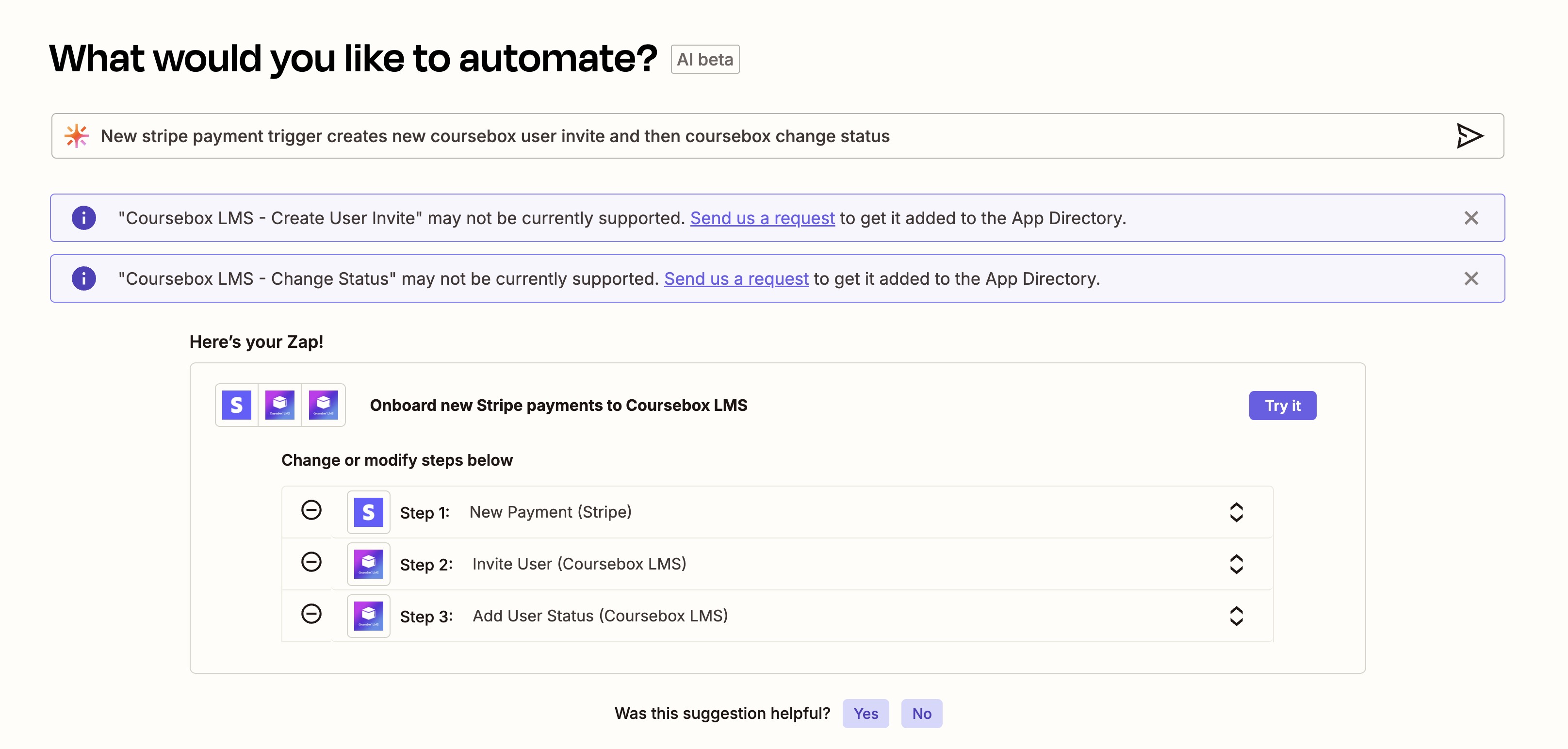
6. Stripe → Zapier → Coursebox
Grant learning access after payment.
Example workflow
Successful Stripe payment
Enrol into a paid course or membership
Add a Paid User status
Great for: paid courses, subscriptions, memberships
7. Shopify → Zapier → Coursebox
Link product purchases to learning.
Example workflow
Product purchased in Shopify
Enrol buyer into a related course or bundle
Great for: digital products, upsells, creator businesses
8. Google Forms → Zapier → Coursebox
Turn form responses into personalised learning paths.
Example workflow
Form submitted
Invite user to Coursebox
Enrol into different courses based on answers
Great for: applications, diagnostics, onboarding
9. Typeform → Zapier → Coursebox
Create adaptive learning journeys.
Example workflow
Typeform quiz completed
Set user status or custom fields
Enrol learner into a tailored pathway
Great for: skill assessments, role-based learning
10. Google Sheets → Zapier → Coursebox
Bulk automate enrolments and updates.
Example workflow
New row added to a spreadsheet
Invite user + enrol into courses
Update custom fields automatically
Great for: cohorts, RTOs, enterprise L&D teams
11. Mailchimp → Zapier → Coursebox
Connect email campaigns with learning.
Example workflow
User subscribes to a list
Enrol into a free or intro course
Tag users based on completion
Great for: lead magnets, nurture funnels
12. Slack → Zapier → Coursebox
Bring learning into everyday work tools.
Example workflow
Course completed
Notify a Slack channel
Trigger next learning step
Great for: internal training, onboarding, compliance
13. Zoom → Zapier → Coursebox
Automate live learning workflows.
Example workflow
Zoom attendee joins a session
Enrol into Coursebox event or resource
Unlock replays automatically
Great for: webinars, blended learning, workshops
14. Coursebox → Zapier → Email / CRM
Act on learning completion.
Example workflow
Course completed in Coursebox
Send certificate email
Update CRM or HR system
Great for: compliance, certifications, reporting
15. HR System → Zapier → Coursebox
Automate onboarding and role-based learning.
Example workflow
New employee added
Enrol into onboarding courses
Assign role-specific learning
Great for: HR teams, growing organisations
Integrate Zapier and Open API
Using Coursebox’s Open API and Zapier integration, you can build workflows that save time and ensure seamless user management.
Access Your Open API Key
To connect Coursebox with Zapier, you’ll need your API Key.
Log in as a Super Admin.
Go to Settings → Open API.
Copy the displayed API Key for use in Zapier.
If needed, click Reset API Key to generate a new one.
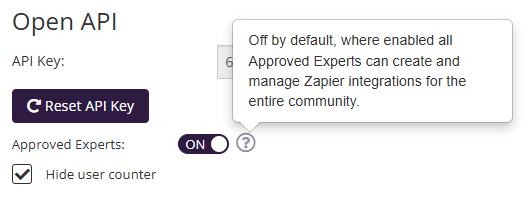
Allow Expert Access (Optional)
If you’d like specific team members to access integrations, turn on Approved Experts under your settings.
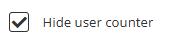
Hide User Counter on Login Page
On the login page, Coursebox displays the number of users in your community. If you prefer not to show this number, you can easily hide it.
Find the option Hide user counter.
Toggle to ON to hide the counter.
When enabled, the user count will no longer appear on the login page.
Access the Zapier Integration
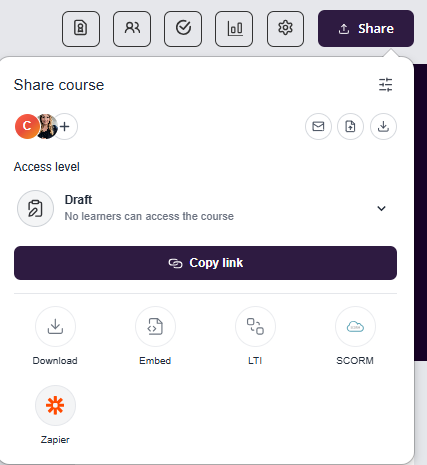
Open your course and click Publish this course.
Select the Zapier icon located below the sharing options.
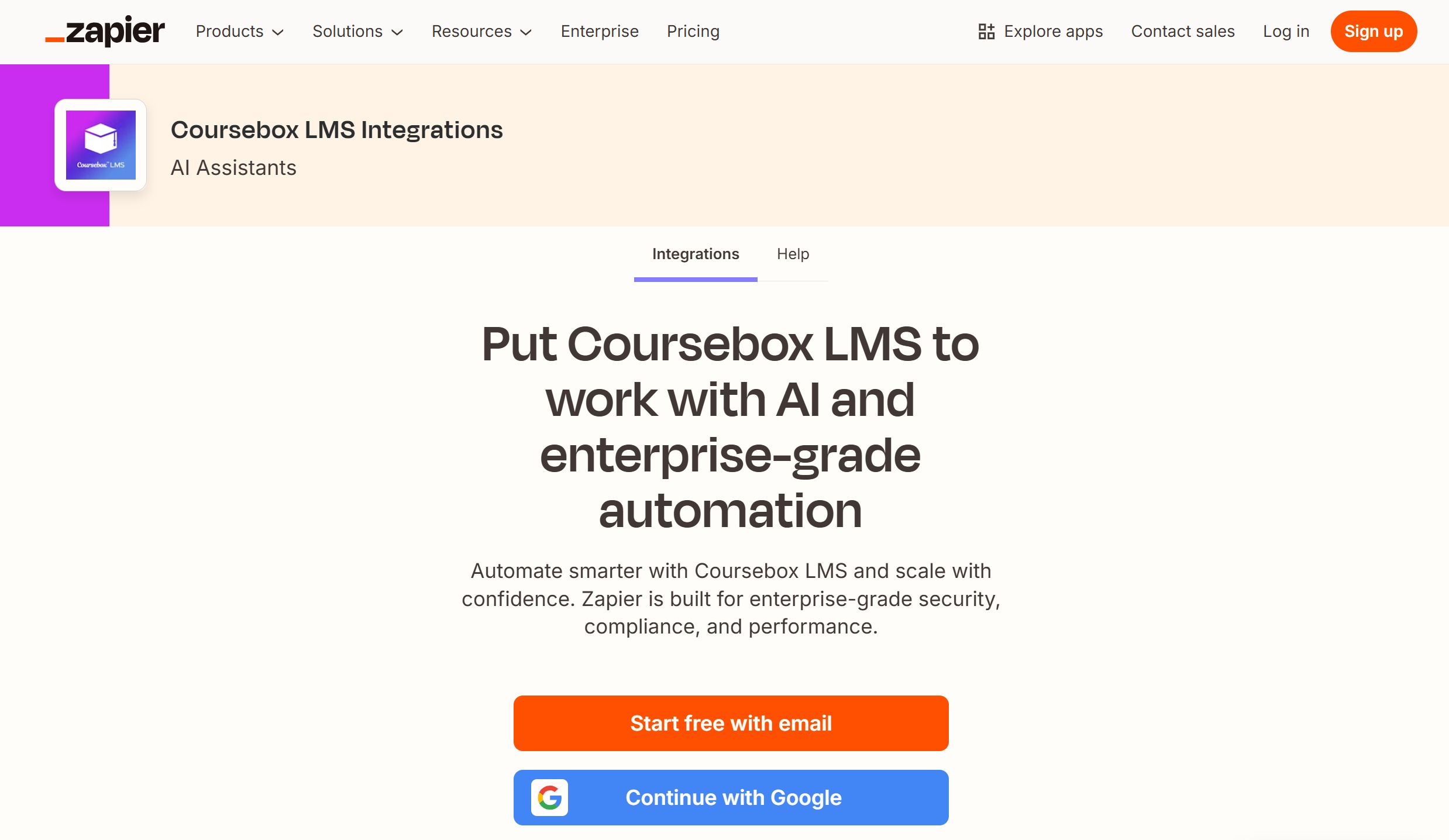
You’ll be directed to the Coursebox LMS Integrations page on Zapier.
Sign in or create a Zapier account using email or Google login.
Connect Coursebox to Zapier
When setting up a Zap with Coursebox, you’ll be prompted to connect your Coursebox account.
This connection allows Zapier to communicate securely with your learning platform and perform actions automatically.
How to Connect
In Zapier, select Coursebox LMS as your app.
When prompted, enter the following:
API Key – found in your Coursebox Settings → Open API section.
Coursebox Domain – your portal’s URL (e.g.,
https://my.coursebox.ai).
Click Continue to authorise the connection.
You can reset your API Key at any time to generate a new one.
This adds an extra layer of security and ensures your integrations remain private and protected.
Zapier Integration Options
Once your Coursebox account is connected, you can use it as either a Trigger (an event that starts an automation) or an Action (a task Zapier performs).
Coursebox Trigger Options
These triggers start your Zaps when specific events occur in Coursebox:
| Trigger | Description |
|---|---|
| New Course | Fires when a new course is published. |
| New Event | Fires when a new event is created. |
| New Resource | Fires when a new resource is added. |
| New User | Fires when a new user registers in Coursebox. |
| New User Subscription | Fires when a user subscribes to a plan or feature. |
| New User Status | Fires when a new status is assigned to a user. |
| User Enrolled in Course | Fires when a user is enrolled in a course. |
| User Enrolled in Event | Fires when a user joins an event. |
| User Enrolled in Resource | Fires when a user gains access to a resource. |
| Course Completed | Fires when a user completes a course. |
Coursebox Action Options
These are the actions Zapier can perform inside Coursebox after a trigger occurs:
| Action | Description |
|---|---|
| Enrol Into Course by Code | Enrols a user into a course using a unique course code. |
| Enrol Into Event | Enrols a user into a specific event. |
| Enrol Into Resource | Gives a user access to a resource. |
| Enrol Into Resource Directory | Adds a user to a resource directory. |
| Invite User | Creates a new user in Coursebox and sends them an invitation. |
| Remove User Custom Field | Deletes a custom field value for a user. |
| Remove User Status | Removes an assigned user status. |
| Set User Custom Field | Adds or updates a user’s custom field value. |
| Unenrol From Channel | Removes a user from a channel. |
| Unenrol From Channel by Code | Removes a user from a channel using a code. |
| Unenrol From Course | Removes a user from a course. |
| Unenrol From Course by Code | Removes a user from a course using a code. |
| Unenrol From Event | Removes a user’s event enrolment. |
| Unenrol From Resource | Removes a user’s access to a resource. |
| Unenrol From Resource Directory | Removes a user from a resource directory. |
| Update Profile | Updates a user’s profile details in Coursebox. |
Enrol into channel
Follow These Steps
- Open Step 3 – Coursebox LMS: Enrol Into Channel.
- In User, don’t pick a name from the list.
- Instead, map the value from a previous step:
- If you’re in Zapier: click the Custom tab (or “Insert data”), then choose the User ID (or Email) output from Step 2 – Invite User.
- If you’re in Make (Integromat): click the { } / Add variable icon next to the field and select the User ID (or Email) from Invite User.
- Keep Channel as your chosen channel (e.g., IEP Ambassador Program – Oct 2025).
- Test: run the workflow with a sample spreadsheet row. It should:
- Create/invite the user (Step 2) → returns a User ID
- Enrol that same user into the channel (Step 3)
- Prefer User ID returned by the Invite User step (often labeled
user.id,Coursebox User ID, or similar). - If ID isn’t available, map the Email—the enrol action accepts email in most Coursebox app versions.
- If Zapier/Make doesn’t show fresh outputs, re-run Test on Step 2 to pull a new sample.
Quick Toubleshooting
- No ID in outputs? Expand “Show all”/“More” to reveal hidden fields; re-test Step 2.
- Multiple users enrolled? Make sure you’re mapping a single value (the invited user), not a collection.
- Still seeing Static? You can leave the “Static” list closed and insert the variable directly—once a variable is mapped, it’s dynamic even if the UI label says “Static”.
For more information on other integrations go to: Integrations - SAML, WordPress, Arlo, SCORM, Zapier, Open API
Was this article helpful?
That’s Great!
Thank you for your feedback
Sorry! We couldn't be helpful
Thank you for your feedback
Feedback sent
We appreciate your effort and will try to fix the article