Version History (March 23, 2026)
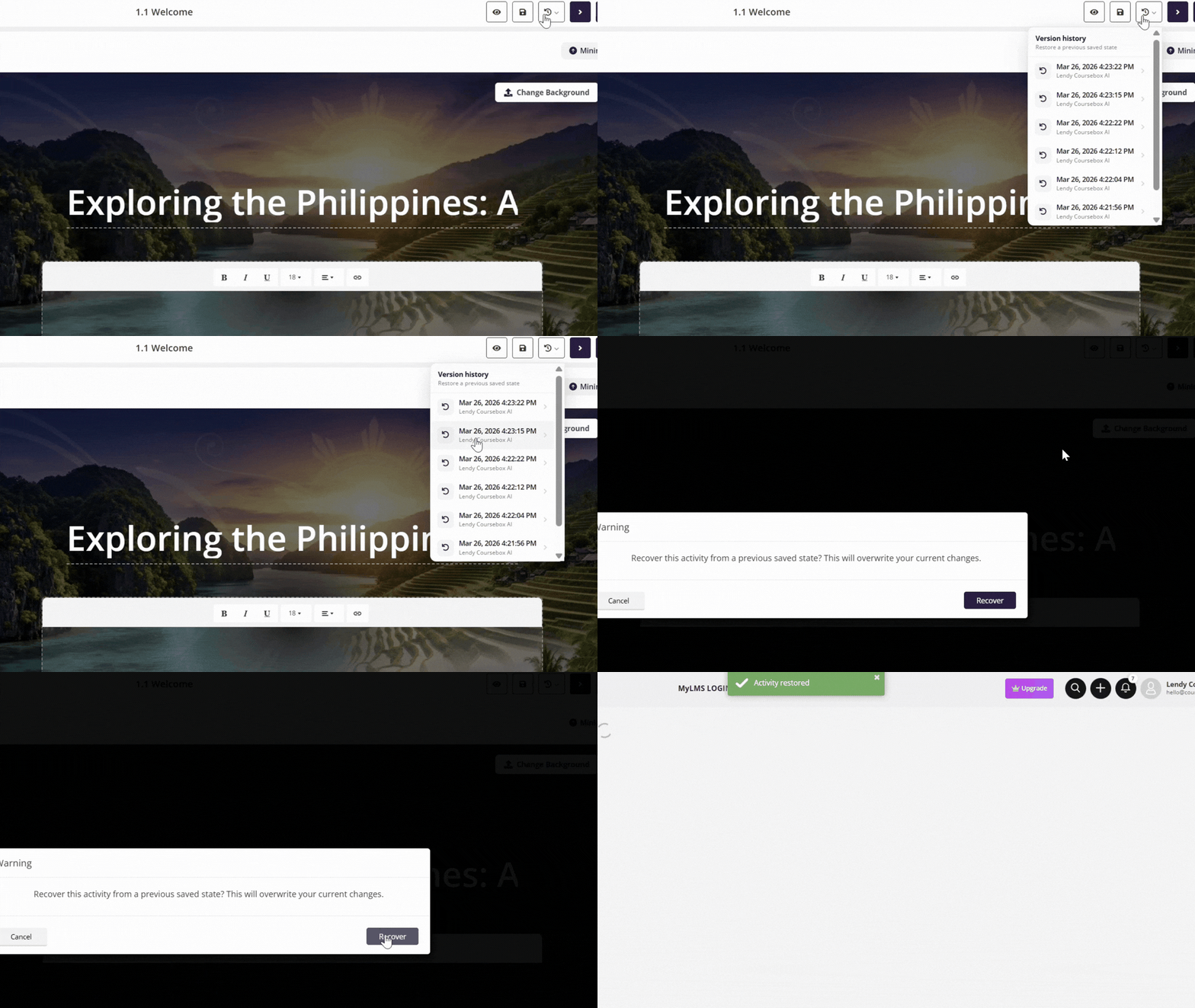
Restore a previously saved version of your course.
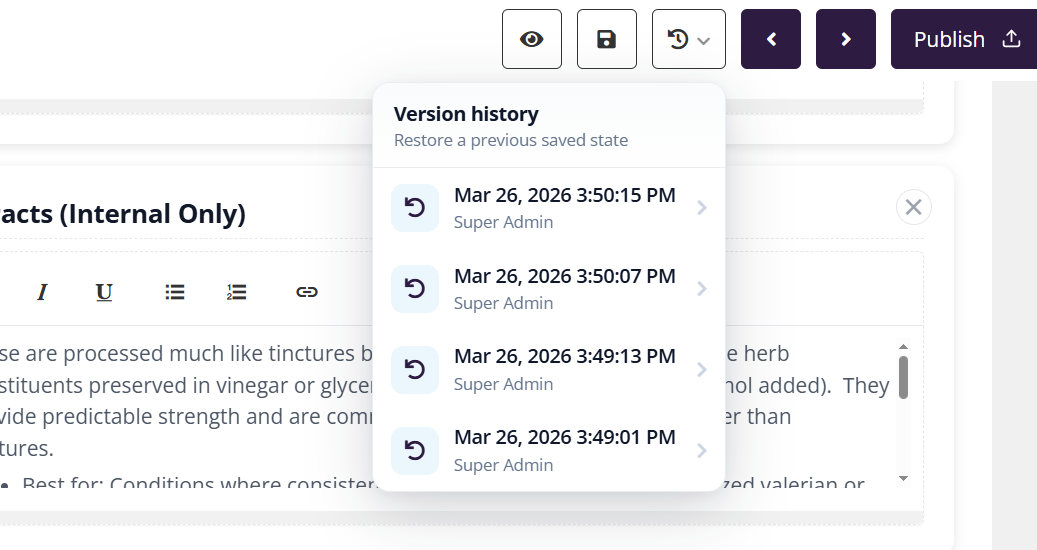
What’s new
• Access up to the last 20 saved versions
• Restore any previous version instantly
• Track changes made over time
• Helps prevent loss of content or edits
How it works
• Open your course editor
• Click Version History
• View up to 20 previous saves
• Select a version to preview or restore
• Confirm to revert your course
What you can do
• Revert to an earlier version if something breaks
• Recover deleted or overwritten content
• Compare recent changes
• Maintain better control over course updates
Preview
PDF Export v2 (March 16, 2026)
What’s new
• Export courses as visually structured PDFs
• Images and media are included across all sections
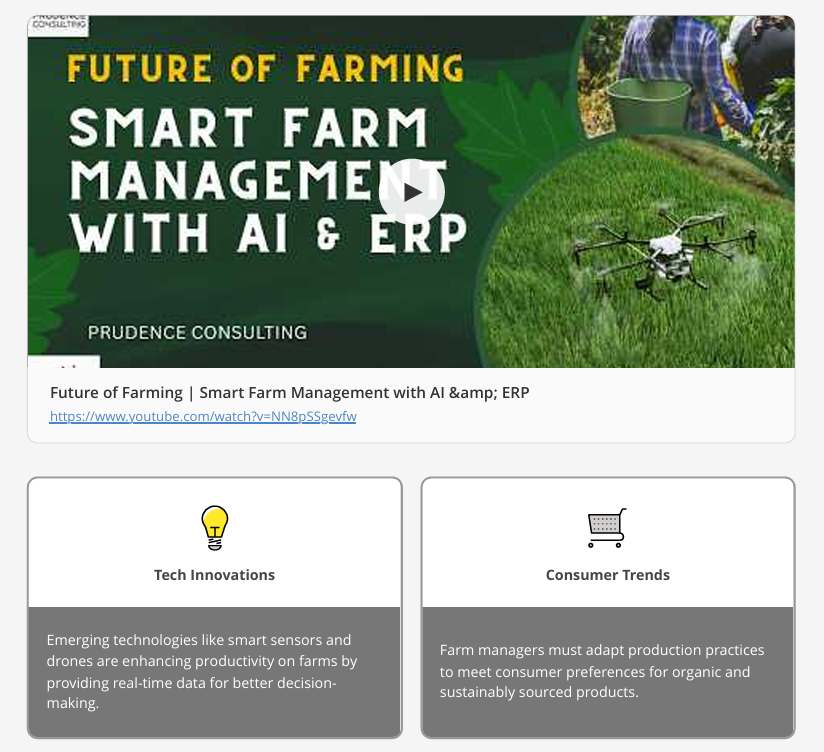
• Interactive elements like accordions, tabs, and flipcards are rendered visually
• Embedded videos appear inside the PDF layout
• Improved colours and formatting for a more polished output
How it works
• Open your course
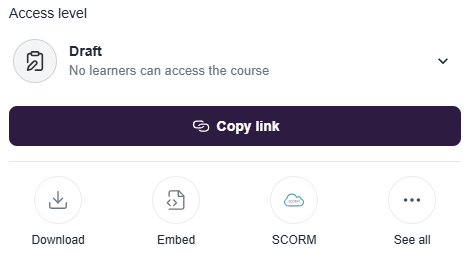
•Click on "Publish" in top right in Edit Mode
• Select "Course PDF"
• The system generates a formatted version of your course
• Download and share your PDF
What you can do
• Share courses as professional-looking documents
• Convert training content into downloadable resources
• Use PDFs for offline learning or distribution
• Repurpose courses as guides, handbooks, or ebooks
Preview
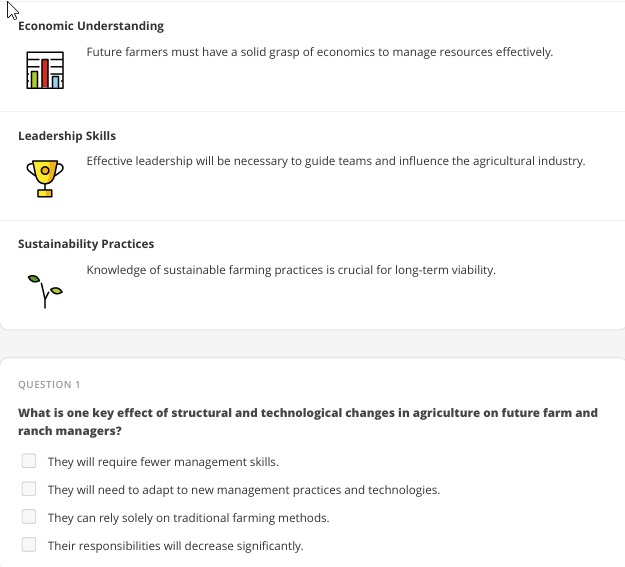
Presentation To Video (March 03, 2026)
Turn slide-based content into videos with AI voiceovers.
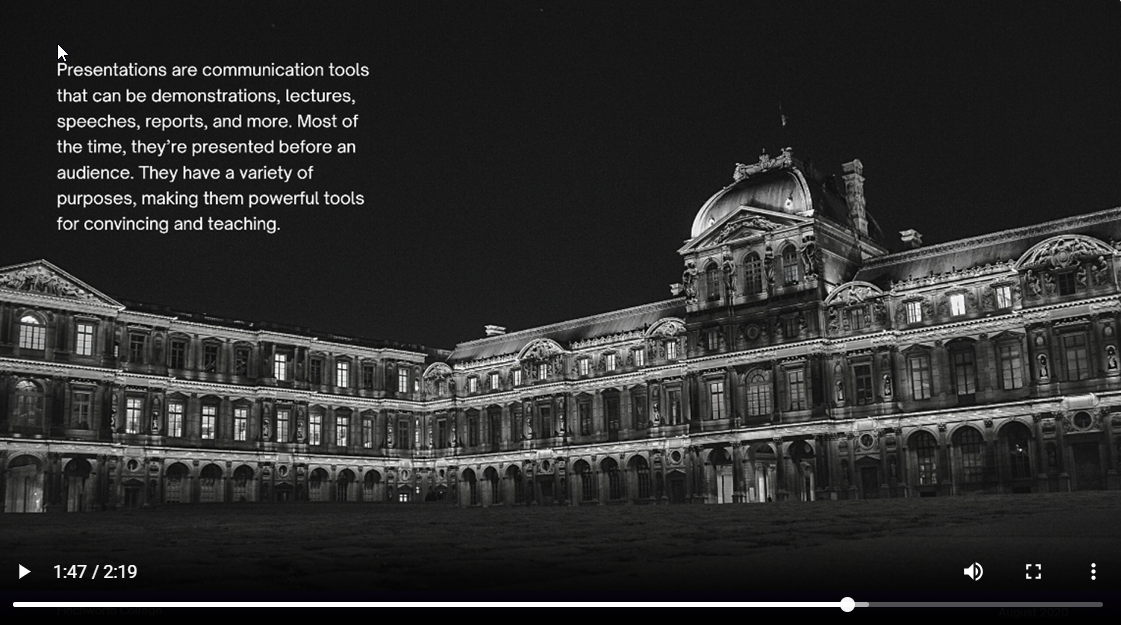
What’s new
• Convert PDF slides into videos automatically
• Generate voiceovers based on slide content
• Create video lessons without manual recording
• Ideal for turning presentations into training content
How it works
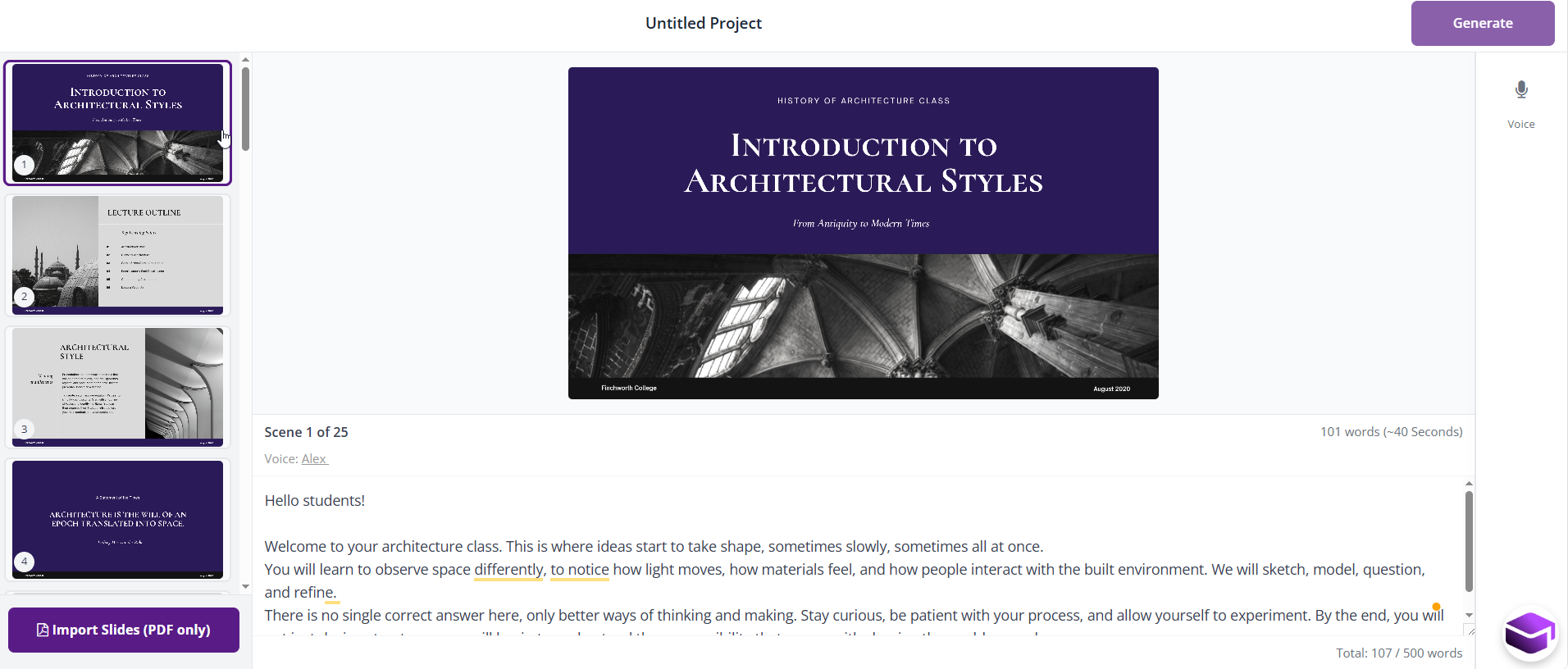
• Upload a PDF file with your slides
• Each slide is processed as a video scene
• Add or edit the script for each slide
• Select voice and settings
• Generate your video
What you can do
• Edit the script for each slide before generating
• Control how each slide is narrated
• Regenerate videos with updated voice or script
• Turn existing presentations into full video lessons
For more information on multimedia content, click here.
Hotspots (February 04, 2026)
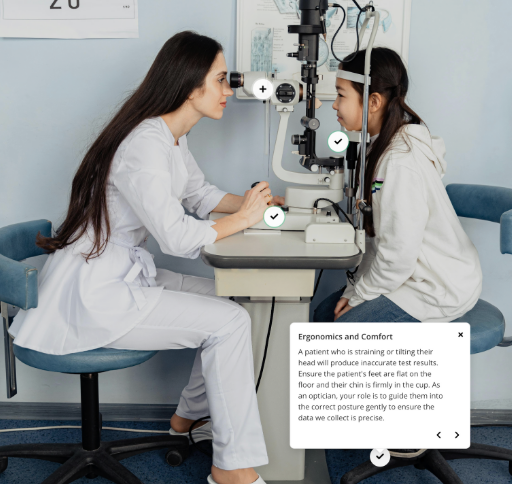
Turn images into interactive learning experiences with clickable hotspots.
What’s new
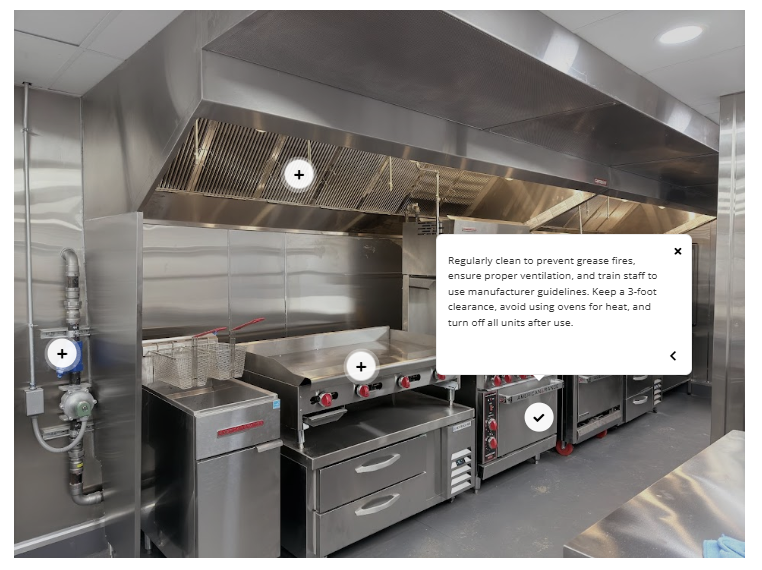
• Add clickable points on images to reveal information
• Create interactive diagrams and visual learning experiences
• Highlight key areas, features, or steps inside an image
• Perfect for scenario-based and visual learning
How it works
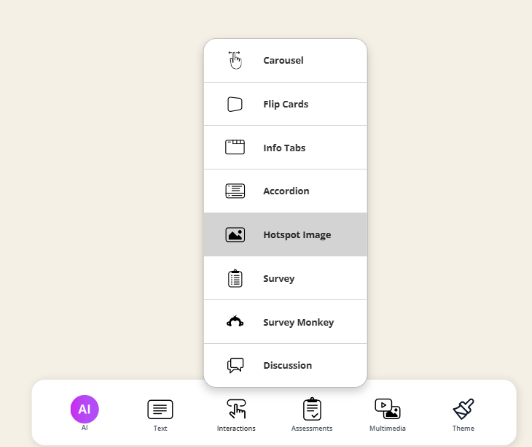
• In the courseeditor, select Interactions
• Choose Hotspot Image
• Upload an image
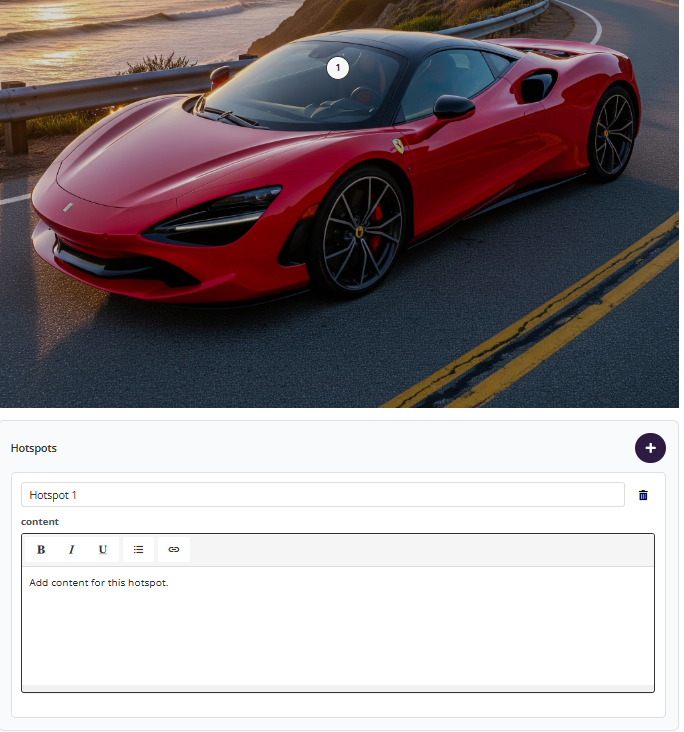
• Click Add hotspot and place markers on the image
• Add content for each hotspot
• Drag, edit, or remove hotspots as needed
What you can do
• Add multiple hotspots to one image
• Show explanations or guidance on click
• Reposition hotspots anywhere on the image
• Update or delete hotspots anytime
Preview
Content Blocks (February 03, 2026)
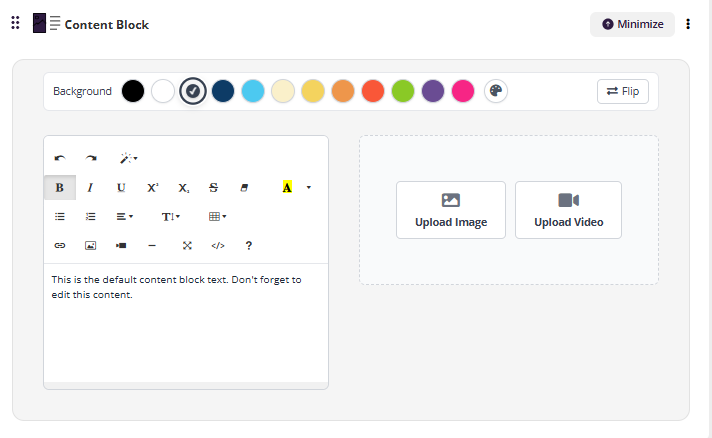
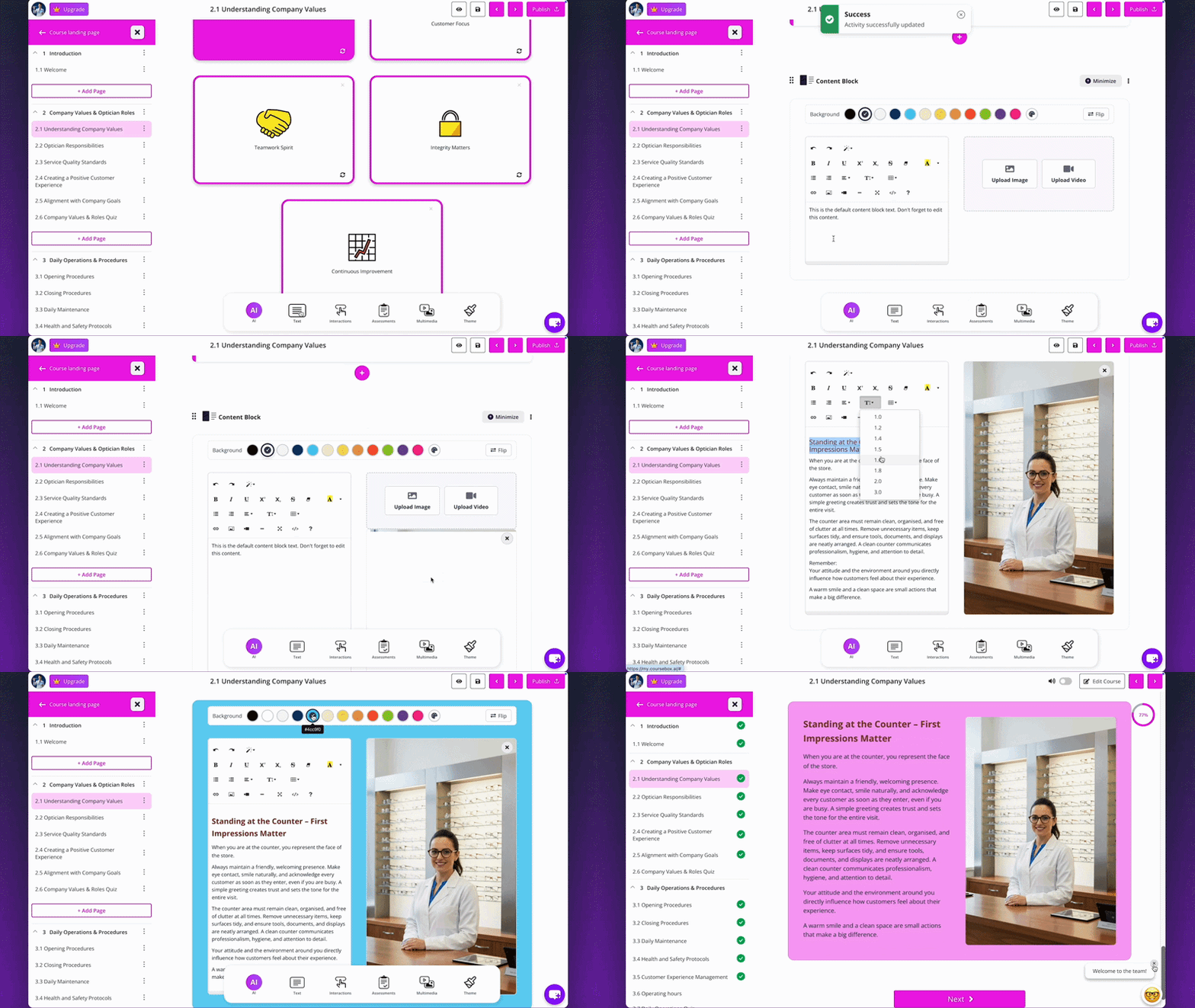
Add images and videos anywhere on the page for better layout and control.
What’s new
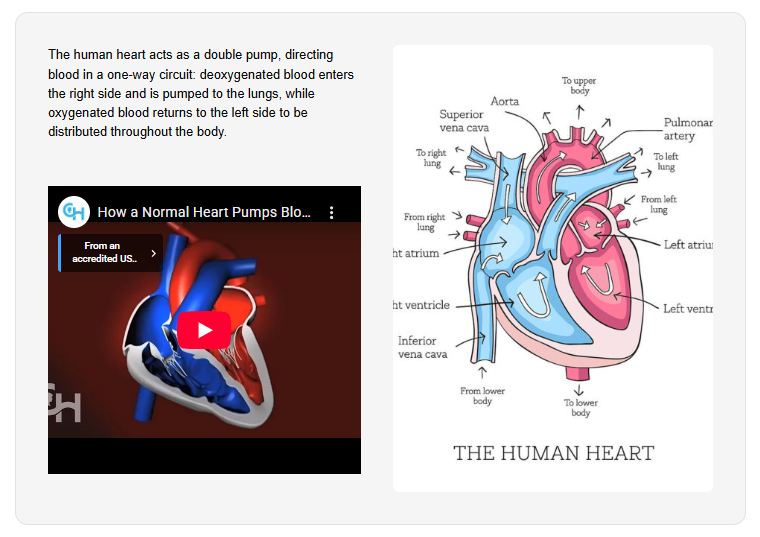
• Place images and videos anywhere in your content
• No more single image or video block for the entire page
• Better layout control and cleaner course design
• Improved learner experience
How it works
• Add a Content Block under text
• Insert images or videos directly within your page
• Position media alongside your content for better flow
Preview
Promo (February 03, 2026)
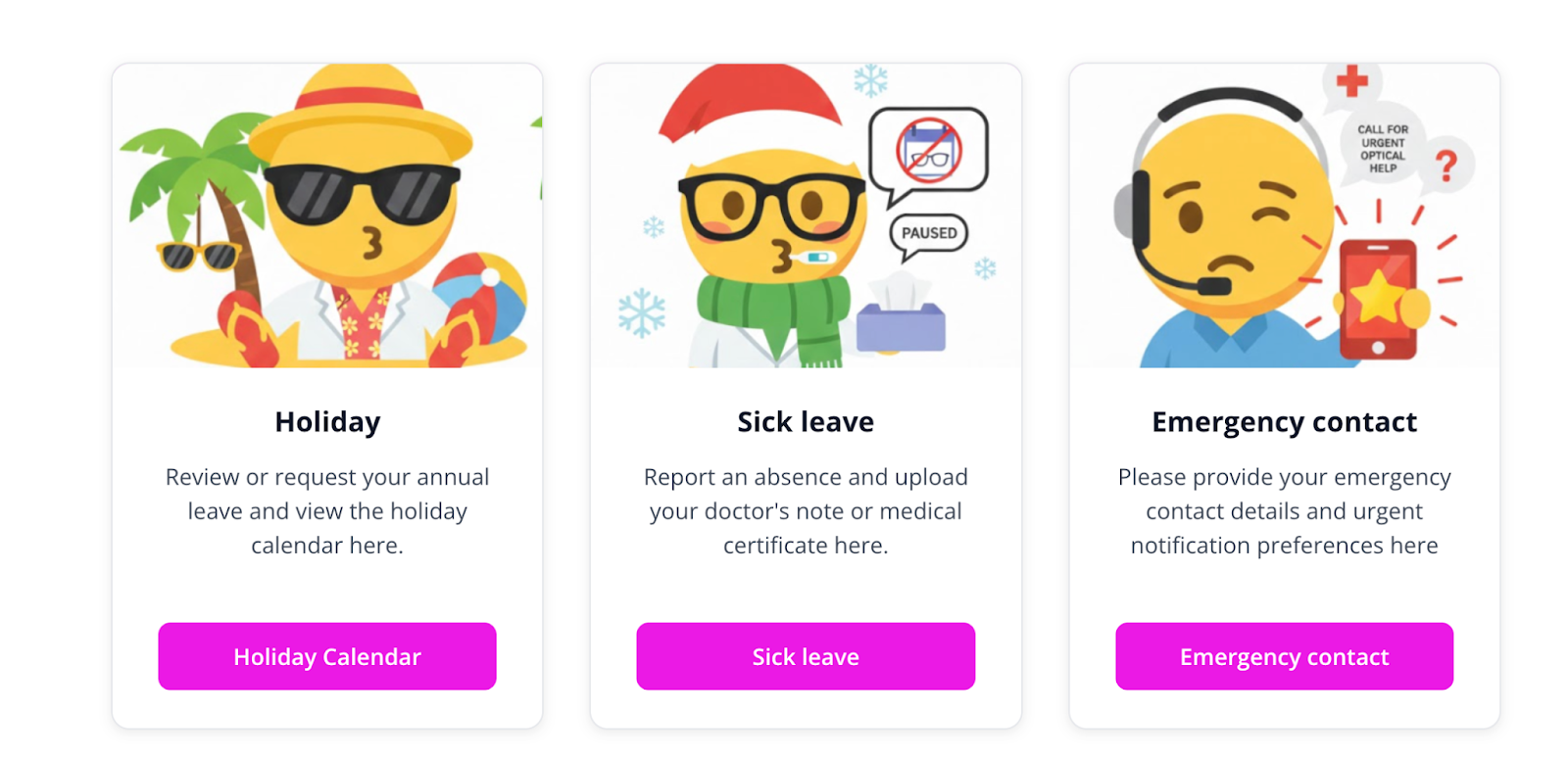
Highlight important content using visual cards with images, text, and optional call-to-action buttons.
What’s new
• Add image-based promo cards to highlight key content
• Include a heading, short description, and optional call-to-action
• Makes content easier to scan and more engaging
How it works
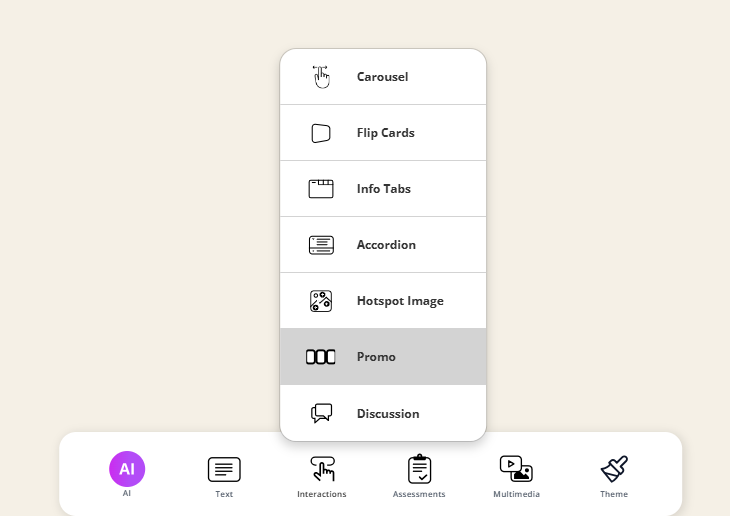
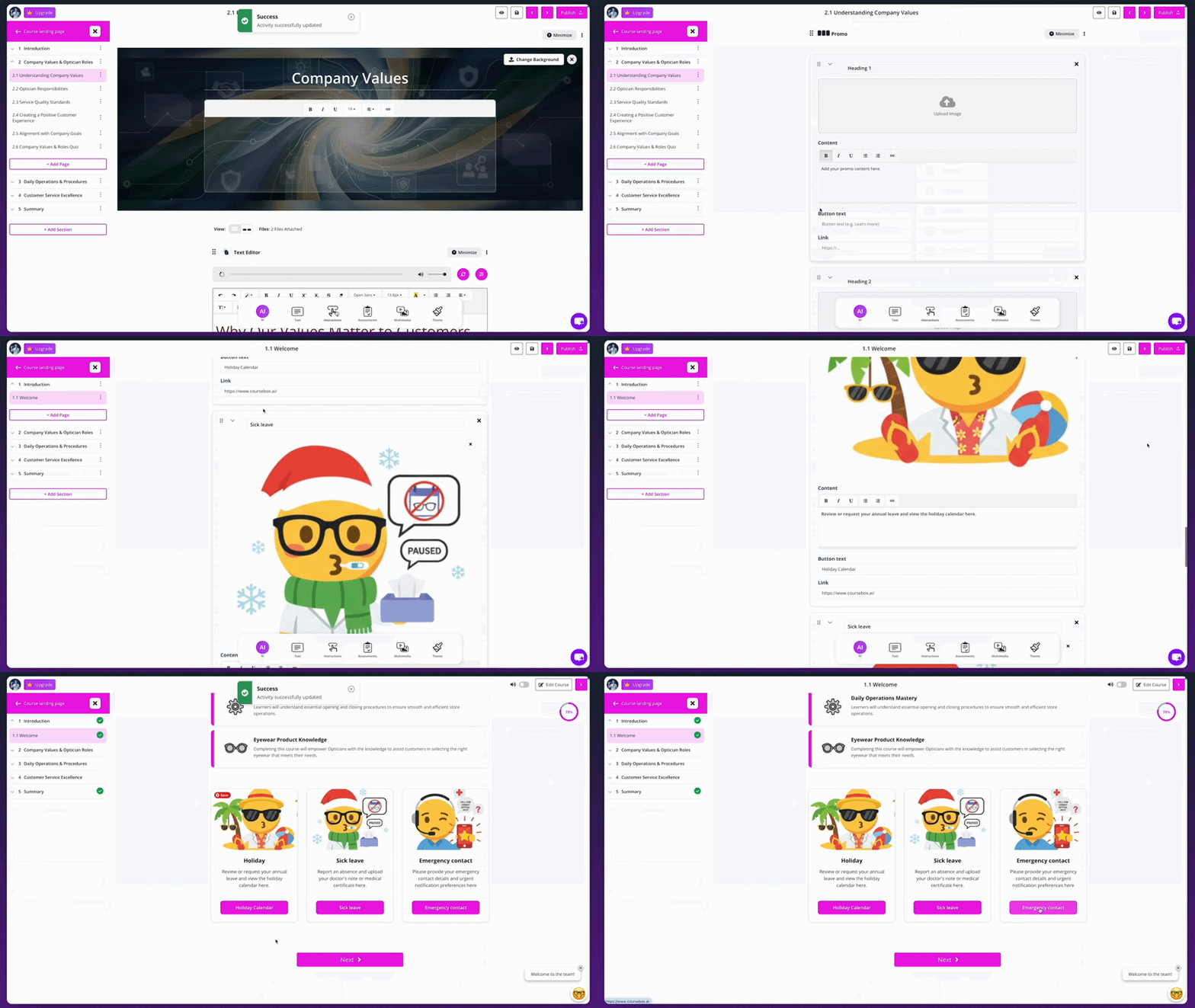
• Open your course page
• Click Interactions from the bottom toolbar
• Select Promo to add a promo block
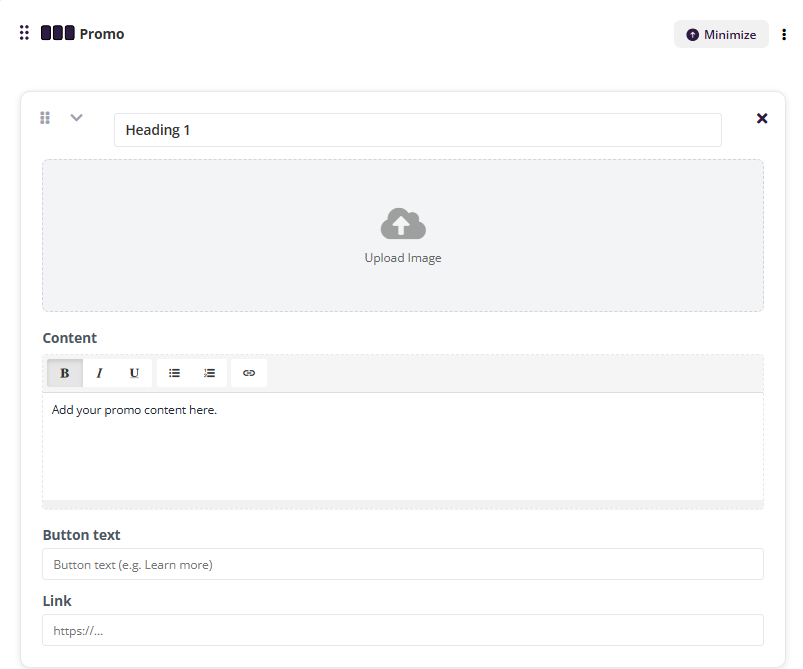
Each promo card includes:
• Heading — title for the card
• Image — upload a visual for the card
• Content — short description or supporting text
• Button — a clickable button which can go to a desired URL
Best practices
• Use high quality images
• Keep image sizes consistent across cards
• Keep descriptions short (1–3 sentences works best)
Preview
Custom Video Background (February 03, 2026)
Upload your own image to use as the background for AI videos.
What’s new
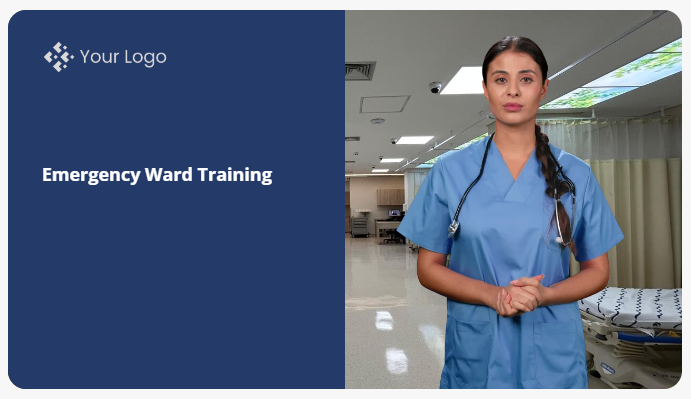
• Replace the default video background with any custom image
• Match videos to your course branding
• Create a more polished and consistent look
How it works
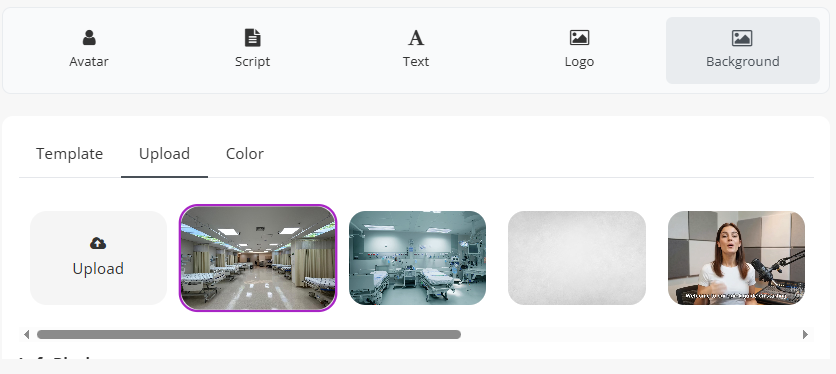
• Open your AI Video
• Select Background.
• Upload an image to use as the background
• Preview your voice, script, avatar & other video elements.
• Click Generate
Banners (January 28, 2026)
Add a polished banner to any page, with an image and custom text.
What’s New
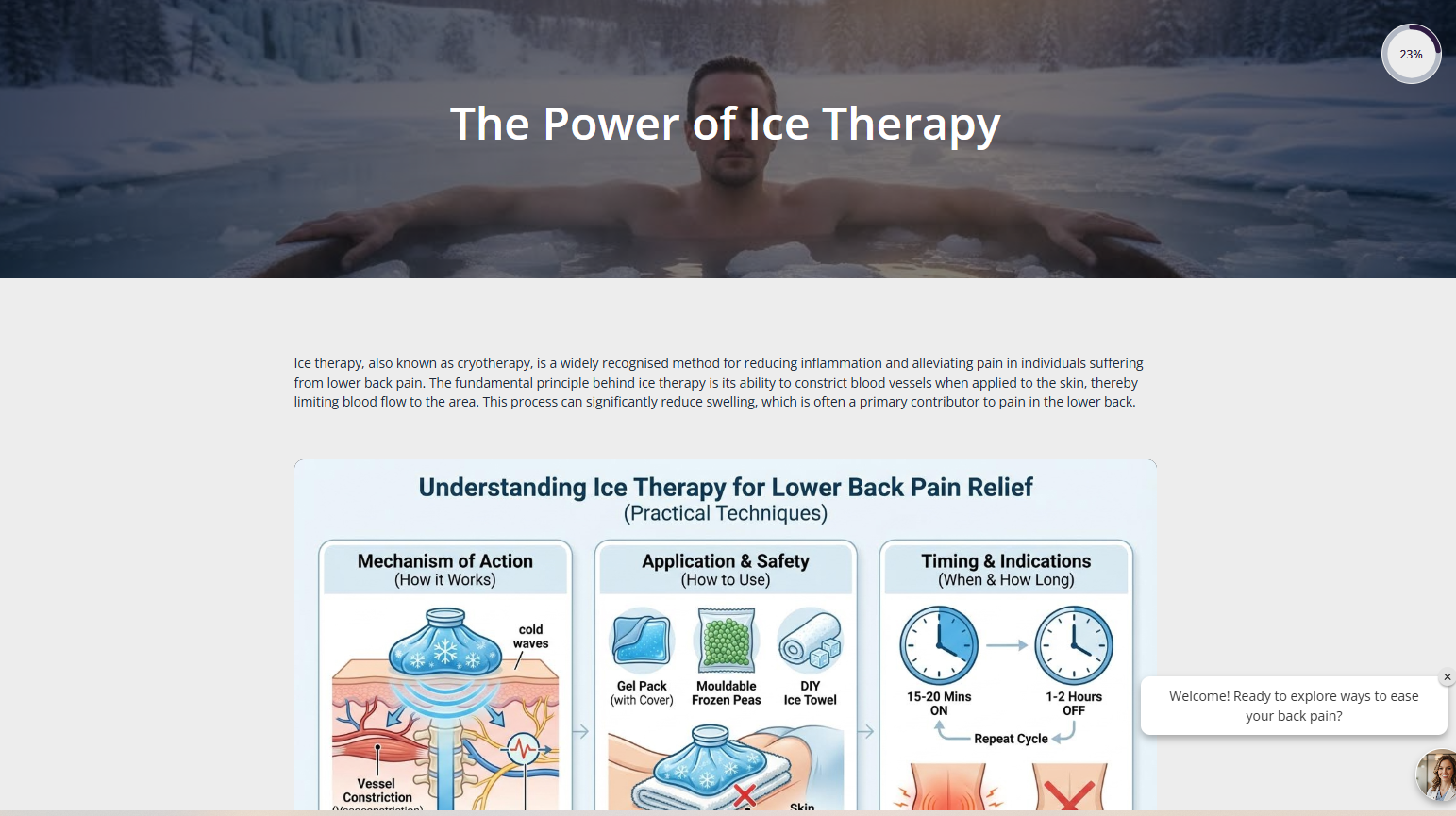
• Pages can now include a banner at the top
• Change the banner image and edit the text
• Makes sections feel more visual and professional
How it works
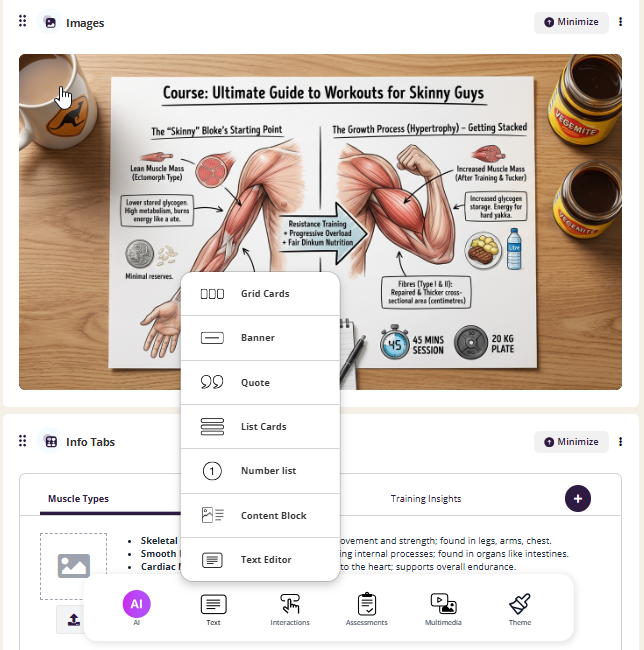
• Add a Banner to a page
• Update the image (or replace it entirely)
• Edit the banner text to match your content
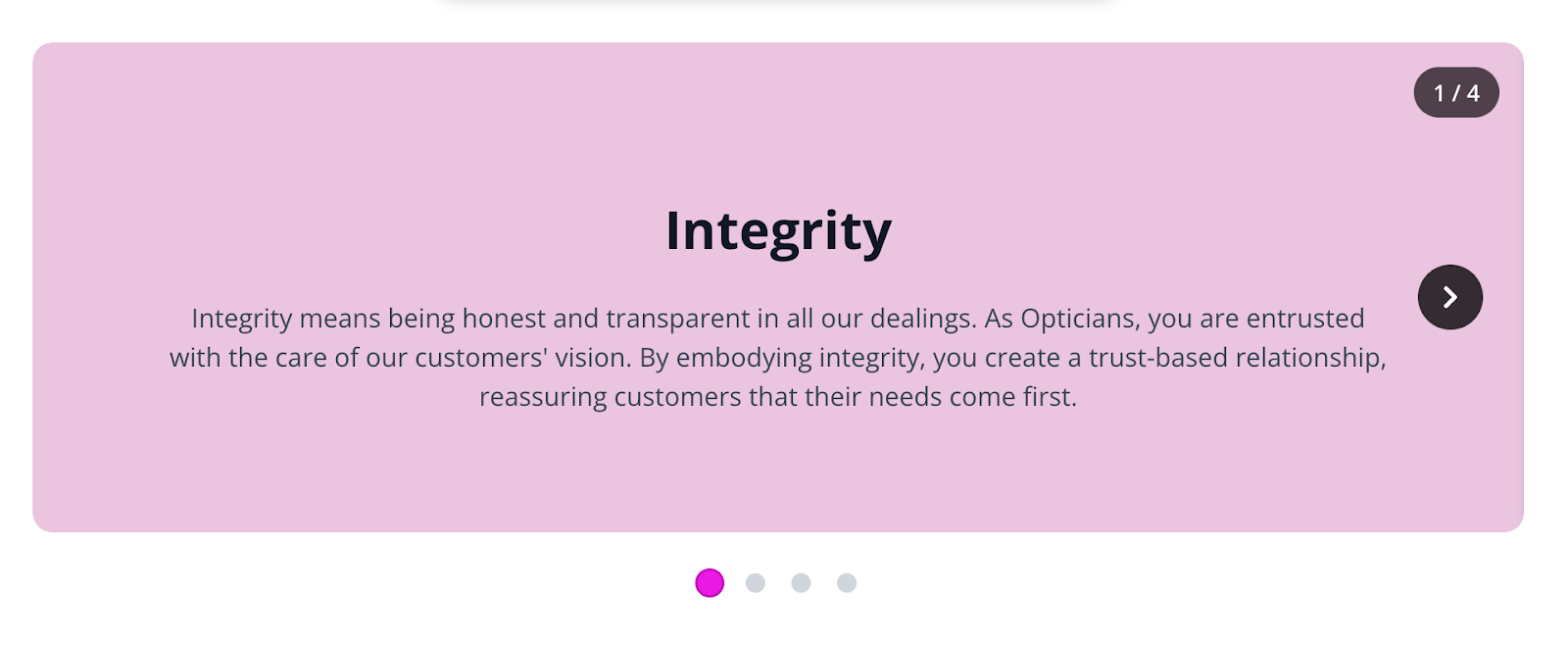
Carousel (January 28, 2026)
Present content across multiple swipeable or clickable slides.
What’s new
• Create interactive slide-based content inside courses
• Break information into smaller, digestible sections
• Highlight key points or create visual storytelling experiences
• Optional auto-play for automatic slide rotation
How it works
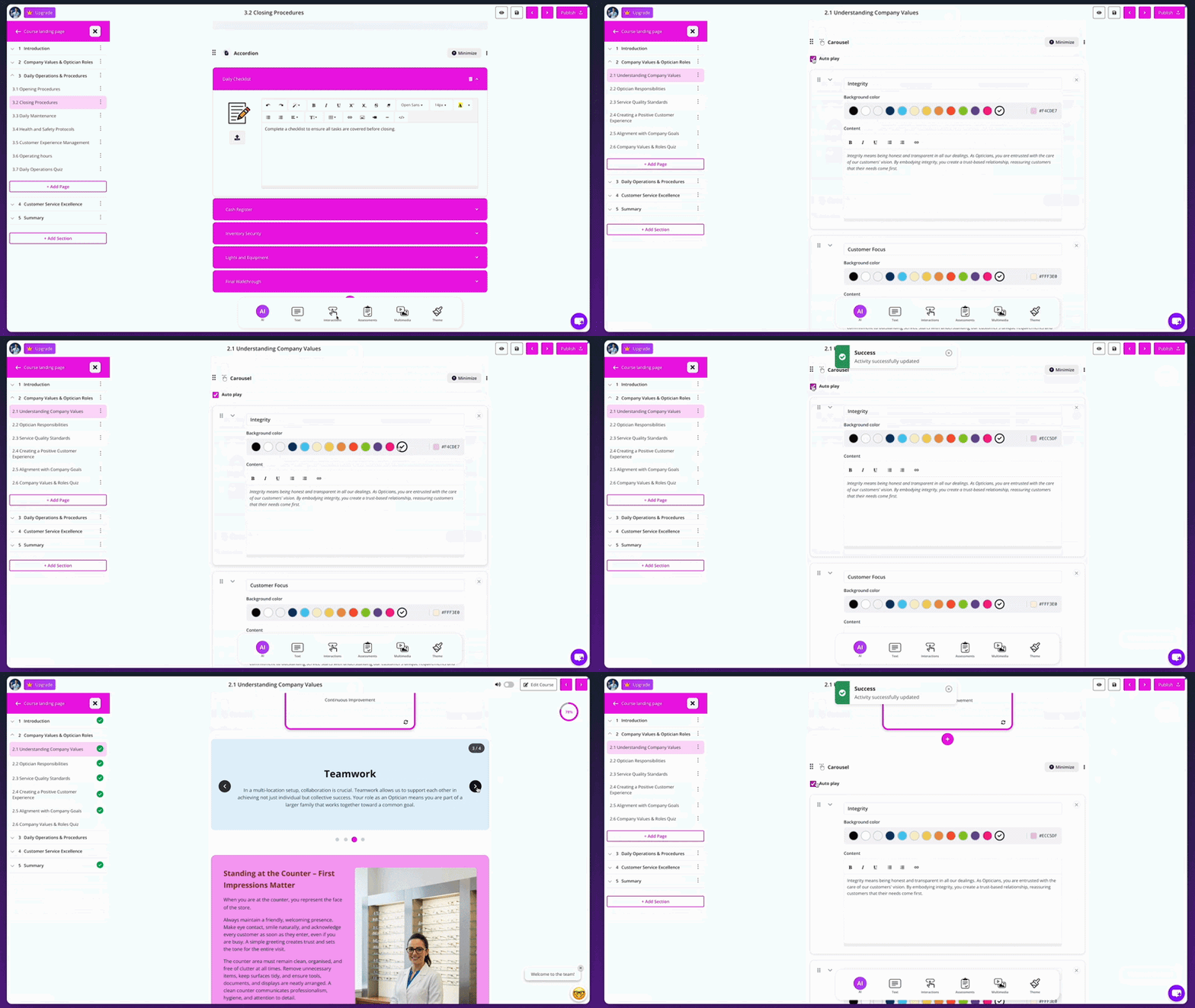
• Click Carousel from the interaction menu

• A carousel block is added to your page
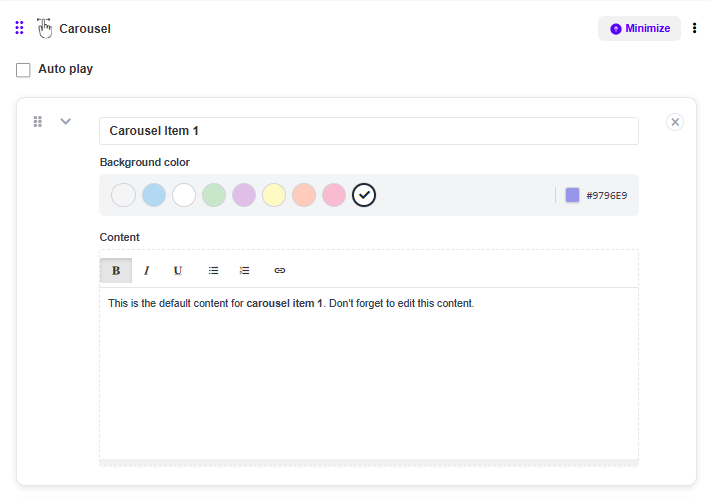 • Enable Auto play to rotate slides automatically (optional)
• Click any carousel item to edit
• Update the title and background colour (or enter a HEX code)
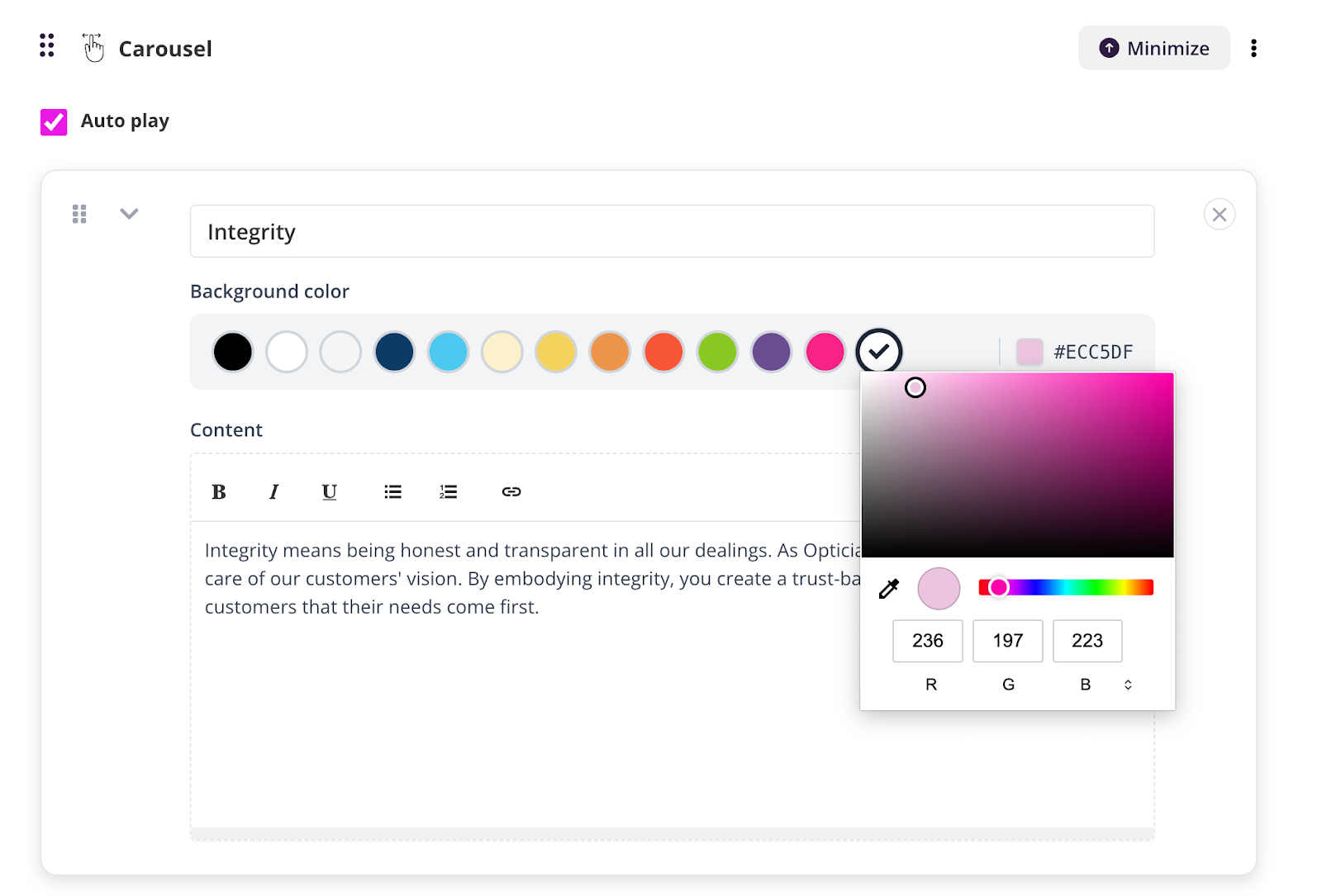
• Add or edit content inside the content editor
Preview
More Text Elements (January 27, 2026)
Create richer and more engaging course content with new text and layout options.
What’s new
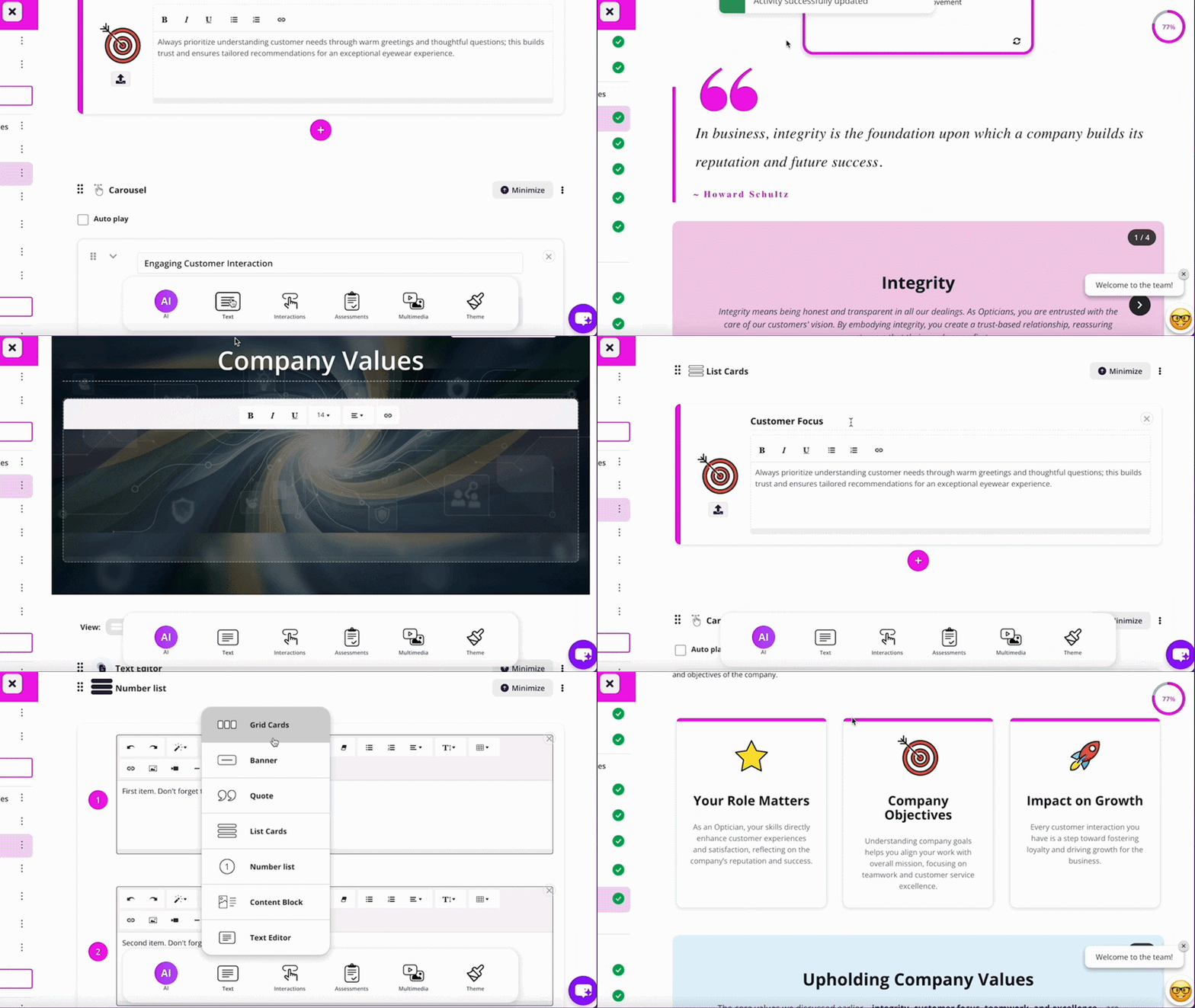
• More content elements available when editing text
• New layout and formatting options for better structure
• More visually engaging learning content
New elements include:
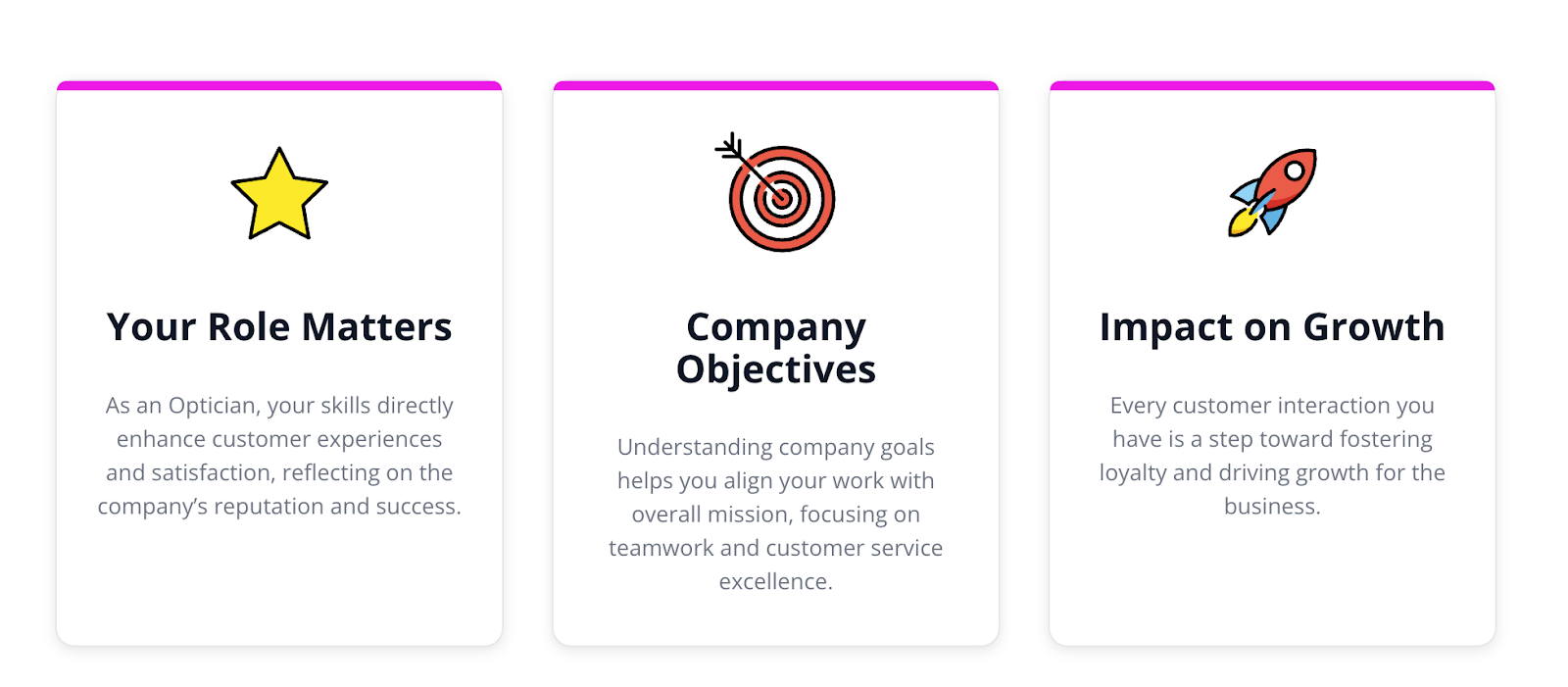
Grid cards
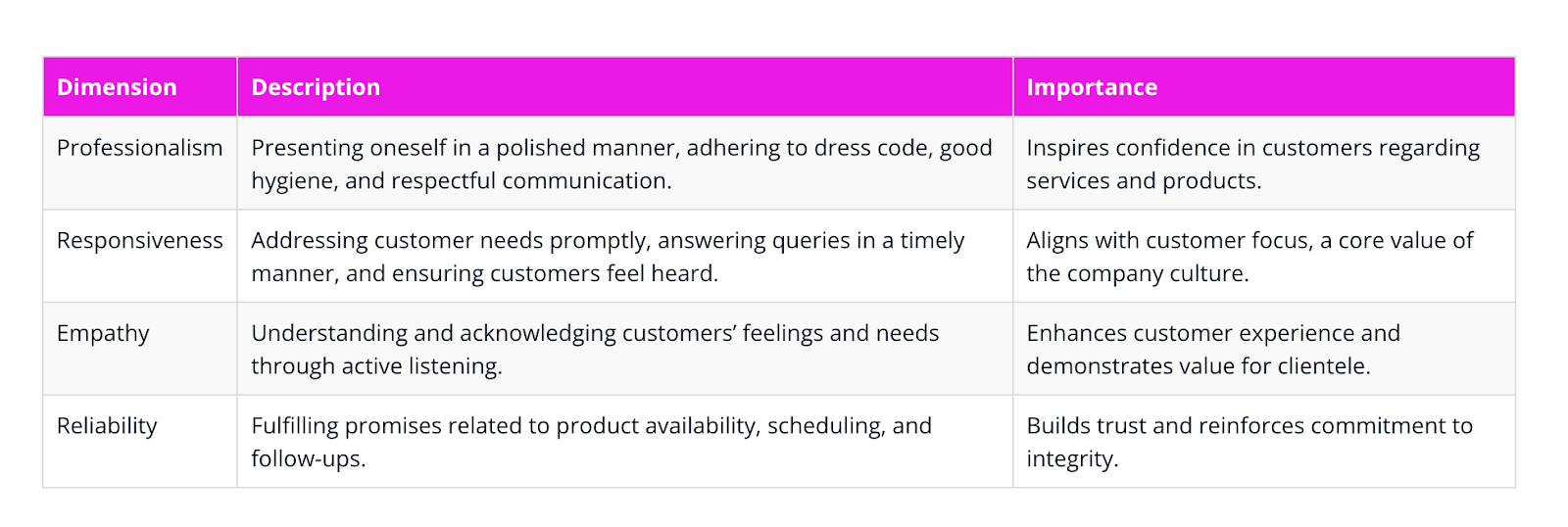
Table
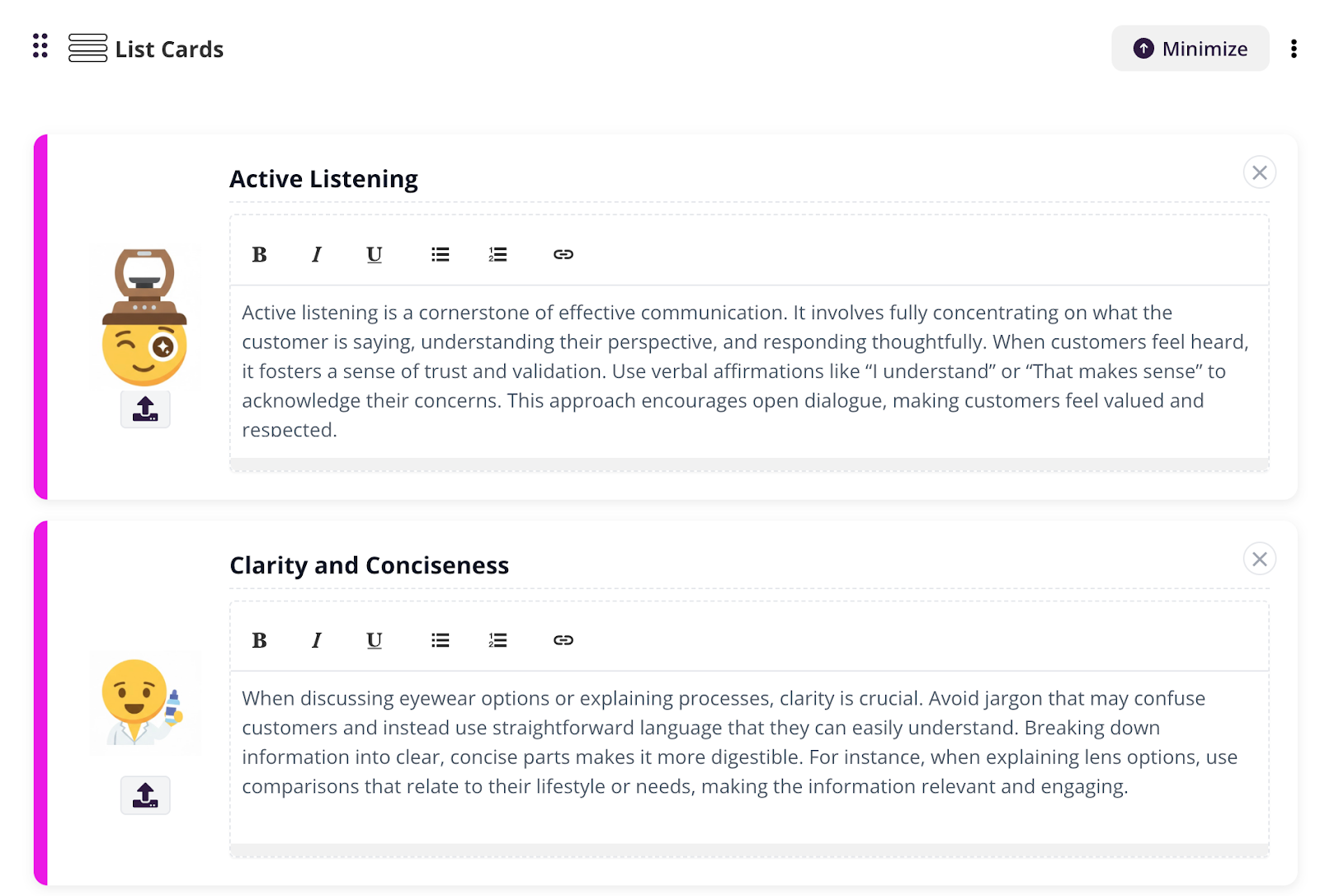
List cards
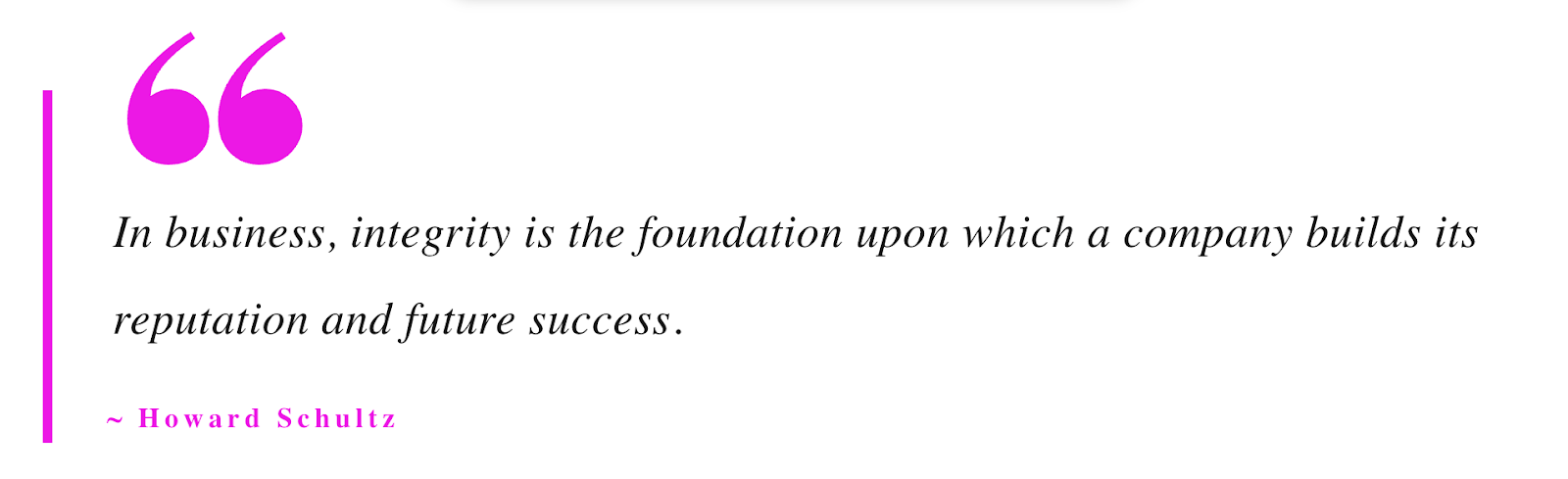
Quote
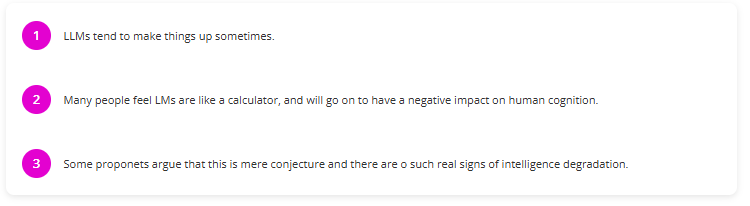
Numbered list
How it works
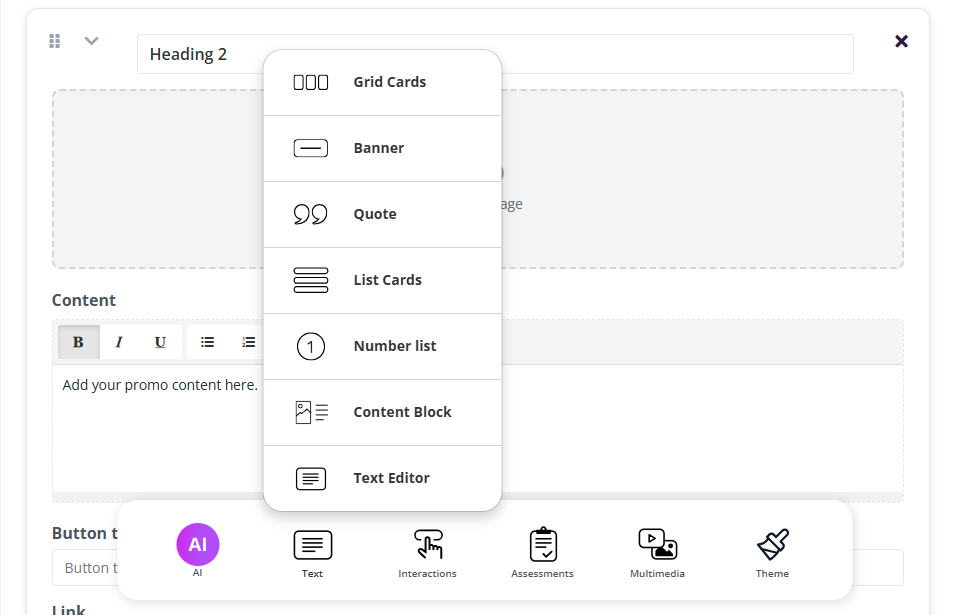
• Click on "Text" inside the course editor
• Choose from the available content elements
• Select your preferred layout and apply changes
Preview
Learn how to use it here
Course Branding (December 20, 2025)
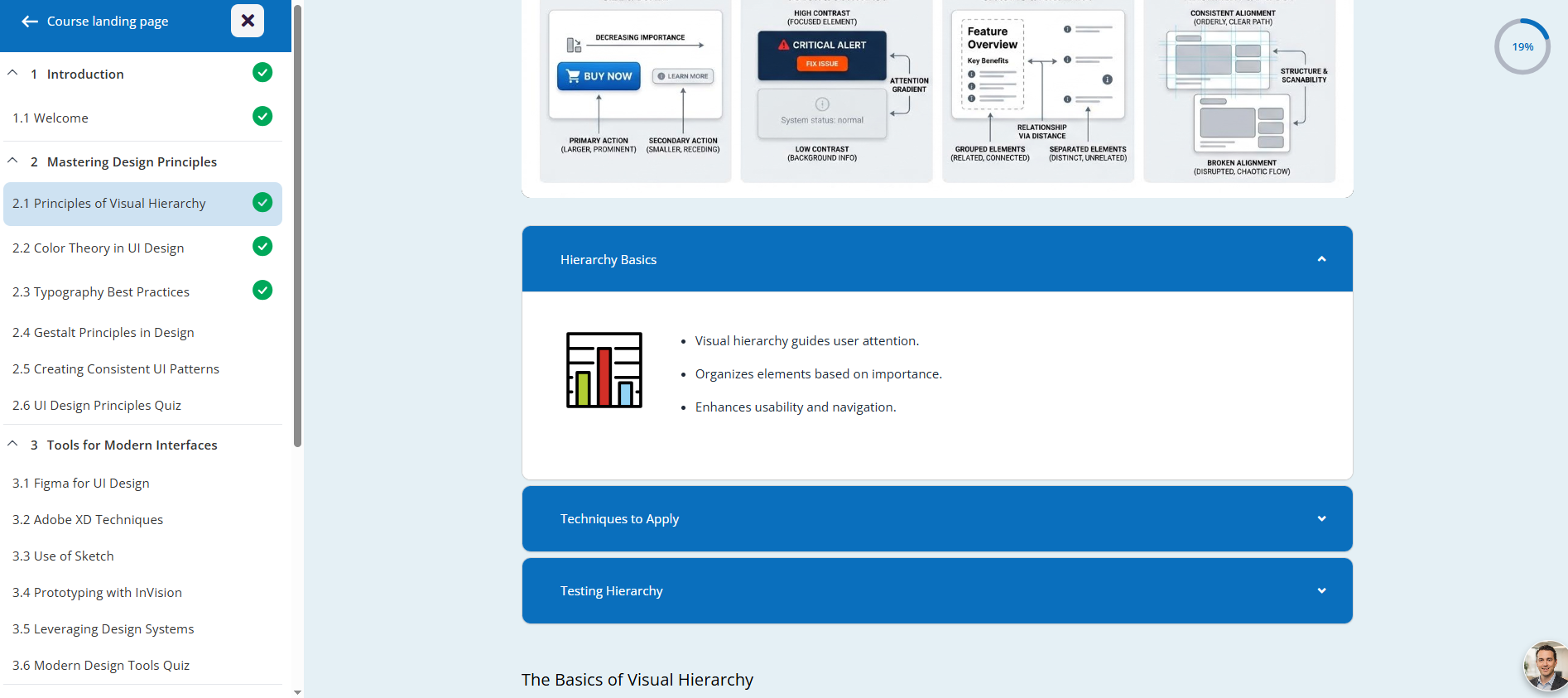
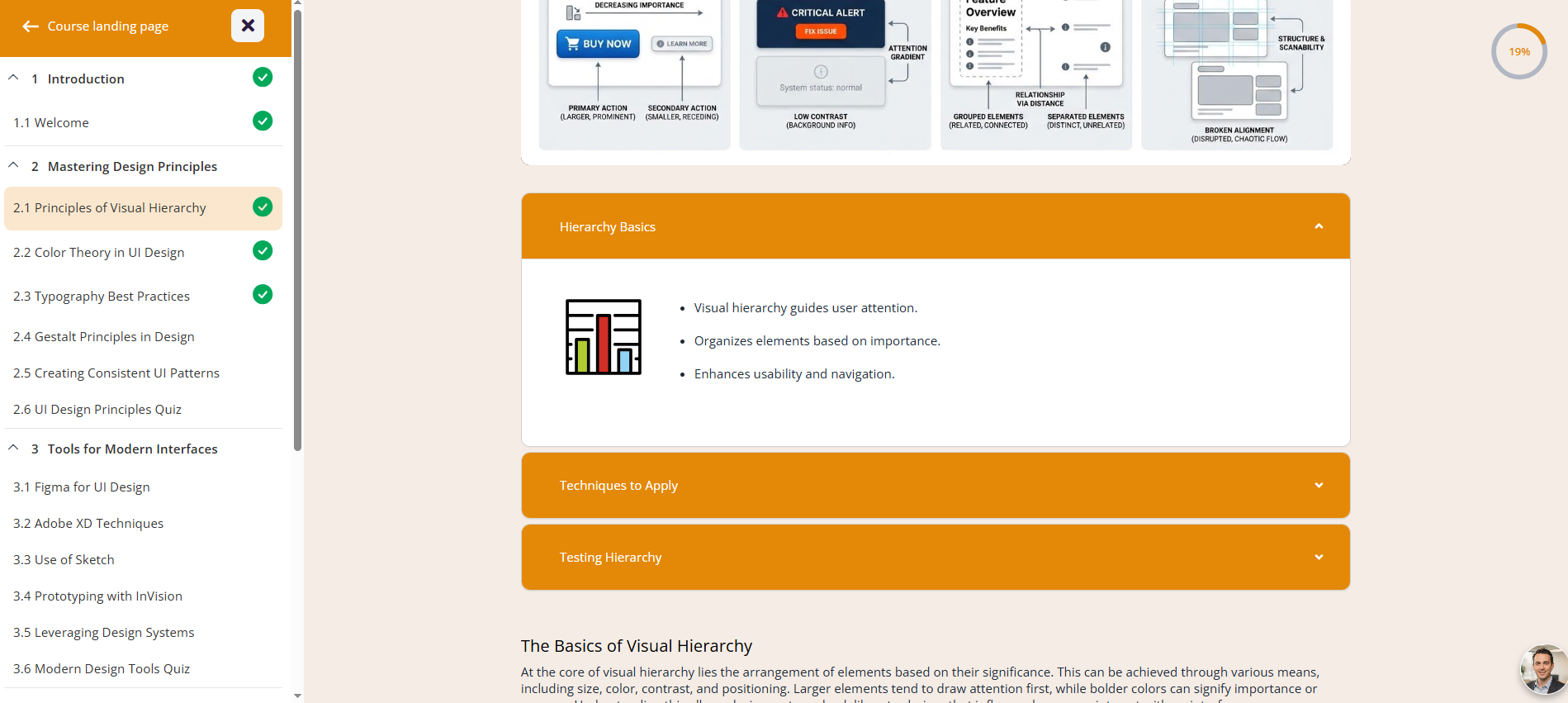
Give every course its own look. You can now set branding colours per course.
What’s new
• Each course can have different branding
• Set colours with a picker or paste a HEX code
• Changes apply only to that course, not your other courses
How it works
On any course page:
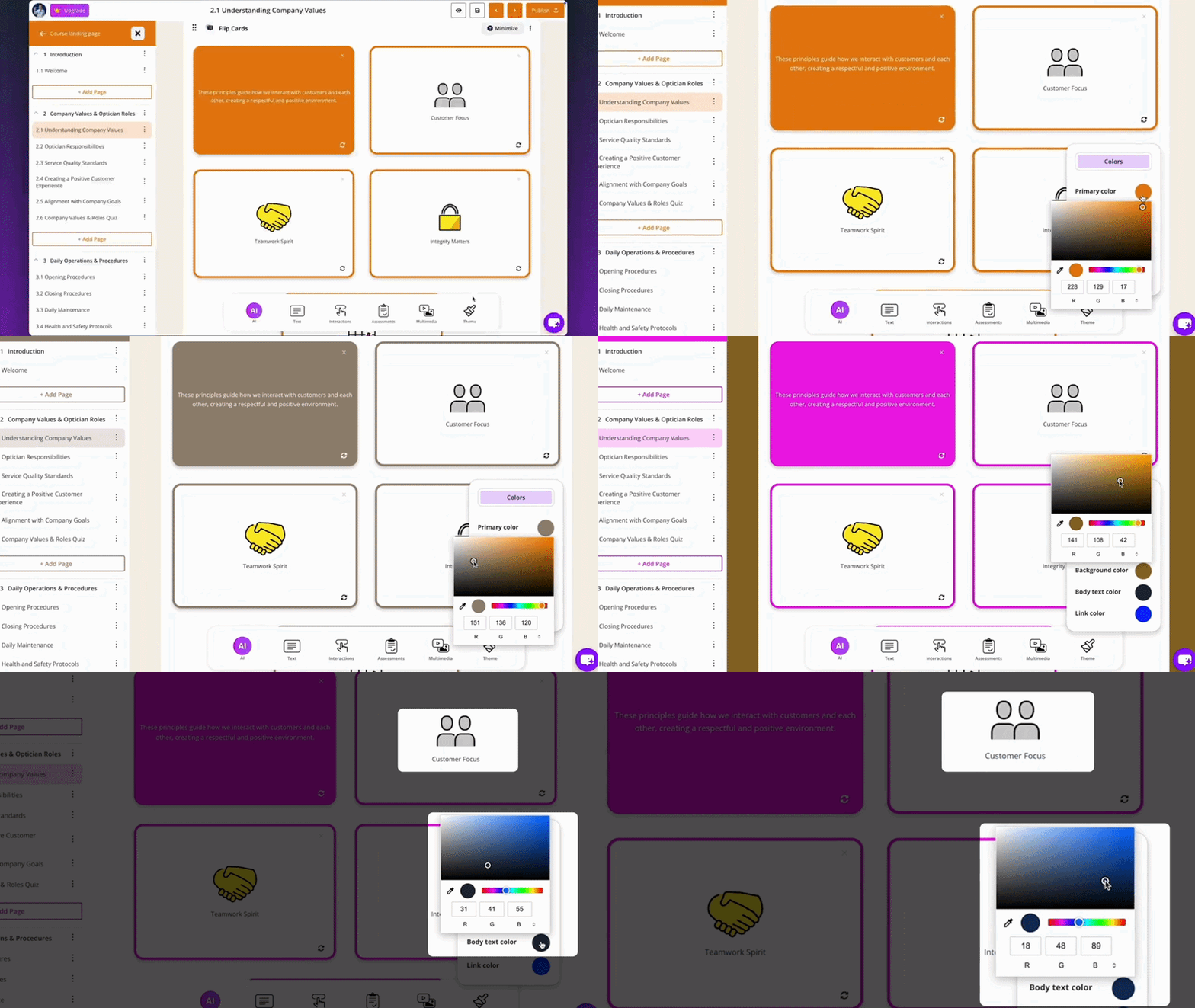
• Open the course editor
• Select Theme
• Choose colours (or enter HEX codes) for each option
• Save your changes
Learn how to use it here.
Personalised AI Tutor (December 17, 2025
Every course now comes with its own AI tutor chatbot.
What’s new
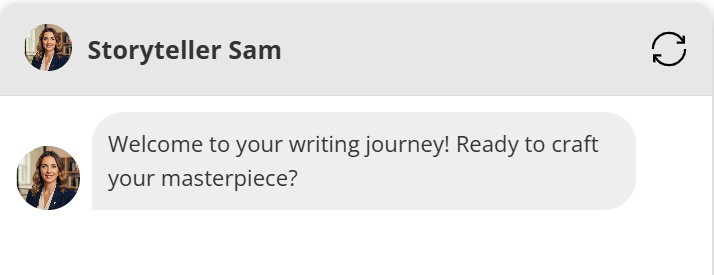
• A unique AI tutor is automatically generated for each course
• Tutor name and face are based on the course content
• Learners can ask questions and receive contextual answers
• No setup required
Why this matters
Instead of a generic chatbot, each course now has its own tutor identity. The AI understands the specific course content and provides more relevant, focused responses.
How it works
• When a course is created, an AI tutor is generated automatically
• The tutor is assigned a name and face image
• Learners can interact with the tutor throughout the course
• Responses are based on that course’s content
• You can edit the Tutor name, image and train it on the course or other documents.
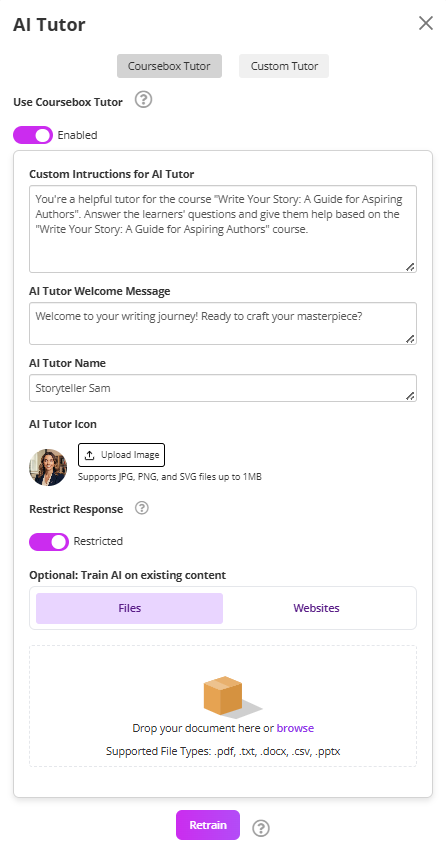
Learn more about AI tutor chatbots in Coursebox here
Icons (December 07, 2025)
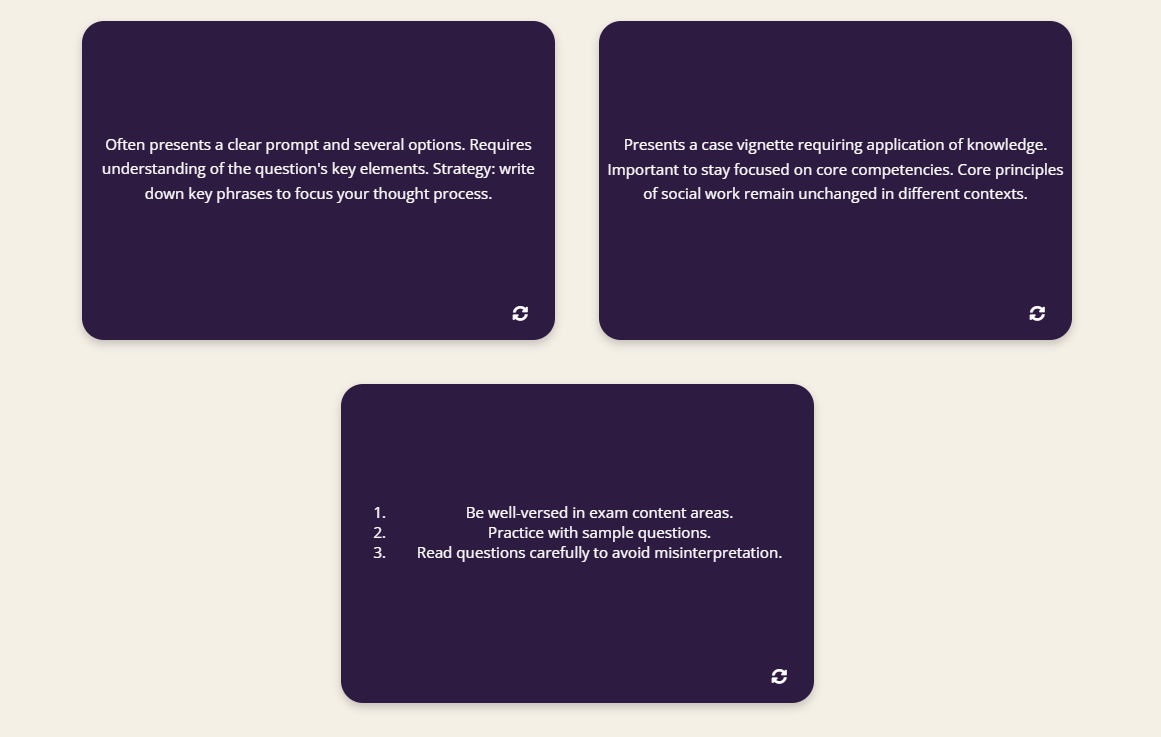
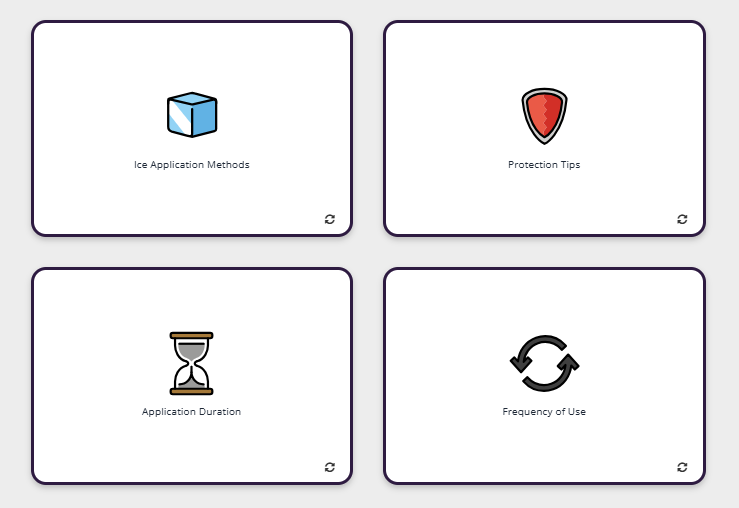
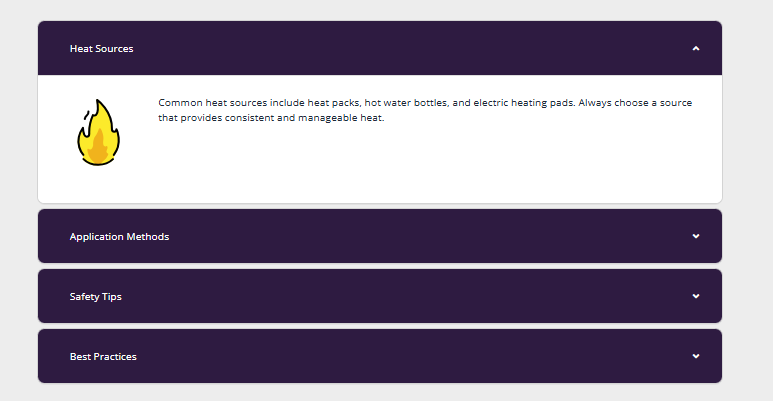
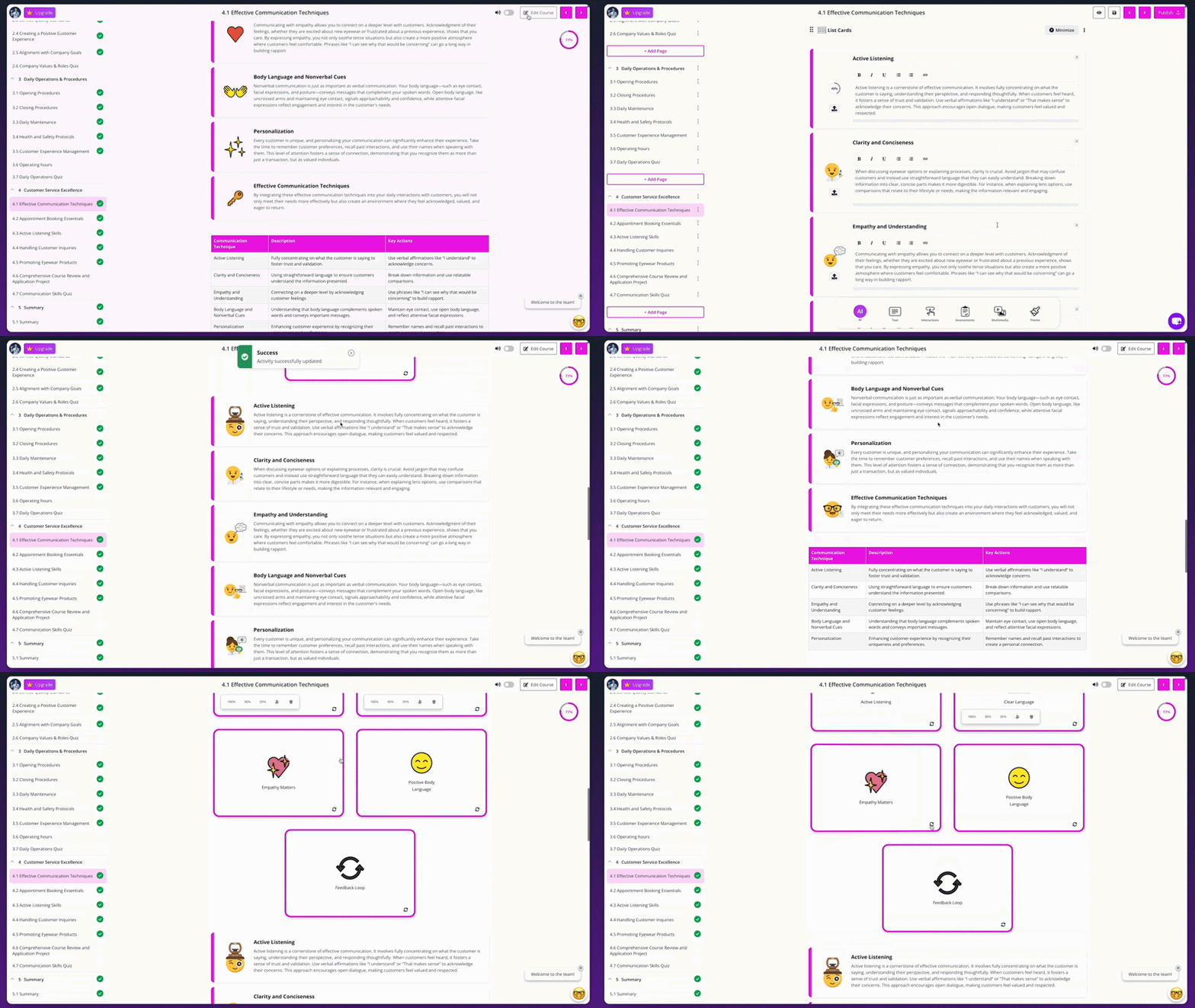
Course content now includes icons automatically to improve visual clarity and engagement.
What’s new
• Icons are added automatically across course content
• Makes learning content more visual and engaging
• Improves readability and structure
• No setup required
How it works
• Icons appear automatically in supported content areas
• No action is required from course creators or learners
• Content becomes easier to scan and understand
Before:
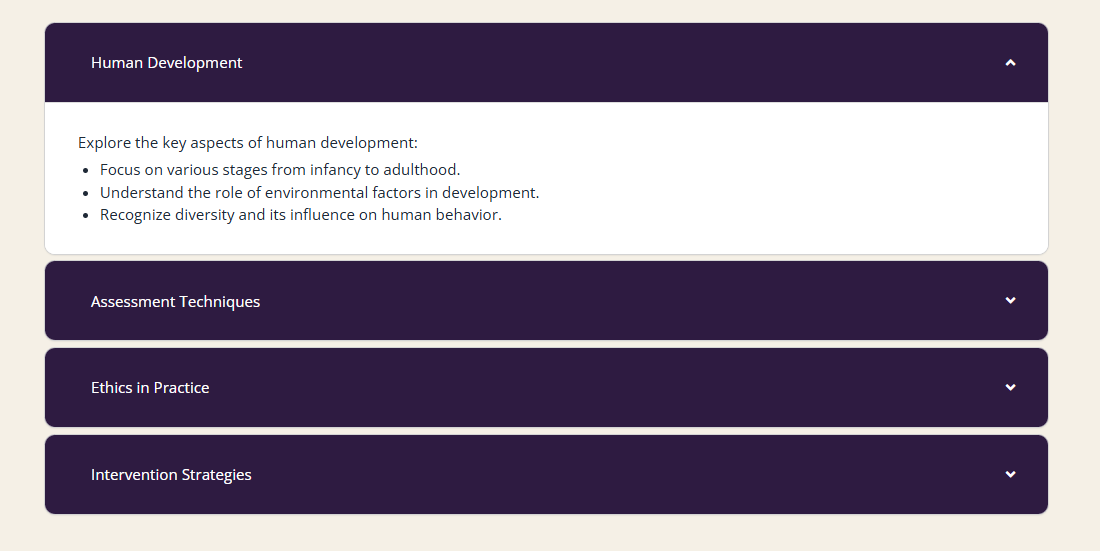
After:
Preview
Listen Mode (November 21, 2025)
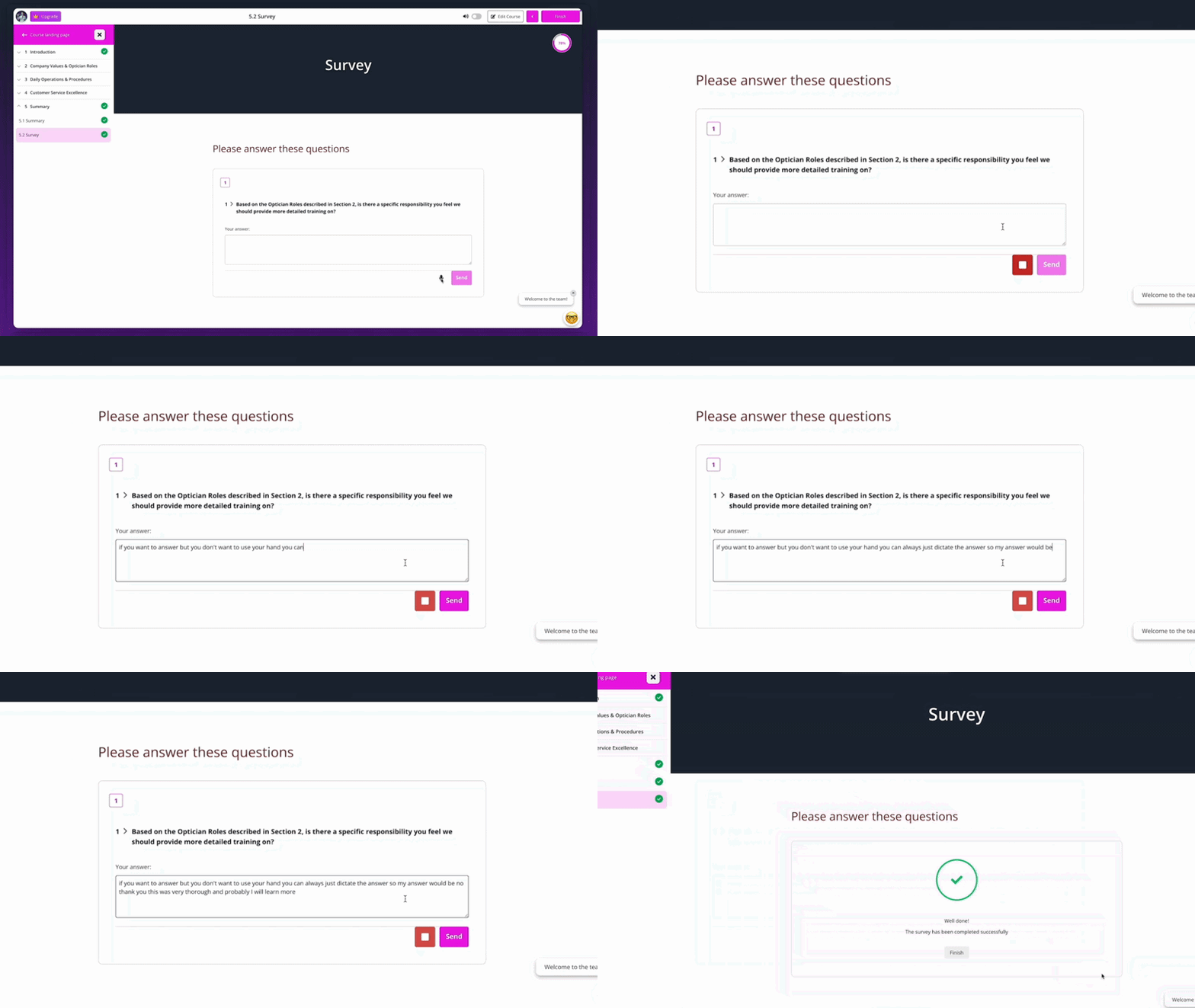
Learners can now listen to survey questions being read aloud.
What’s new
• Questions are read aloud in surveys and quizzes
• Learners can respond by speaking, typing, or selecting answers
• Improves accessibility and hands-free learning
• Built-in audio player appears automatically
How it works
When a learner opens a survey activity with Listen Mode enabled:
• The question is displayed on screen
• An audio player appears at the top of the activity
• Learners can listen to the question
• Learners can respond by speaking, typing, or selecting an option
Preview
Custom AI Avatars (November 19, 2025)
Create training videos with your AI Avatar using just a single photo.
What’s new
• Generate an AI avatar from one uploaded image
• Select from 100+ languages and 300+ accents
• Customise voice, tone and background
How it works
• Upload a single photo
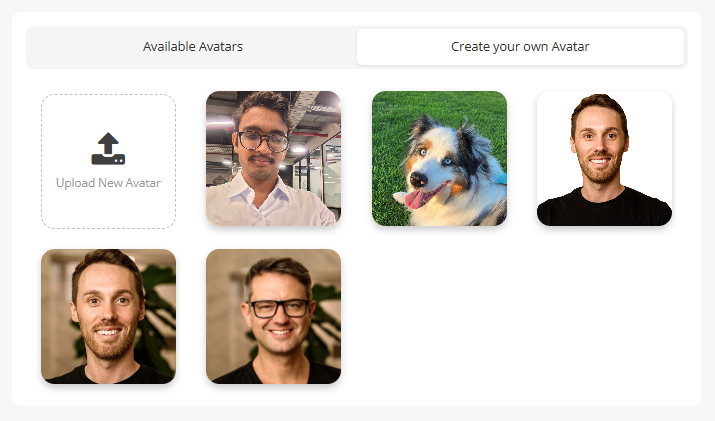
• Enter your script or write one with AI
• Generate your AI avatar video
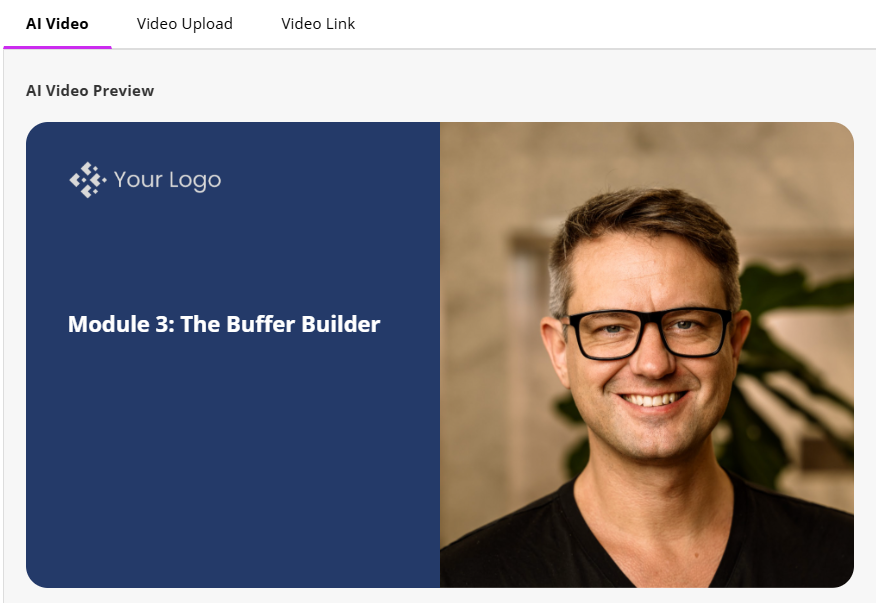
• Add the video directly into your course
Preview
Learn how to use it here.
Gamification (October 21, 2025)
Make learning more motivating and engaging with pathways, badges, and leaderboards.
What’s new
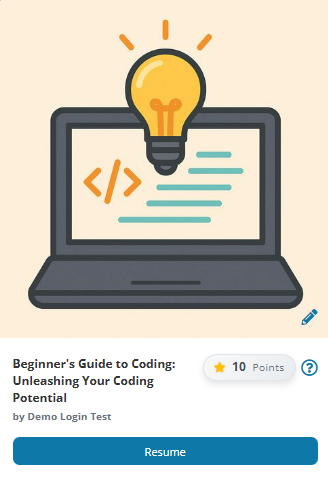
• Pathways: guide learners step-by-step through sequences of activities
• Badges: reward learners with visible achievements
• Leaderboards: spark healthy competition with rankings
• Optional auto-assign of badges based on rules
How it works
Pathways
• Define a series of activities in a logical progression
• Learners unlock steps as they complete previous ones
• Ideal for learning journeys with prerequisites
Badges
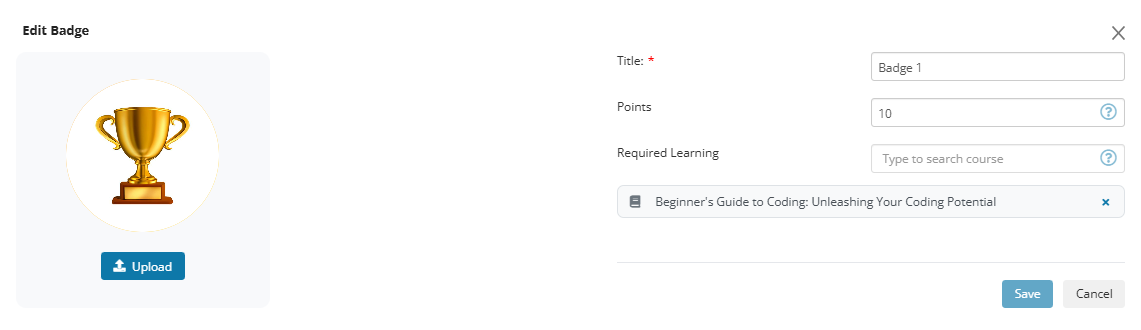
• Create badge designs and criteria
• Award badges when learners complete activities or reach milestones
• Badges display in learner profiles
Leaderboards
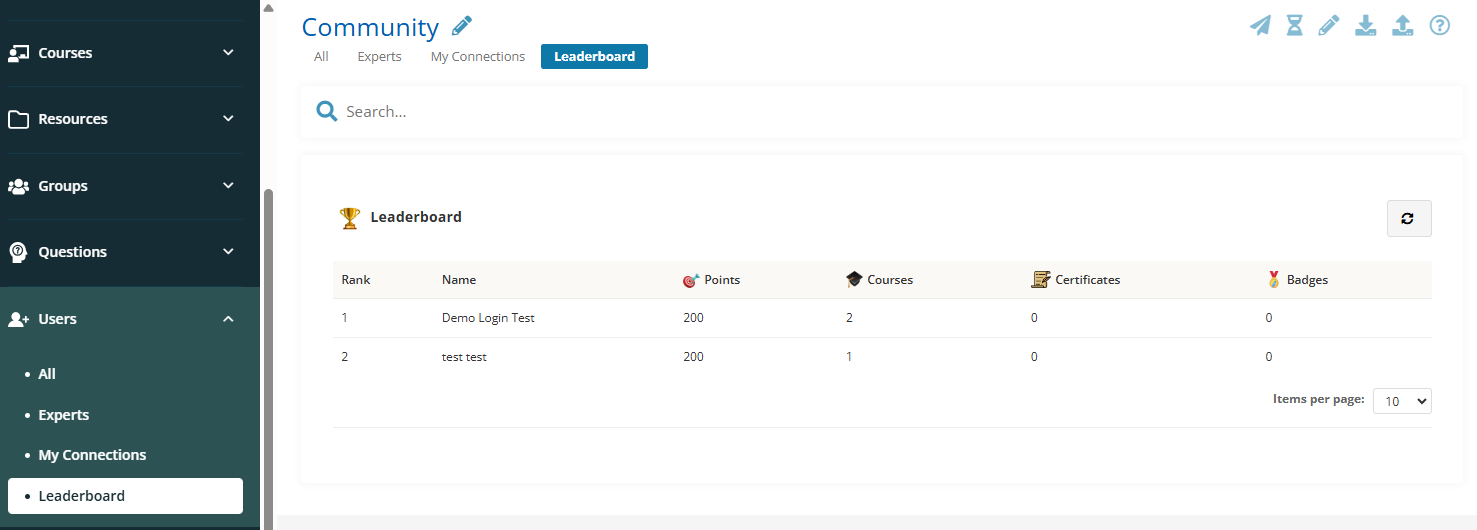
• Activate leaderboard tracking for courses
• Learners rank based on completed activities/points
• Encourages friendly competition
Learn how to use it here.
New AI Video Avatars (October 16, 2025)
Choose from 500+ AI avatars for your training videos.
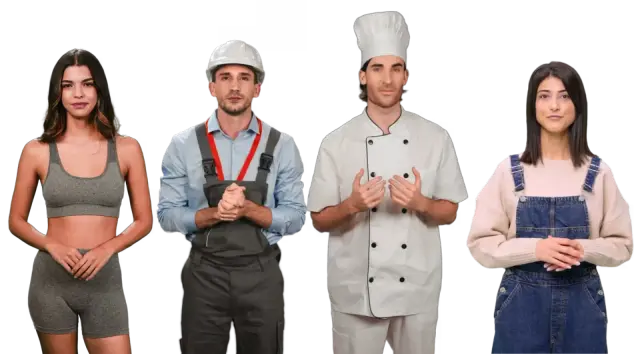
What’s new
• 500+ avatar options available
• Wider range of styles, looks, and professional settings
• Greater diversity and representation
• More flexibility to match your course audience
How it works
• Open your AI video settings
• Browse the expanded avatar library
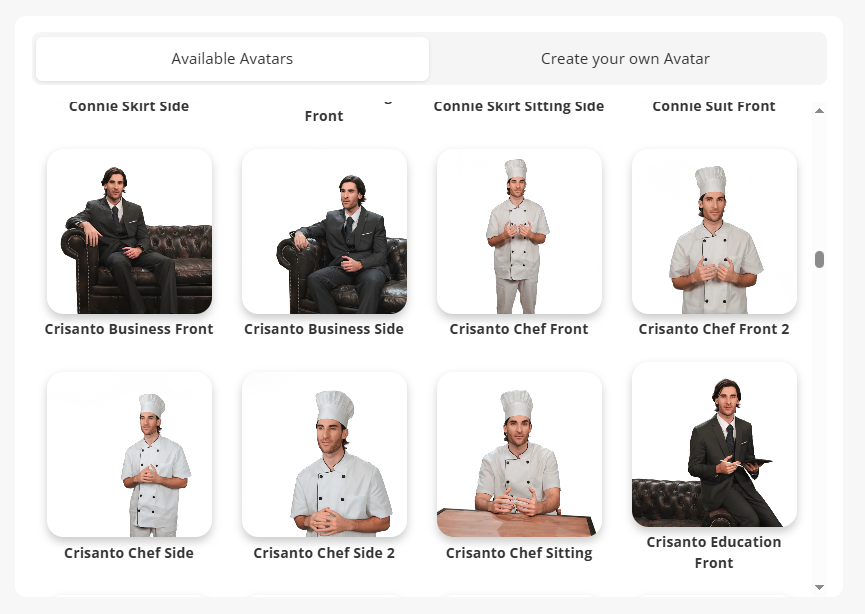 • Select your preferred avatar
• Generate your video as usual
Preview
Learn how to use it here.
Was this article helpful?
That’s Great!
Thank you for your feedback
Sorry! We couldn't be helpful
Thank you for your feedback
Feedback sent
We appreciate your effort and will try to fix the article