This section explains how to customise the visual appearance of your Platform or an individual course in Coursebox. It covers updating the course cover image, selecting fonts, and adjusting colours so your course aligns with your branding and delivers a consistent, professional learner experience.
Portal Settings
You can set your course theme from the Edit Branding section shown below.

Bring Your Own Domain
The Bring Your Own Domain feature allows you to connect a custom domain (for example, learn.yourdomain.com) to your Coursebox portal instead of using the default Coursebox URL.
Steps to Configure a Custom Domain
Navigate to Theme in the portal settings.
Click Theme. A new window will open displaying the portal branding options.
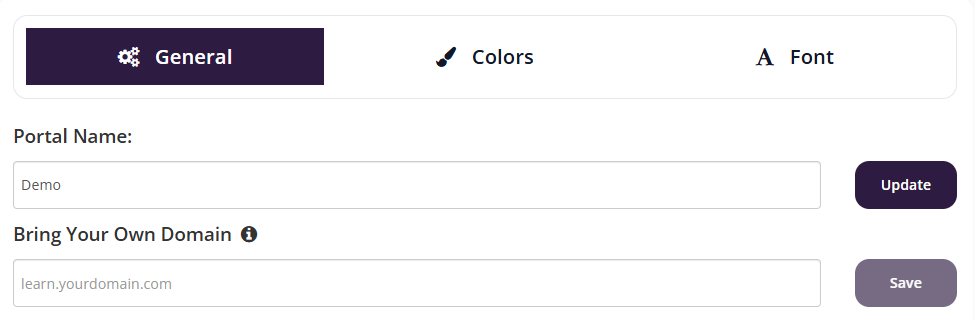
In the General tab, locate the Bring Your Own Domain section.
In the domain field, enter your custom domain (for example:
learn.yourdomain.com) and click Save.
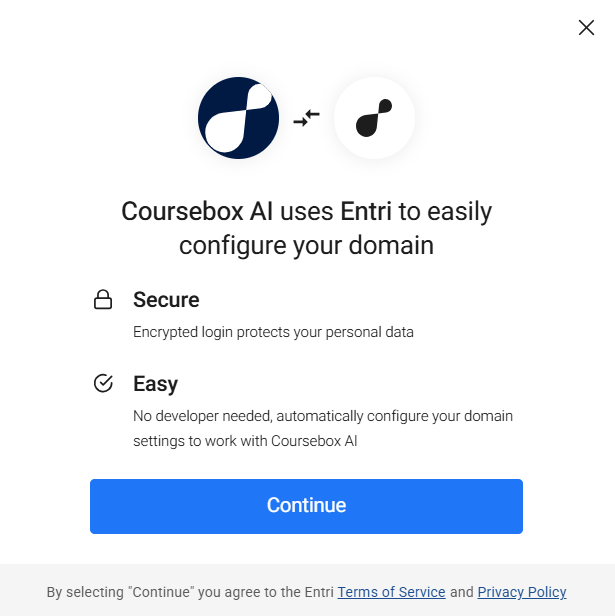
A setup window will appear to guide you through configuration
Click Continue to begin
- Log in to your domain provider (e.g. Network Solutions)
- This allows automatic DNS configuration
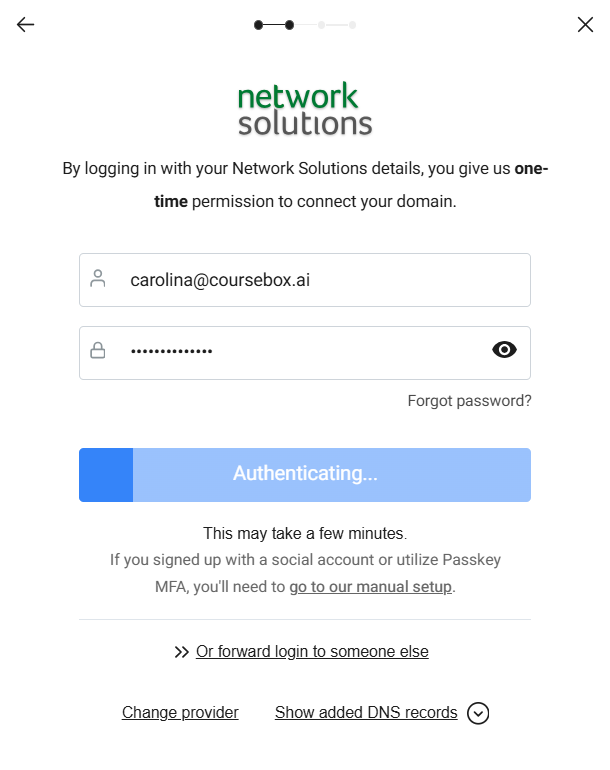
- The system will automatically configure your domain
- This may take a few minutes
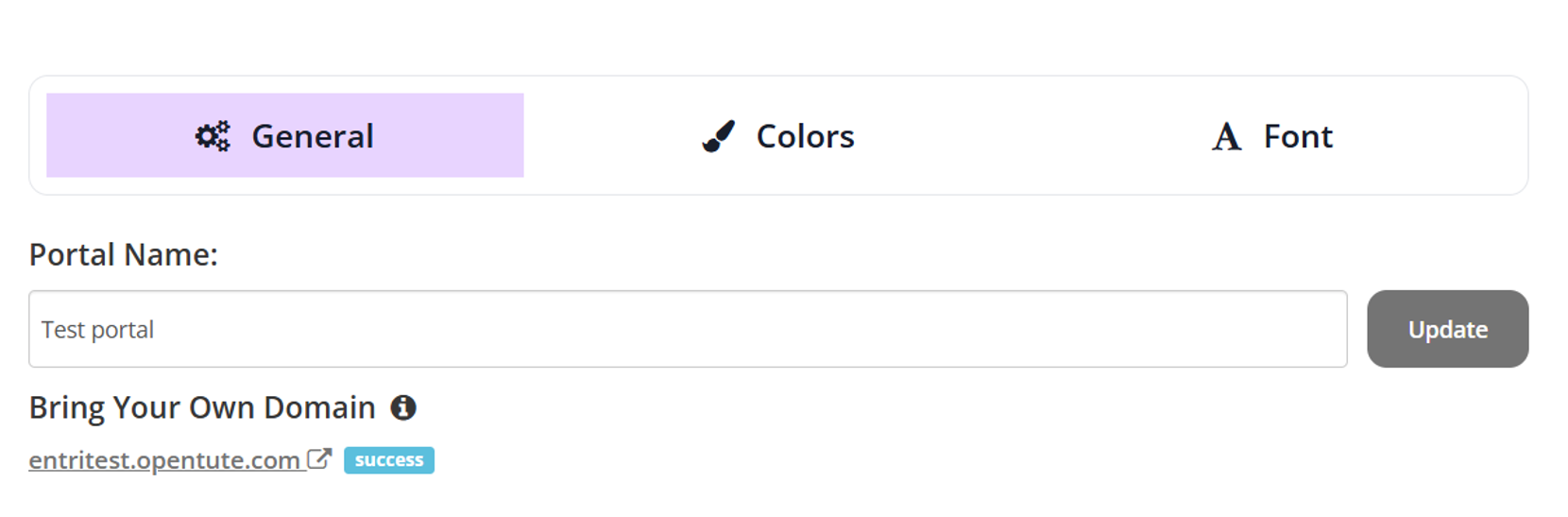
When the configuration is successful, the domain will display with a success indicator.
Colour Settings
The Colour settings allow you to fully customise the visual appearance of your Coursebox platform and individual courses. You can adjust colours to match your brand, improve readability, and create a consistent experience for learners and administrators.
Colour settings are grouped into two levels:
Portal Colours – control the overall look of the Coursebox platform
Course Colours – control how individual courses and course content appear
Tip: Setting colours at the Portal level ensures consistency across all courses and saves time when creating new ones.
There are two ways to update colours in Coursebox, depending on whether you want changes to apply across the whole portal or to one specific course only.
Option 1: Change Colours via Edit Branding
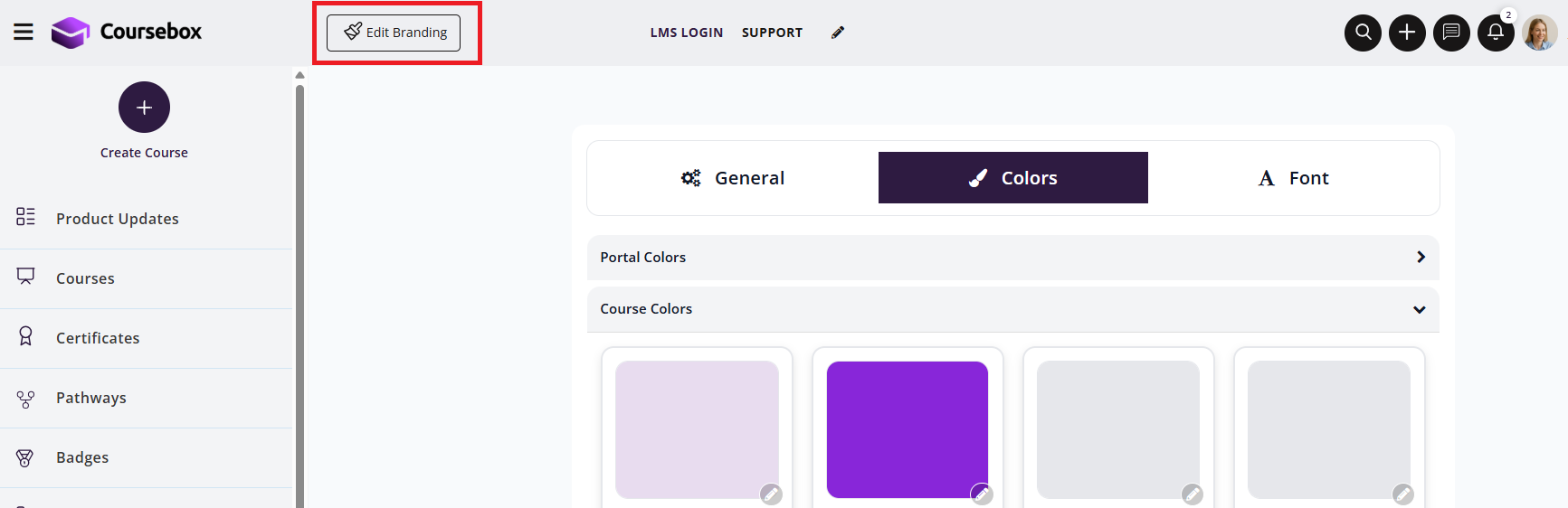
Use this option if you want consistent colours applied across all courses.
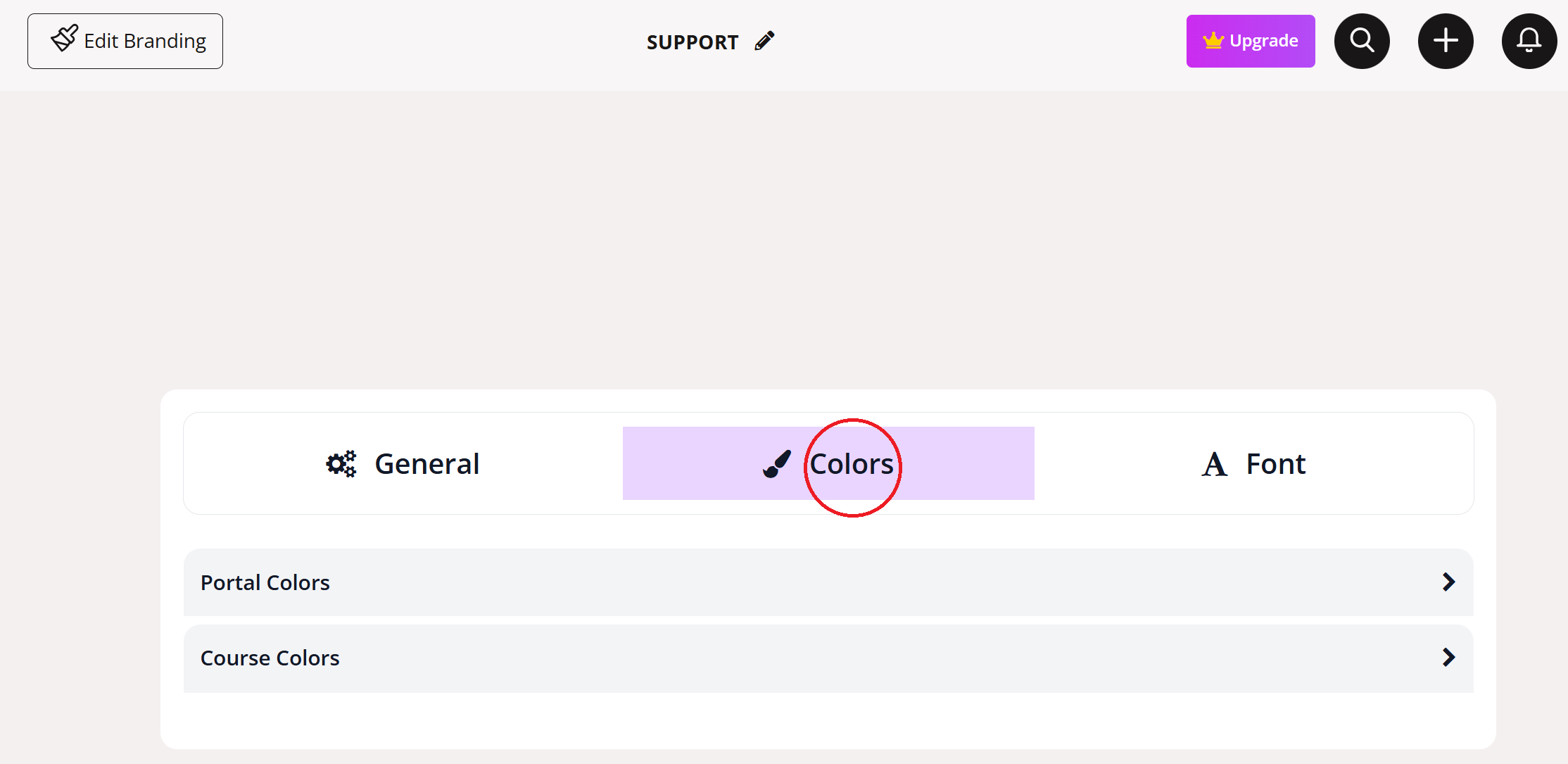
Select the Colors tab.
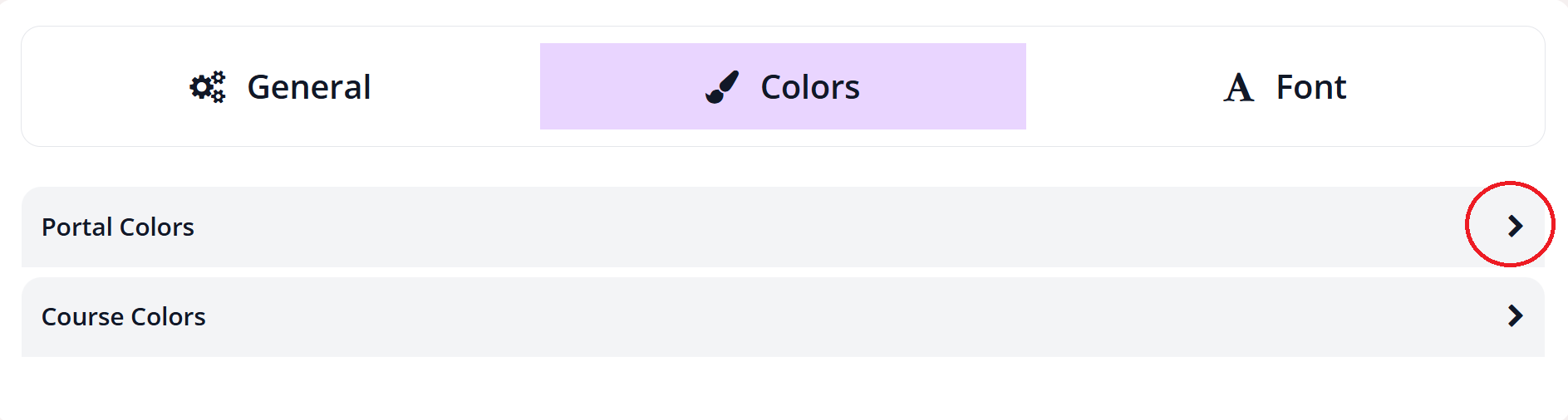
Expand Portal of Course Colours.
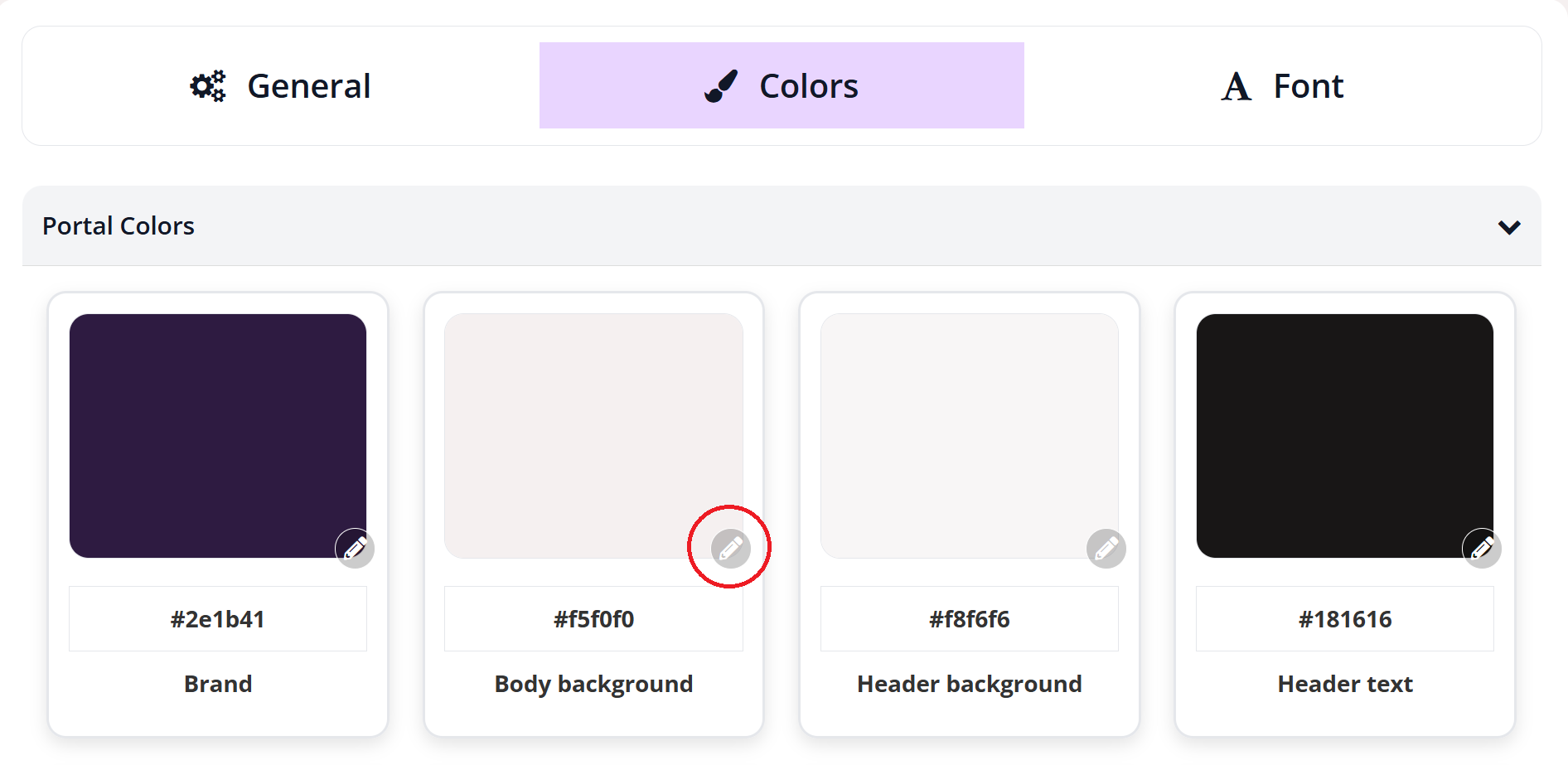
Click the colour tile or edit icon next to the element you want to change.
Either:
Choose a colour using the picker, or
Enter a HEX code to match your brand exactly.
Repeat for any additional elements.
Changes are applied automatically based on where the colour is set (portal-wide or course-specific).
Option 2: Change Colours within a Specific Course (Course theme)
Use this option if you want to customise the look and feel of one course only.
- Open the course you want to customise and Click Edit Course.
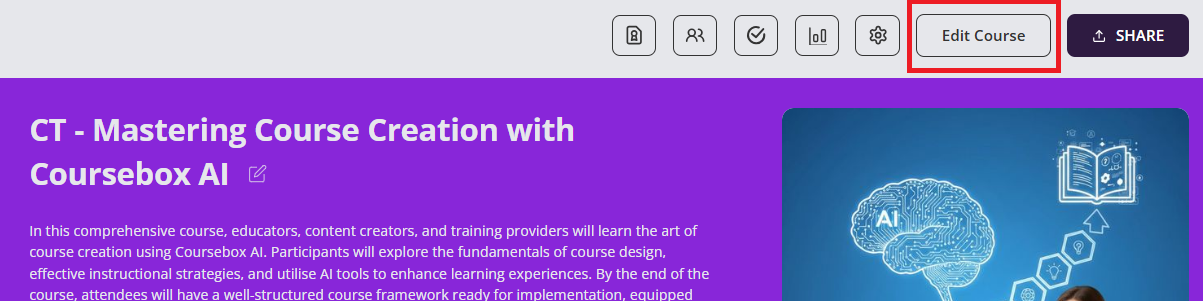
- On any course page. select Theme within the course editor.

- The following dropdown will appear.
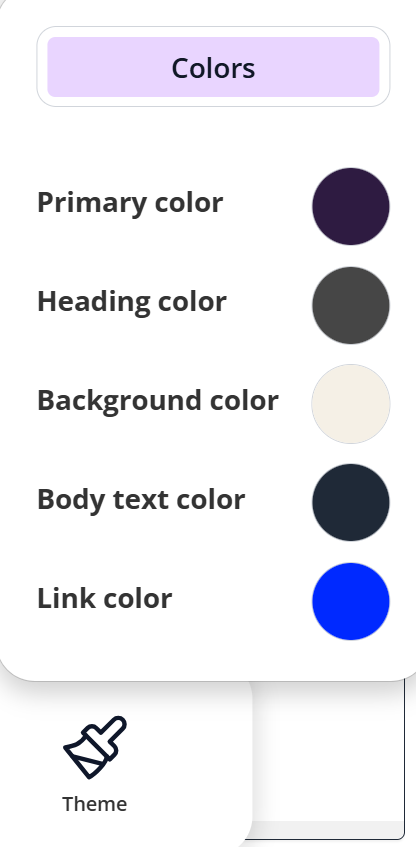
- For ach of the options, choose a colour or enter a HEX code, and save your changes.

Note: These colours apply only to that course and won’t affect others.Portal Colours
Portal Colours define the global branding and navigation experience across the platform.
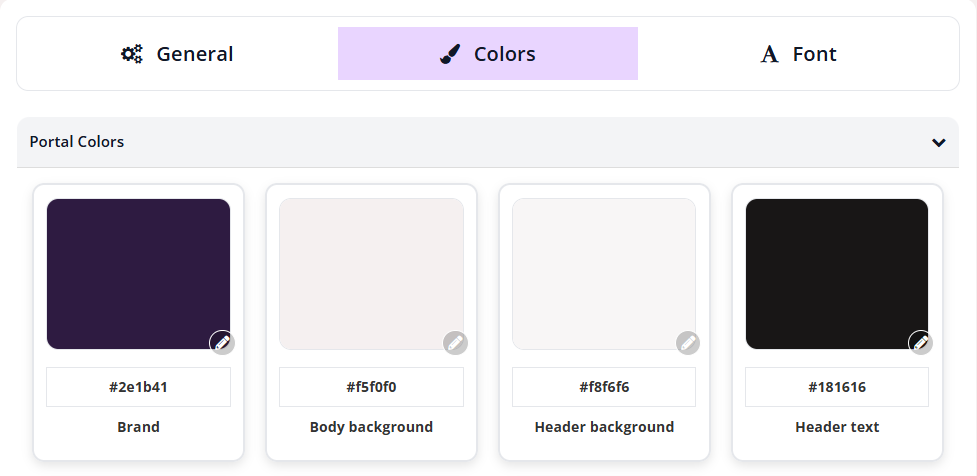
Branding & Layout
Brand – Primary brand colour used across buttons, highlights, and accents
Body background – Background colour of course content pages
Header background – Background colour of the top header
Header text – Text colour used in the header area
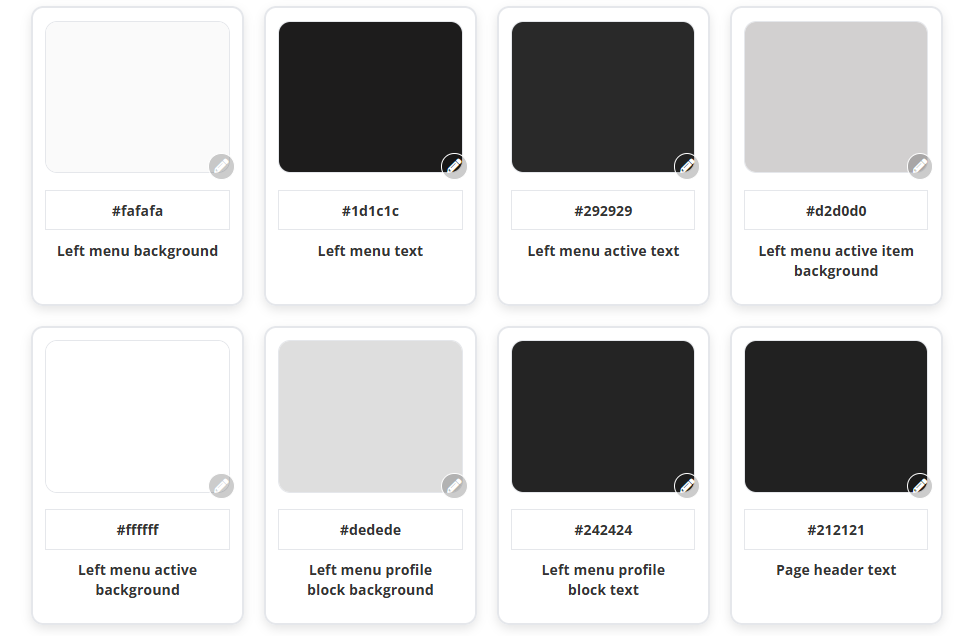
Left Menu Styling
Left menu background – Background colour of the navigation menu
Left menu text – Colour of menu item text
Left menu active text – Text colour of the currently selected menu item
Left menu active item background – Background colour of the selected menu item
Left menu active background – Background colour applied when a menu item is active
Profile & Page Styling
Left menu profile block background – Background colour of the profile section
Left menu profile block text – Text colour within the profile section
Page header text – Colour used for page titles and headers
Couse Colours
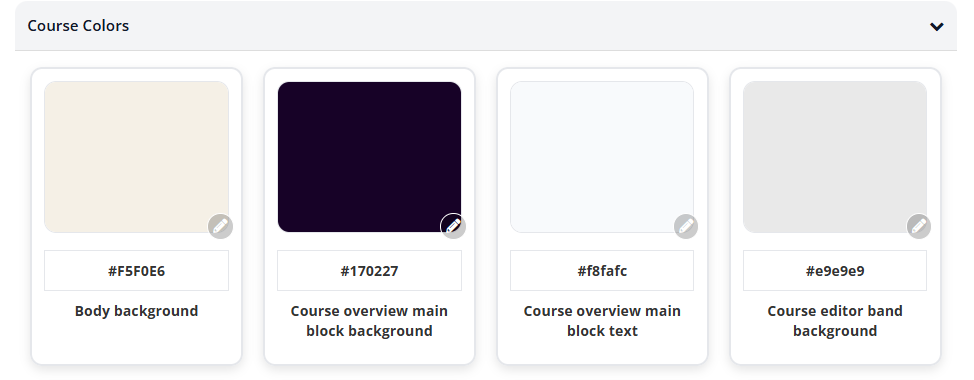
Course Colours control the visual appearance of individual courses and learner-facing content. These settings affect how course pages, editors, and SCORM navigation are displayed.
Course Layout & Editor
Body background
Sets the default background colour for course content pages viewed by learners.Course overview main block background
Controls the background colour of the large featured block at the top of the course overview page.Course overview main block text
Sets the colour of the title and description text displayed inside the course overview main block.Course editor band background
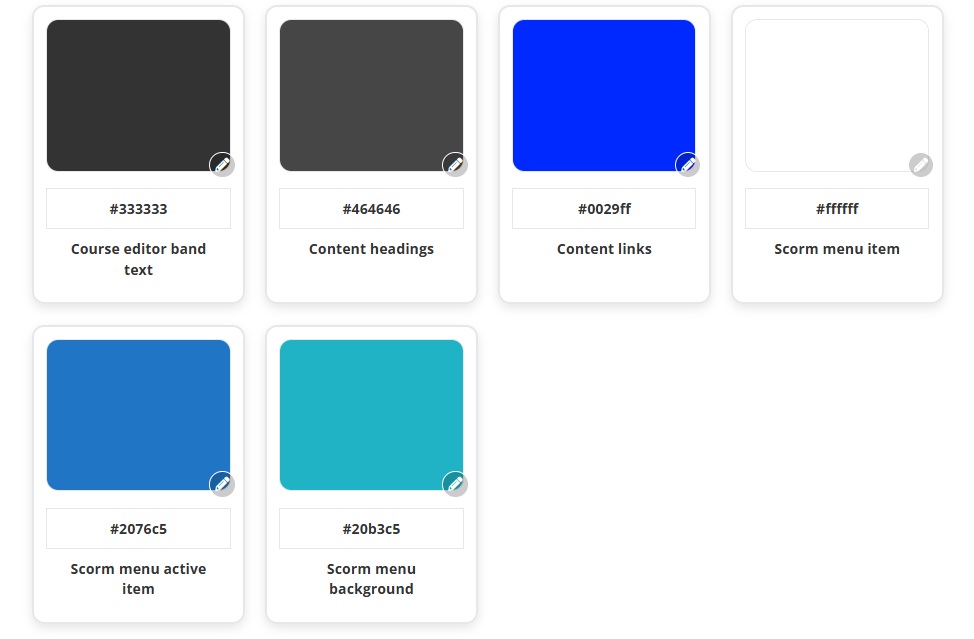
Controls the background colour of the top editing toolbar when creating or editing a course.Course editor band text
Sets the colour of text and icons within the course editor toolbar.
Content Styling
Content headings
Controls the colour of all heading styles (H1–H6) used within course lessons.Content links
Sets the colour of clickable links within course content.
SCORM Navigation
SCORM menu item
Controls the text colour of SCORM menu items that are not currently selected.SCORM menu active item
Sets the colour of the currently selected SCORM menu item.SCORM menu background
Controls the background colour of the SCORM navigation menu panel.
Set the Course Fonts
You can define global font settings for your courses by configuring the course font styles. These settings override default HTML styling and apply consistently across all courses.
Note: Font changes do not appear while editing a course page. They are visible in Preview mode and to learners viewing the course.
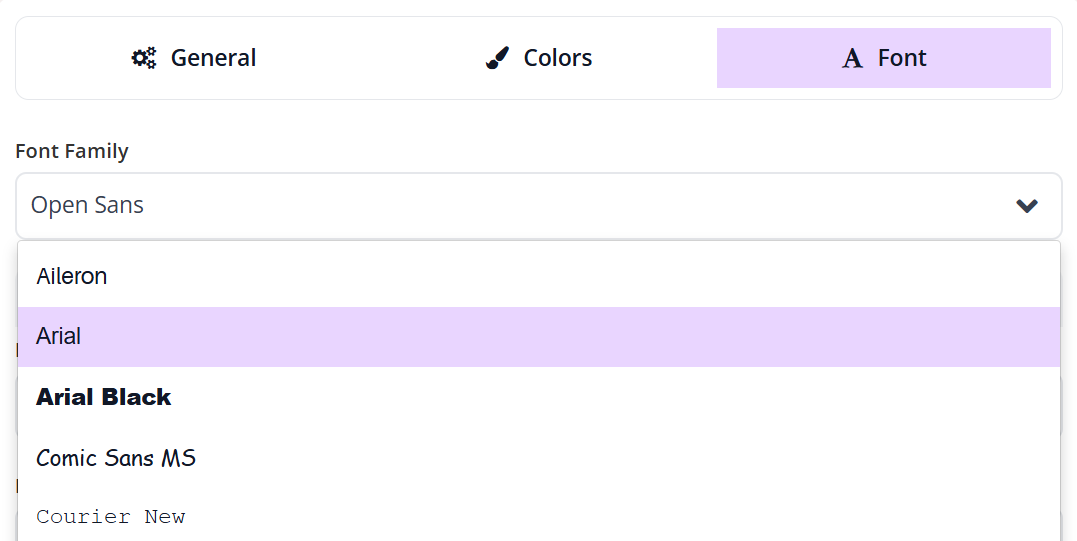
Choose a Font Family
Select a font family for your course theme using the Font Family dropdown. This font will be applied across headings and body text according to the sizes you set below.
Configure Font Sizes
You can set font sizes for different text levels using the dropdown menus.
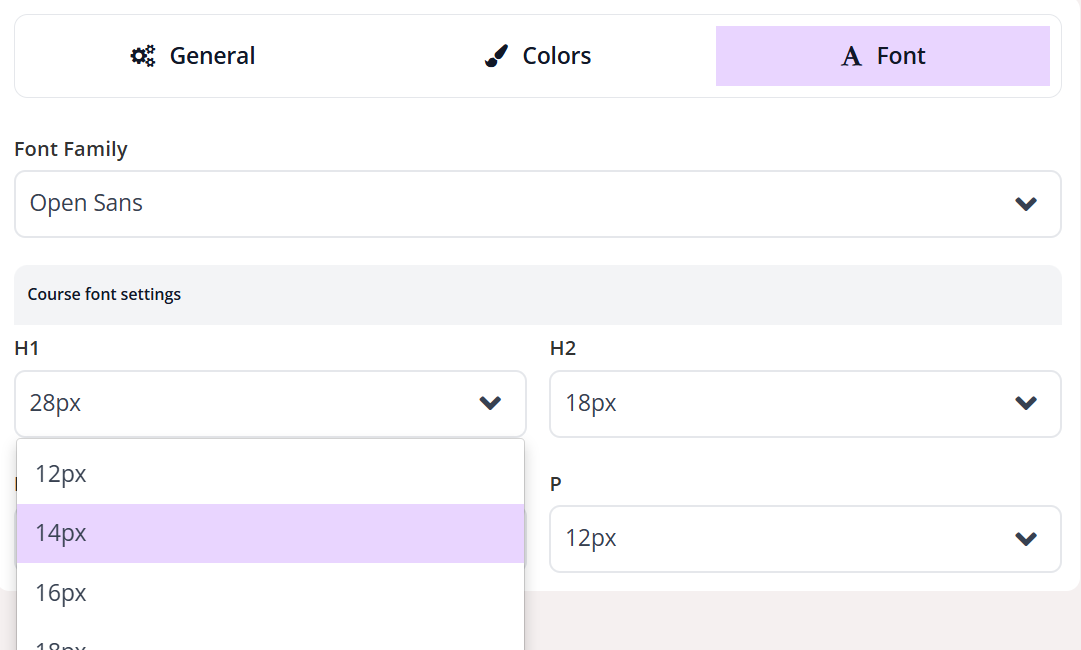
Each heading level allows you to select a size (in pixels) from the dropdown to suit your design and readability preferences.
- H1 – Main headings
Used for primary titles such as lesson or page titles. - H2 – Section headings
Used for major sections within a lesson. - H3 – Subsection headings
Used for smaller headings within a section. - P – Paragraph text
Used for all standard body text.
Upload a Course Cover Image
You can upload or change a course cover image at any time while creating or editing your course.
The steps are:
- Go to Courses → My Courses.
Locate the course you want to update.
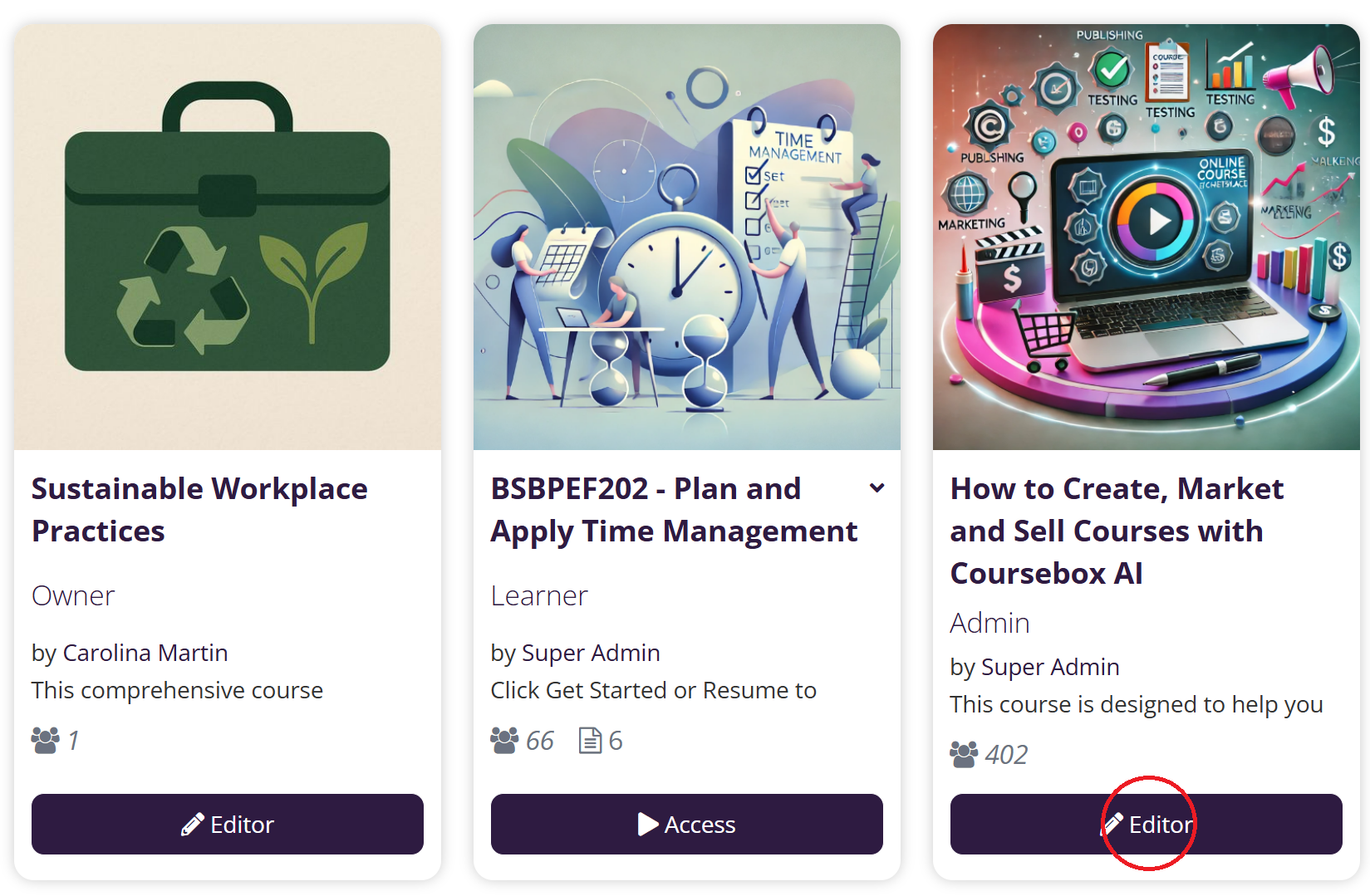
Click the pen (✏️) icon / Editor button on the course card to open the course editor.
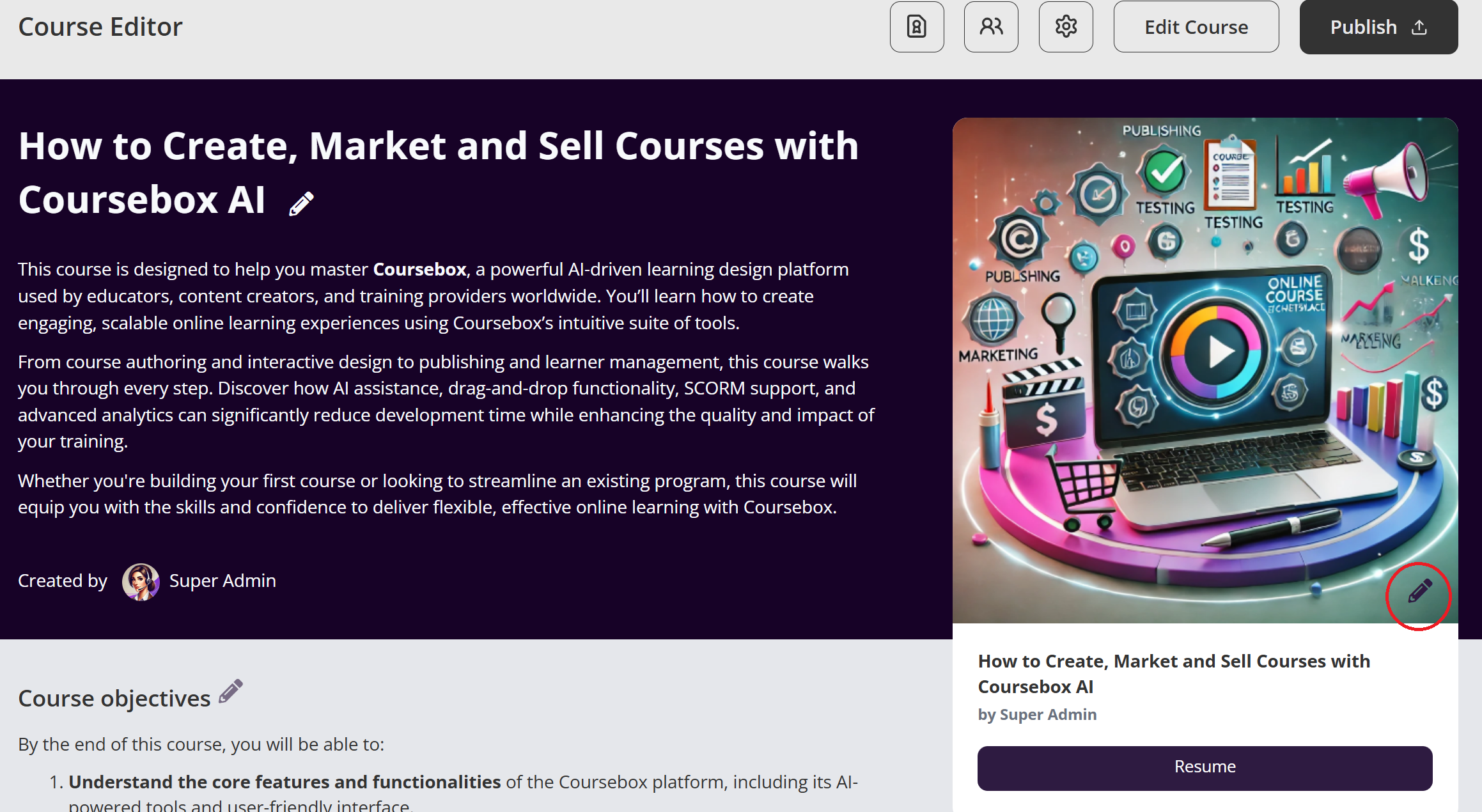
Select an image from your computer.
The image will upload and update automatically.
After uploading, confirm the image:
Displays correctly on the course card
Looks good on the course landing page
Is not stretched, blurry, or cropped incorrectly
Course Cover Image Requirements
Coursebox does not enforce a single mandatory image format, but the following technical guidelines are strongly recommended for best results.
File Format
Recommended: JPG / JPEG or PNG
Other web formats (such as WEBP) may be supported, but JPG and PNG provide the most reliable compatibility.
Image Size and Aspect Ratio
Recommended aspect ratio: 16:9
Example dimensions:
1280 × 720 px
1920 × 1080 px
Use a horizontal (landscape) image, not a square or vertical image.
This ensures the image displays correctly across course cards and landing pages.
File Size
Keep the image under 1–2 MB for faster loading and better performance.
Was this article helpful?
That’s Great!
Thank you for your feedback
Sorry! We couldn't be helpful
Thank you for your feedback
Feedback sent
We appreciate your effort and will try to fix the article