Certificates are a valuable way to recognise learner achievement and reinforce your training program’s credibility. This section outlines how Super Administrators can design, customise, and assign certificates in Coursebox. From uploading branded templates to linking certificates to specific courses, you’ll have full control over how completion is celebrated and displayed.
Watch the video below, or explore more tutorials in our Demonstration Video Library.
Certificates are great incentives for learners to complete the course and can also play an important role in branding your training programs.
From the left hand menu under Courses, select Certificates.
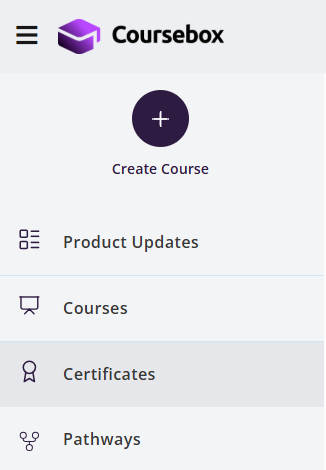
Or from the top menu select the Certificates Icon

Create Course Certificates
Click on the Certificates menu from the side navigation inorder to manage certificates. Click on the blank frame to create a new certificate.
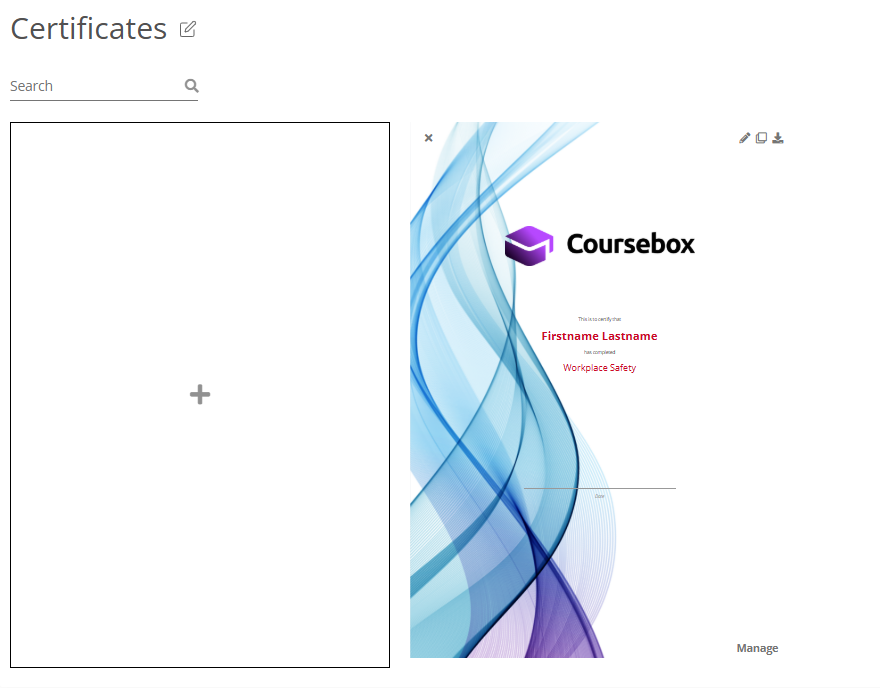
Edit Certificate Theme
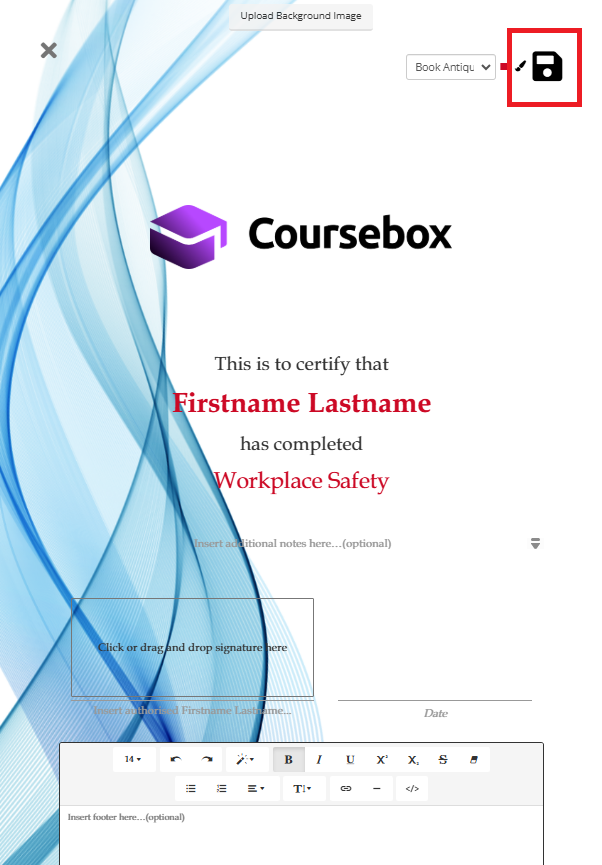
You can edit the following items to customise your certificates:
- Background Image: Upload a background image for your certificate design. (For best result, use 210mm X 297mm size to fit the certificate design.)
- Logo: Upload your company logo.
- Certificate Name: Enter the name of your certificate eg. Digital Marketing Course
- Signature: Include image of a signature.
- Authorised Name of Signature: Enter the name of the authorised signatory.
- Additional Text Notes: Enter additional notes which is optional.
- Footer Notes: Enter additional footer notes.
Styling the Certificate:
- You can change the font style by clicking on the font option
- You can change the font colour by clicking on the paint brush icon
Once you have made all the edits, click on save icon.
Duplicate Certificates
Click on the  icon on the existing certificate in order to duplicate the certificate.
Assign Certificates to a Course
Click on the ‘Manage’ option on the lower right corner of the certificate to assign the certificate to any Course.
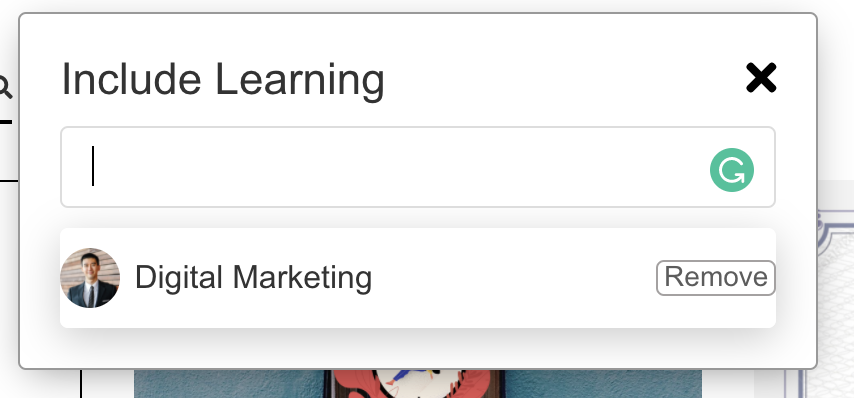
The system will prompt you to enter the Course name which you want to assign to the certificate.
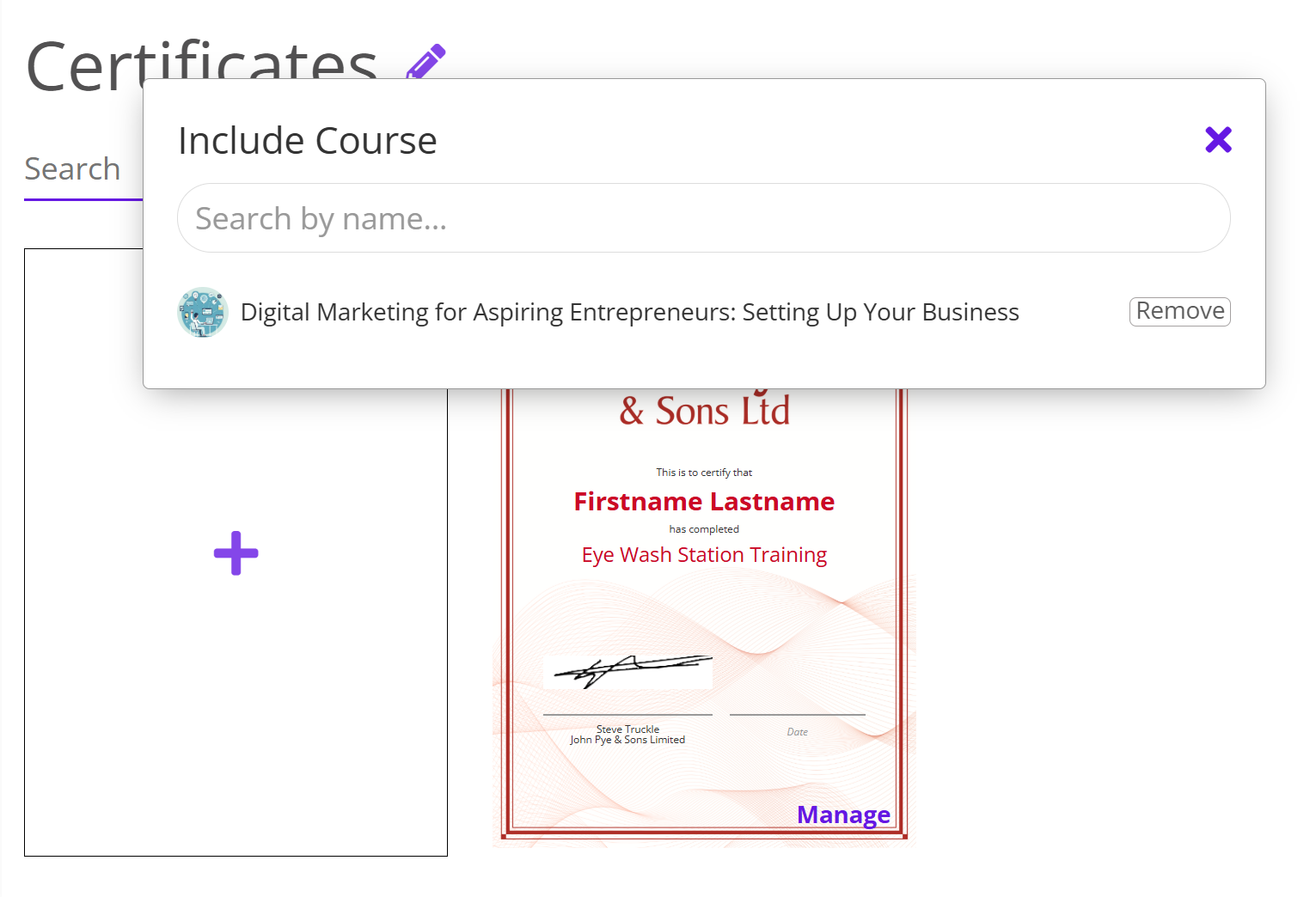
You can remove the assigned Course by clicking on the Remove button.
Regenerate Course Completion and Trigger Certificates
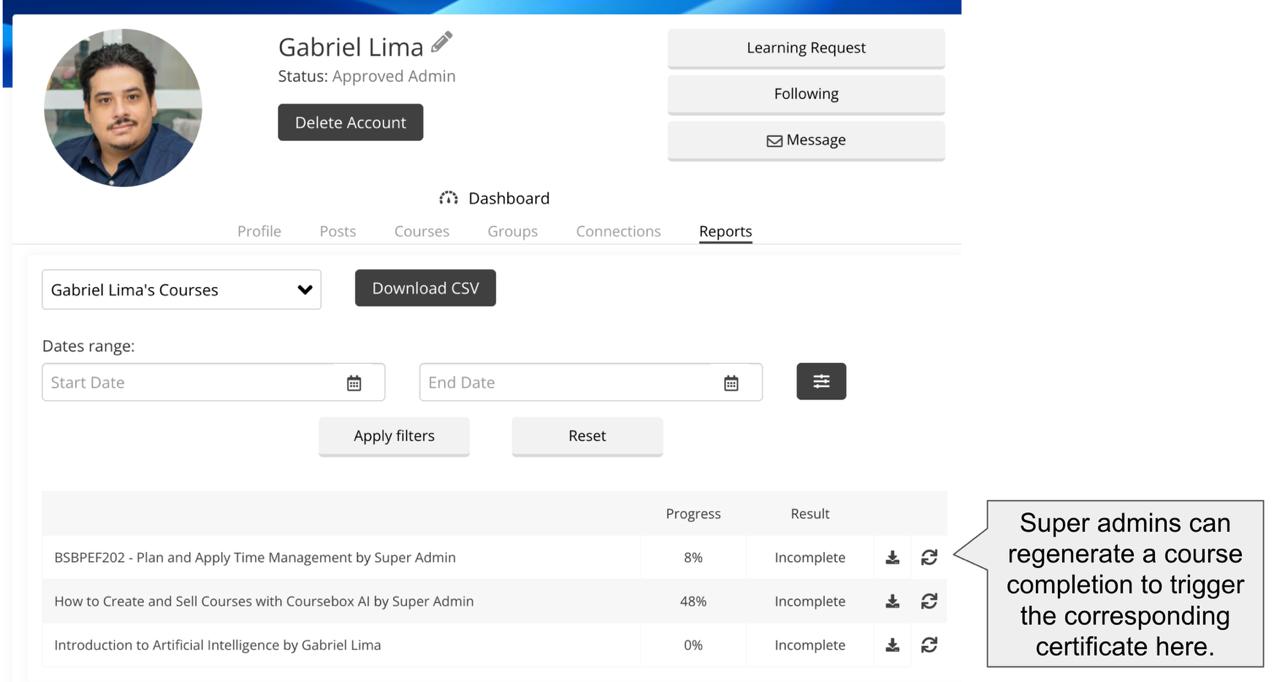
For Business & Enterprise Accounts only. To upgrade your account go to: https://www.coursebox.ai/pricingSuper Admins have the ability to manually regenerate course completion for any learner directly from their report page. This function is especially useful for resolving missed certificate triggers due to incomplete course progress or system delays.
Here’s how to do it:
- Go to the learner’s profile.
- Select the Reports tab.
- Locate the course you want to regenerate.
- Click the circular arrow icon next to the course under the Result column.
This action will update the course completion status and trigger the corresponding certificate to be issued.
Was this article helpful?
That’s Great!
Thank you for your feedback
Sorry! We couldn't be helpful
Thank you for your feedback
Feedback sent
We appreciate your effort and will try to fix the article