Watch the video below, or explore more tutorials in our Demonstration Video Library.
Adding Quizzes
Quizzes can include various question types and are a great way to check knowledge, provide feedback, and keep learners actively engaged throughout the course.
There are two ways you can generate Quizzes:
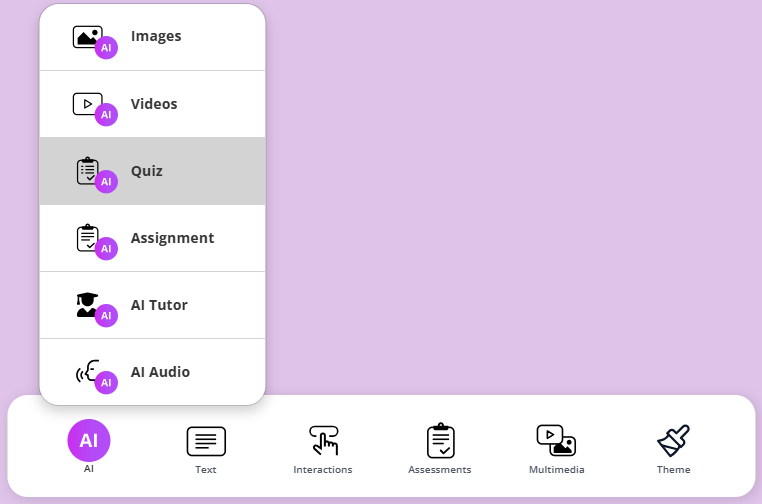
Option 1: Use Ai Quiz
Click the AI Quiz Writer button to create quizzes using AI and in the next screen follow the steps below.
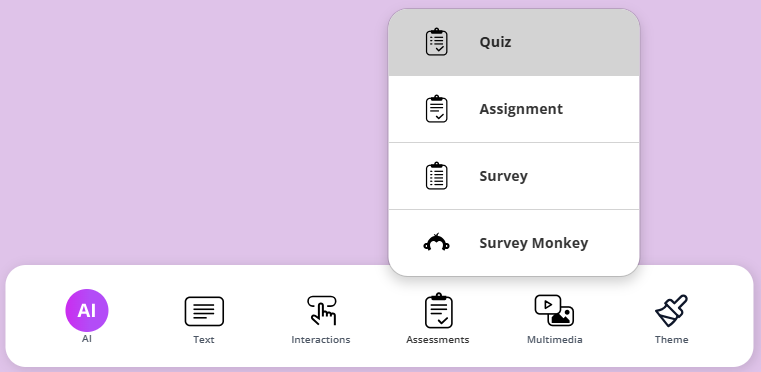
Option 2: Use Quiz from bottom menu
Click on Assessments and select Quiz from the bottom navigation.
Create a Quiz with AI
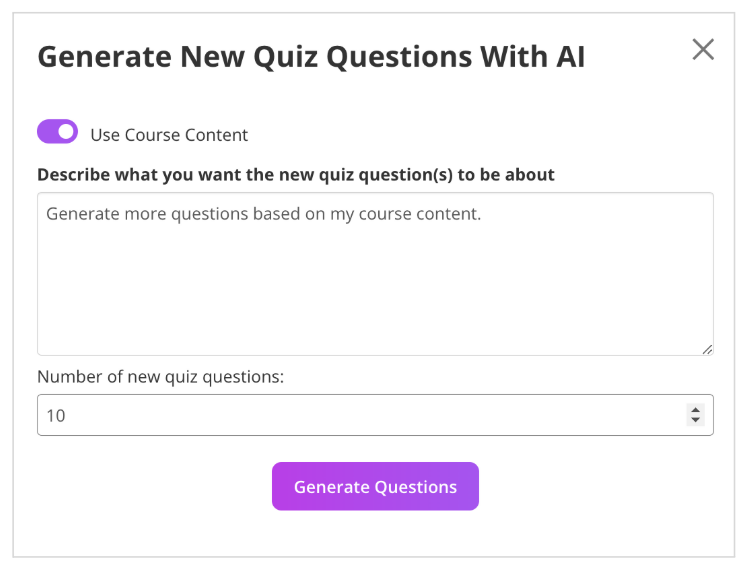
From either of the steps above, you’ll arrive at this screen.
- Use the slider to choose whether the quiz is generated using the course content.
- Select the number of Quiz Questions and then click Generate Questions.
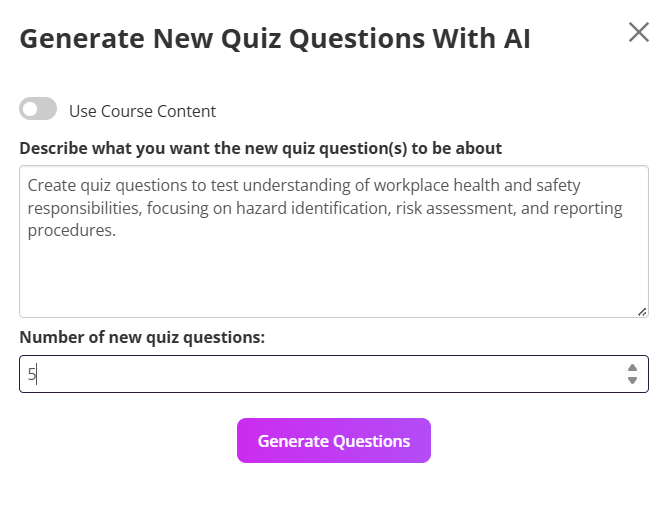
- Or, leave the slider off to generate quiz questions based only on your prompt, without using the course content.
- Select the number of Quiz Questions and then click Generate Questions.
- On the next screen, adjust your desired pass settings.
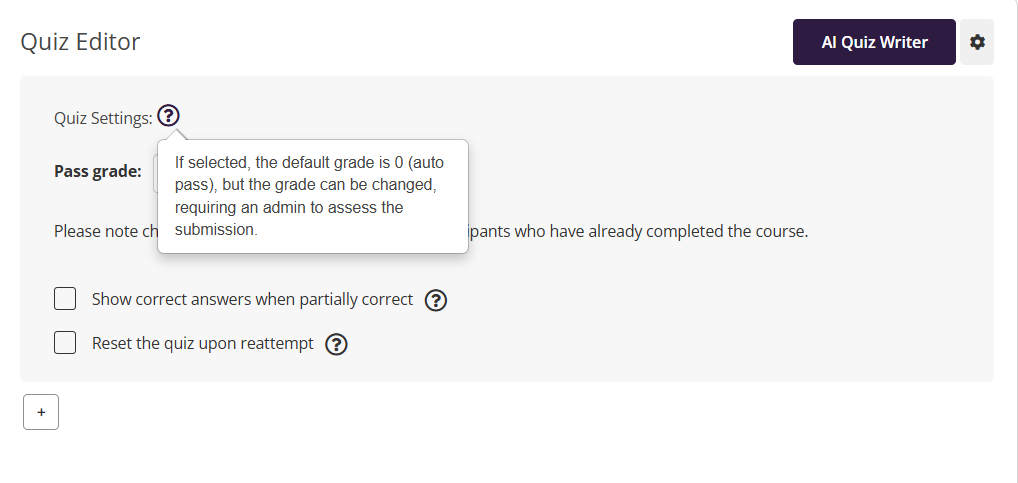
- Enable correct answers.
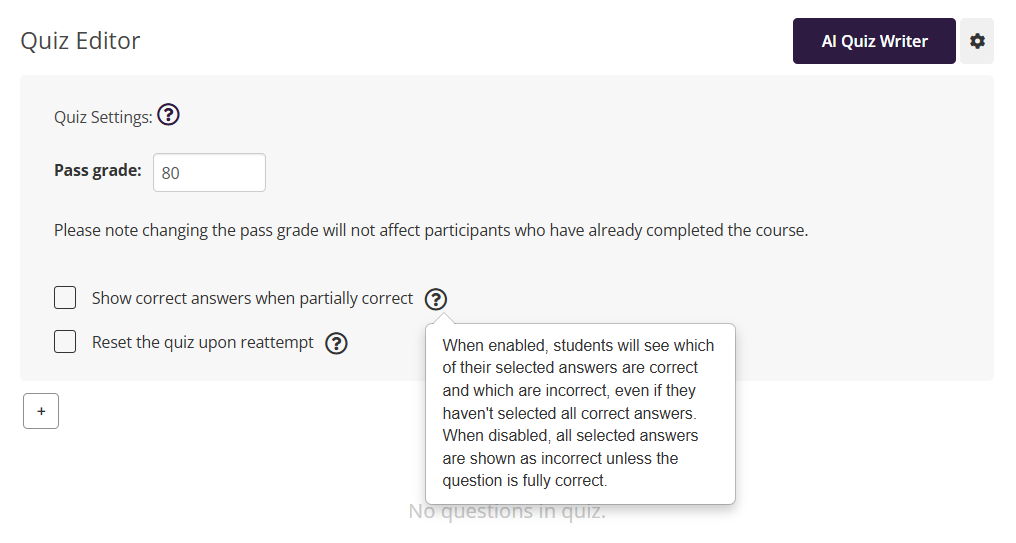
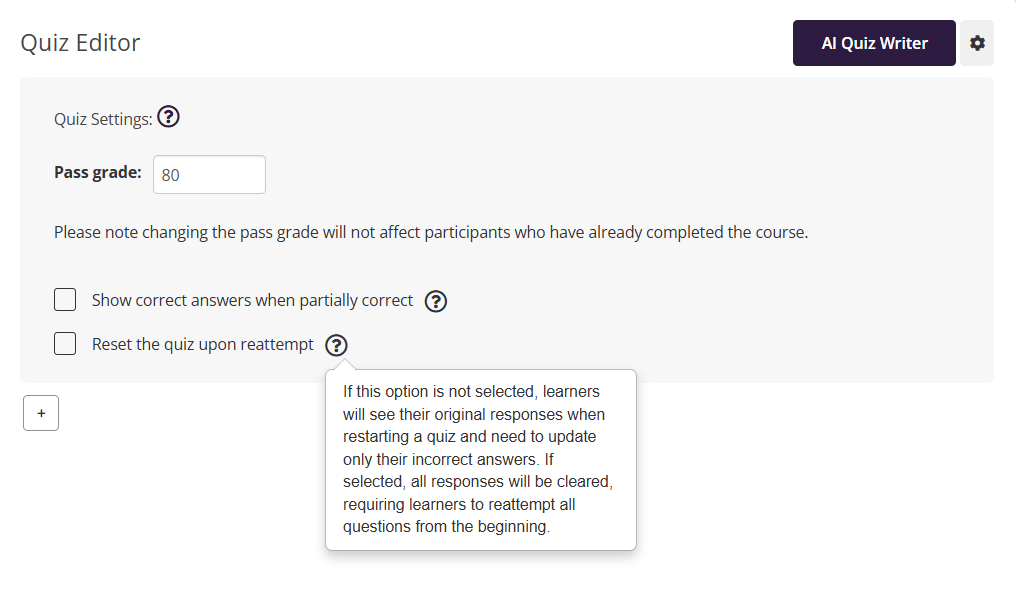
Enable quiz reset.
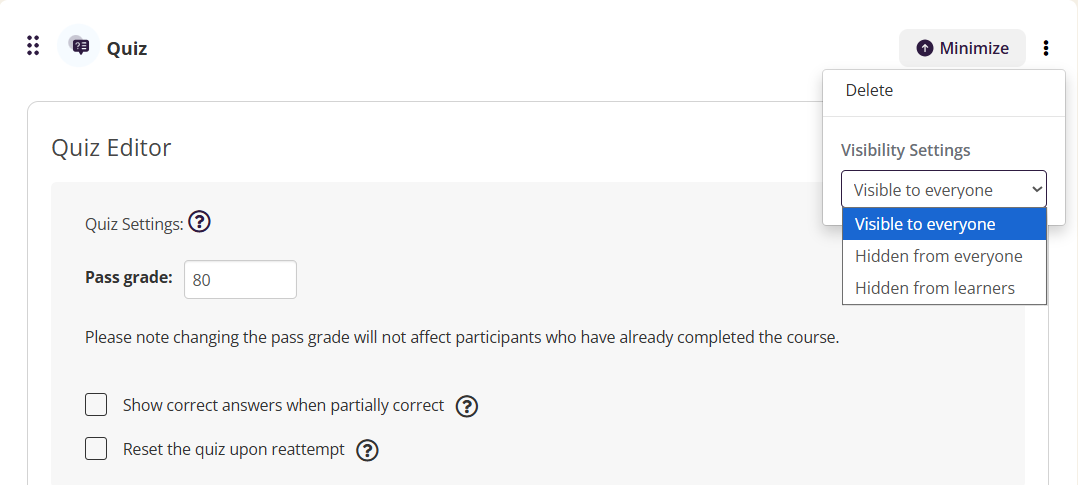
- Set Quiz visibility
Creating additional Quiz Questions
Once the quiz is added to your course, you can customise by adding additional types of questions.
Cousebox supports four types of questions.
Click the + button to add a new question. Then select from the drop-down menu.
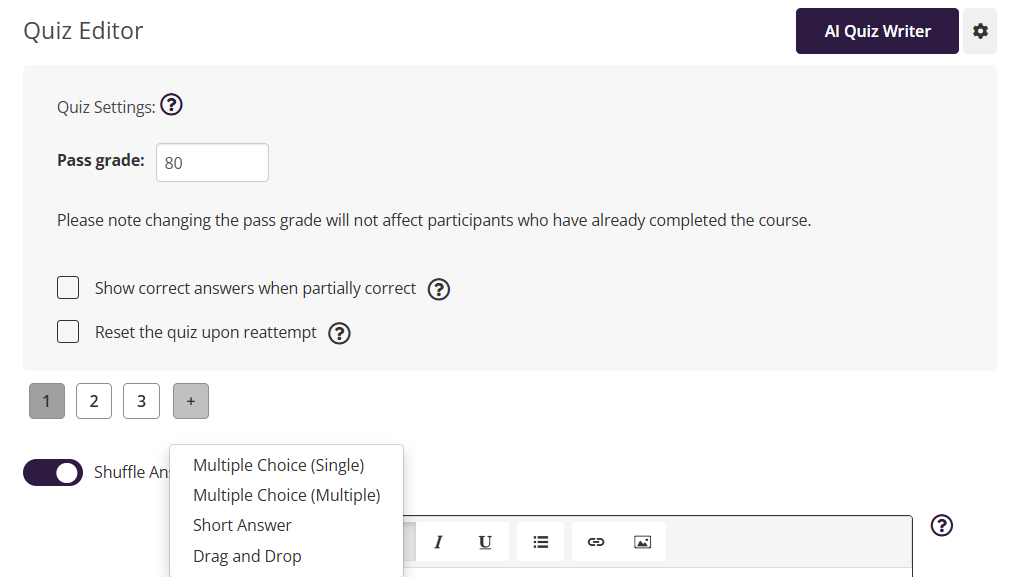
Multiple Choice (Single)
Learners select one correct answer from a list of options.
- Click + and select Multiple Choice (Single).
- Enter your question in the text box. Or use the AI Quiz Writer to generate questions based on your instructions.
Click Add answer and type in your answer options. Tick the checkbox next to the correct answer.
(Optional) Add a hint to guide learners if they struggle.
Save your question.
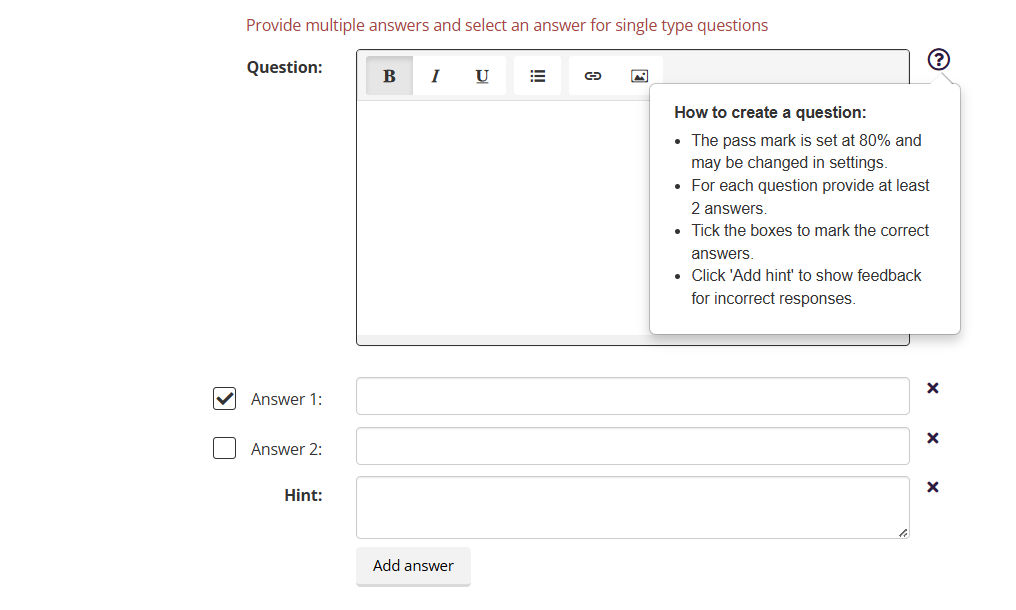
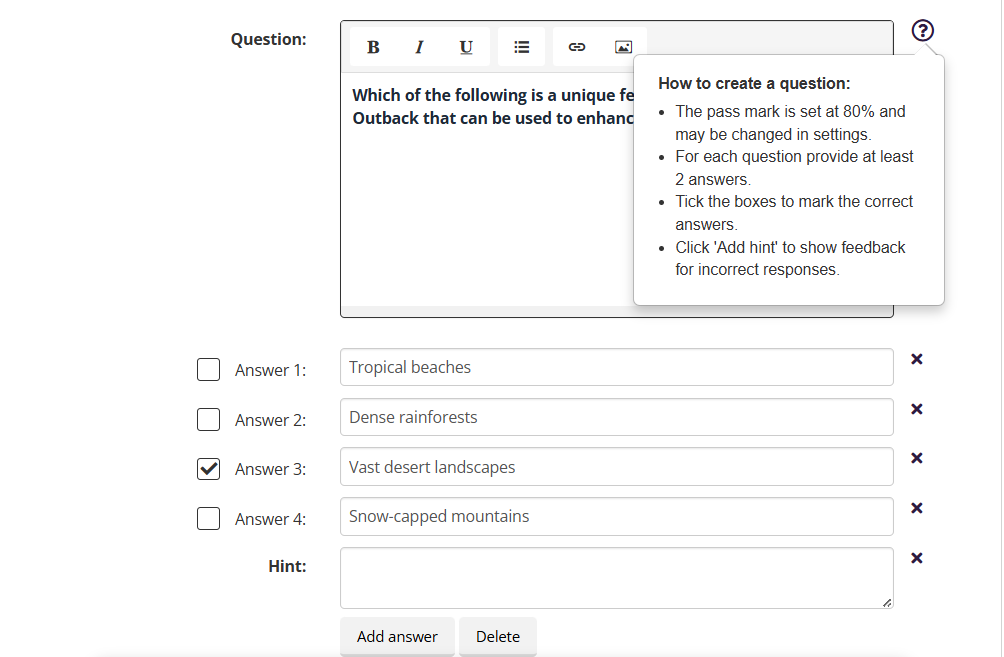
Multiple Choice (Multiple)
Learners can select more than one correct answer.
- Click + and select Multiple Choice (Multiple).
- Enter your question in the text box.
- Click Add answer to create several answer choices.
- Tick the checkboxes for all correct answers.
- (Optional) Add a hint to provide extra support.
- Save your question.
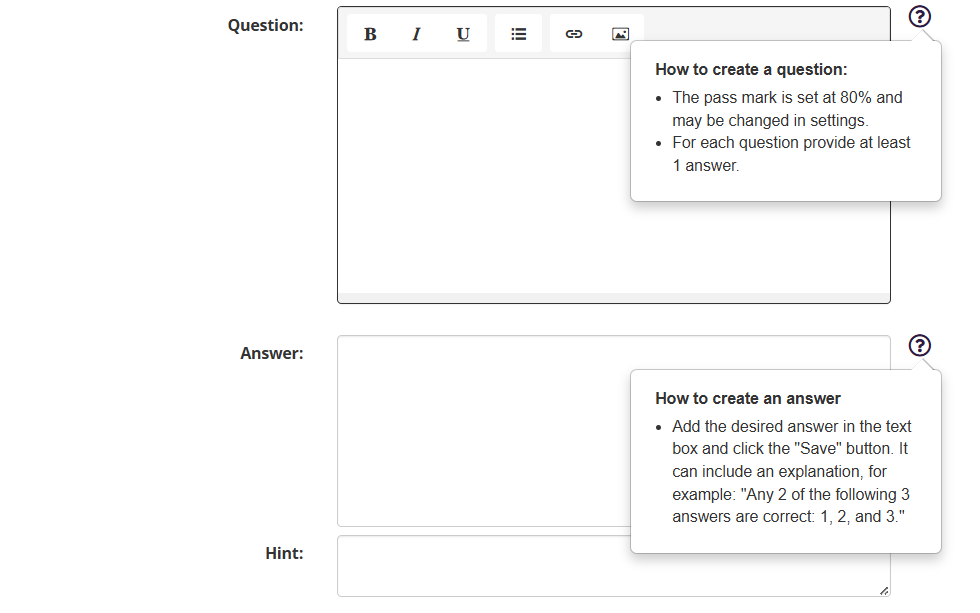
Short Answer
Learners type a written response that matches the correct answer(s) you provide.
- Click + and select Short Answer.
- Enter your question in the text box.
- Enter the correct answer(s) in the answer field. The AI evaluates learner responses based on the prompt and correct answers provided by the course admin in the answer field.
- (Optional) Add a hint to assist learners.
- Save your question.
Drag and Drop
Learners drag items into the correct order or categories, making the quiz more interactive.
Click + and select Drag and Drop.
Enter your question in the text box (e.g., “Arrange the steps of the design process in order”).
Add the items learners will drag.
Define the correct order or drop targets.
(Optional) Add a hint to help learners.
Save your question.
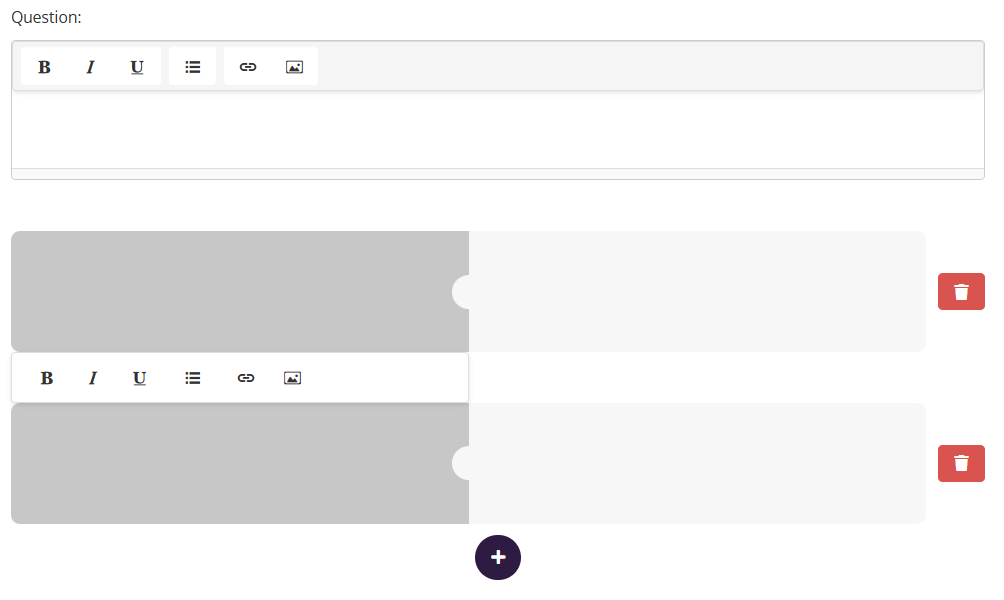
Add an Image to a Quiz
Including images in quizzes helps improve engagement, test visual recognition skills, and support applied learning (e.g., diagrams, charts, scenarios).
To add an image to a quiz question:
Click inside the question text editor.
Select the Image icon from the toolbar.
Upload an image from your computer or choose one from your media library.
Adjust image alignment and size as needed.
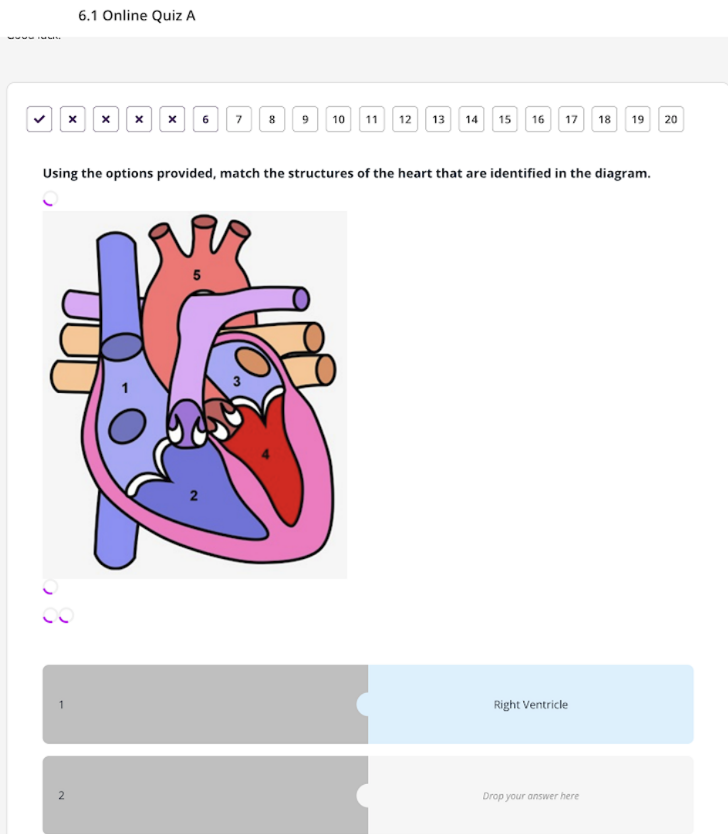
Learner Response to a Quiz or Short Answer (Speak Mode)
Speak Mode is a standard feature in Coursebox and is automatically available in single/multiple choice and short answer quizzes.
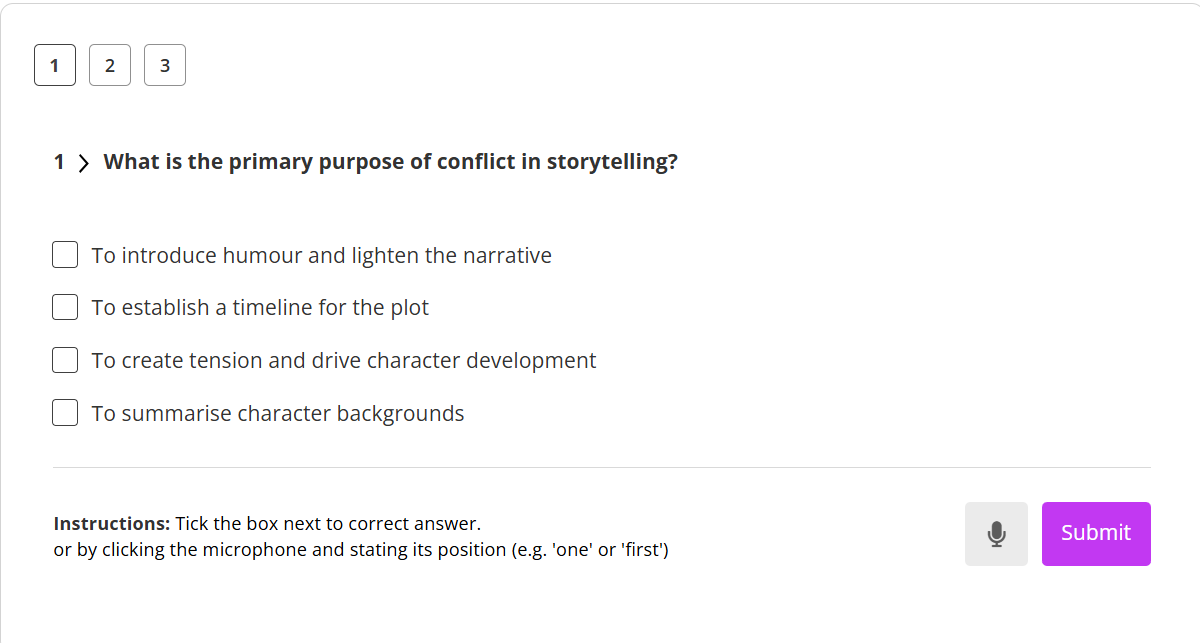
When a learner views a quiz question:
- The question is displayed on screen
- Answer options appear as selectable checkboxes
- A microphone icon is shown, allowing learners to respond using voice commands
- Coursebox listens for simple verbal responses (for example, “one”, “two”, or “third”) and automatically selects the corresponding answer
- Learners can still adjust their selection manually before submitting their response.
When a learner views a short answer question:
A microphone icon appears next to the Send button
Learners can click the microphone to record their response verbally
Spoken input is automatically converted into text
Learners can review and edit the transcribed text before submitting
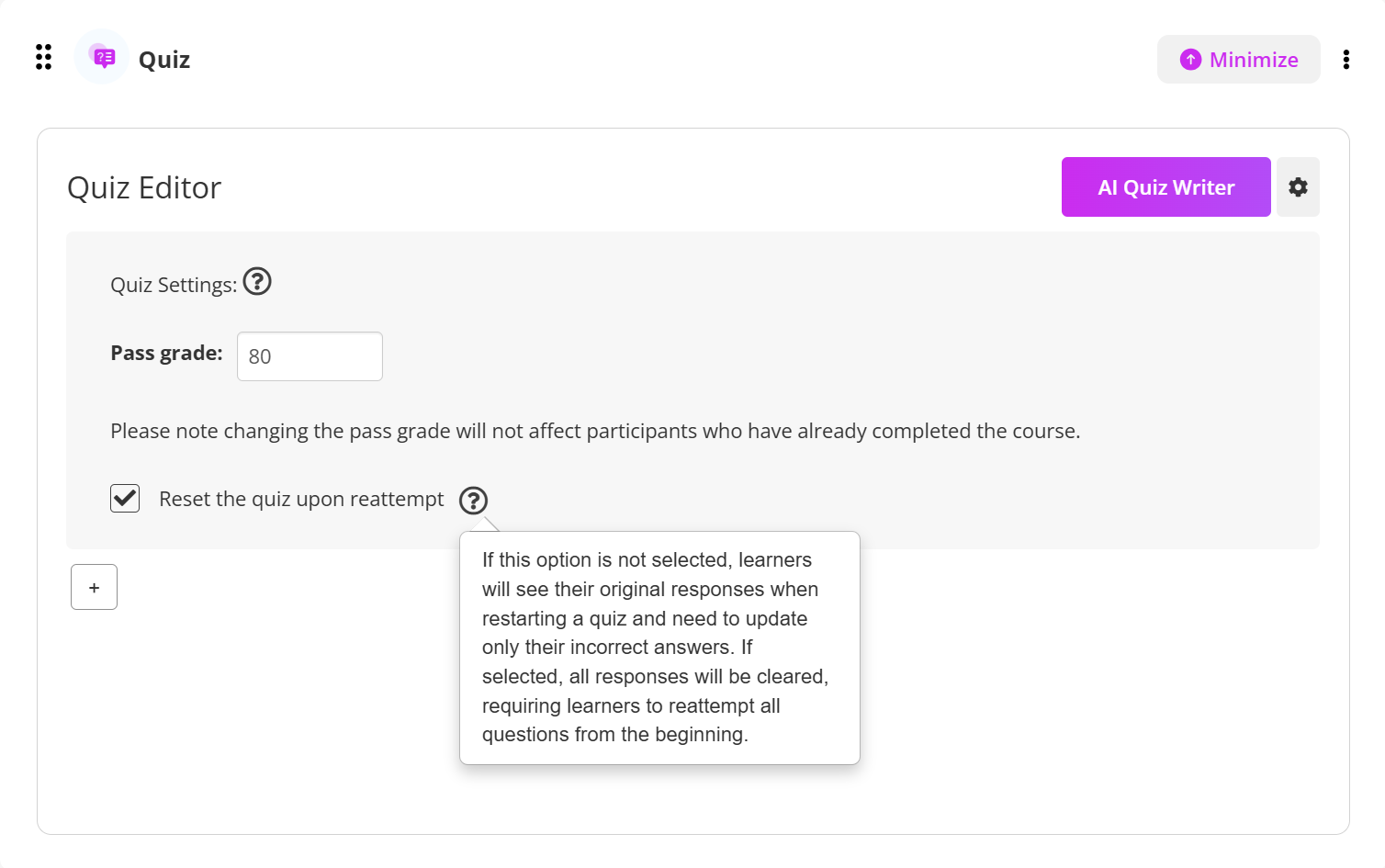
Reset Quiz Upon Reattempt
When setting up a quiz, you can choose how learner responses are handled if the quiz is reattempted. Learners can attempt a quiz up to 3 times (including 2 re-attempts).
- Unchecked (default):
Learners will see their original responses when restarting the quiz. They only need to update the answers they got wrong. - Checked:
All responses will be cleared, requiring learners to re-attempt every question from the beginning, regardless of which ones they answered correctly before.
Clickable Navigation for Incorrect Quiz Questions
Coursebox allows learners to quickly navigate back to incorrect quiz questions using the clickable question indicators displayed at the top of the quiz screen.
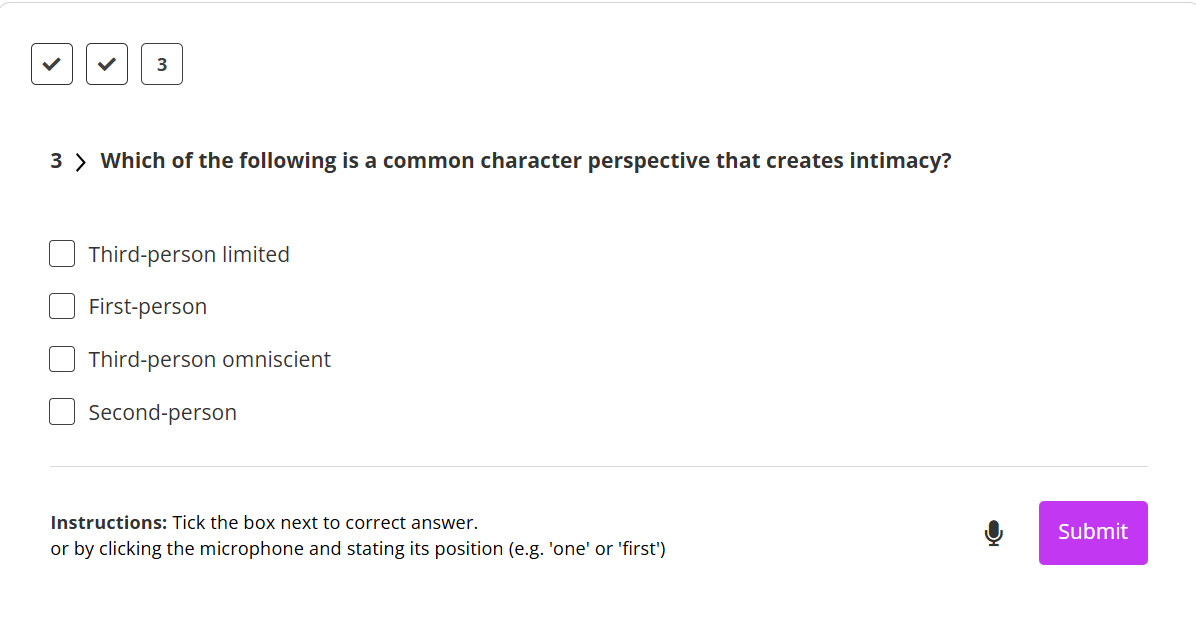
This feature helps learners review mistakes, improve understanding, and correct answers efficiently without manually scrolling through the quiz.
Was this article helpful?
That’s Great!
Thank you for your feedback
Sorry! We couldn't be helpful
Thank you for your feedback
Feedback sent
We appreciate your effort and will try to fix the article