This section covers how to manage assignment review both inside and outside Coursebox. You’ll learn how to export learner submissions for offline marking, assess and grade work within the platform, and understand how notifications keep learners informed of feedback and outcomes—ensuring a smooth, transparent assessment process for facilitators and learners alike.
Watch the Tutorial Videos found in our Demonstration Video Library.
Export Assignments
You can export student submissions and manage marking outside of Coursebox by downloading all assignment responses.
Open the course and locate the assignment you want to export.
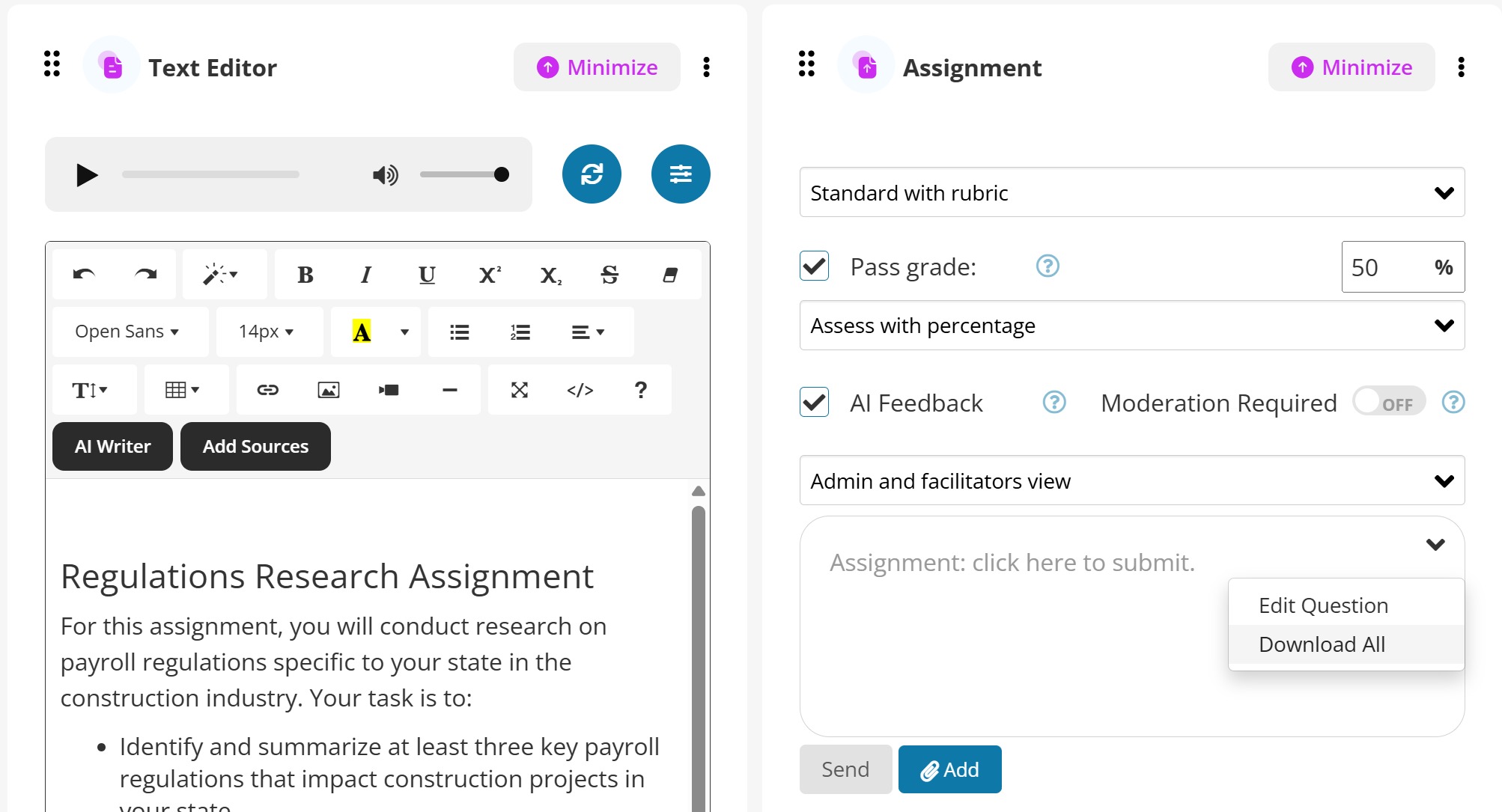
Click the vertical ⋮ (three dots) in the top right corner of the “Assignment” panel.
From the dropdown menu, choose Download All.
This will export all learner submissions related to that assignment.The downloaded file (usually in .zip or .csv format) contains the learners’ responses. You can open it in your preferred text editor or spreadsheet software to review or mark offline.
Mark/Grade Assignments
Assessments support learner accountability while giving facilitators clear visibility of progress. In Coursebox, assignments work like a private submission workflow—learners submit their responses directly within the course, and facilitators review, grade, and provide feedback from the admin side.
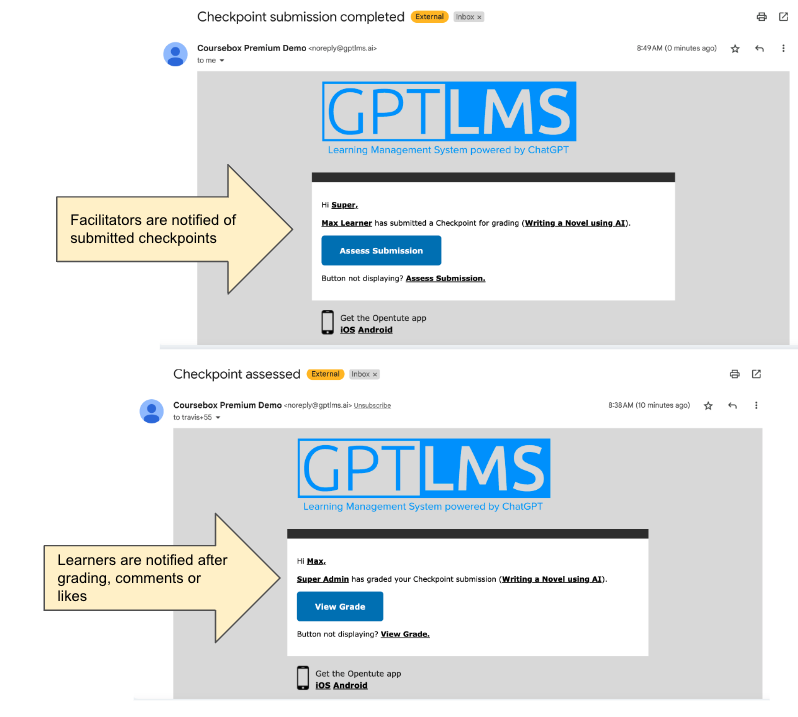
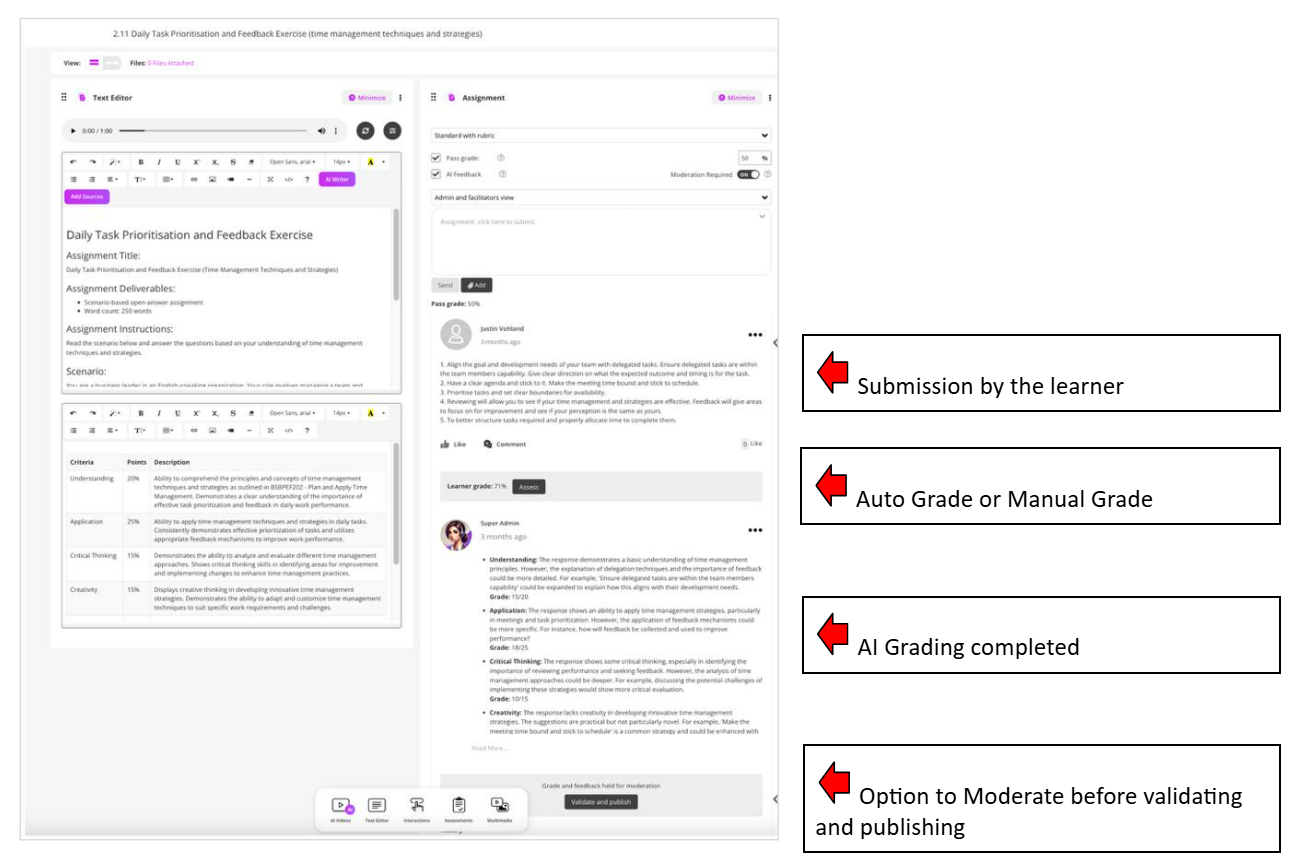
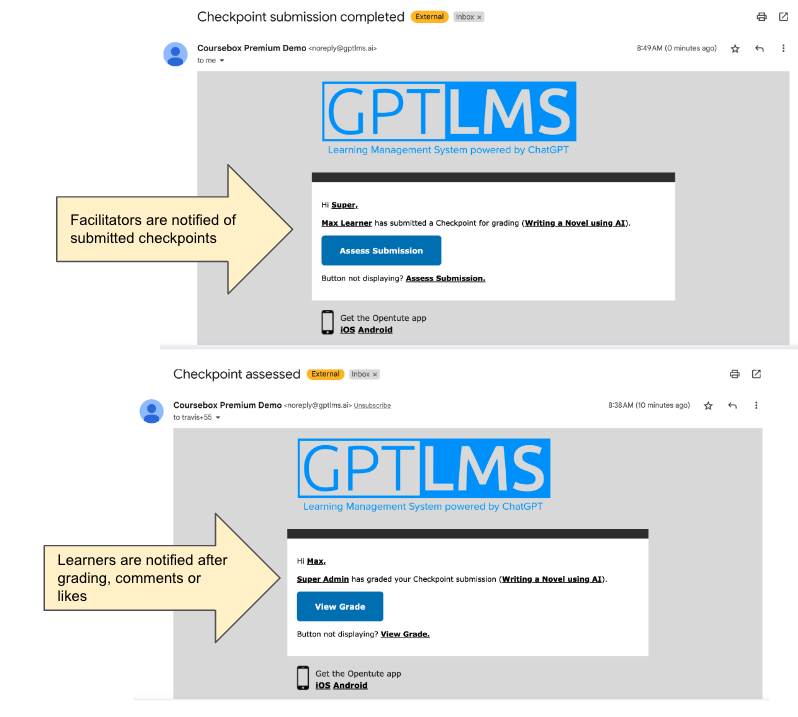
Once learners submit their entry, facilitators will receive a notification and a button labeled “Assess Submission,” allowing them to enter the passing grade.
Click on Assess button to enter a passing grade, the following screen will appear, then click on to submit the grade.

- Learners will be notified whenever their submission receives a grade, a comment, or a like.
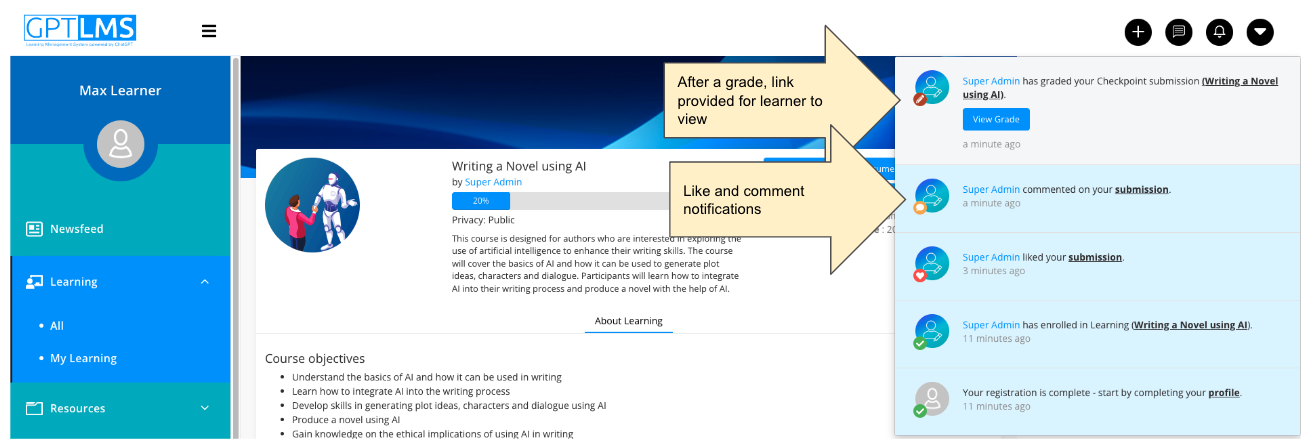
- Notifications help keep them informed and engaged with feedback from facilitators or peers.
Was this article helpful?
That’s Great!
Thank you for your feedback
Sorry! We couldn't be helpful
Thank you for your feedback
Feedback sent
We appreciate your effort and will try to fix the article