Adding Assignments
0Assignments are ideal for collecting learner submissions, assessing applied knowledge, and evaluating work against set criteria. They support file uploads, written responses, and structured marking—making them well suited to practical and evidence-based assessment.
There are two ways to create Assignments in Coursebox:
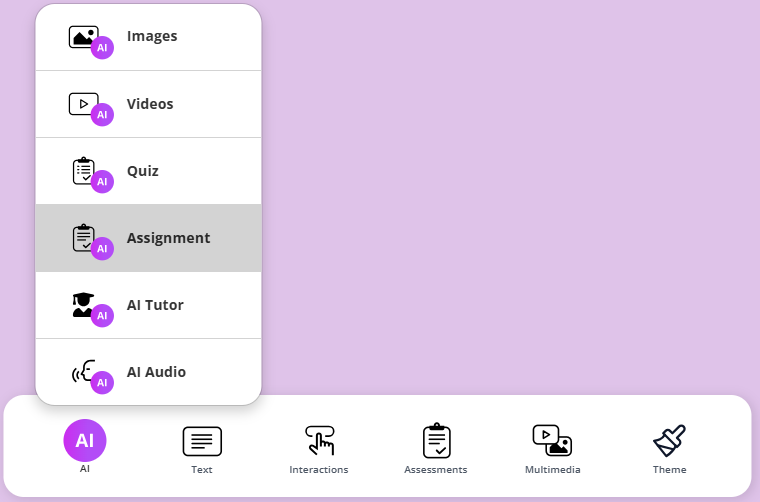
Option 1: Use AI Assignment Writer
Click the AI button and select Assignment to generate an assignment using AI.
On the next screen, follow the prompts to create your assignment, then review and edit the details as needed.
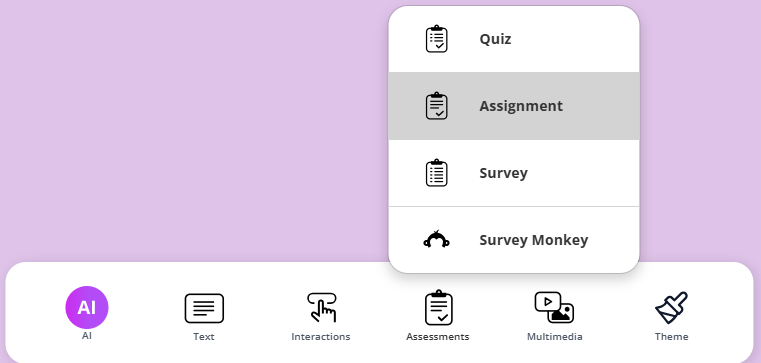
Option 2: Create an Assignment from the bottom menu
Click Assessments in the bottom navigation and select Assignment.
This allows you to manually create and configure an assignment, including submission type and assessment criteria.
Both methods let you edit, customise, and manage the assignment after creation.
Create Assignment Description using AI
When the Assignment Description pop-up window opens, click AI Writer to launch the Write Text with AI panel.
In this panel, you can:
Choose whether to replace existing text or continue writing from what’s already on the page
Describe what you want the assignment to be about in the text field
Set the desired word count for the generated content
Click Update Page to insert the AI-generated text into your assignment
You can then review, edit, or refine the content before publishing the assignment
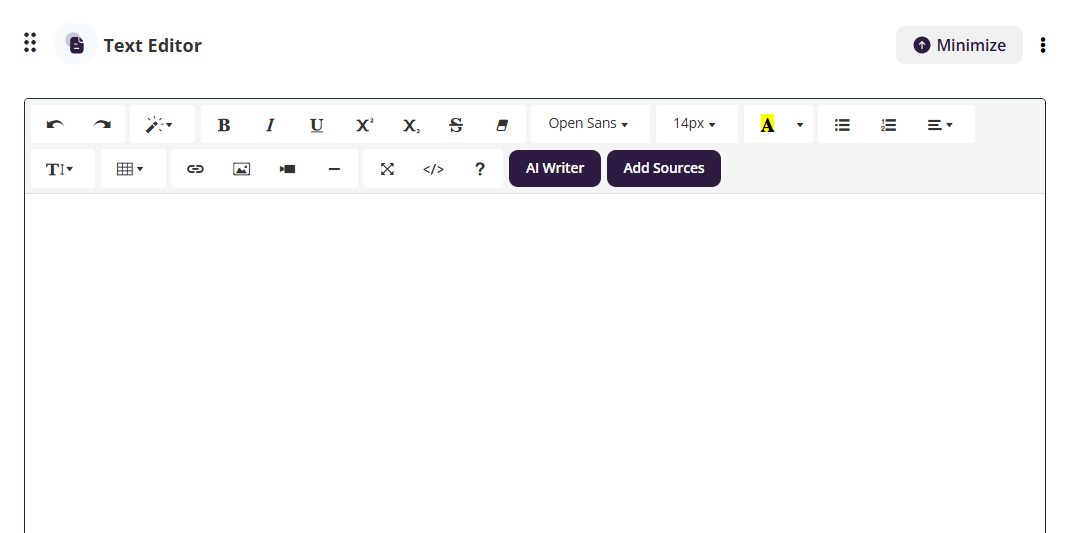
Note: When you create an assignment, a Text Editor section automatically appears at the top of the page. You can use this editor to enter your assignment instructions manually or generate them using the AI Writer.
Create an Assignment Manually
Add assessment description — write the assignment prompt, instructions, and relevant details.
Enter a description or prompt for the assignment. This is what learners will see, so include instructions, context, and any requirements. You can use the AI writer to help you with this section, steps below.
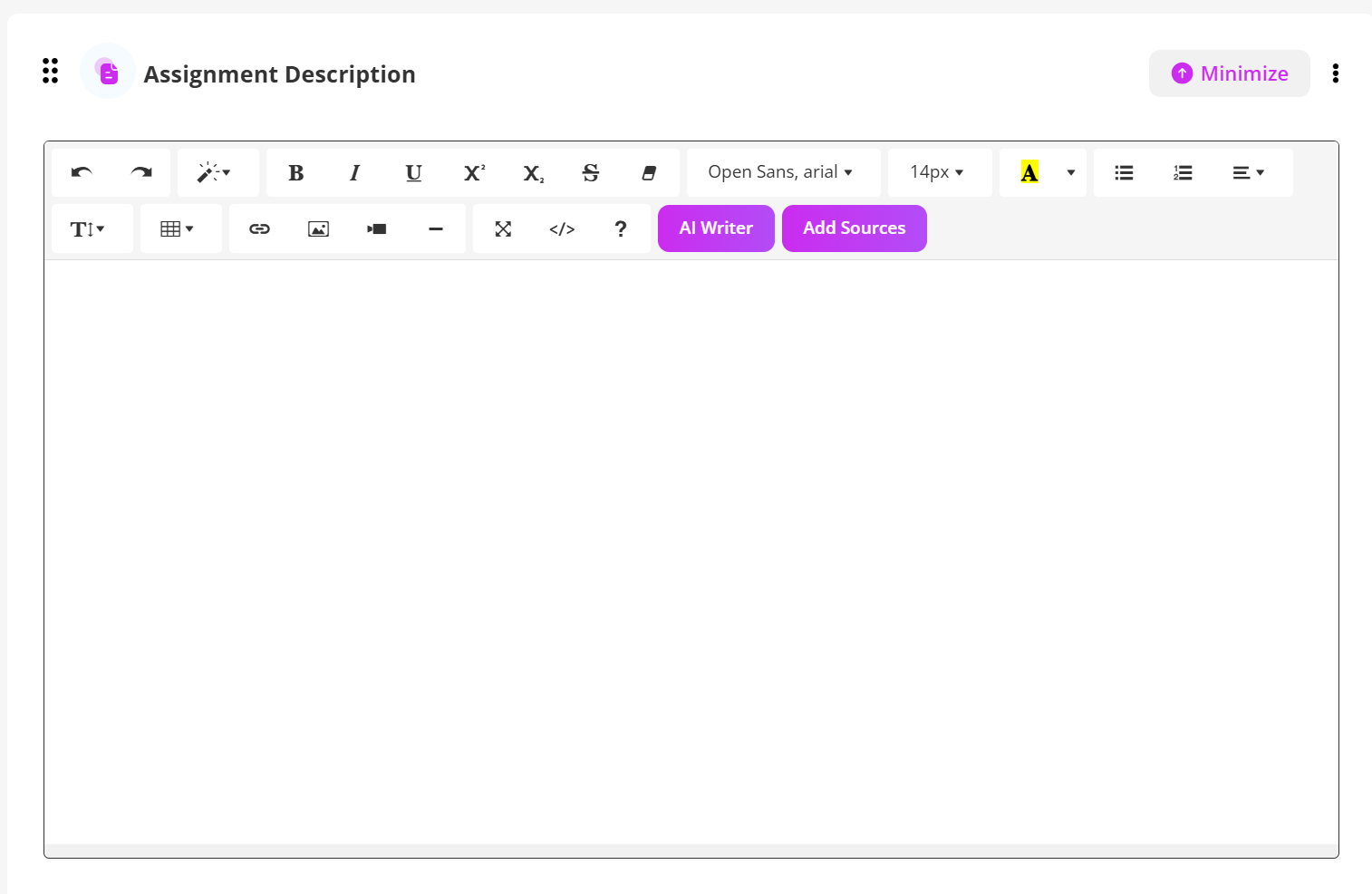
Note: When you create an assignment, a Text Editor section automatically appears at the top of the page. You can use this editor to enter your assignment instructions manually or generate them using the AI Writer.
Choose the Assignment type
From the dropdown menu select the Assignment Type and then follow the steps below for each.
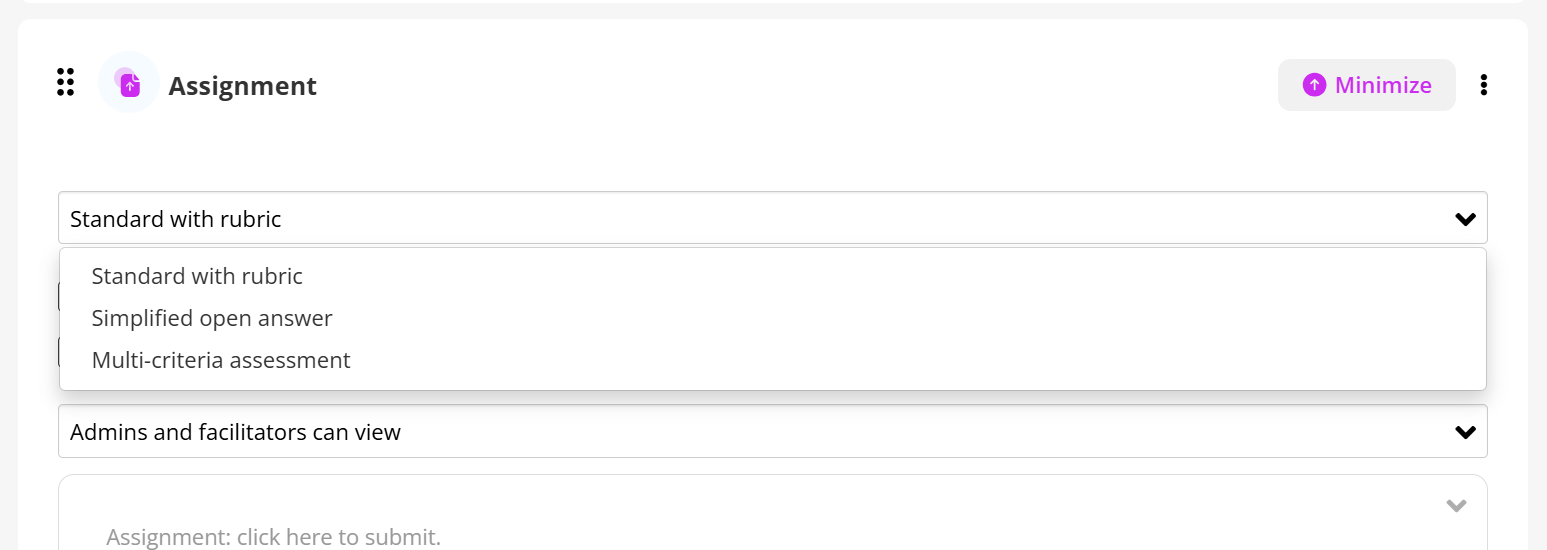
Standard with Rubric Assessment Type
This is the default. It allows you to set assessment criteria (a rubric) so submissions can be graded against set standards.
To create this assignment start with Steps 1 - 3 above, then:
- Choose assessment type
- From the dropdown menu, select Standard with Rubric (this is the default).
- Define the rubric
- Add your assessment criteria.
- For each criterion, provide a description and set performance levels (e.g. Excellent, Good, Needs Improvement).
- Assign points or weight to each level.
- Optional settings (See instructions below)
- Pass Grade: Enable and set a minimum required score for learners to pass.
- AI Feedback: Check this box to allow learners to receive AI-generated suggestions.
- Moderation: Turn this on if you want submissions to be reviewed before being accepted.
- Visibility: Choose who can view the assessment (learners, facilitators, or both).
- Save and publish
- Review your rubric setup.
- Save the assignment so it appears in your course sequence.
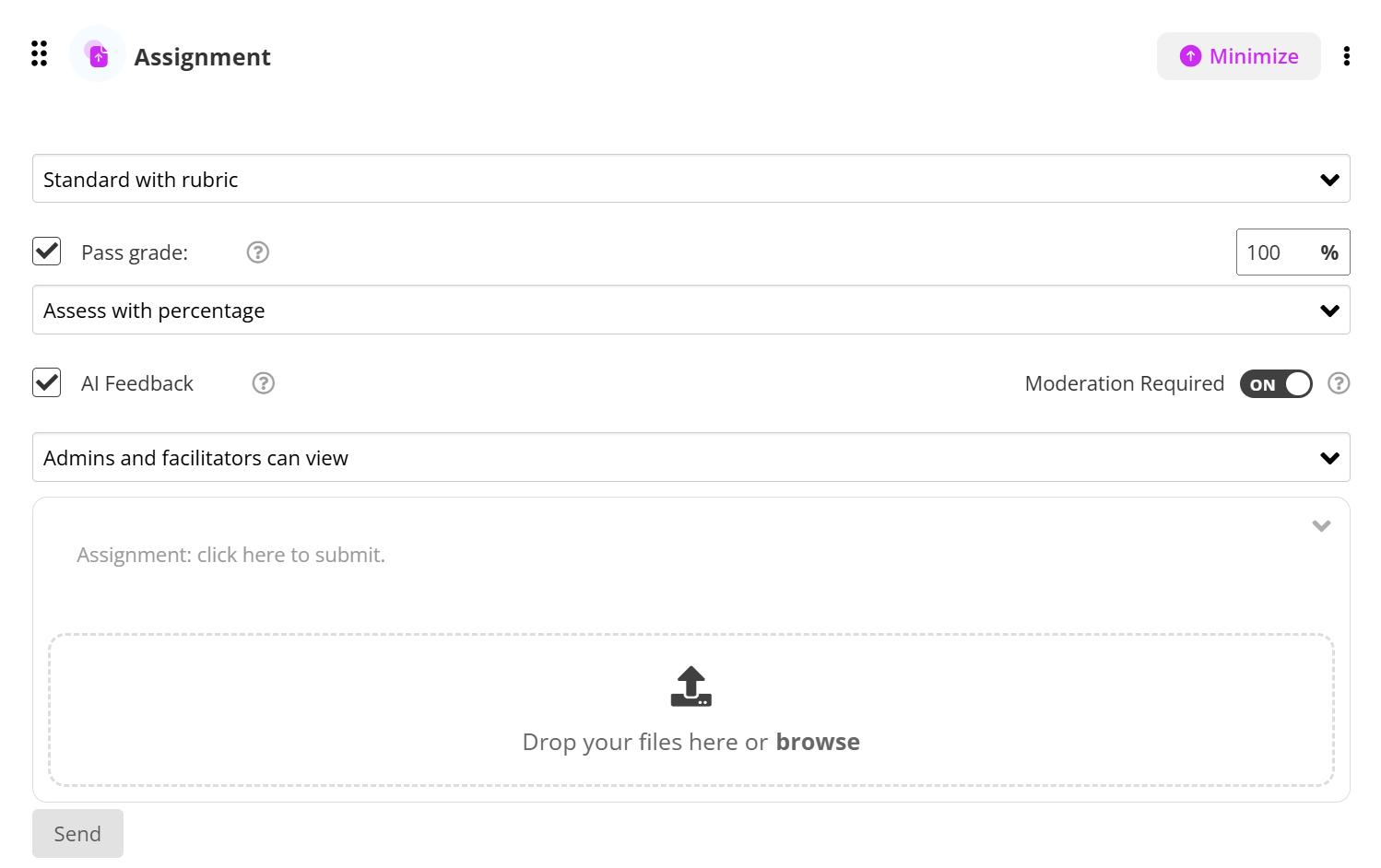
With Standard with Rubric, you ensure consistent and transparent grading, since learners can see the rubric criteria and know exactly how their work will be evaluated.
Simplified Open Answer Assessment Type
A more minimal format. Learners submit a free-form answer without a formal rubric. Useful for questions or reflections where detailed grading criteria are not needed.
To create this assignment start with Steps 1 - 3 above, then:
- Choose assessment type
- From the dropdown, select Simplified Open Answer.
- This type provides a single open-ended response box for learners.
- Configure response settings
- Set a word limit (optional) if you want to control response length.
- Decide whether learners can resubmit after initial submission.
- Optional settings (See instructions below)
- Pass Grade: Enable and set the minimum required score.
- AI Feedback: Turn on to give learners automated improvement tips.
- Moderation: Enable if submissions should be reviewed before being finalized.
- Visibility: Control who can see the responses (facilitators, peers, or both).
- Save and publish
- Review your setup.
- Save and publish the assignment so learners can access it in their course.
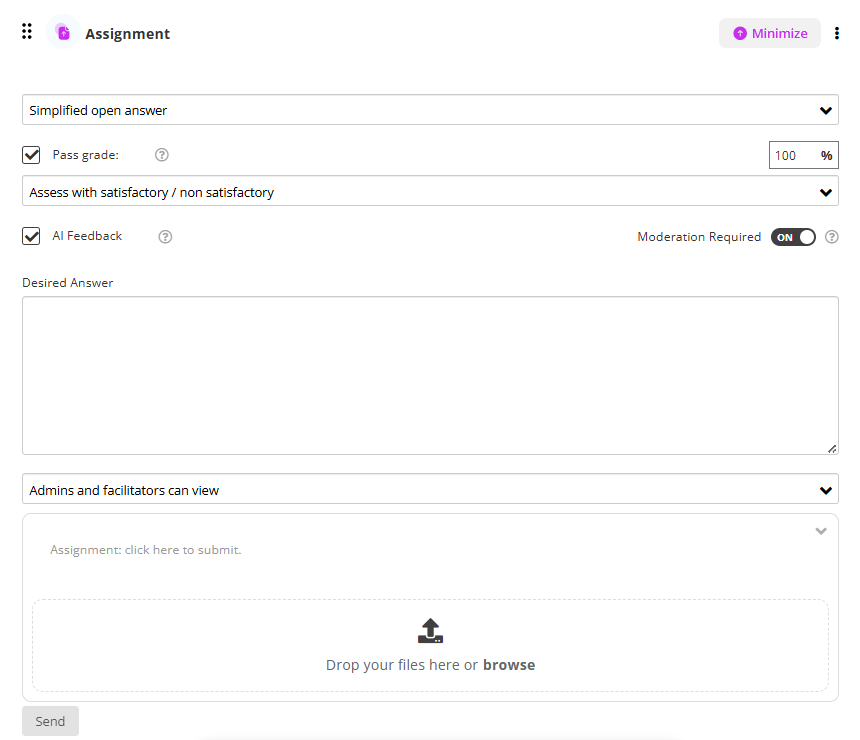
Simplified Open Answer is best for short-form responses, reflections, or questions where you don’t need a detailed rubric.
Multi-criteria Assessment Type
This option lets you create separate criteria for grading, so each submission can be evaluated across multiple dimensions (e.g. content, structure, style, accuracy).
To create this assignment start with Steps 1 - 3 above, then:
- Choose assessment type
- From the dropdown, select Multi-criteria Assessment.
- This type allows you to grade each submission across several defined criteria rather than giving a single overall score.
- Define your criteria
- Add multiple criteria (e.g. Content Accuracy, Structure, Style, Creativity).
- For each criterion, provide a clear description and, if needed, set a maximum score or weighting.
- Repeat until all desired criteria are added.
- Visibility
- Decide who can view the scores and feedback generated from the assessment — learners or admins and facilitators.
- Communicate expectations
- Share the criteria with learners in your instructions so they understand how their work will be assessed.
- Save and publish
- Review your setup, making sure each criterion is well defined.
- Save the assignment and publish it so it becomes available in the course.
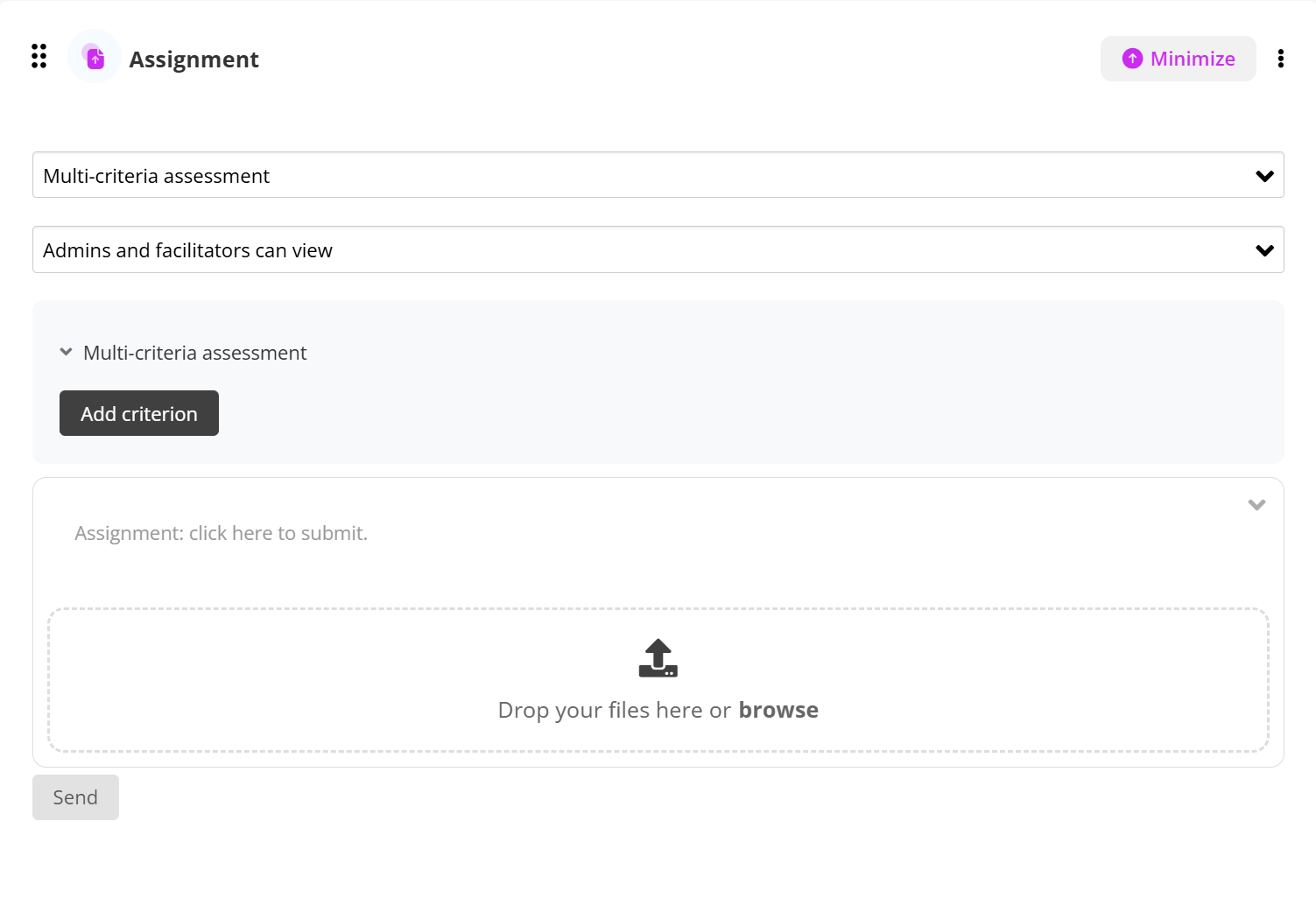
Multi-criteria Assessment is ideal when you want to provide structured, detailed feedback across several dimensions, giving learners a clear picture of their strengths and areas for improvement.
Configure Assignment Settings
Assignment settings allow you to control how learner submissions are assessed, reviewed, and shared. In this section, you’ll learn how to configure key options such as pass grades, AI-generated feedback, facilitator moderation, and result visibility—ensuring each assignment aligns with your learning outcomes, assessment standards, and review process.
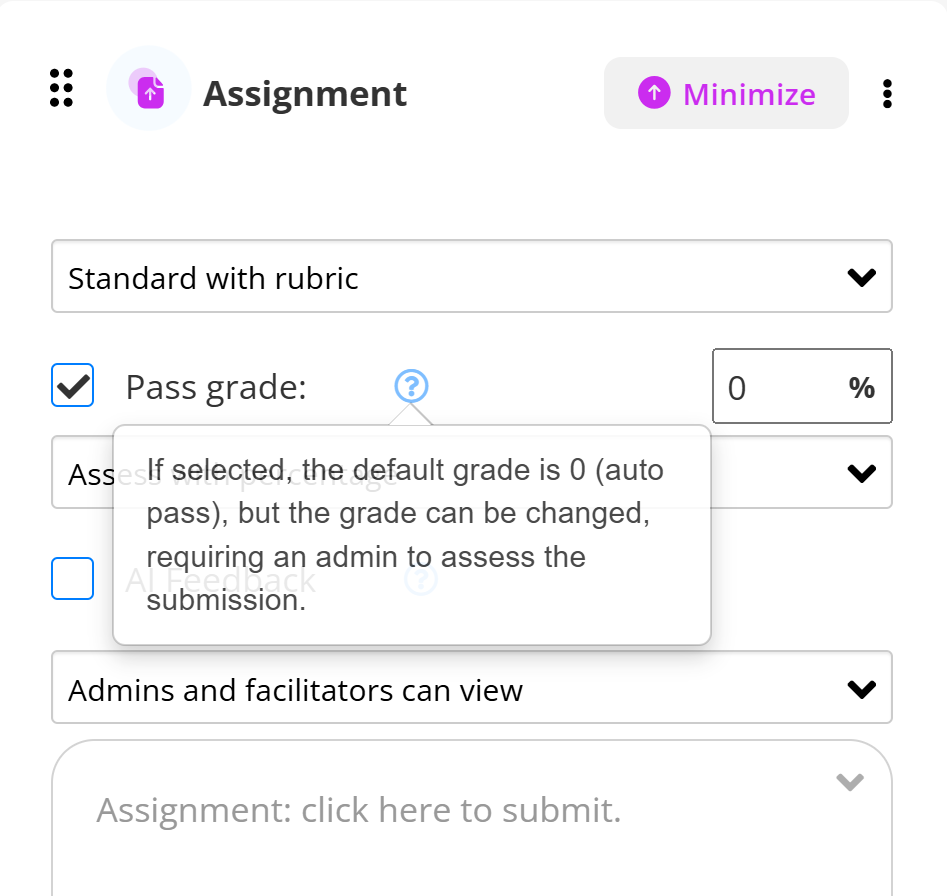
What does “Pass Grade” mean?
Some assignments have a minimum score learner's need to achieve. The assignment work will be checked by a facilitator or course admin, and once the learner reaches the required score, they will receive a Pass Grade.
To enable the Pass Grade option:
- In the assignment locate the Pass Grade field.
- Turn on the option to require a minimum passing score.
- Enter the score learners must achieve in order to pass.
- Use a numeric value that matches your course grading scale.
What does “AI Feedback” mean?
On some assignments, leaners can see instant feedback generated by AI. This feedback gives learners suggestions and tips to help improve their work before or alongside the facilitator’s review.
To enable AI Feedback:
- In the assignment settings panel, locate the AI Feedback option.
- Tick the checkbox to activate automated, AI-generated feedback.
- This will provide learners with instant suggestions to help improve their submissions.

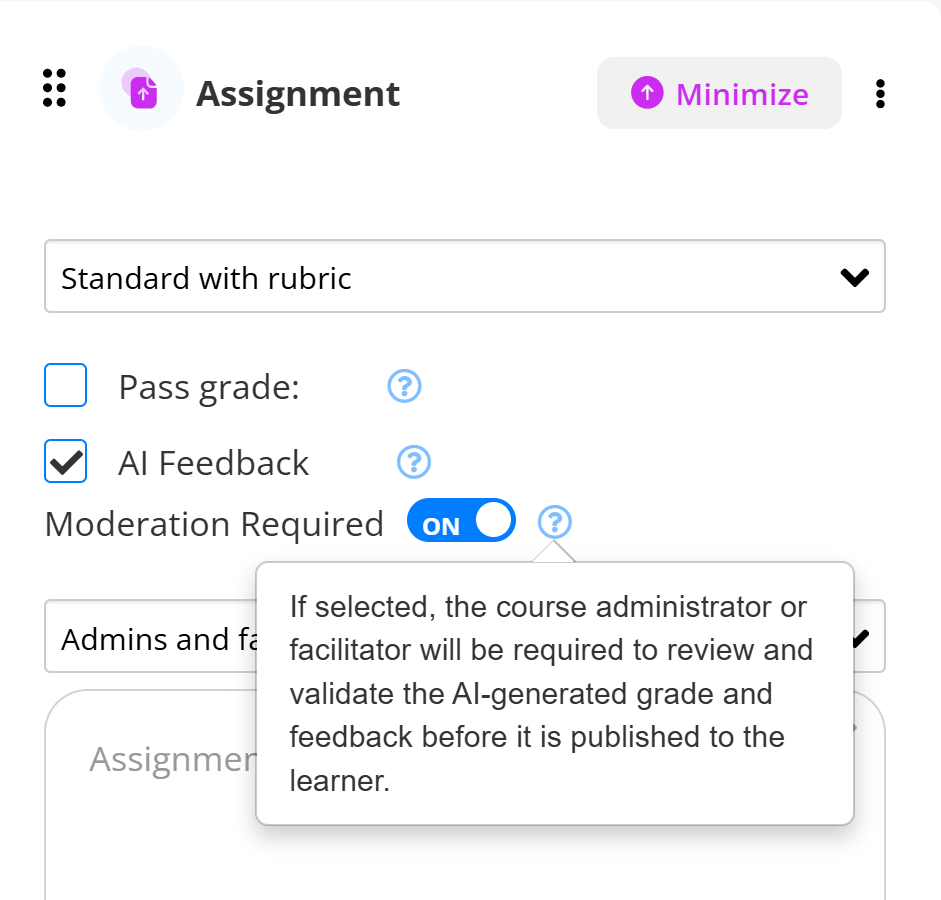
What does “Moderation” mean?
For some assignments, the learner's work will be reviewed by a facilitator. This ensures the learner's submission meets the required standards before it becomes part of their course record.
To enable Moderation:
- Open the assignment settings panel and locate the Moderation option.
- Toggle the option on to require facilitator review.
- With moderation enabled, learner submissions must be checked and approved before they are published or accepted.
What does “Visibility” mean?
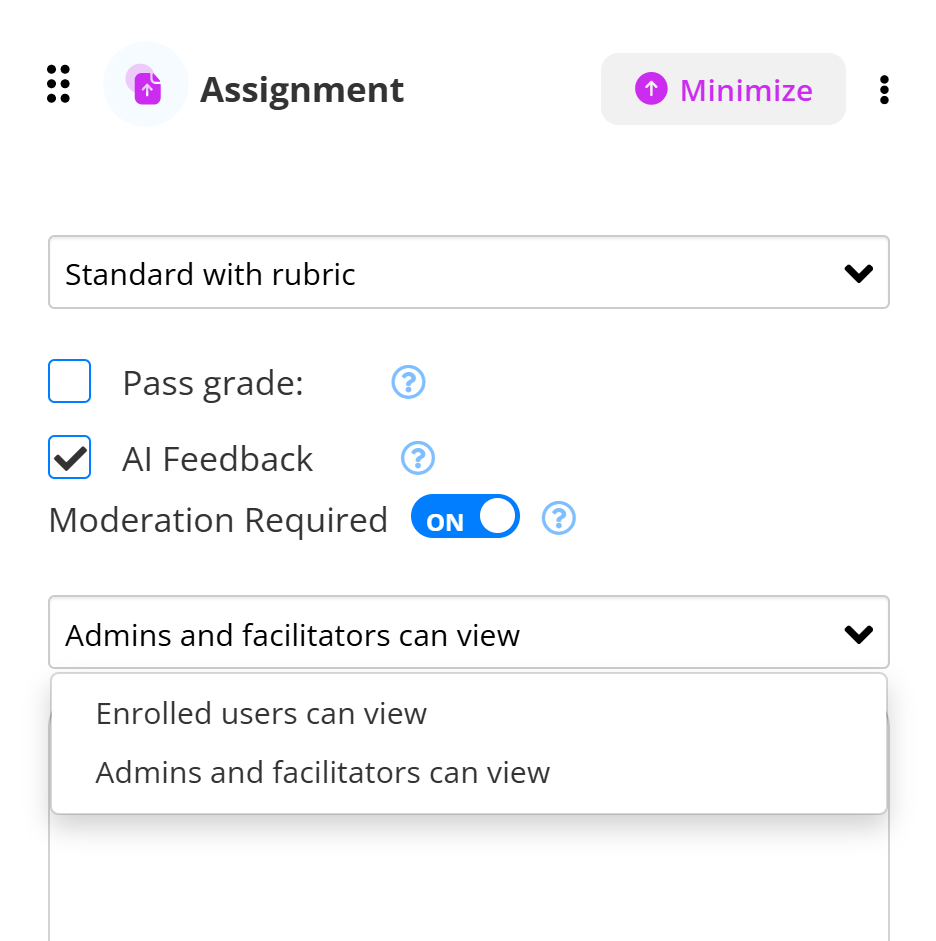
Visibility controls who can see learner scores and feedback. Depending on the setting, results may be shown only to facilitators and admins or to learners also.
To set Visibility:
- Open the assignment and locate the Visibility option.
- Use the dropdown menu to select who can view the assessment results (e.g. learners or facilitators and admins).
Learner submission experience
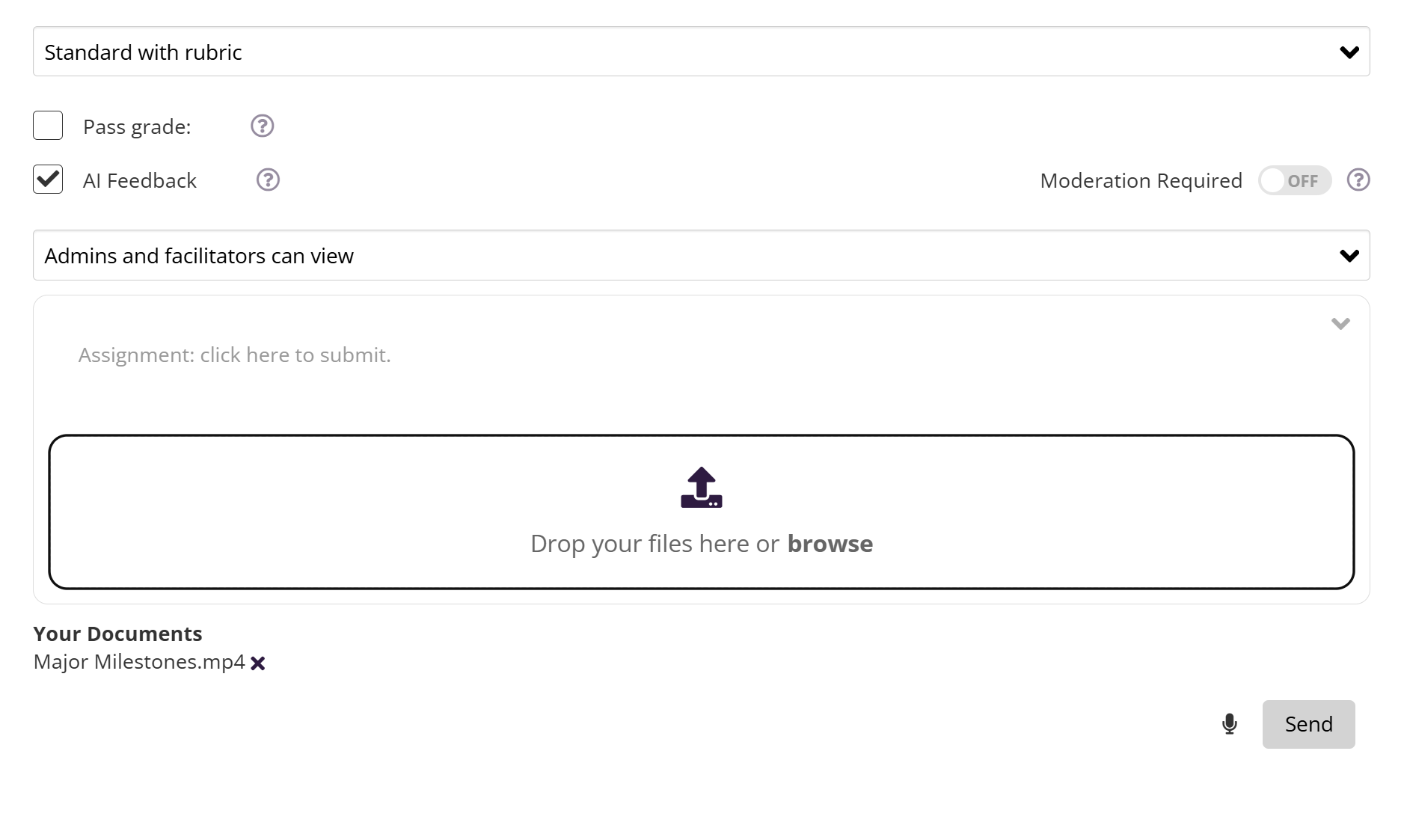
Learners will see a clear submission area where they can:
Upload their video file by dragging and dropping it or selecting browse
Review uploaded files under Your Documents
Click Send to submit their assignment
Tip: This format works especially well for reflective learning, creative courses, coaching programs, and personal development content where video responses add depth and authenticity.
Learner Response to an Assignment (Listen & Speak Mode)
Coursebox assignments support multiple ways for learners to engage with and submit their work, including Listen Mode, Speak Mode, and file or text submission. This flexibility allows learners to choose the method that best suits their learning and communication style.
Listening to the Assignment Instructions (Listen Mode)
When an assignment is opened:
The assignment title and instructions are displayed on screen
An audio player appears at the top of the assignment
Learners can play, pause, or replay the audio to listen to the assignment instructions being read aloud
Listen Mode helps improve comprehension and accessibility, particularly for longer or scenario-based assignments.
Responding to an Assignment (Speak Mode)
Assignments can be completed using spoken input instead of typing.
When Speak Mode is available:
A microphone icon appears next to the Send button
Learners can click the microphone to record their response verbally
Spoken input is automatically converted into text
Learners can review and edit the transcribed text before submitting
This is especially useful for creative, reflective, or narrative-based assignments.
Watch the Tutorial Videos found in our Demonstration Video Library.
Was this article helpful?
That’s Great!
Thank you for your feedback
Sorry! We couldn't be helpful
Thank you for your feedback
Feedback sent
We appreciate your effort and will try to fix the article