This topic explains how Super Admins can control user access, permissions, and visibility across the Coursebox platform. It covers how to manage who can create content, interact with others, see specific pages or features, and participate in community activity—allowing you to tailor the platform experience to suit your organisation’s structure, governance, and learning goals.
For Business & Enterprise Accounts only. To upgrade your account go to: https://www.coursebox.ai/pricingAuthorise Access to users
The Super Admin can control which status a user must have to generate new Messages, Learning, Bookings, Groups and Invitations.
Navigate to Settings on the Course Page.
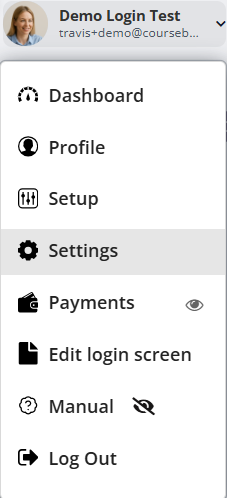
The following Screen will appear:
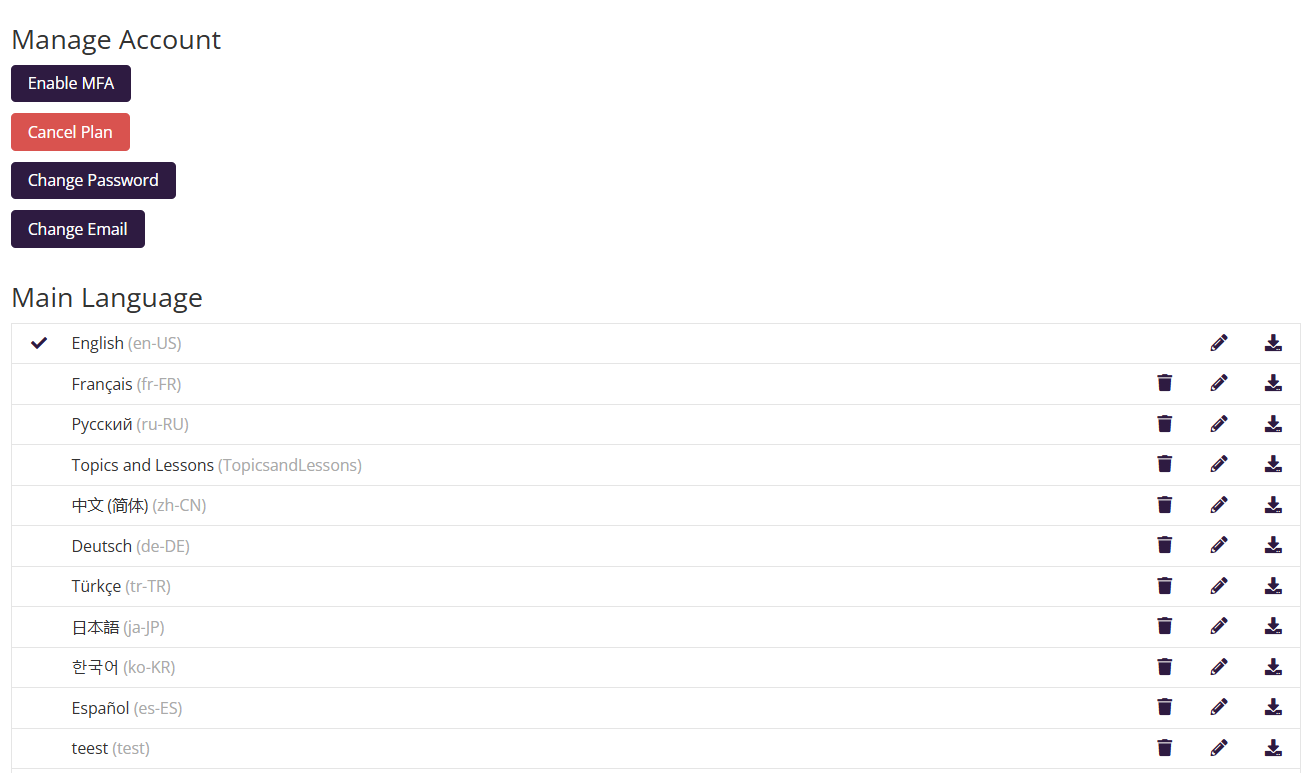
Scroll down the page to Locate Sections to Change Access.
Click Change access, on any of the sections on the list to make changes.
Click the "Click to receive email notifications of new messages" toggle.
Note: If this is ON, you will receive email alerts even if general email notifications are OFF.
This setting will allow super admin to control who can and cannot post on the newsfeed. As Coursebox Branded Training Platform (Premium) is designed for social learning experience, by default every one can post on news feed. With this setting, you can change that.
Manage Access to New Message Notifications
To select who receives notifications:
Under New Message, choose which user roles should receive email notifications when a new message is sent.
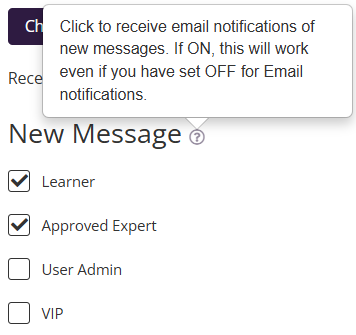
Simply tick the checkbox next to each role you want to include.
Available roles may include:
Learner
Approved Expert
User Admin
(Other roles depending on your portal setup)
Click the blue "Save" button to apply your selections.
Click "Cancel" if you don’t want to save any changes.
Manage Access to Creating New Courses
Use this setting to control which user types are allowed to create new courses on the platform.\
Under New Course, tick the checkboxes next to the user roles that should have permission to create new courses.
Available user types:
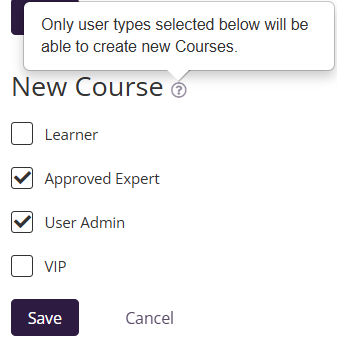
Tip: You can enable course creation for multiple roles.Click the blue "Save" button to apply your selections.
Click "Cancel" if you don’t want to save any changes.
Manage Access to Creating New Bookings
This setting lets you control which user roles have access to create new bookings in the system. This ensures that only specific roles can access the booking creation feature.
Under the "New Booking" section, tick the checkboxes for the user roles that should be allowed to create bookings.
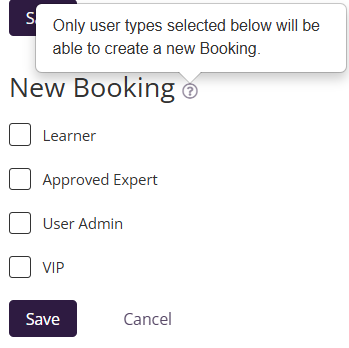
Click “Save” to apply your selected permissions.
Click “Cancel” to discard changes.
Manage Access to Creating New Groups
This section allows administrators to control which user roles are allowed to create new groups on the platform. This means group creation access is limited to the roles you select.
Under the "New Group" section, tick the checkboxes beside the user types you want to allow to create new groups.
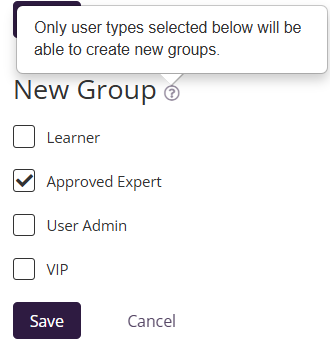
Click the “Save” button to apply your changes.
Click “Cancel” to discard any changes made.
Manage Access to Invitations
This section lets you control which user roles are allowed to invite friends to the platform. This means only the roles you select will be able to use the "invite friends" feature.
Under the "Invitations" section, tick the boxes next to the roles allowed to invite others.
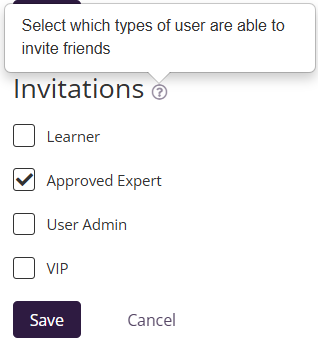
Click “Save” to confirm your selections.
Click “Cancel” to exit without saving.
Change Access to Newsfeed Posts
This section lets you choose which user roles are allowed to post on the platform’s newsfeed. This determines who can publish posts visible to others in the news section.
Under the "News Posts" section, tick the checkboxes for the roles you want to allow:
Choose one or multiple user types based on who you want to post updates to the community.
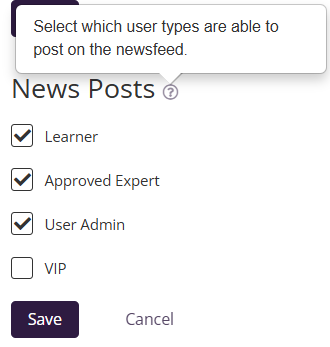
Click “Save” to apply the selected permissions.
Click “Cancel” to discard changes.
Change Access to News Reactions
This section allows you to control which user roles can like and comment on Newsfeed posts. This lets you manage engagement permissions for the newsfeed.
Under the "News Reactions" section, tick the checkboxes next to the user roles that should have permission to like or comment.
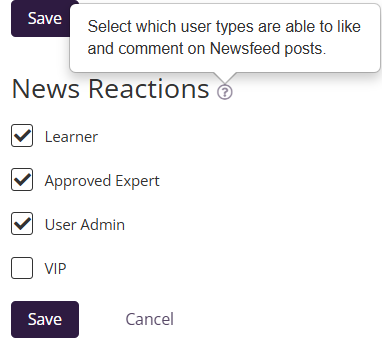
Click “Save” to apply the settings.
Click “Cancel” to exit without saving.
Change Access to Creating Resources
This section lets you control which user types can create new folders, sections, and resources in your platform.
Under the "Resources" section, tick the checkboxes for the roles that should be allowed to create resources.
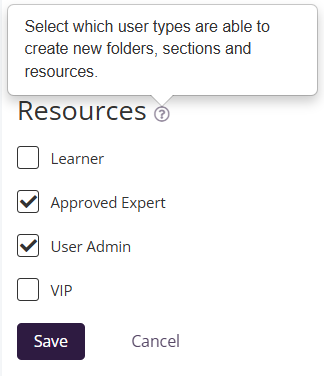
Click “Save” to confirm and apply your choices.
Click “Cancel” to discard any changes.
Portal Settings
This setting controls whether Groups are published automatically or require Super Admin approval.
ON (default): Groups are published immediately when created.
OFF: Groups must be approved by a Super Admin before being published.
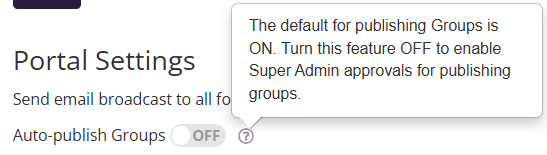
Tip: Turn this OFF if you want tighter control or approval workflows for Groups.Manage Left Hand Menu Items Visibility
This setting allows a Super Admin to control which items appear in the left-hand navigation menu of the portal.
By default, all menu items are visible to learners.
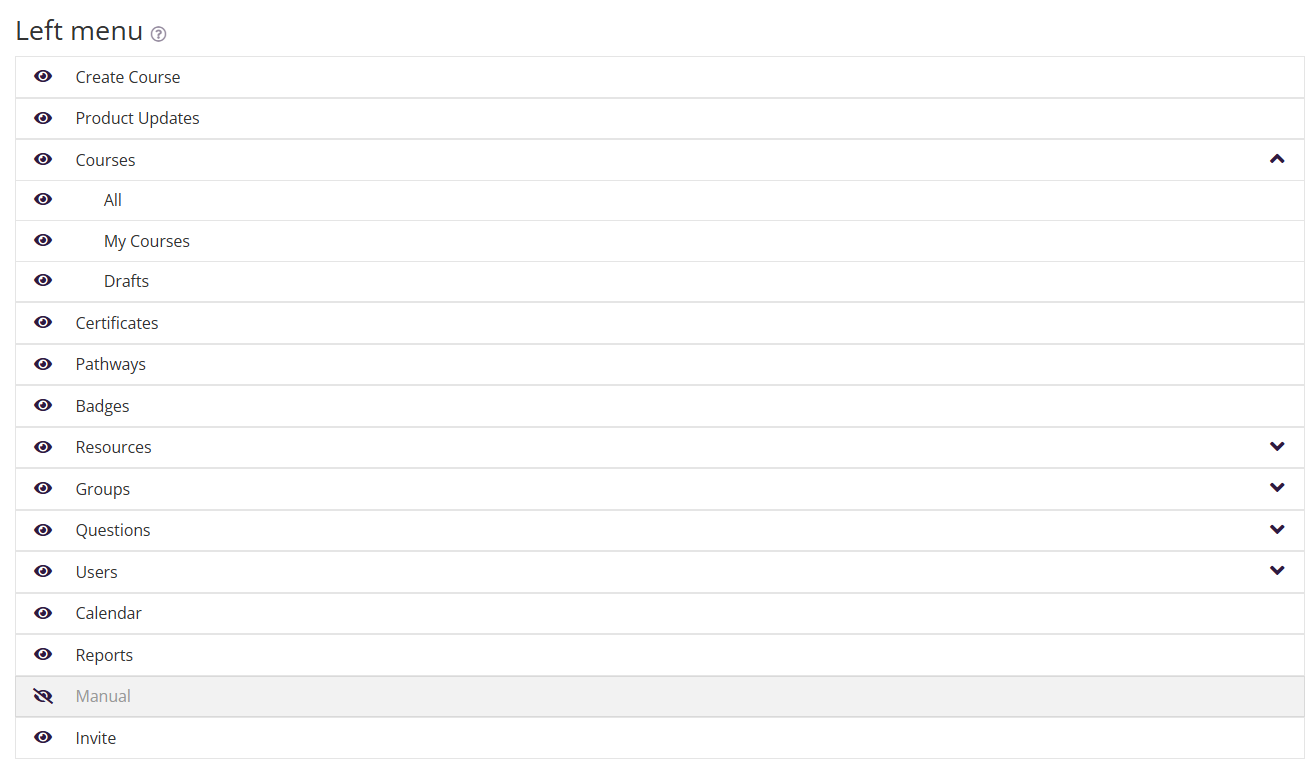
Show or hide menu items
Use the visibility (eye) icon next to each menu item to show or hide it.
Hidden items will not appear in the left-hand menu for learners.
Control sub-menu visibility
Click the expand arrow next to a menu item to reveal sub-pages.
You can show or hide individual sub-menu items (for example, specific sections under Courses, Groups, or Questions).
This gives you fine-grained control over navigation, helping you simplify the menu and show only what’s relevant to your users.
Manage Course Pages Visibility
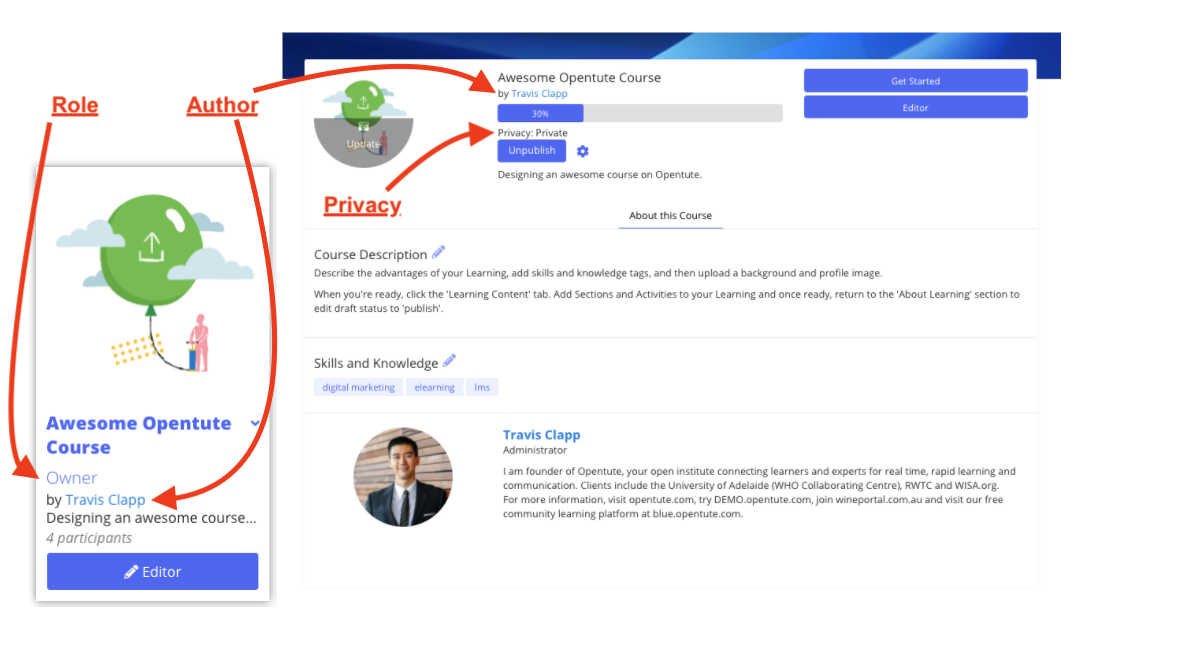
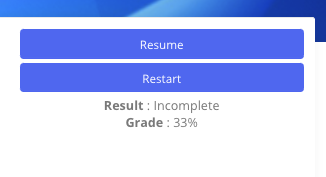
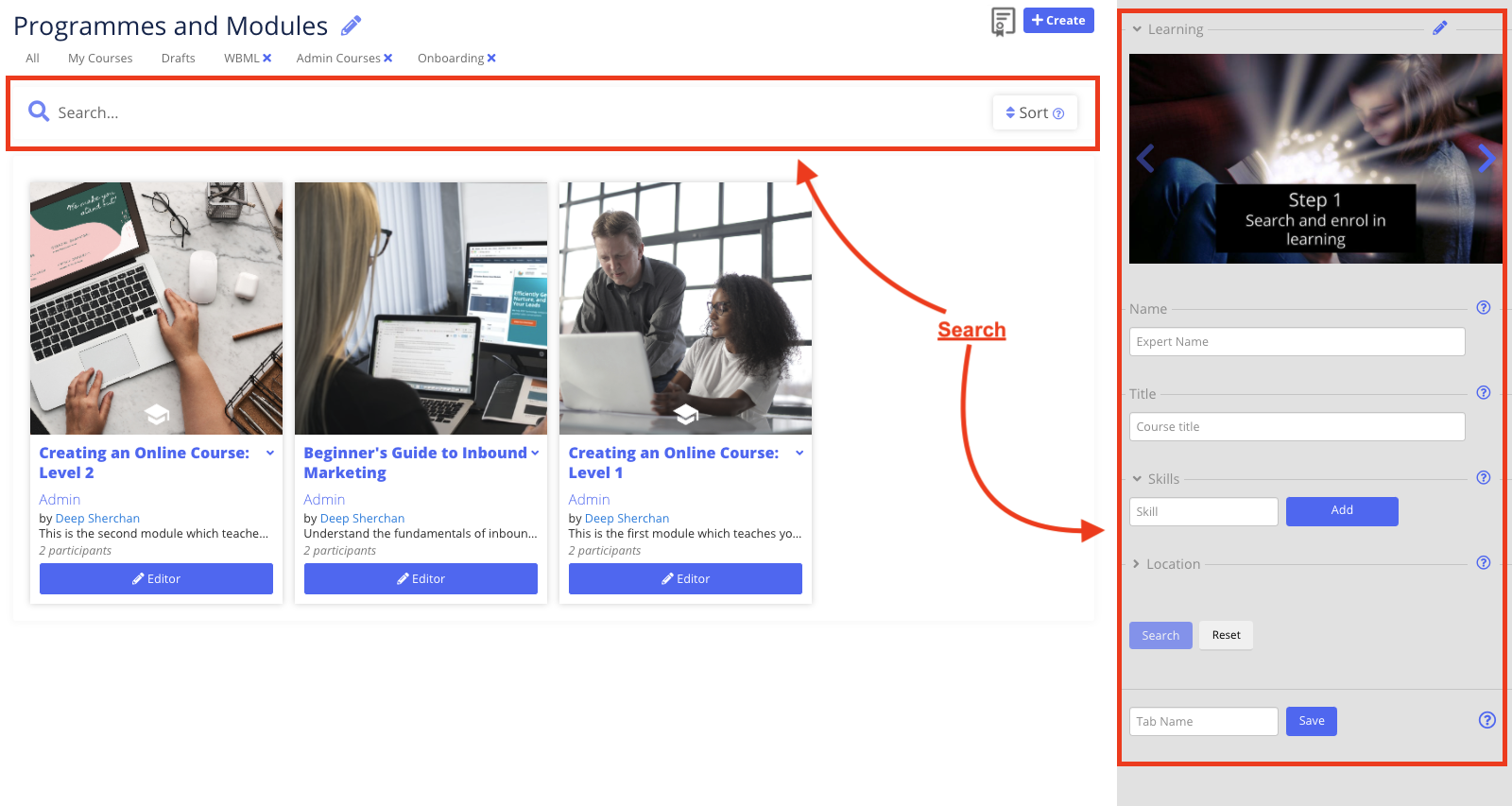
This setting allows super admin to control the visibility of content on your course details and description. By using the check box you can easily control the visibility of individual course content.
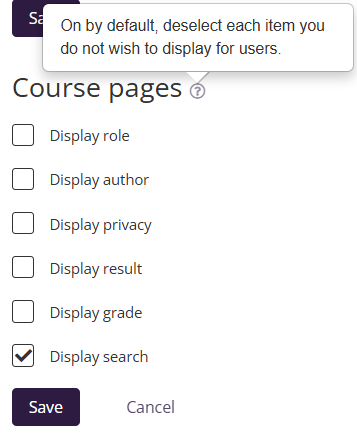
There are size content which you can control. Below are the choices and on the screenshot we have mapped these items.
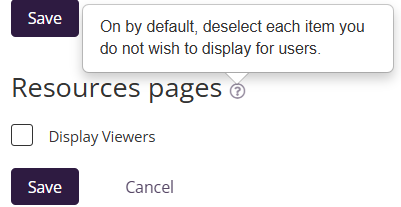
Manage Resources Pages Visibility
This setting allows super admin to control the visibility of resources on your course.
Manage Onboarding Welcome Popup
By selecting the individual items in the settings, you can control their visibility of the sections.
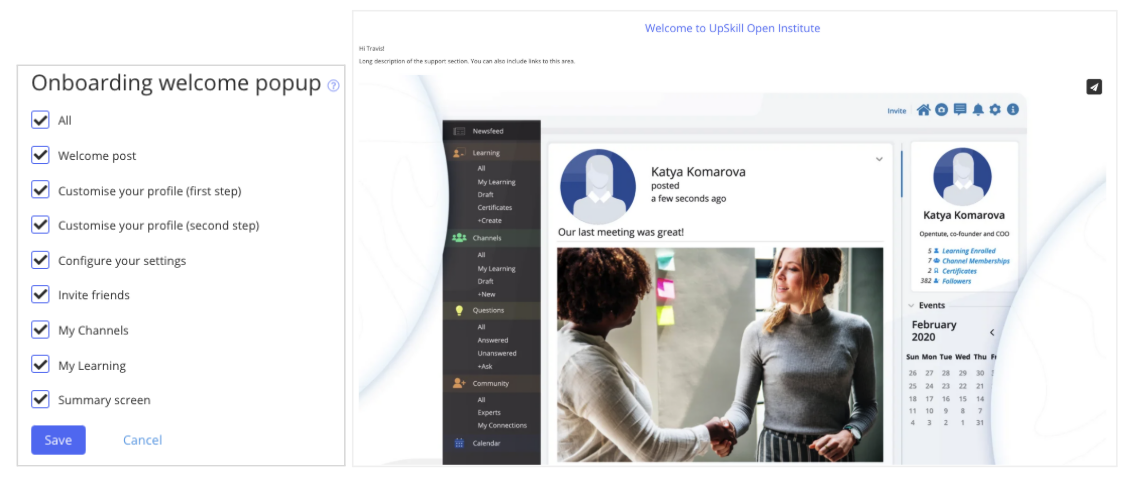
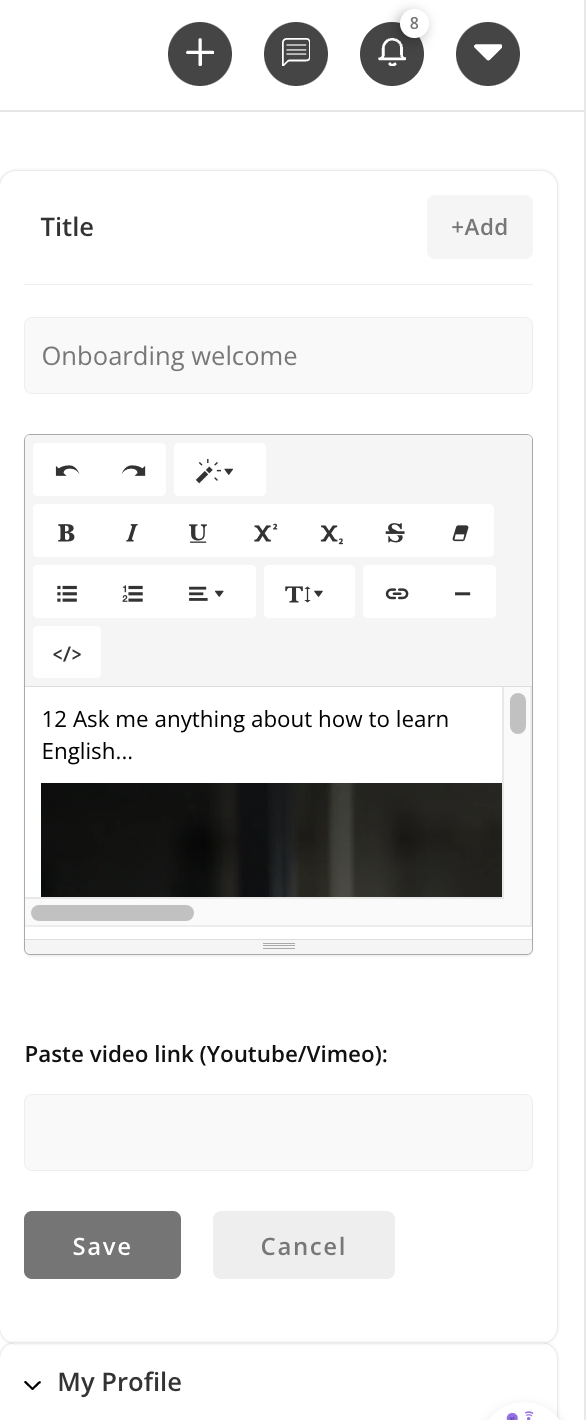
TIP: To edit the first onboarding section, edit the top-right widget on the newsfeed home page, which will then also become the first post for all new users.
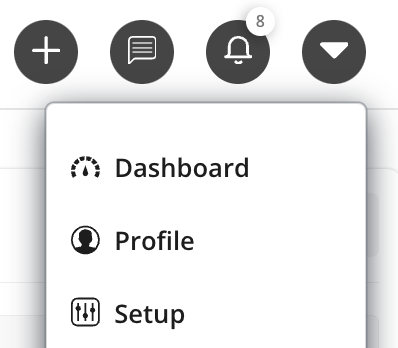
Once edited, to test the popup click "Setup":
Set Influencer Modes
By default, the Super Admin is followed by all users, meaning all other users will see News posts by the Super Admin, as well as any Groups or Groups where they are a member.
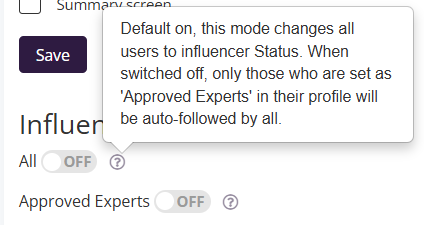
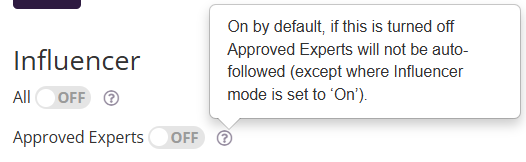
The Super Admin may decide to enable the auto-following of posts by Approved Experts (set in status of a profile) or All users, in which all users will see each other’s posts.
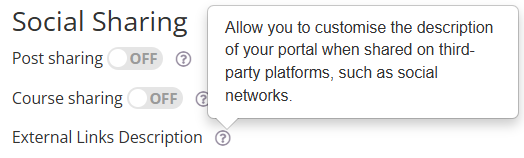
Manage Social Media sharing
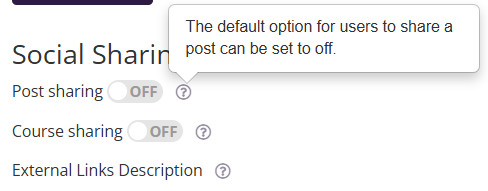
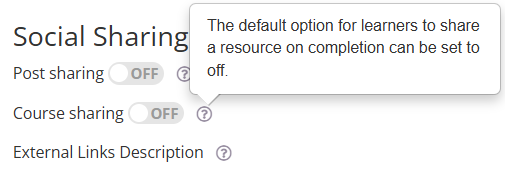
The Super Admin can control whether users are able to share posts and Learning to social media.
Navigate to Settings and select whether Social is enabled for posts and/or learning.
Manage Miscellaneous Settings
The Miscellaneous Settings section gives you control over optional features in your Coursebox platform. Each toggle can be switched ON (enabled) or OFF (disabled), depending on how you want learners to interact with your courses and the platform.
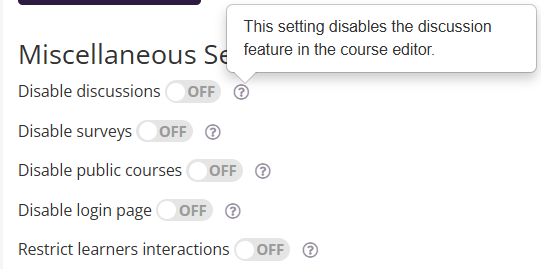
1. Enable/Disable Discussions
If enabled: Learners can use the discussion feature in the course editor.
If disabled: The discussion feature is removed, and learners cannot post or participate in discussions.
Use case: Enable if you want peer discussions and collaboration. Disable if you prefer to keep communication one-way or through assessments only.
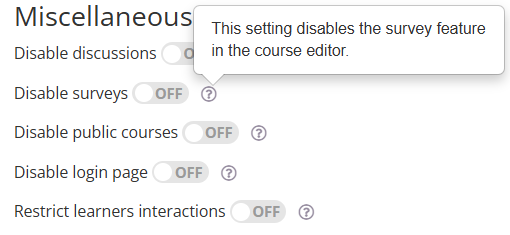
2. Enable/Disable Surveys
If enabled: Facilitators can add and run surveys inside courses to collect learner feedback.
If disabled: The survey feature is hidden in the course editor.
Use case: Enable if you want feedback or data collection. Disable if surveys are not part of your program.
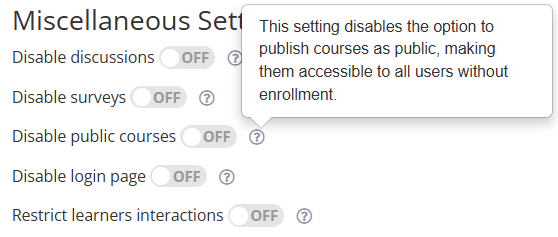
3. Enable/Disable Public Courses
If enabled: Courses can be published as public, allowing anyone to access them without enrollment.
If disabled: Courses are only available to enrolled learners.
Use case: Enable for open-access or promotional courses. Disable to keep courses private and restricted.
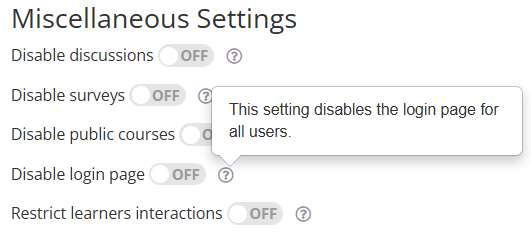
4. Enable/Disable Login Page
If enabled: Users can log in through the Coursebox login page.
If disabled: The login page is removed for all users.
Use case: Enable for standard access. Disable only if login is handled entirely through another system (e.g., SSO).
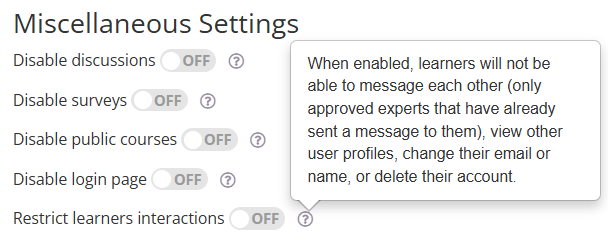
5. Enable/Disable Learner Interactions
If enabled: Learners can message each other, view profiles, and manage their own account settings (e.g., change email, name, or delete account).
If disabled: Learners cannot:
Message each other (only approved experts who have messaged them before can continue).
View other learners’ profiles.
Change their email or name.
Delete their account.
Use case: Enable if you want a social, collaborative environment. Disable if you want controlled, expert-only communication.
Was this article helpful?
That’s Great!
Thank you for your feedback
Sorry! We couldn't be helpful
Thank you for your feedback
Feedback sent
We appreciate your effort and will try to fix the article