Yes. With the AI Audio feature, Coursebox can automatically convert written text into professional-sounding audio clips. You can choose from different voices, languages, and accents, and even select a preferred gender for the voiceover. This is ideal for accessibility, mobile learning, or engaging auditory learners.
Coursebox allows Learning Designers, Creators, and Administrators to automatically generate AI-powered audio versions of HTML text blocks on each course page. This feature enhances accessibility and learner engagement by offering content in both written and spoken formats.
Set AI Audio Preferences and Hands Free Mode
Coursebox allows Learning Designers, Creators, and Administrators to automatically generate AI-powered audio versions of HTML text blocks on each course page. This feature enhances accessibility and learner engagement by offering content in both written and spoken formats.
AI Text-to-Audio Overview
When you generate a course in Coursebox, AI audio is automatically created for each HTML text block (if AI audio is enabled). These audio files are based on the text content of the page and can be regenerated at any time.
While Coursebox automates much of this process, maintaining alignment between audio and on-screen content is important for learner clarity and overall course quality.
Set AI Text to Audio Options
The steps are:
- If you generate a course, we automatically will create AI audio files on each page from the text in the HTML text block.
Set Hands Free Mode
This is an enhancement to the AI text to audio option. This enables a user to consume and listen to everything that's on the page. This serves as both an accessibility enhancement as well as a convenience enhancement for a variety of users with different learnings styles.
To enable this feature, please take the following steps
- Learners can view this mode when they're within the course and creators can access this feature by using the 'preview' function while editing a course (shown below)
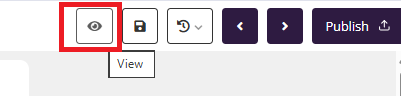
- When in the course in either of the above ways, press the toggle button next to the speaker icon at the top right hand side

- This will begin to read out all of the text on screen so that learners can consume the subject matter relatively hands free.
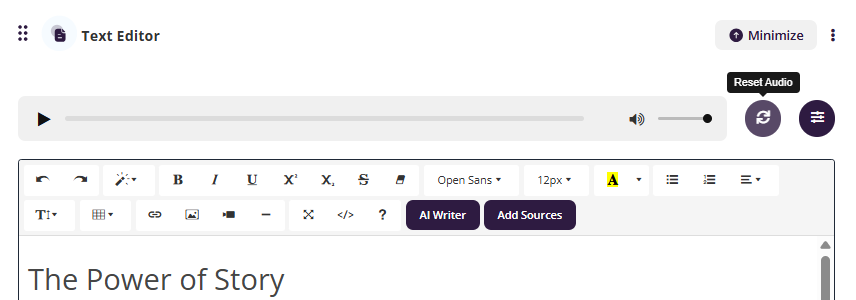
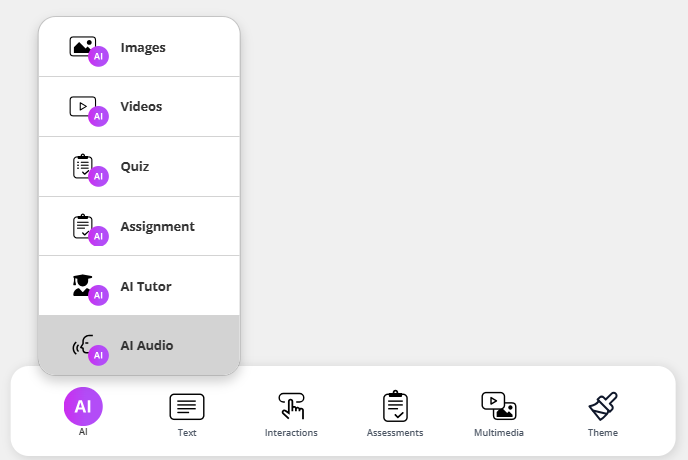
- Please note that the course creator will have to ensure that the course has enabled the audio within the settings you can do this in two ways:
Within the text Editor:
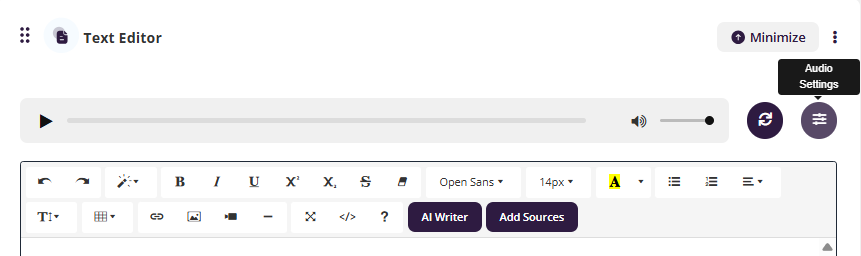
or through the bottom menu.
Add Audio to Text Blocks
The AI Audio menu lets you control whether AI-generated audio is applied to your course text blocks. You can enable it for the entire course or for individual sections.
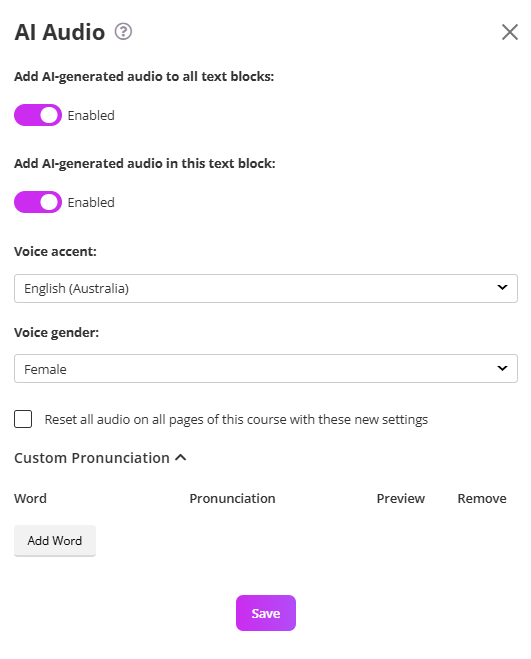
The steps are:
- Go to the AI Audio settings.
- Toggle Add AI-generated audio to all text blocks to the Enabled position (purple).
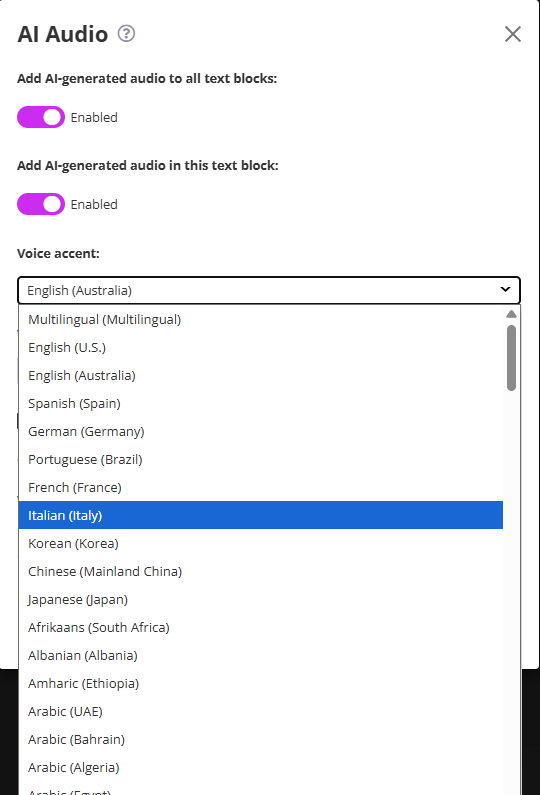
- Choose Voice Accent and Language
Tip: For multilingual audiences, consider localising key content in multiple languages using this feature.
- Choose a gender from the Voice Gender Options list.
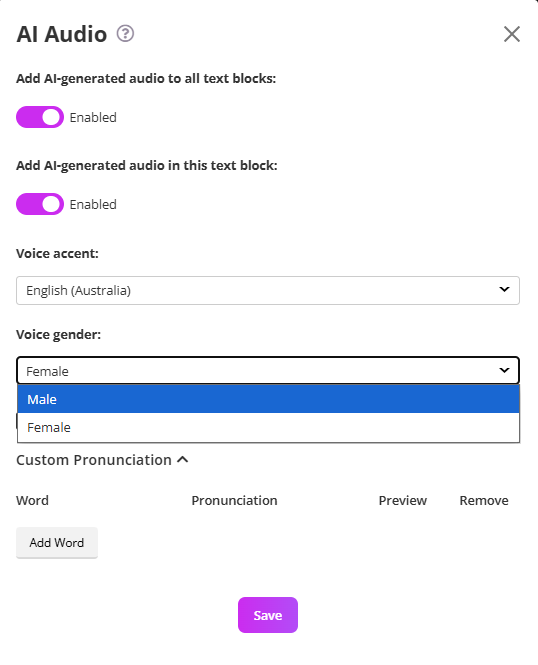
Best Practice: Consider testing both genders for tone clarity and learner comfort, especially for narration-heavy content.
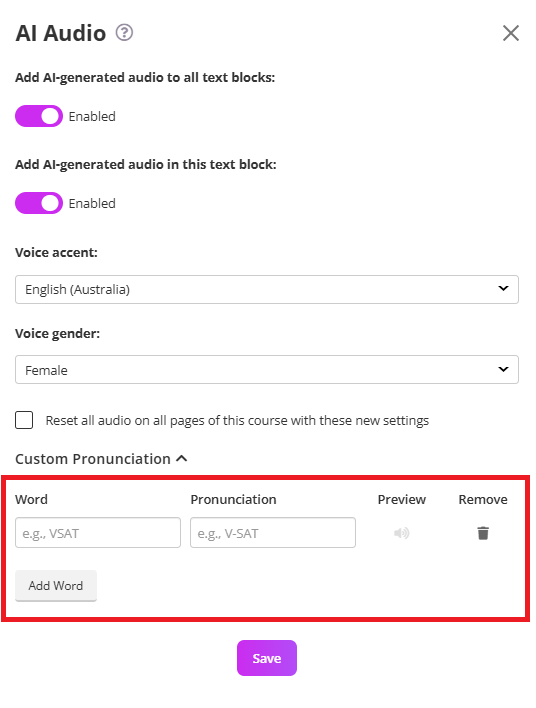
AI Audio – Custom Pronunciation
The Custom Pronunciation feature allows you to control how specific words are spoken in AI-generated audio. This is especially useful for:
Acronyms (e.g., RTO, LMS, VET)
Brand names
Technical terminology
Industry-specific language
Names that may be mispronounced
This ensures your course audio sounds professional and accurate.
Under Custom Pronunciation, you will see:
Word – The original word as it appears in your content.
Pronunciation – How you want the AI to say it.
Preview – Play the pronunciation to test it.
Remove – Delete the custom entry if needed.
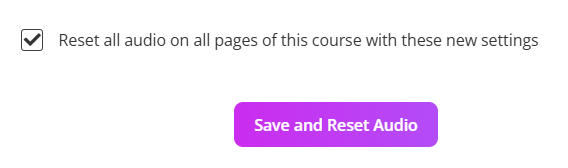
Reset All Audio
Made changes to your course or want to update all audio files?
The Reset All Audio feature lets you regenerate every AI-generated audio clip in your course using your latest settings.
This is useful when you have:
- Changed the voice accent or language
- Updated the voice gender
- Made significant text changes in your course content.
For more information on AI tools go to: AI Tools & Elements
Was this article helpful?
That’s Great!
Thank you for your feedback
Sorry! We couldn't be helpful
Thank you for your feedback
Feedback sent
We appreciate your effort and will try to fix the article