The AI Writer in Coursebox, powered by GPT-5, allows Learning Designers, Creators, and Administrators to enhance, rewrite, or expand course content directly within the platform.
This tool is ideal for
- Refining your text for clarity and engagement
- Expanding on topics to provide more depth
- Adjusting tone or style to match your audience
- Creating alternative explanations for different learning styles
Note: AI-generated content may be incorrect. Always review and edit before publishing.
The steps are:
- In Text Editor, click AI Writer
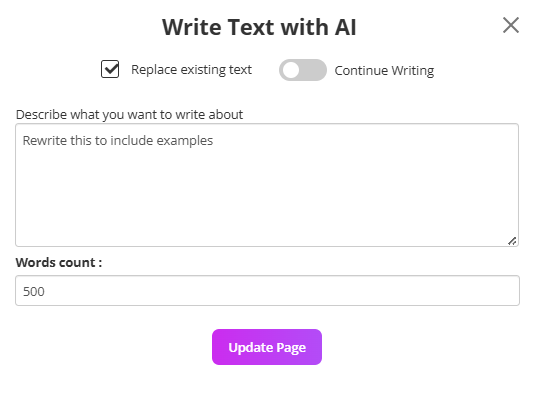
- In the popup describe how you’d like the content rewritten
- Specify the number of words required and click Update page
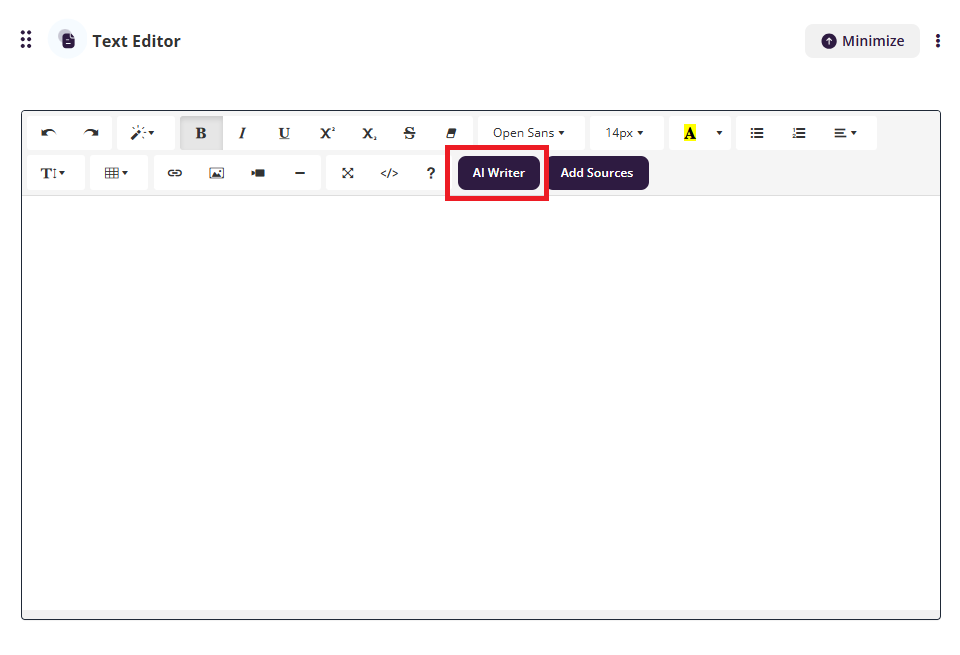
- Select/Deselect ‘Replace existing text’ to append additional text,
- Select/Deselect to continue writing
Set AI Audio Preferences and Hands Free Mode
Coursebox allows Learning Designers, Creators, and Administrators to automatically generate AI-powered audio versions of HTML text blocks on each course page. This feature enhances accessibility and learner engagement by offering content in both written and spoken formats.
AI Text-to-Audio Overview
When you generate a course in Coursebox, AI audio is automatically created for each HTML text block (if AI audio is enabled). These audio files are based on the text content of the page and can be regenerated at any time.
While Coursebox automates much of this process, maintaining alignment between audio and on-screen content is important for learner clarity and overall course quality.
Set AI Text to Audio Options
The steps are:
- If you generate a course, we automatically will create AI audio files on each page from the text in the HTML text block.
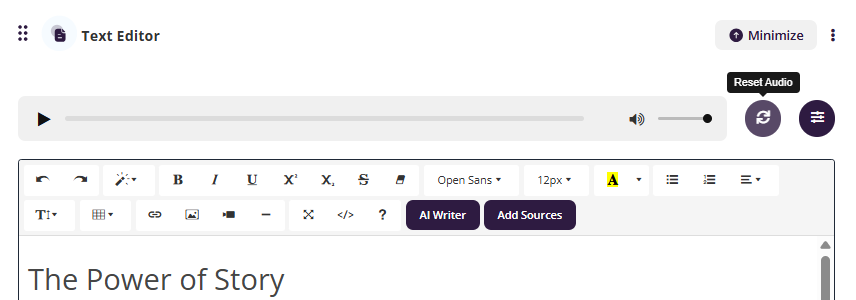
Set Hands Free Mode
This is an enhancement to the AI text to audio option. This enables a user to consume and listen to everything that's on the page. This serves as both an accessibility enhancement as well as a convenience enhancement for a variety of users with different learnings styles.
To enable this feature, please take the following steps
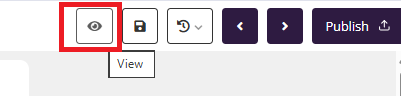
- Learners can view this mode when they're within the course and creators can access this feature by using the 'preview' function while editing a course (shown below)
- When in the course in either of the above ways, press the toggle button next to the speaker icon at the top right hand side

- This will begin to read out all of the text on screen so that learners can consume the subject matter relatively hands free.
- Please note that the course creator will have to ensure that the course has enabled the audio within the settings you can do this in two ways:
Within the text Editor:
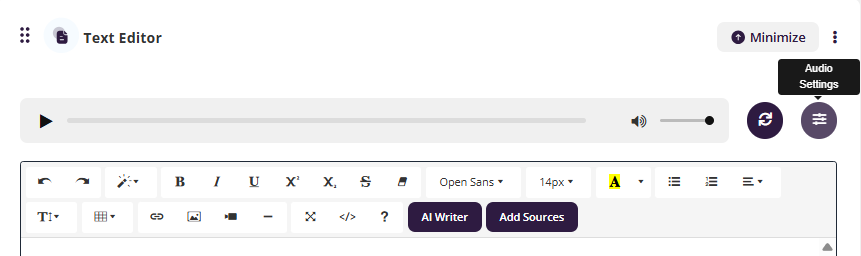
or through the bottom menu.
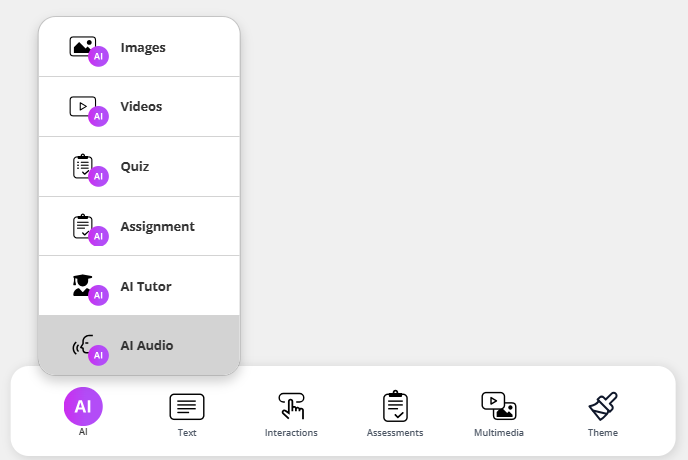
Add Audio to Text Blocks
The AI Audio menu lets you control whether AI-generated audio is applied to your course text blocks. You can enable it for the entire course or for individual sections.
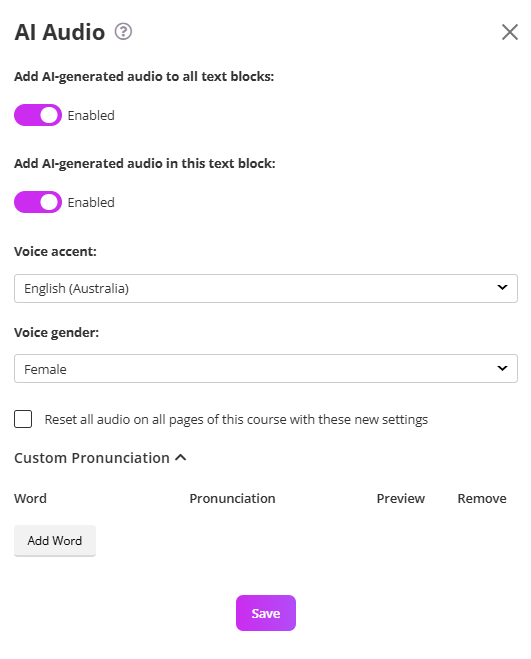
The steps are:
- Go to the AI Audio settings.
- Toggle Add AI-generated audio to all text blocks to the Enabled position (purple).
- Choose Voice Accent and Language
Tip: For multilingual audiences, consider localising key content in multiple languages using this feature.
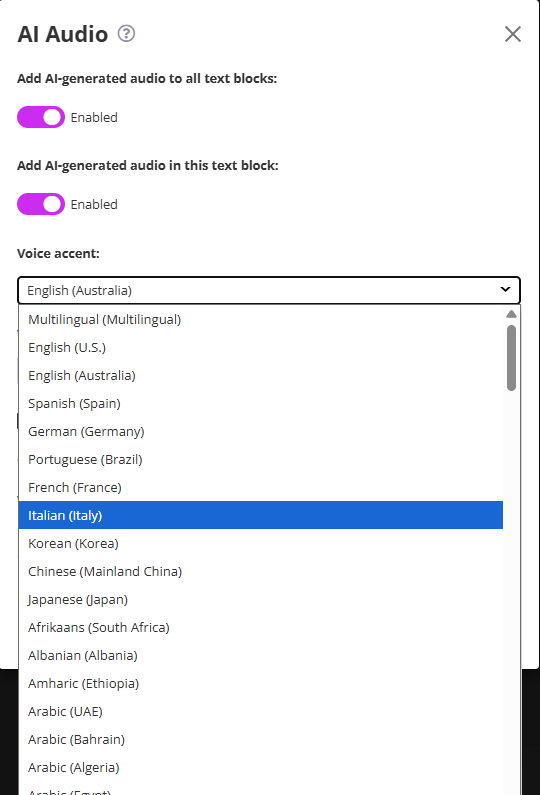
- Choose a gender from the Voice Gender Options list.
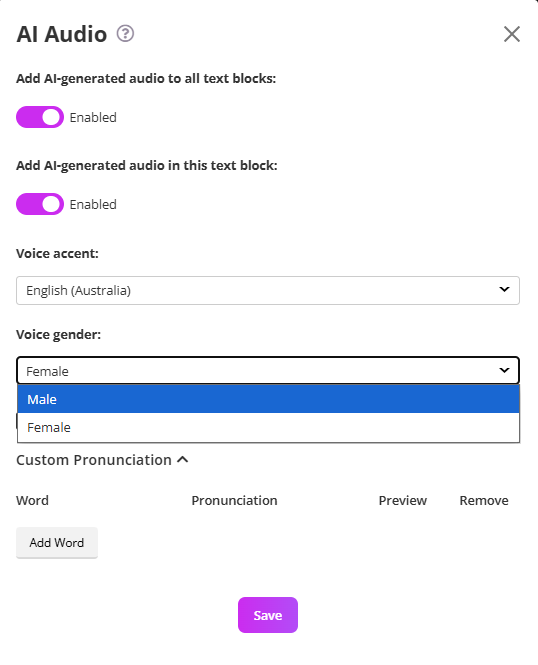
Best Practice: Consider testing both genders for tone clarity and learner comfort, especially for narration-heavy content.
AI Audio – Custom Pronunciation
The Custom Pronunciation feature allows you to control how specific words are spoken in AI-generated audio. This is especially useful for:
Acronyms (e.g., RTO, LMS, VET)
Brand names
Technical terminology
Industry-specific language
Names that may be mispronounced
This ensures your course audio sounds professional and accurate.
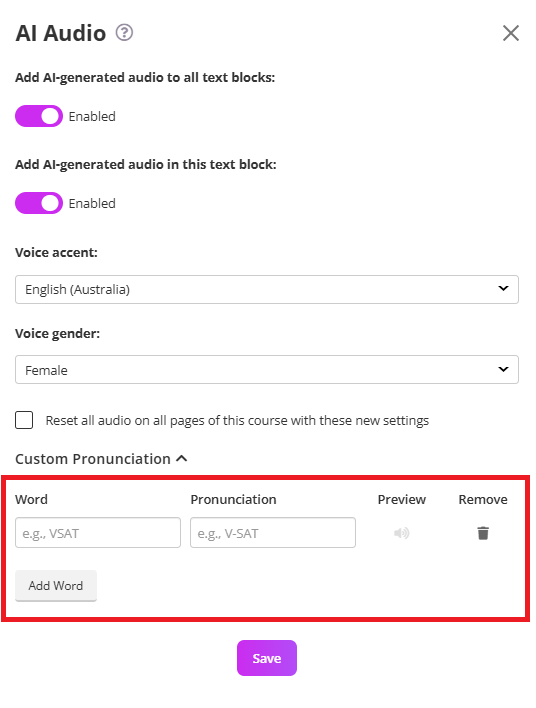
Under Custom Pronunciation, you will see:
Word – The original word as it appears in your content.
Pronunciation – How you want the AI to say it.
Preview – Play the pronunciation to test it.
Remove – Delete the custom entry if needed.
Reset All Audio
Made changes to your course or want to update all audio files?
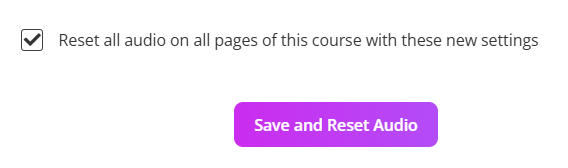
The Reset All Audio feature lets you regenerate every AI-generated audio clip in your course using your latest settings.
This is useful when you have:
- Changed the voice accent or language
- Updated the voice gender
- Made significant text changes in your course content.
Set up Coursebox AI Tutor Chatbot
The AI Tutor in Coursebox provides learners with real-time, conversational support directly inside a course. It helps learners ask questions, clarify concepts, and stay engaged—while allowing course creators to control how support is delivered.
You can choose between:
Coursebox Tutor (built-in AI tutor), or
Custom Tutor (your own external chatbot embedded via iframe)
Both options enhance learner engagement, provide just-in-time assistance, and deliver a more personalised learning experience.
Note your plan may have a cap on total enabled AI chatbot tutors: if necessary, you may disable a course chatbot and enable new chatbots in alternative courses instead.
When a new course is created, Coursebox automatically adds a standard AI Tutor.
A tutor image is generated automatically
The tutor is assigned a course-specific name
A welcome message is included
The tutor is trained on the course content
This tutor represents the course facilitator and is designed to answer learner questions based on the course material.
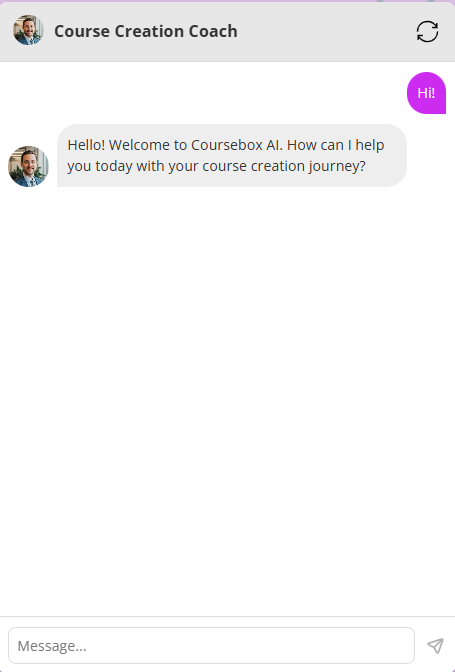
To add a tutor you can do so from the bottom menu.
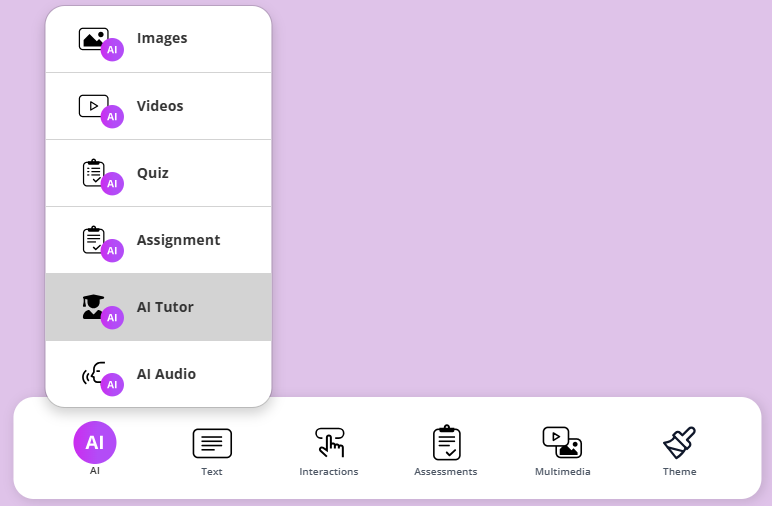
Coursebox AI tutor
To change the settings of the Coursebox Tutor:
- Go to the bottom menu on your course and select AI Tutor
- When the following pop up appears, you can change the Instructions, welcome message, Tutor Name, Tutor image and add files or websites to train the Tutor.
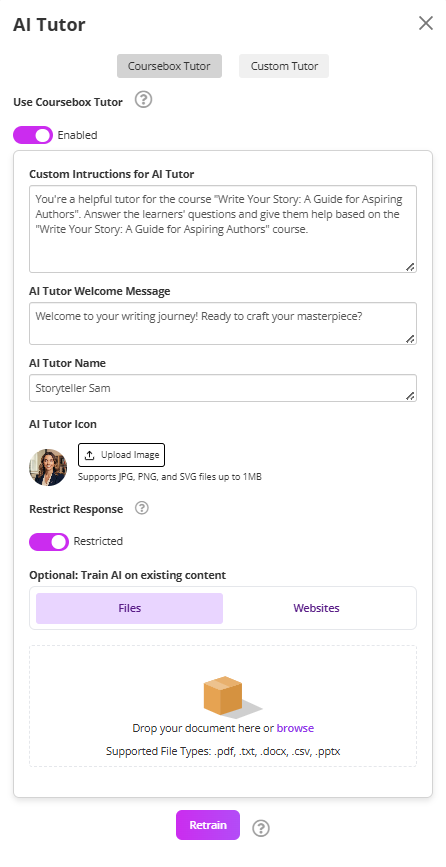
Example of Custom Instructions:
“You are a helpful tutor for the course ‘How to Create and Sell Courses with Coursebox AI.’ Answer questions and support learners based only on the content of this course.”
Example of Welcome Message
“Hi, I am your tutor. How can I help you learn?”
Example of Tutor Name
Choose a friendly, human-like name (e.g., “Mike”).
Specs for Tutor Icon/Image
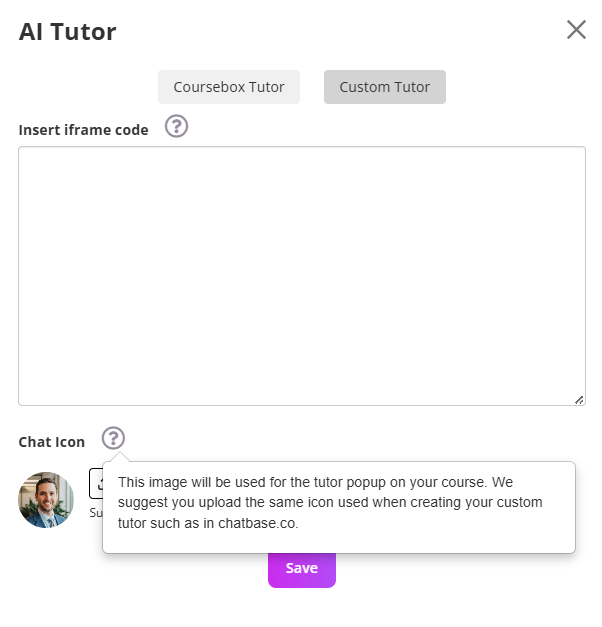
- Upload a JPG, PNG, or SVG image (max 1MB) to personalise your tutor.
You can customise the tutor's personality, name, and response scope to align with your course goals. This tool enhances the learner experience by providing real-time assistance and reinforcing key concepts.
Custom AI Tutor
If you use an external chatbot (for example, one built with Chatbase or a similar tool), you can embed it into your course using the Custom Tutor option and pasting an iframe embed code into Coursebox
Open your course and Scroll to the bottom menu and select AI Tutor.
Disable Use Coursebox Tutor.
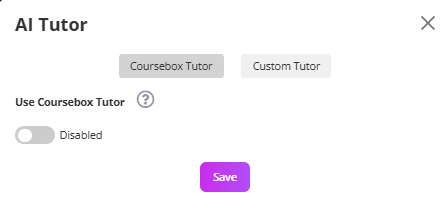
Note: If you fail to do this, you will get prompted to do so in the next step.
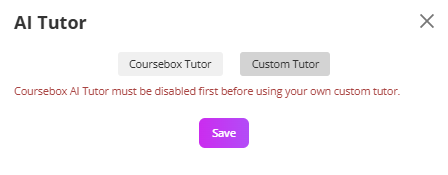
Select Custom Tutor and paste your chatbot’s iframe code into the Insert iframe code field.
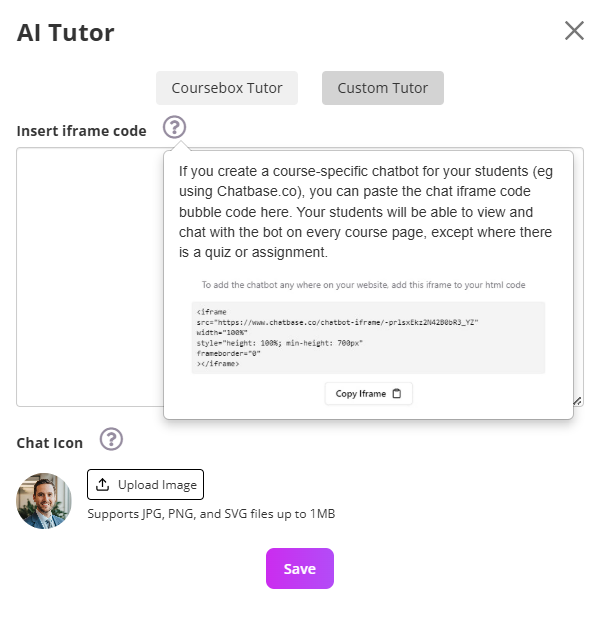
Upload a Chat Icon (see image requirements below) and click Save.
Train the Tutor on files and websites
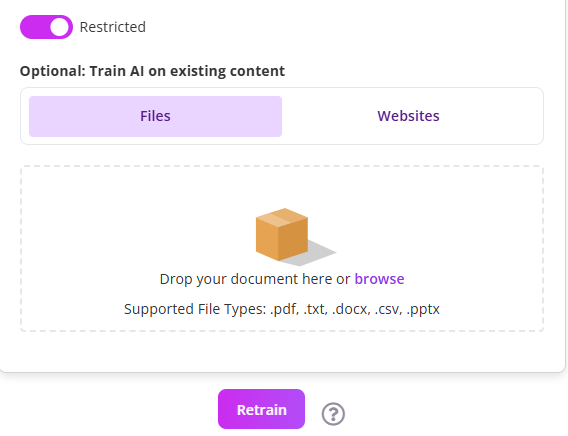
You can now train your AI Tutor using specific course materials, documents, or external websites. This ensures the AI provides accurate, course-aligned responses.
The steps are:
- Open AI Tutor Settings.
- Under the Optional section, click + files or website
- Choose from:
- Upload File (PDF, Word, TXT)
- Link to Website
- Add your materials and click Save & Train.
The AI Tutor will instantly ingest the content and use it to answer learner questions during the course.
Restrict AI Responses
To maintain accuracy, compliance, or tone, you can limit how freely the AI Tutor responds. This is especially useful when working with regulated content, proprietary materials, or specific instructional frameworks.
The steps are:
- Go to AI Tutor Settings.
- Toggle on Restrict Responses.
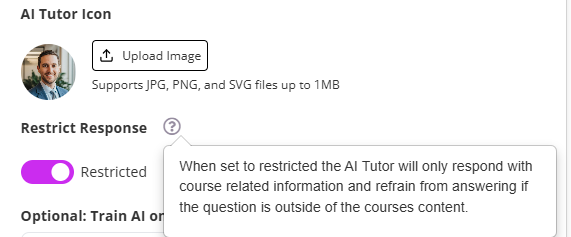
Best Practice: Enable restrictions for compliance-heavy or technical courses to maintain instructional accuracy.
Was this article helpful?
That’s Great!
Thank you for your feedback
Sorry! We couldn't be helpful
Thank you for your feedback
Feedback sent
We appreciate your effort and will try to fix the article