This topic guides RTOs through reviewing the AI-generated training and assessment materials produced by Coursebox. It explains how to download the training package and provides a structured approach to checking each document for accuracy, completeness, and alignment with the relevant Training Package, AQF level, and the Standards for RTOs 2015 before formal validation and use.
Download the Training Package
Coursebox generates a suite of training and assessment materials to support delivery of nationally recognised units of competency. This feature is only available for Australian users.
While these outputs provide a valuable starting point, it is essential that RTOs review each component thoroughly to ensure alignment with the relevant Training Package, the Australian Qualifications Framework (AQF) level, and the Standards for RTOs 2015.
⚠️ Important: These materials are automatically generated using AI tools. We cannot guarantee their accuracy or suitability for official submission. Please review carefully before use. Any updates you make within Coursebox after generation will not automatically appear in the downloaded package.
Purpose of this Guide
This guide supports RTO staff in conducting an initial quality check of the five key documents typically included in a unit of competency pack:
Learner Guide
Learner Assessment Workbook
Assessor Marking Guide
Mapping Document
PowerPoint Slides
Use the checklist to review layout, structure, clarity, and completeness before the outputs are validated by qualified professionals.
How to Download the Training Package
Open your course in Coursebox.
Click Publish (top-right of the course page).
In the pop-up menu, select the Download option.
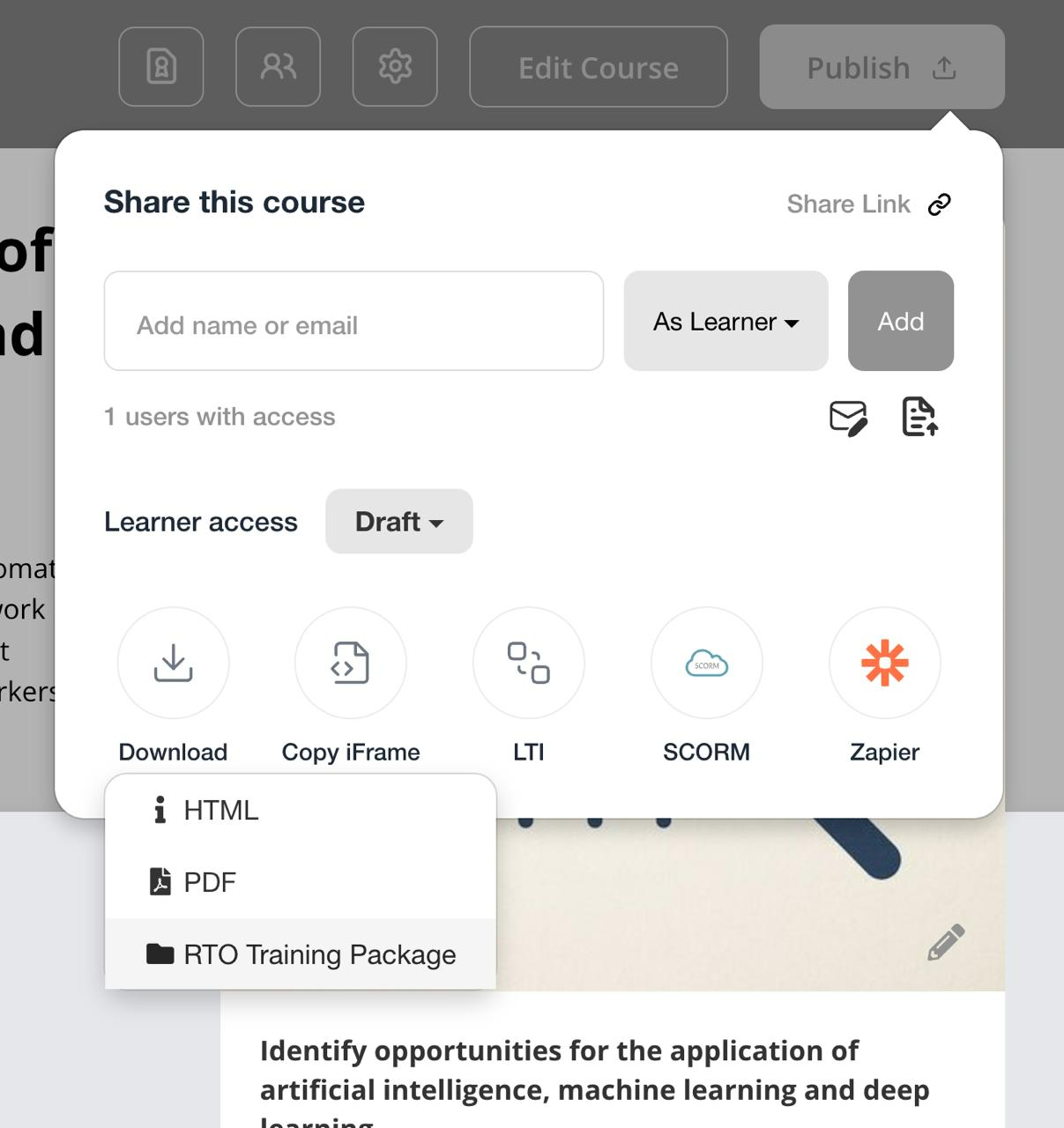
From the dropdown, choose RTO Training Package.
(You can also select HTML or PDF depending on your needs.)
A confirmation message will appear reminding you that the package has been AI-generated and should be reviewed for compliance.
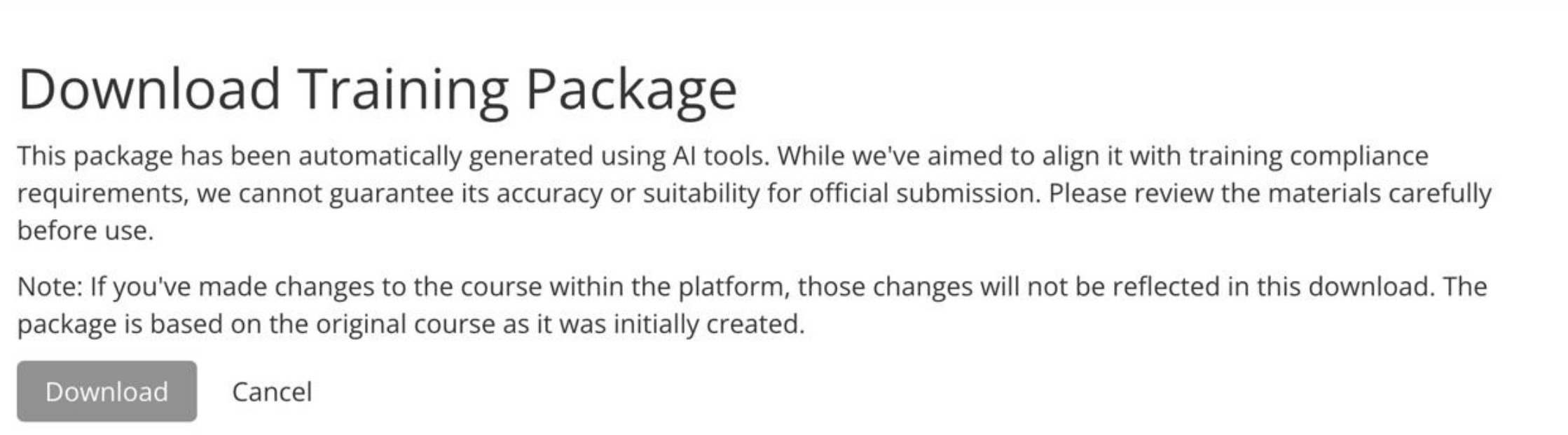
Click Download to save the package to your device.
Check the Learner Guide Output
The Learner Guide provides structured learning content aligned with the unit of competency. It helps learners build the knowledge and skills they need to complete assessments. Coursebox AI generates this guide using unit outcomes, integrating learning objectives, case studies, and practical examples.
All outputs should be treated as drafts and refined through professional review.
When checking the Learner Guide output:
Confirm the file is named correctly: Unit Code_Learner Guide_v1

Ensure consistent formatting: headings, font (Calibri), and spacing
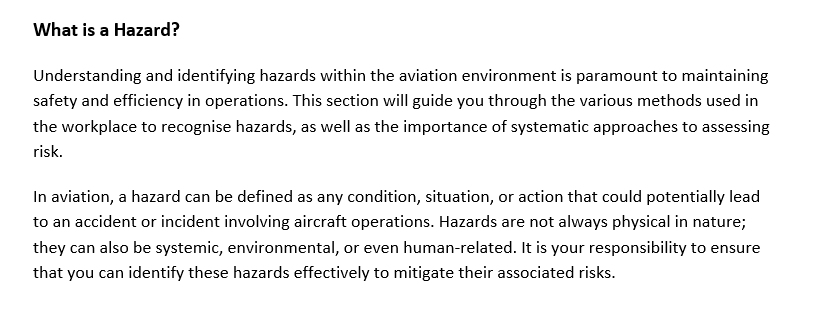
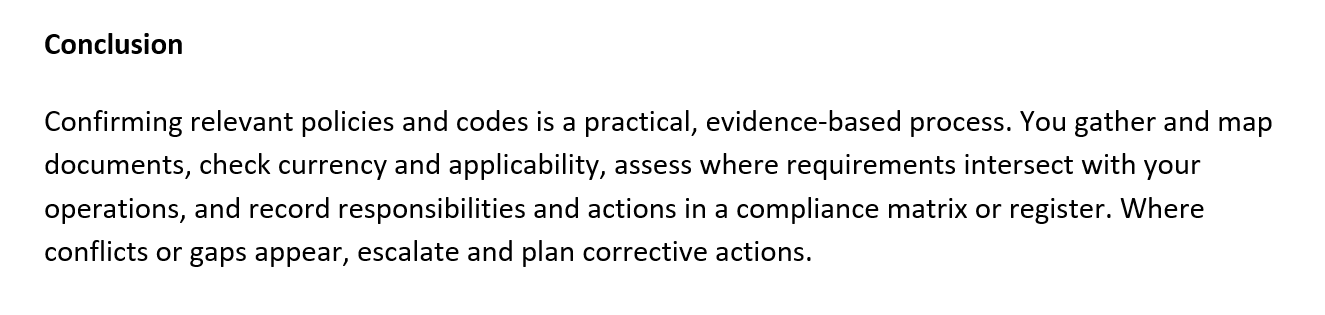
Check that each topic includes clear learning objectives
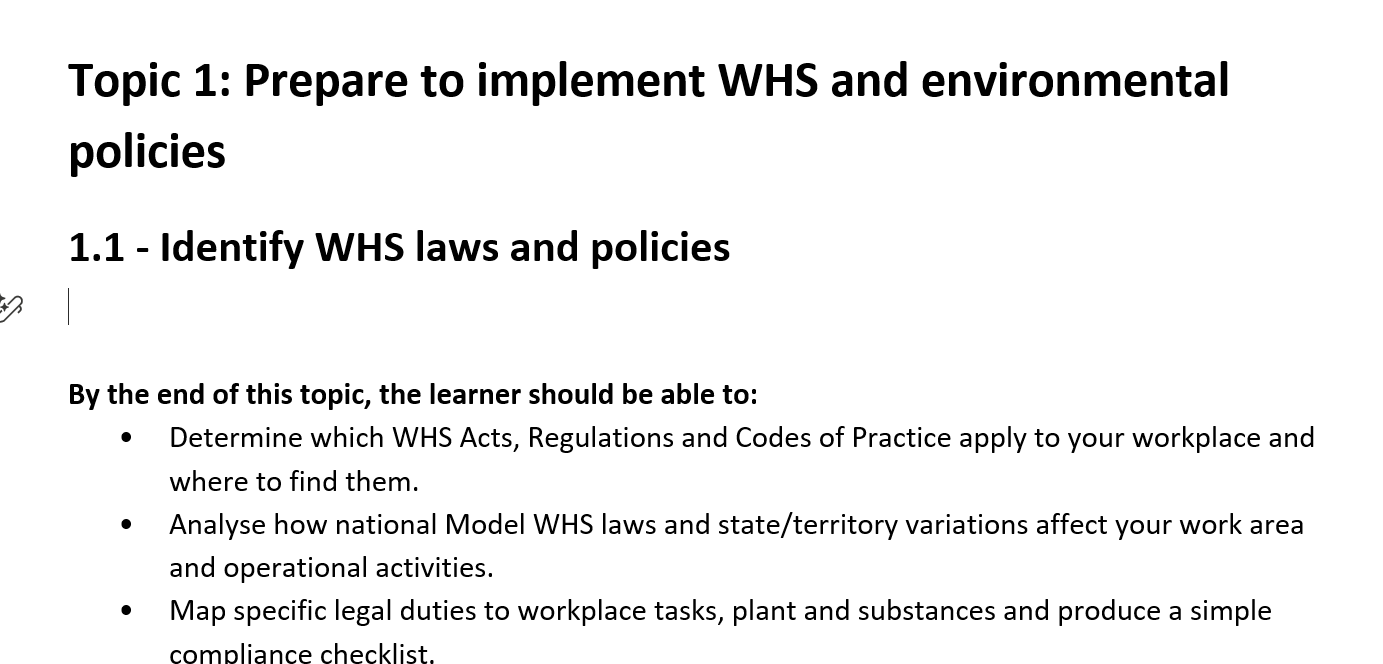
Ensure examples and case studies reflect different learner types
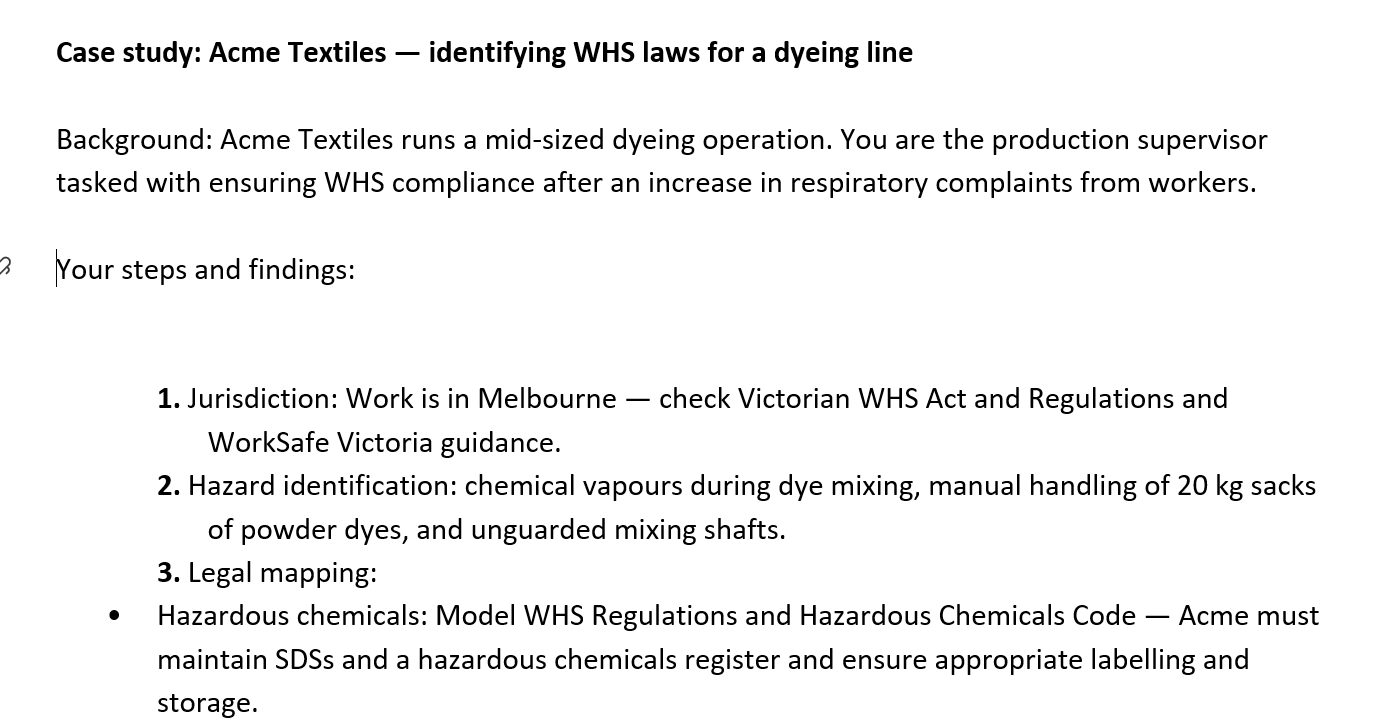
Confirm real-world context and links are included where relevant
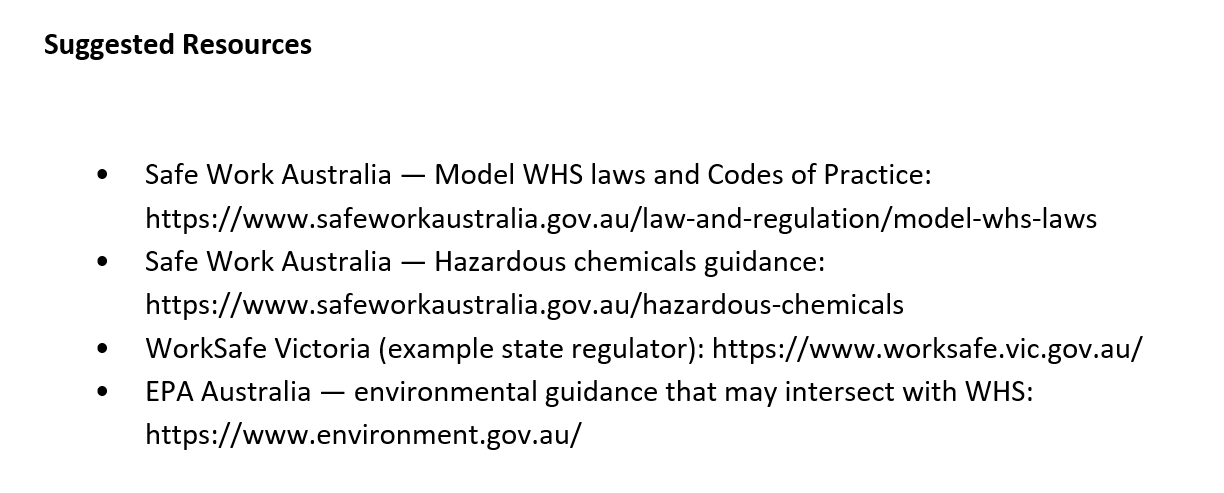
Ensure conclusions are present and recap key learning points
You can see an example of a complete Learner Guide Output here.
Check the Learner Assessment Workbook Output
The Learner Assessment Workbook contains tasks and activities for learners to demonstrate their competency. It includes written questions, practical tasks, and scenarios. Coursebox AI generates these based on the unit’s requirements, helping learners apply their learning in real-world or simulated contexts.
When checking the Learner Assessment Workbook:
Confirm the file is named correctly: Unit Code_Learner Assessment Workbook_v1

Check instructions are clear, step-by-step, and include learner context
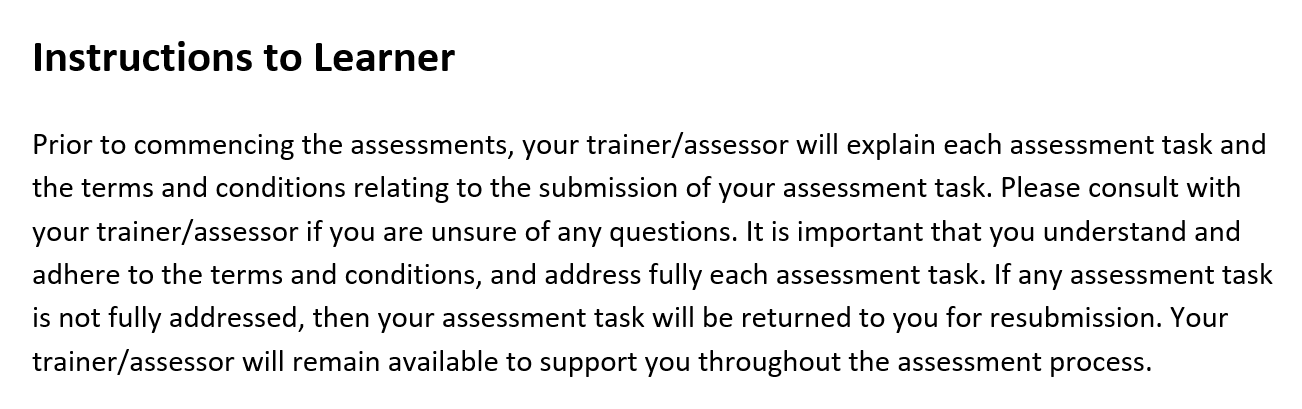
Ensure tasks reflect written, practical, or scenario-based methods
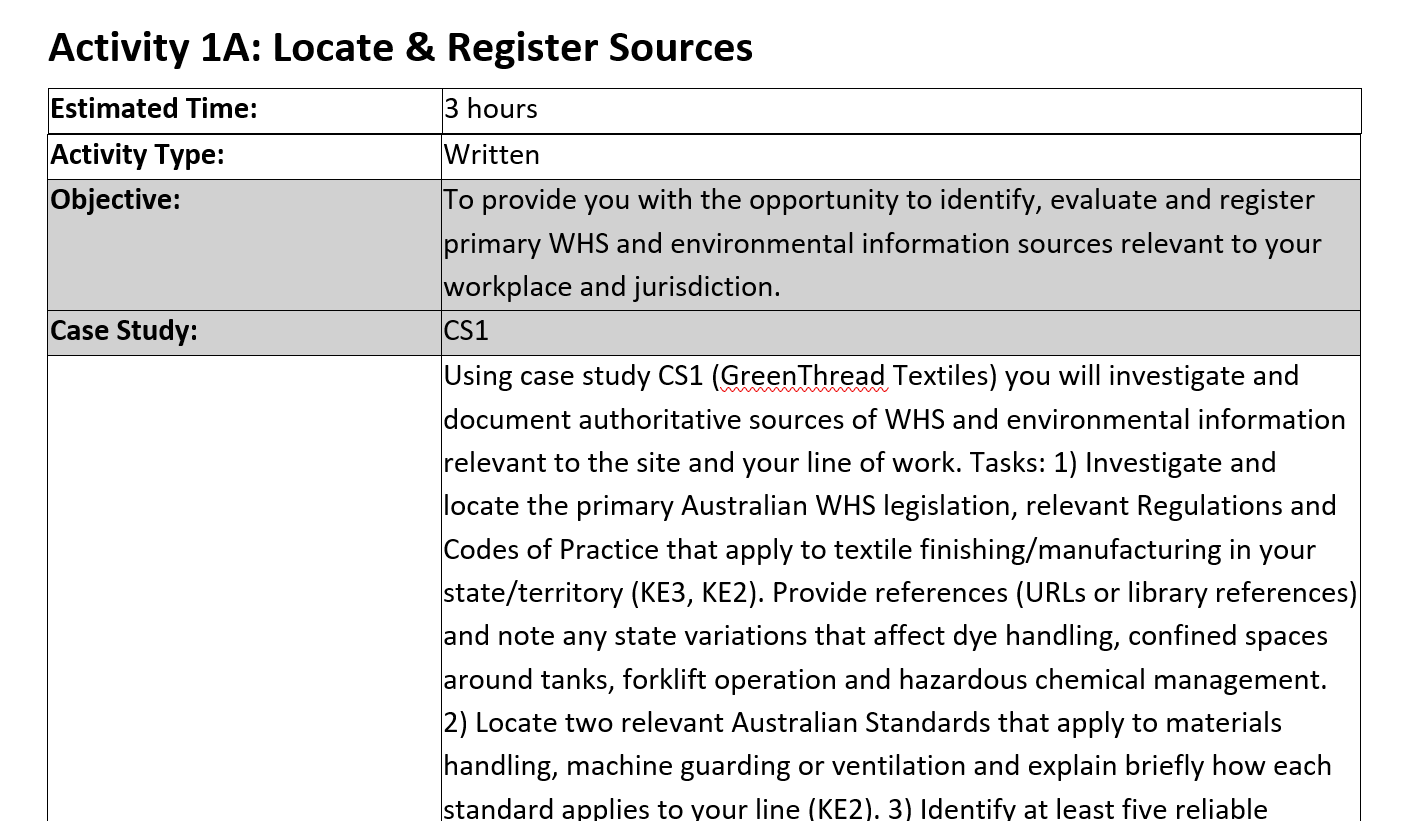
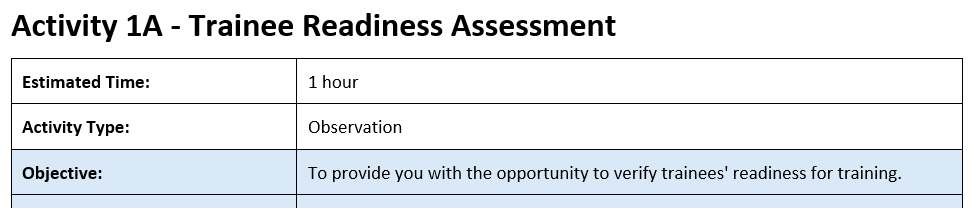
Look for alignment with the Learner Guide (e.g., activity numbers or case studies)

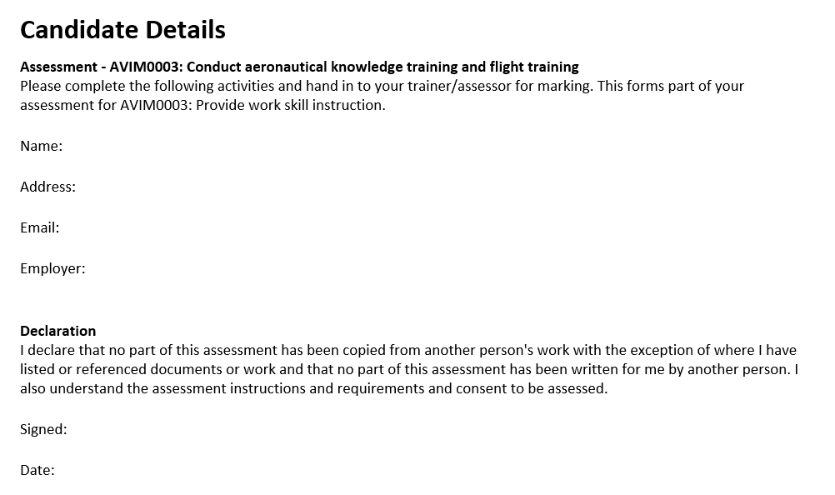
Ensure a learner declaration is included and clearly worded
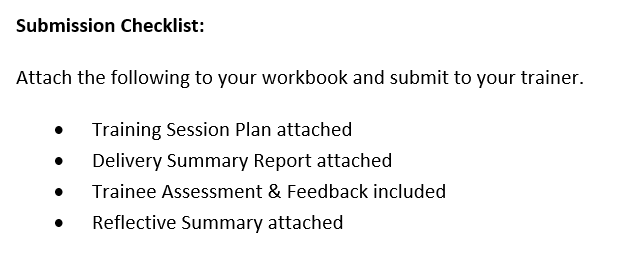
Check that the submission instructions are present and clear
Look for consistent layout and spacing across tasks and sections
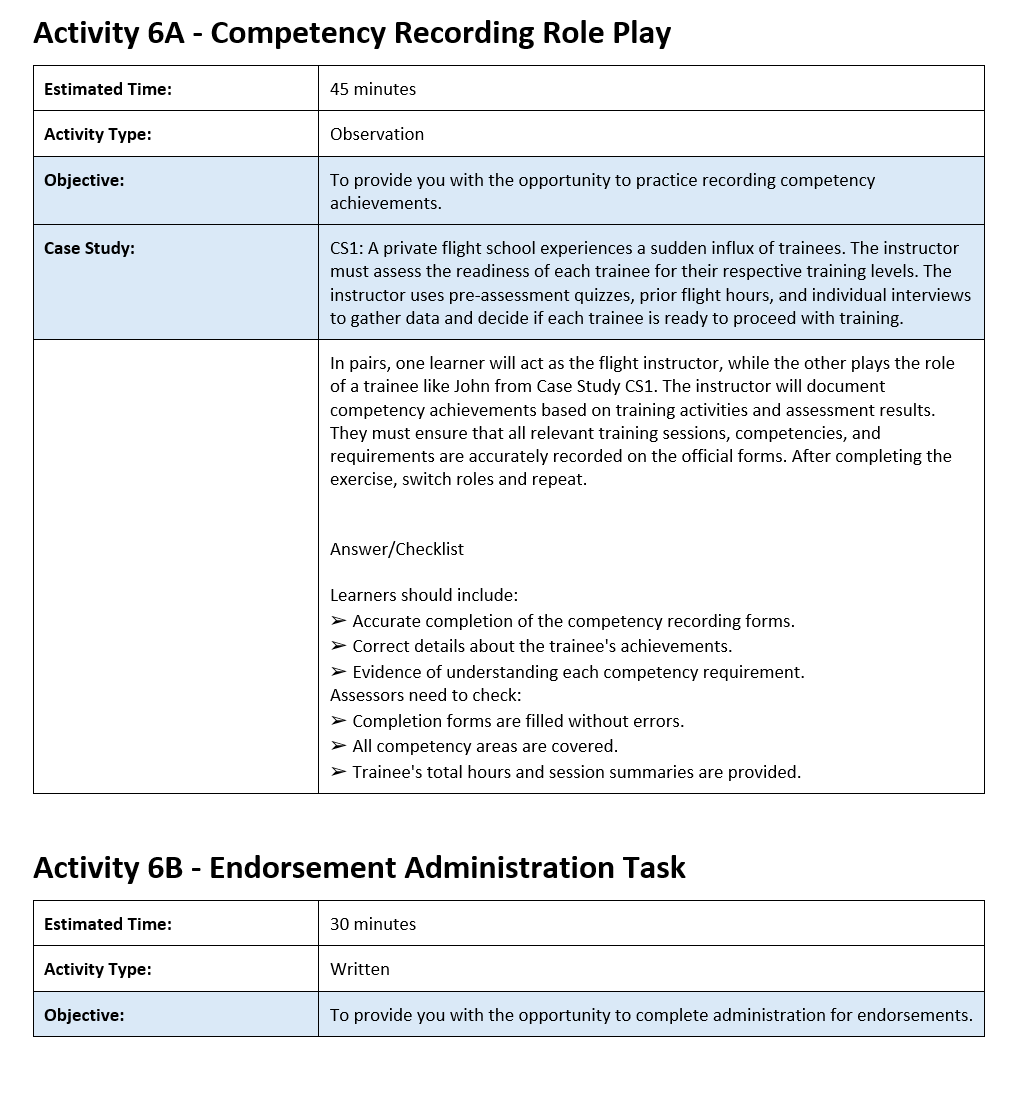
You can see an example of a complete Learner Assessment Workbook Output here.
Check the Assessor Marking Guide Output
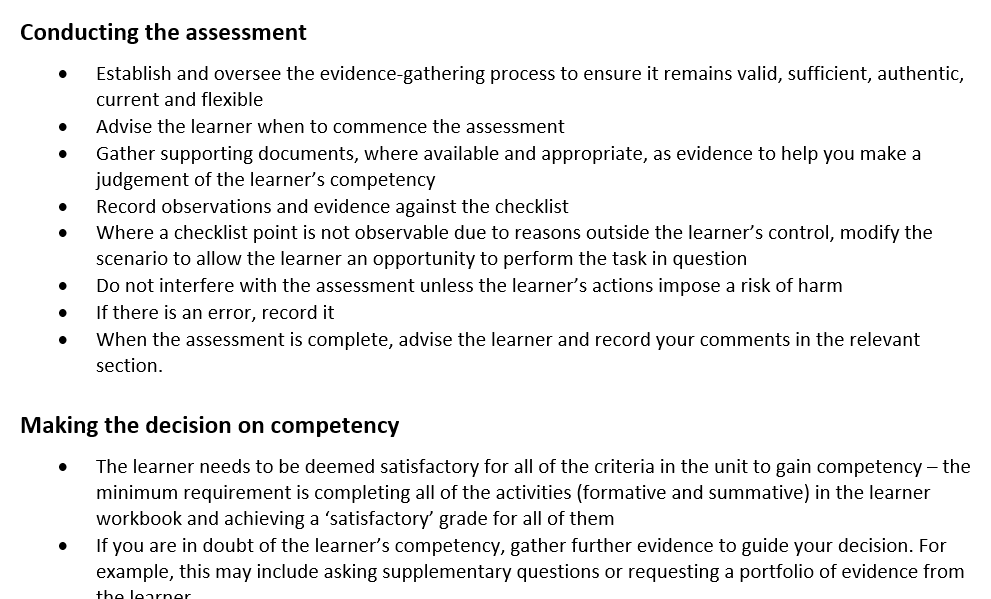
The Assessor Marking Guide supports assessors in making consistent and valid assessment decisions. It includes benchmarks, model answers, observation checklists, and recording spaces.
Coursebox can generate draft marking guides, but they must be reviewed and customised to meet compliance and instructional quality standards. When checking the Assessor Marking Guide:
Confirm the file is named correctly: Unit Code_Assessor Marking Guide_v1

Ensure each activity includes a section for model answers or expected outcomes
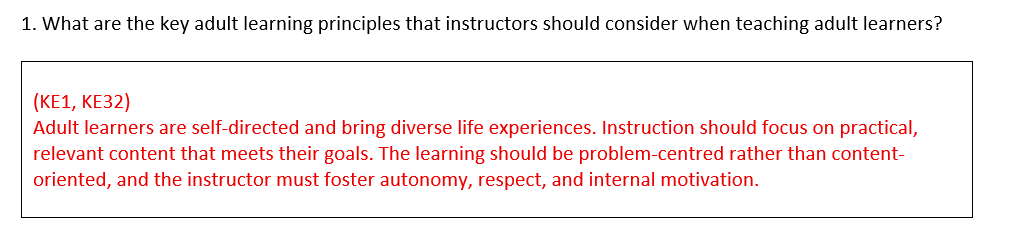
Check for benchmarks that distinguish between satisfactory and unsatisfactory performance
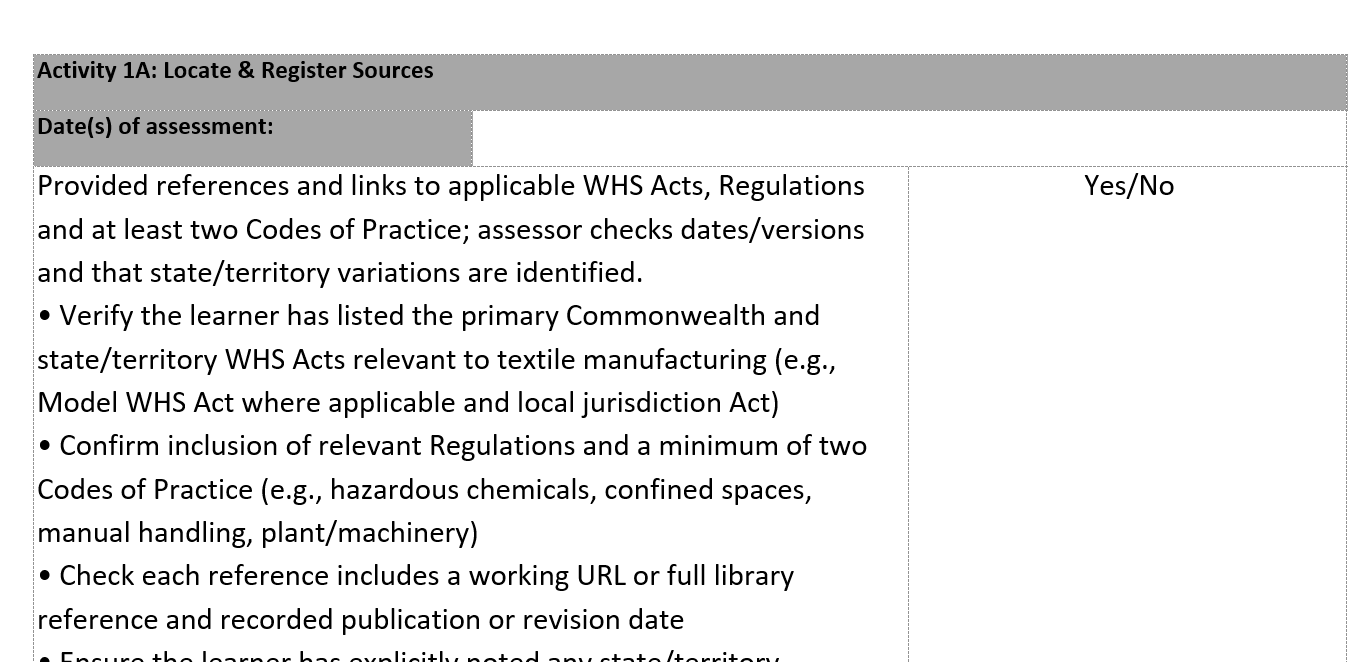
Ensure observation checklists are present for practical tasks
Look for spaces to record assessor comments, outcomes, and feedback
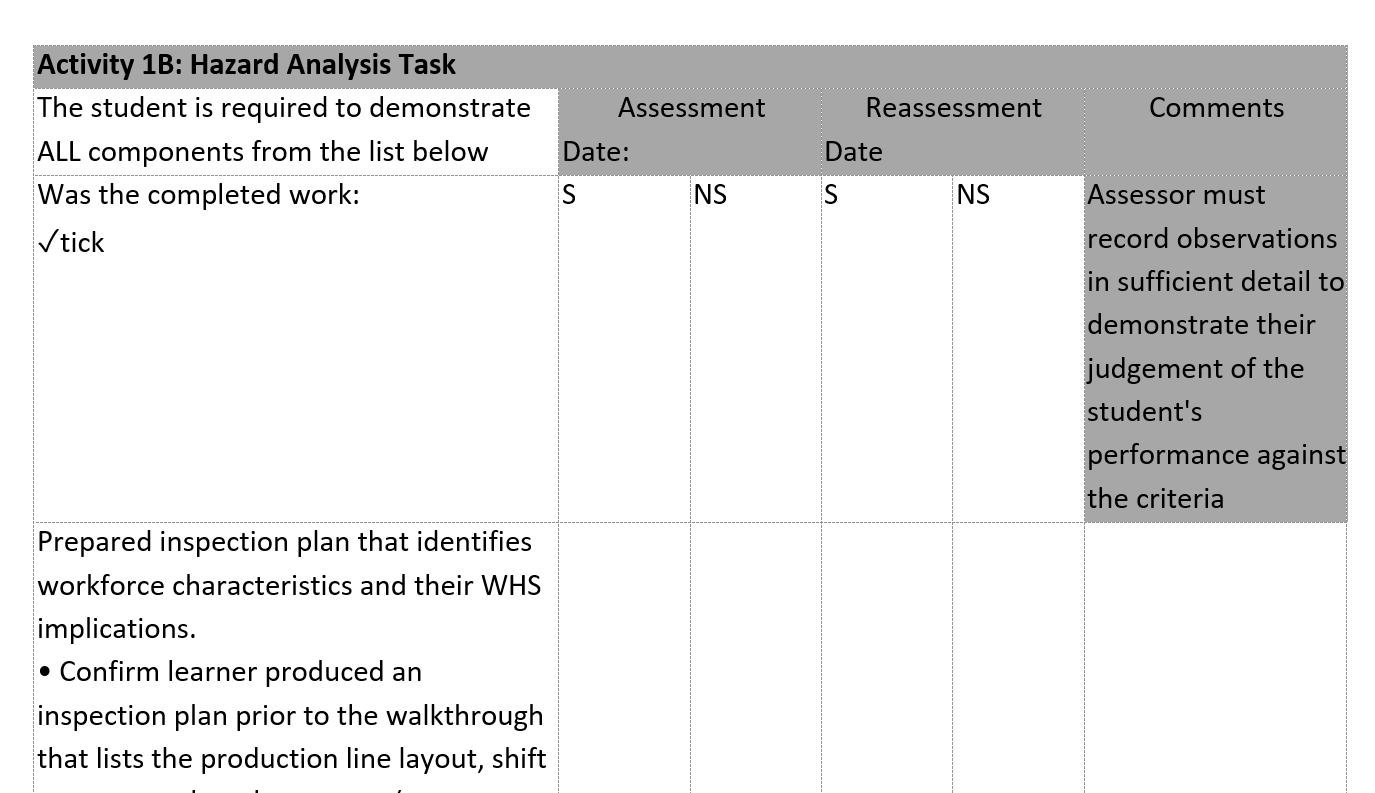
Confirm that formatting matches the updated layout (Calibri, headings, spacing)
You can see an example of a complete Assessor Marking Guide Output here.
Check the Mapping Document Output
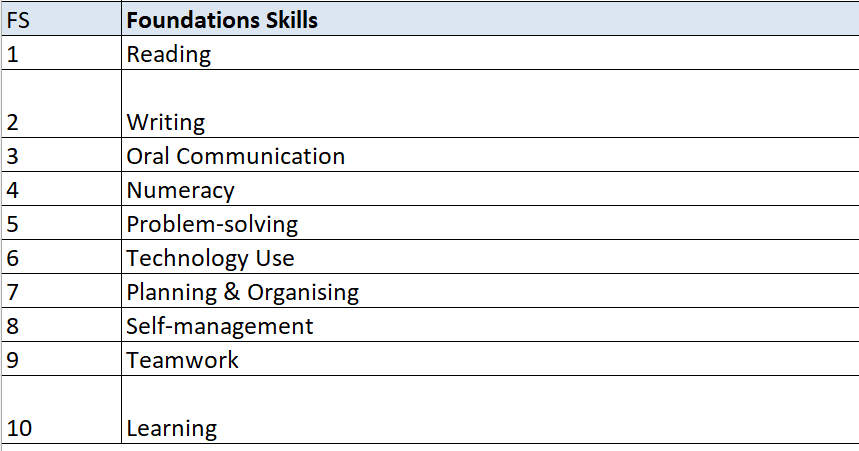
The Mapping Document shows how assessment tasks align with the unit’s Elements, Performance Criteria, Knowledge Evidence, Performance Evidence, Assessment Conditions and Foundation Skills.
The Mapping Document links each assessment task to the required elements of the unit of competency. It helps ensure that all Performance Criteria, Knowledge Evidence, Performance Evidence, Assessment Conditions and Foundation Skills are covered. This section provides a basic checklist to help you review the structure and completeness of the mapping output generated in Coursebox.
When checking the Mapping Document:
Confirm the file is named correctly: Unit Code_Mapping Document_v1

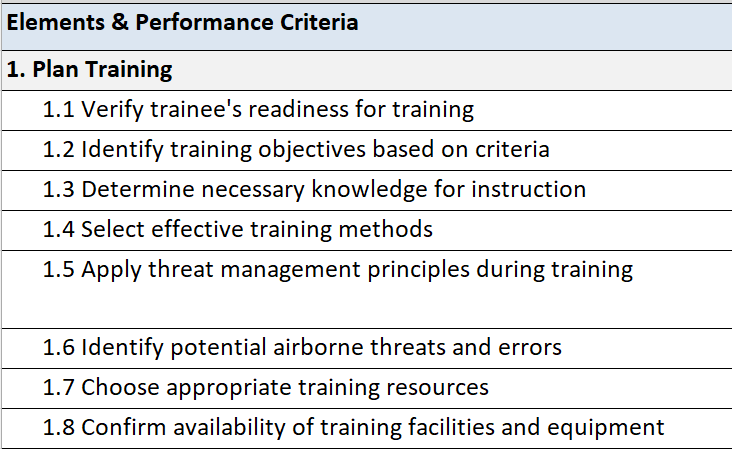
Ensure all Elements, Performance Criteria, Knowledge Evidence, and Performance Evidence are mapped
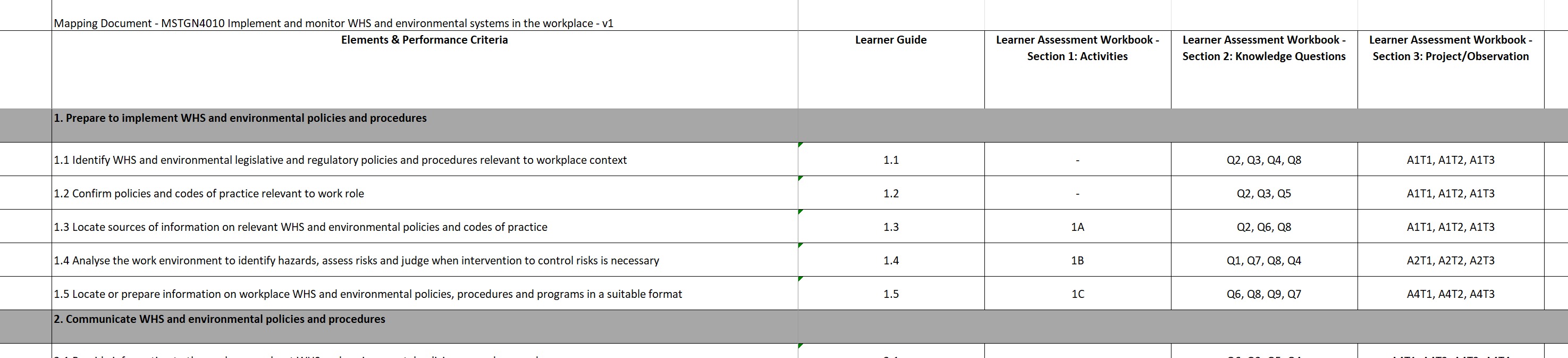
Check that assessment tasks are cross-referenced correctly

Look for inclusion of Foundation Skills
Confirm that numbering is consistent and matches the unit requirements
Verify that evidence types are grouped (e.g., Summative, Case Studies, Additional Evidence)

You can see an example of a complete Mapping Document Output here.
Check the PowerPoint Slides Output
The PowerPoint slides are designed to support trainers in delivering the content from the Learner Guide. Coursebox AI generates these slides to match each topic, include key points, and offer prompts for learner interaction. Trainers are encouraged to customise them based on delivery mode and learner needs.
This section provides a basic checklist to help you review the visual layout, clarity, and relevance of the slides.
When checking the PowerPoint Slides:
Confirm the file is named correctly: Unit Code_PowerPoint Presentation_v1

Check that each slide has a clear purpose (e.g., learning outcomes, content recap)
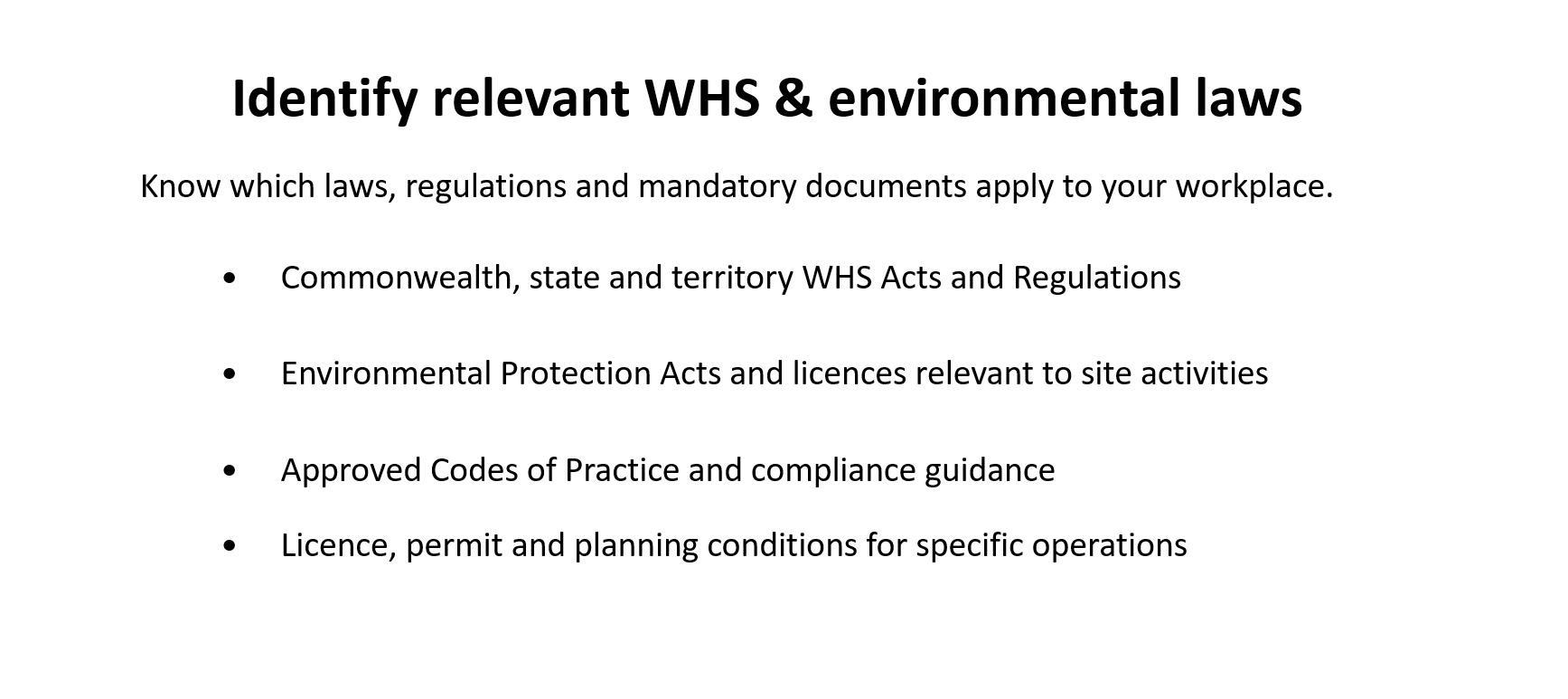
Look for consistent slide formatting (fonts, layout, headings)
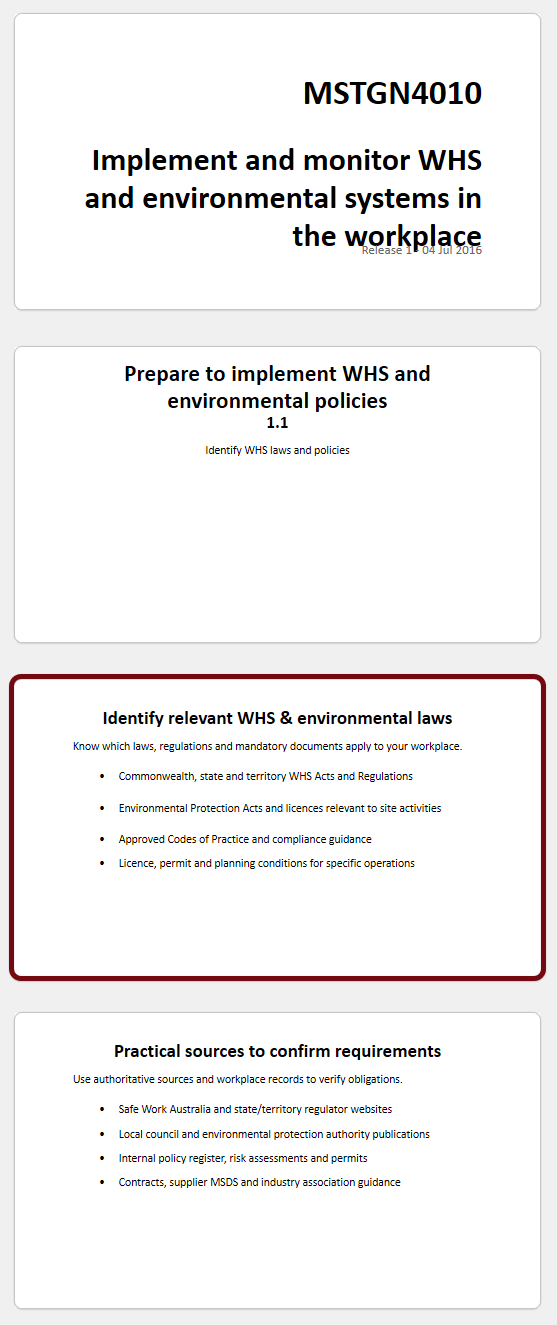
Confirm alignment with the Learner Guide topic structure
Ensure visuals are clear and slides are not overcrowded
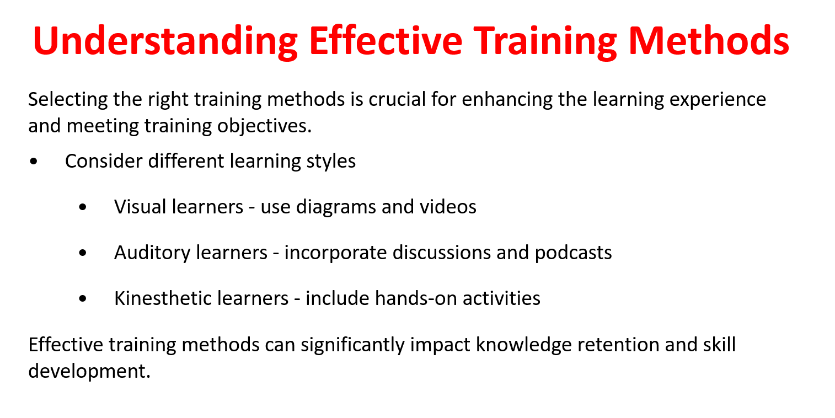
Suggest opportunities for instructors to customise slides for their class
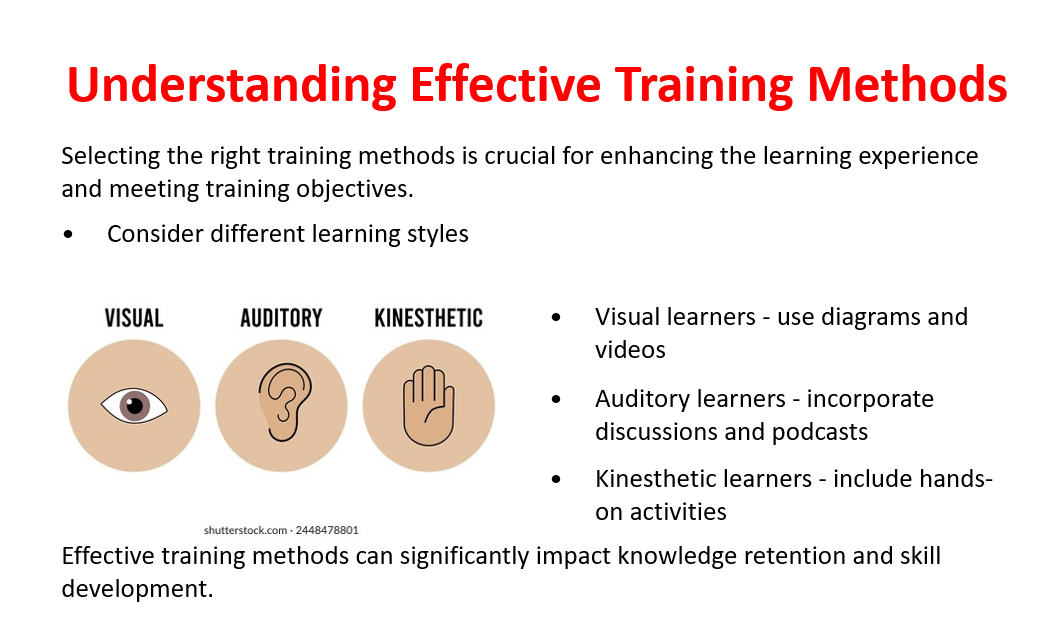
You can see an example of a complete PowerPoint Output here.
Was this article helpful?
That’s Great!
Thank you for your feedback
Sorry! We couldn't be helpful
Thank you for your feedback
Feedback sent
We appreciate your effort and will try to fix the article