Go to Administration Tools in your course. You can duplicate a course to reuse it for a new cohort, delete it permanently, or hide it from public search while keeping it accessible via direct link. This flexibility helps you manage content with ease.
The Administration Tools section provides guidance on managing user access, branding, system settings, and advanced platform features. These tools are designed to give administrators full control over how courses are delivered, tracked, and customised across the organisation.
Duplicate a Course
The Duplicate feature lets you create a copy of an entire course, which will appear in your Drafts. This is a valuable time-saving tool when you want to reuse an existing course structure.
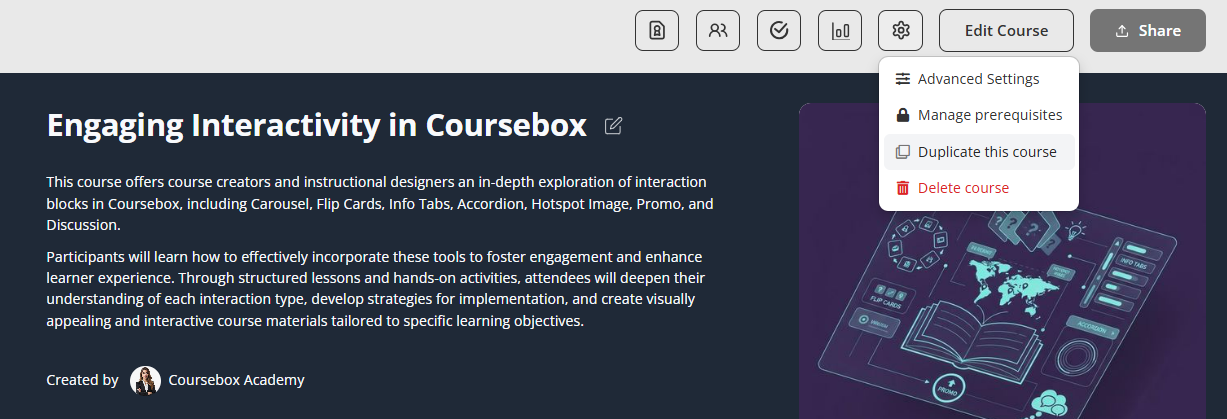
You might use it to:
- Build a shorter or condensed version of a course
- Tailor the same content for a different audience or language level
- Experiment with changes without affecting the original course
Duplicating a course helps streamline course creation while maintaining consistency across programs.
Delete a Course
The Delete function allows you to permanently remove a course from your drafts or course list. This is useful if the course is no longer needed or was created by mistake.
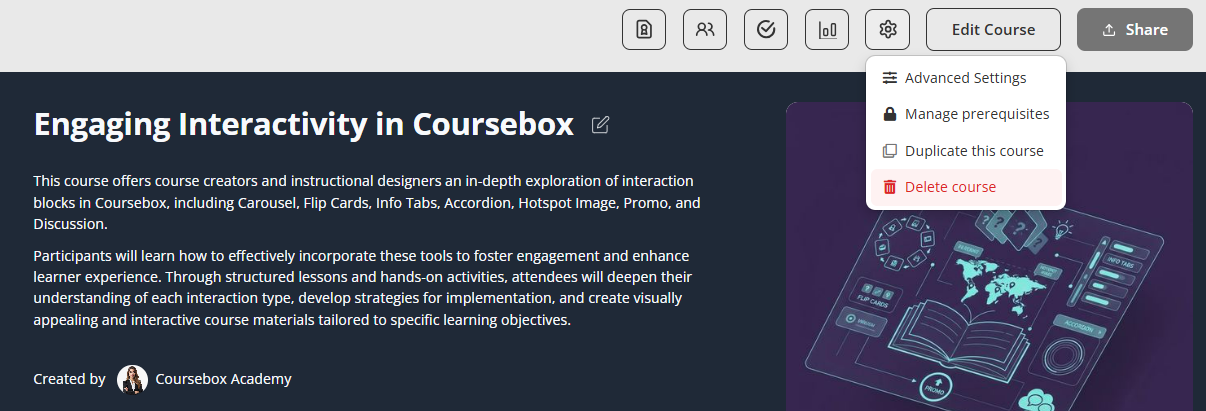
When you click Delete, a confirmation message will appear to ensure the action is intentional. You can choose to cancel at this stage if needed.

Note: Use this option with care, as deleted courses cannot be recoveredShare Settings
The Share settings control how your course is discovered and accessed by others.
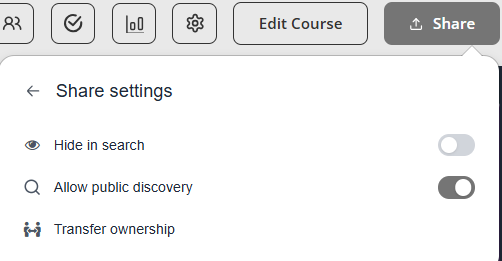
1. Hide in Search
- Toggle ON to prevent your course from appearing in search results.
- Toggle OFF to allow your course to be visible in search.
Use this if you want to keep your course private or only share it via direct link.
2. Allow Public Discovery
- Toggle ON to make your course publicly discoverable.
- Toggle OFF to restrict access (only people with the link can view it).
This is useful when you want to:
- Promote your course publicly
- Allow users to find it organically
For more information on Course settings go to: Course Setup & Configuration
Was this article helpful?
That’s Great!
Thank you for your feedback
Sorry! We couldn't be helpful
Thank you for your feedback
Feedback sent
We appreciate your effort and will try to fix the article