This topic explains how to manage and customise emails and communications in Coursebox. It covers invitation emails, automatic registration messages, and email broadcasts—allowing administrators to control how learners are invited, onboarded, and kept informed throughout their learning journey.
Customise Invitation Email
Coursebox makes it easy to share your course with individual learners and customise the email invitation they receive. This allows you to manage access securely while personalising the learner experience from the very first interaction.
You can assign roles (such as Learner or Facilitator), control access levels, and tailor the invitation email to match your tone, branding, or onboarding instructions—all from one place.
- In the top-right corner of the course editor, click the Share button.
- In the Add name or email field, enter the learner’s email address.
- Use the dropdown next to the email field to assign the appropriate role (default is As Learner).
- Click the Add button to send the invitation.
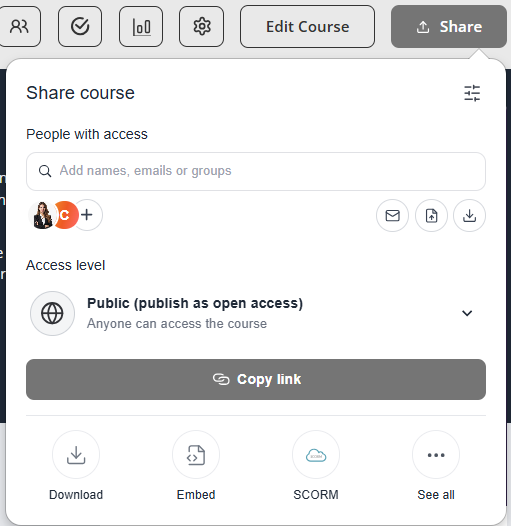
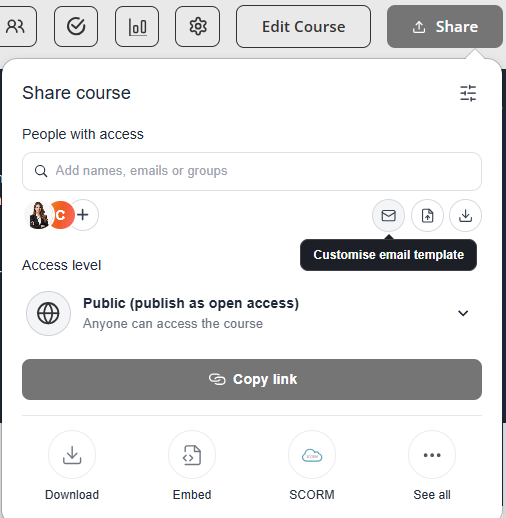
- In the same Share this course panel, click the email icon (envelope) to open the Customise Invitation Email window.
- You can now update the subject line and message body. Personalise it with a welcome note, course expectations, or instructions.
- Once you're happy with the message, save your changes. This customised email will be sent when you invite new learners.
Sections below are for Business & Enterprise Accounts only. To upgrade your account go to: https://www.coursebox.ai/pricing
Customise Automatic Emails
The Super Admin can customise the automatic emails which are sent to users during the registration process.
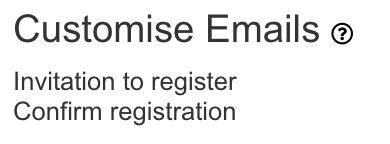
There are 2 different email templates available:
Invitation to Register:
This email is sent when you can to invite a new user to the portal.
Click on the ‘Invitation to register’ link to edit the template.
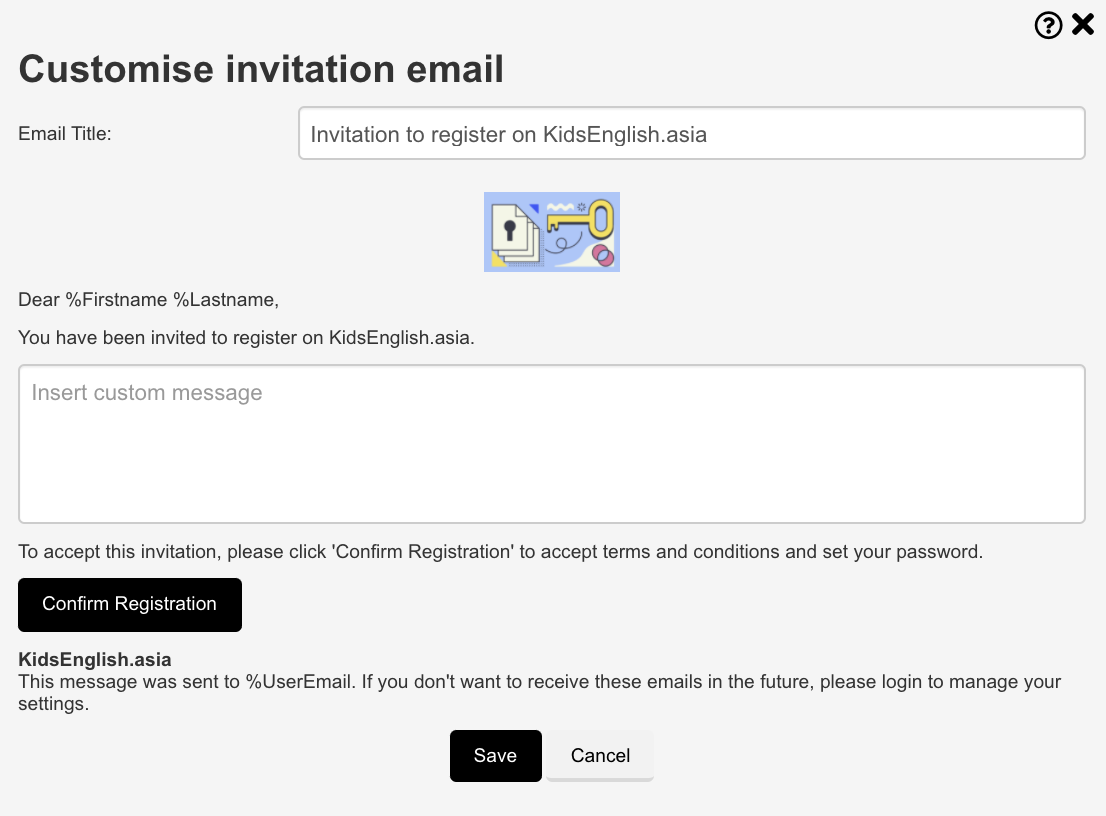
In the template, you can edit the subject and body part of the email. Click on Save to save all the changes.
Confirm Registration:
This email is sent when a user can register on the portal.
Click on the ‘Confirm Registration’ link to edit the template.
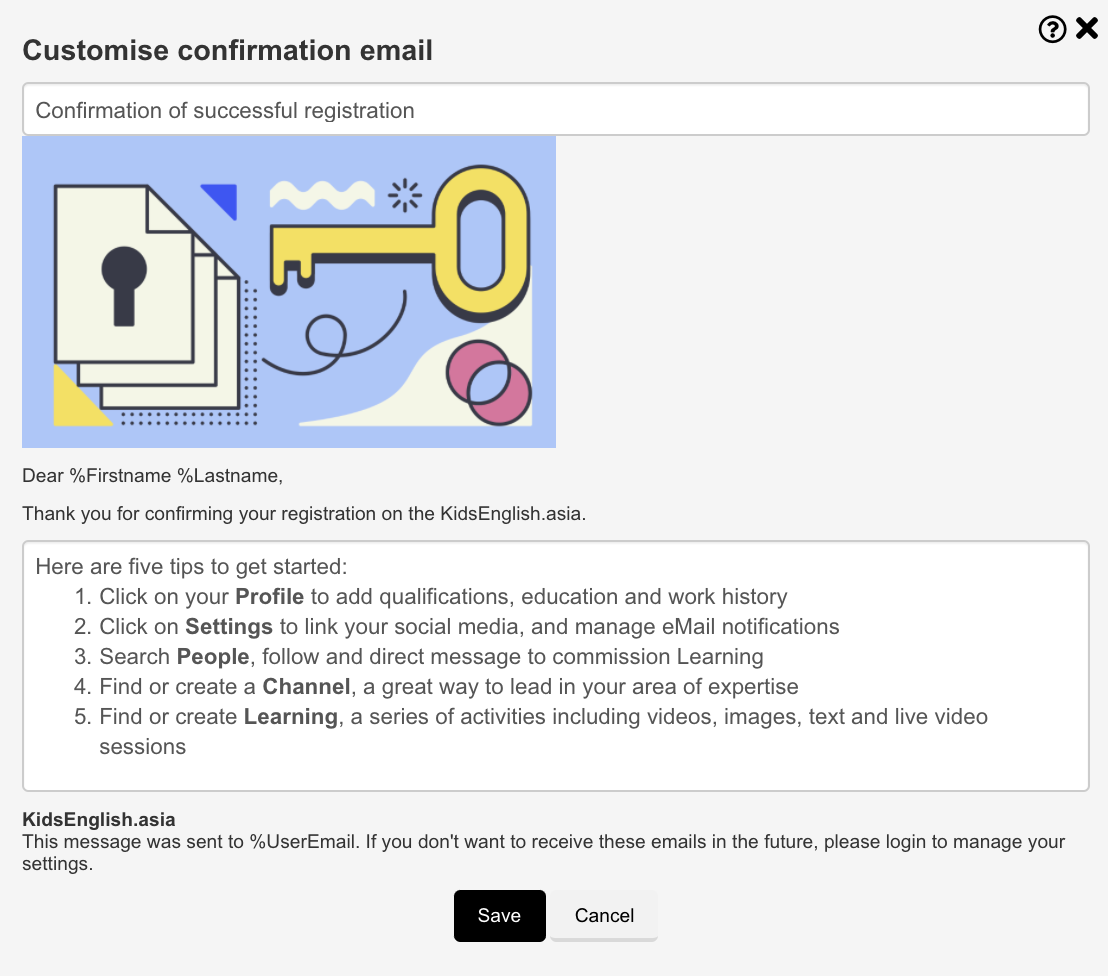
In the template, you can edit the subject and body part of the email. Click on Save to save all the changes.
*Please note that the email logo can be changed by going to the theme setting.Send Email broadcasts
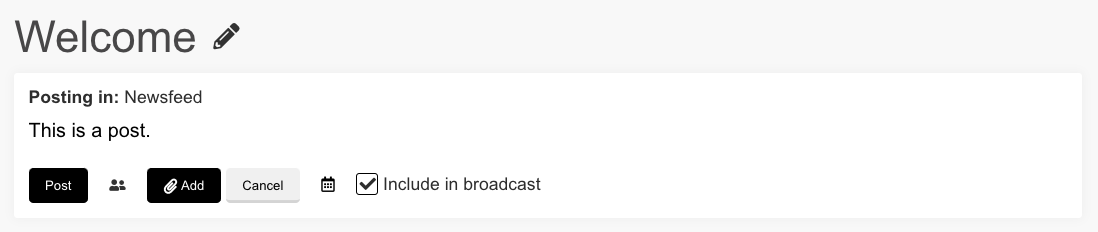
The Super Admin may opt-in to collate one or more of their latest News posts as an Email Broadcast, which is like a community newsletter.
Firstly, navigate to Settings and set the number of posts to be collated for each Email Broadcast.

Then, create posts and select ‘Include in broadcast’ each post to be included in each broadcast.
When posting, the Super Admin may include text, links, attachments and events.
Was this article helpful?
That’s Great!
Thank you for your feedback
Sorry! We couldn't be helpful
Thank you for your feedback
Feedback sent
We appreciate your effort and will try to fix the article