For Business & Enterprise Accounts only. To upgrade your account go to: https://www.coursebox.ai/pricing
The following section describes how Super Administrators can manage, configure and set up Ecommerce on an Coursebox Branded Training Platform (Premium) portal. Coursebox Branded Training Platform (Premium) provides stripe integration for enabling ecommerce functionalities like selling online courses, Groups and selling trainer’s hour on the platform.
Watch the video below, or explore more tutorials in our Demonstration Video Library.
Access the Payments Menu
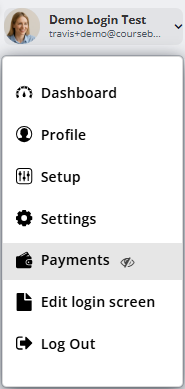
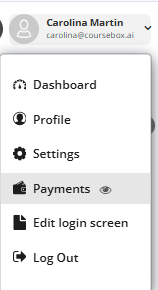
Click your profile menu (top right).
Select Payments from the dropdown.
Show or Hide the Payments Button
In your profile dropdown, you’ll notice the Payments option has an eye icon next to it (see screenshot above).
If the eye is visible, the Payments button will show for other users who have permission to access it.
If the eye is crossed out, the Payments button will be hidden from others.
This allows you to control visibility of the Payments option depending on how you want to manage purchases in your portal.
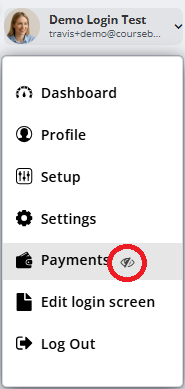
Hiding the Payments menu (eye crossed out) only affects visibility for other users. You as the Super Admin will still see it.
Link Stripe
From the drop down menu, click on Payments.
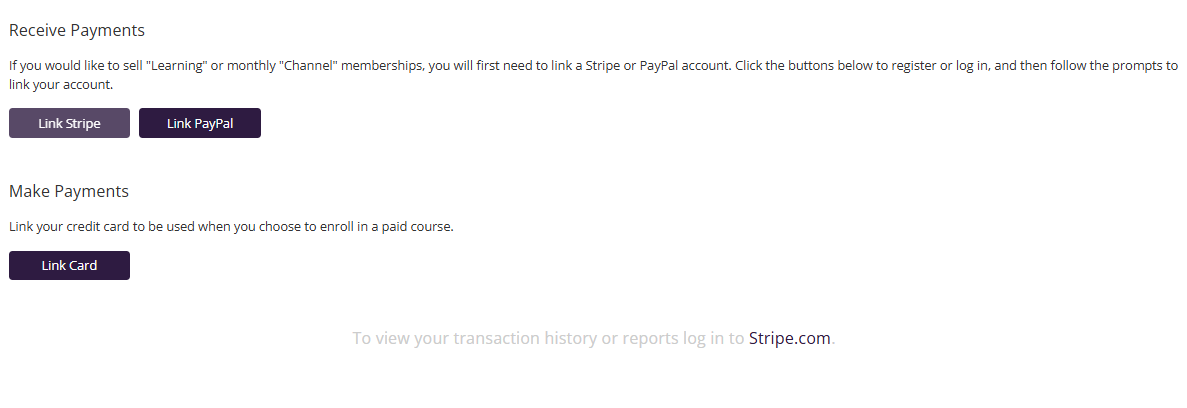
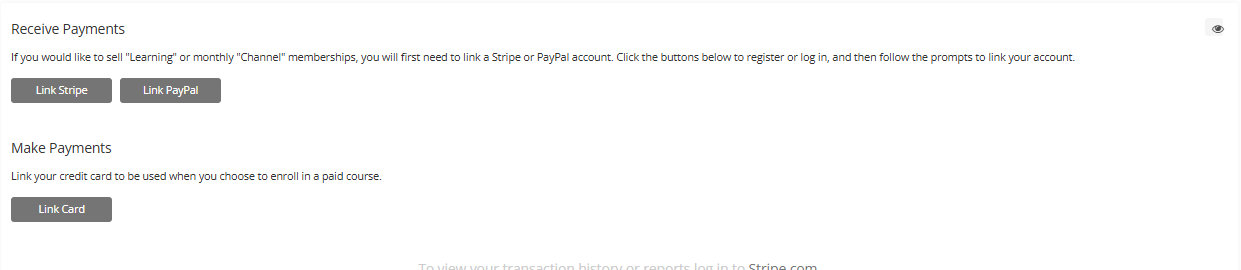
In the Payments section, you can link your stripe, as well as link your card to initiate any payment.
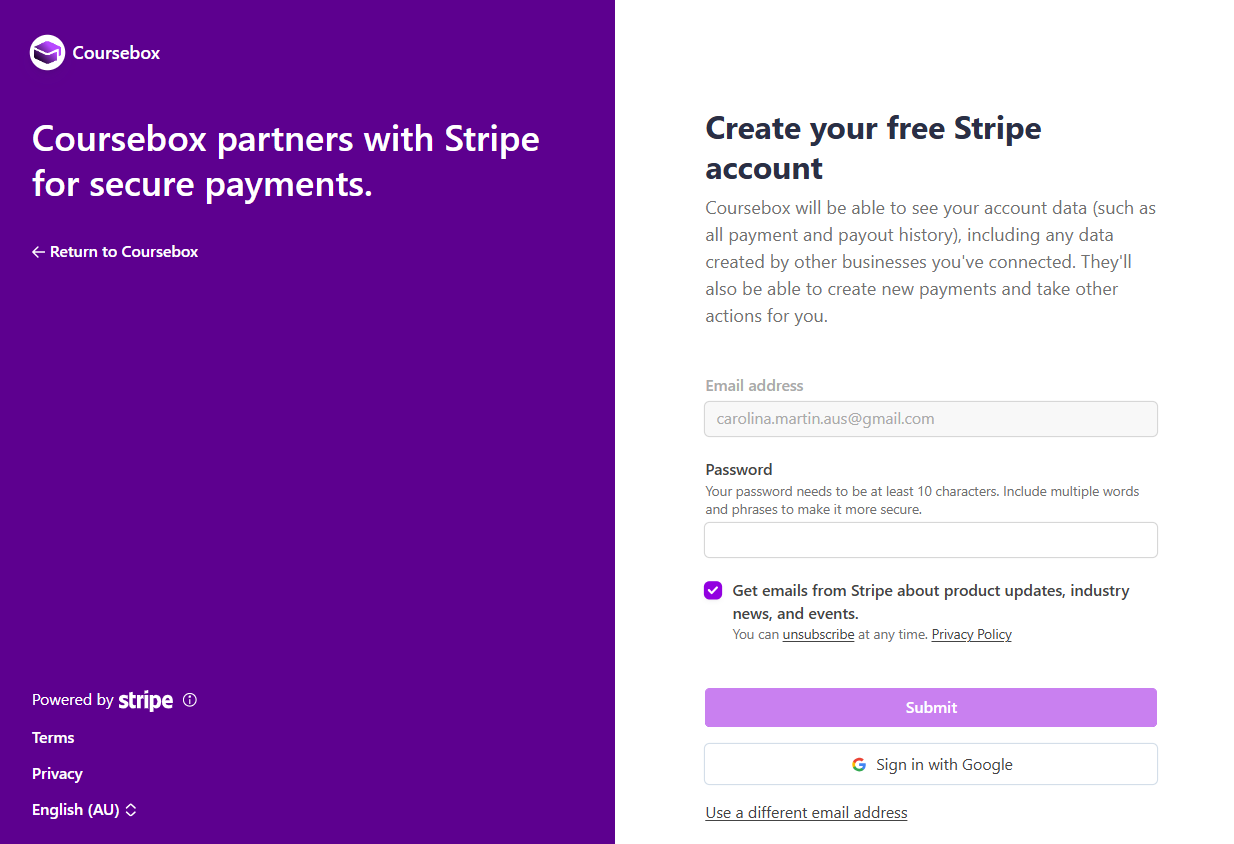
Click on the Link Stripe button to start syncing your stripe account. You will be taken to Stripe’s authentication page. (Please note that Coursebox Branded Training Platform (Premium) doesn’t store your strip credentials, it only uses the token shared by Stripe to process the payments.)
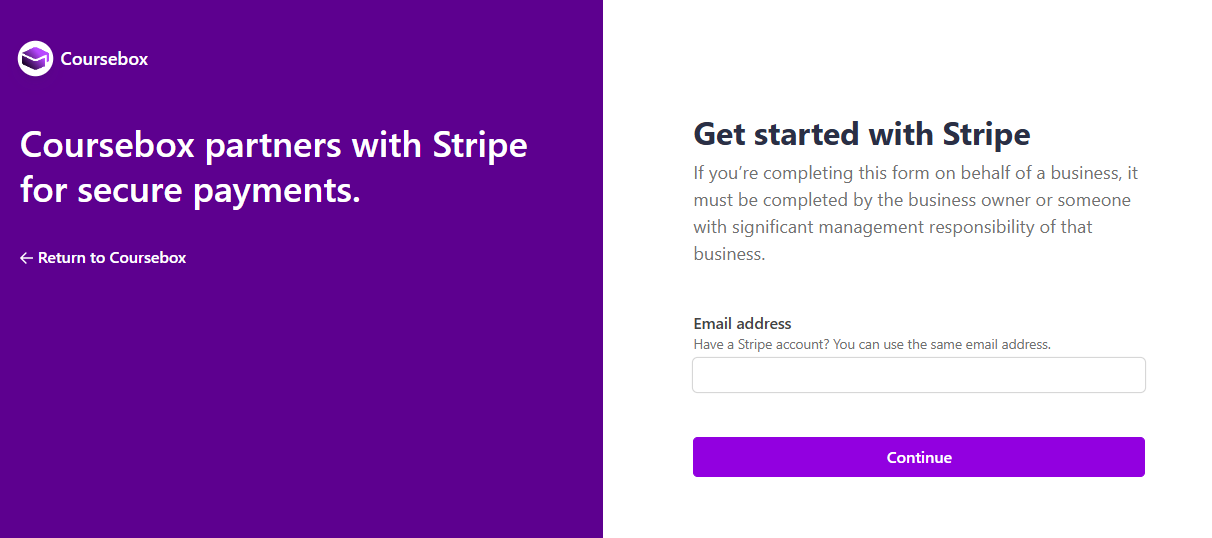
If you don’t have a Stripe account, you can start filling the form to create one.
If you already have an account, click on the Sign In link on the top right corner. You will be taken to Stripe Sign In Page.
After providing the credentials, you will be prompted to enter the 6-digit verification code. This code will be SMSed by Stripe to your linked phone number.
Once the code is verified by Stripe, you will be taken to the confirmation page. Click on Connect my Stripe account to confirm.
In future, if you would like to unlink Stripe, you can come back to this page and click on “Unlink Stripe”.
Disclaimer: Coursebox does not store your credit card details. All transactions are managed through third party providers.Set PayPal
This section explains how to enable and use PayPal as a payment method in Coursebox. Super Admins can activate PayPal at the portal level, allowing course creators to offer learners an additional, flexible checkout option. Once enabled, PayPal can be selected when pricing and publishing courses, supporting secure payments, optional external checkout links, and a smoother purchasing experience for learners.
- Log in as a Super Admin.
- Go to Settings > Payments.
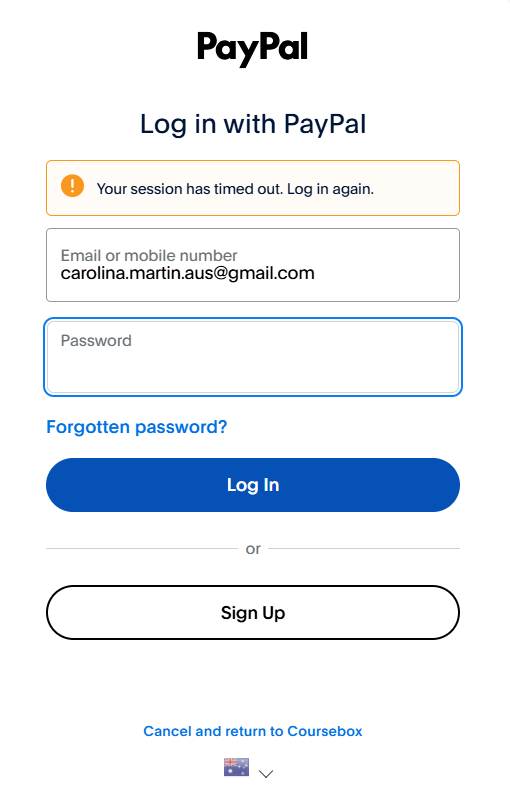
- Under Receive Payments, click Link PayPal.
- You’ll be redirected to PayPal to log in and authorize the connection.
- Once linked, you will see PayPal already linked displayed.
Set Price and Payment Options
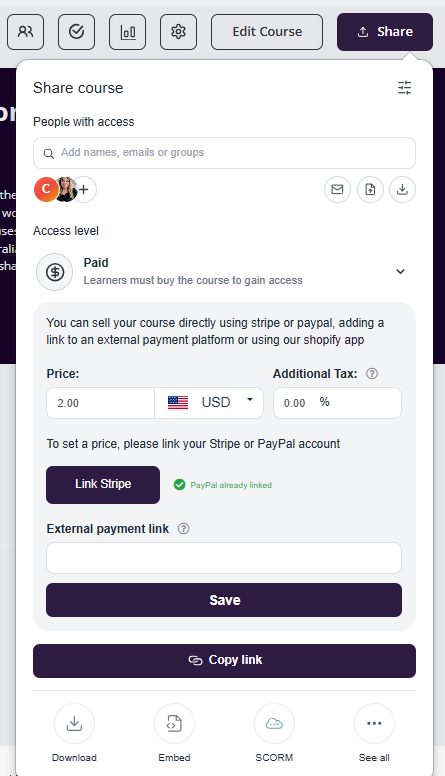
Once your Paypal or Stripe is linked, go to the Share section of yoru course and enter your Price, choose your Currency, and add any Additional Tax % if required.
You’ll now see Stripe and PayPal as available payment methods (if both are linked).
External Payment Link
Optionally:
- add an External Payment Link, if a link is provided, the thumbnail will redirect users to an external link. (e.g., Shopify, another checkout system).
Click Save.
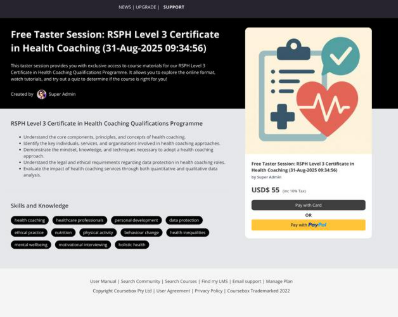
Your course will now display Pay with Card (Stripe) or Pay with PayPal options to learners on the checkout page.
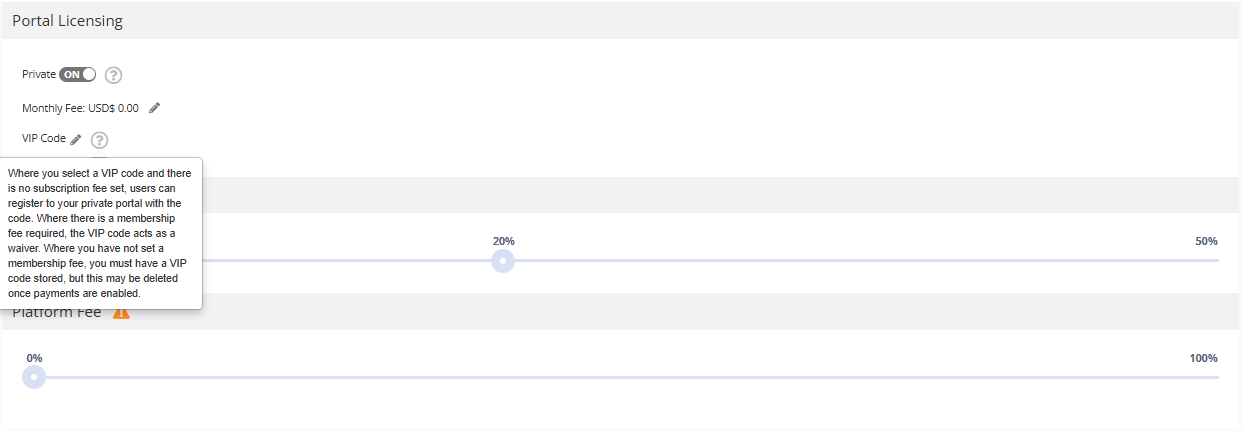
Enable Portal Licencing/ VIP Code
From your Payment Settings, you can manage how users access your portal.
If your portal is set to Private, users won’t be able to sign up on their own. However, you can still allow access by enabling self-signup in your Super Admin settings and creating a VIP code (also known as a Courseboxer code).
This VIP code allows users to bypass the private or paid access restrictions and register themselves.
Was this article helpful?
That’s Great!
Thank you for your feedback
Sorry! We couldn't be helpful
Thank you for your feedback
Feedback sent
We appreciate your effort and will try to fix the article