This section explains how to enable and use PayPal as a payment method in Coursebox, alongside Stripe. Super Admins can activate PayPal at the portal level, allowing course creators to offer learners an additional, flexible checkout option. Once enabled, PayPal can be selected when pricing and publishing courses, supporting secure payments, optional external checkout links, and a smoother purchasing experience for learners.
You can now sell your courses directly in Coursebox using PayPal as well as Stripe.
Before any course creator can sell with PayPal, the option must be enabled.
Use Paypal as a Super Admin - Enterprise & Business Account
For Business & Enterprise Accounts only. To upgrade your account go to: https://www.coursebox.ai/pricing
You can now sell your courses directly in Coursebox using PayPal as well as Stripe.
Before any course creator can sell with PayPal, the option must be enabled.
Enable Paypal
- Log in as a Super Admin.
- Go to Settings
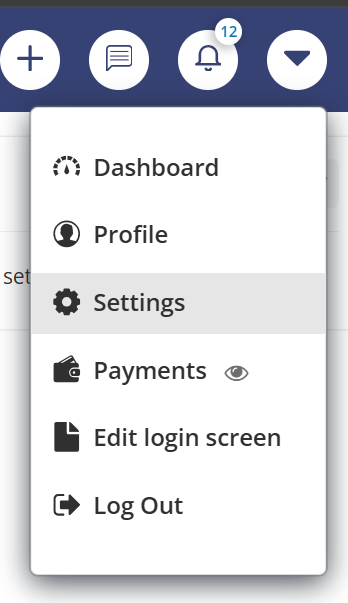
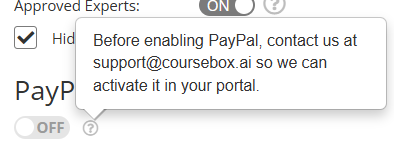
- In the settings section, scroll down to PayPal Payments.
- Toggle the switch from OFF to ON (once support has activated it for your portal).
As a Super Admin (Portal Level Setup)
Before any course creator can sell with PayPal, the option must be enabled at the portal level.
- Log in as a Super Admin.
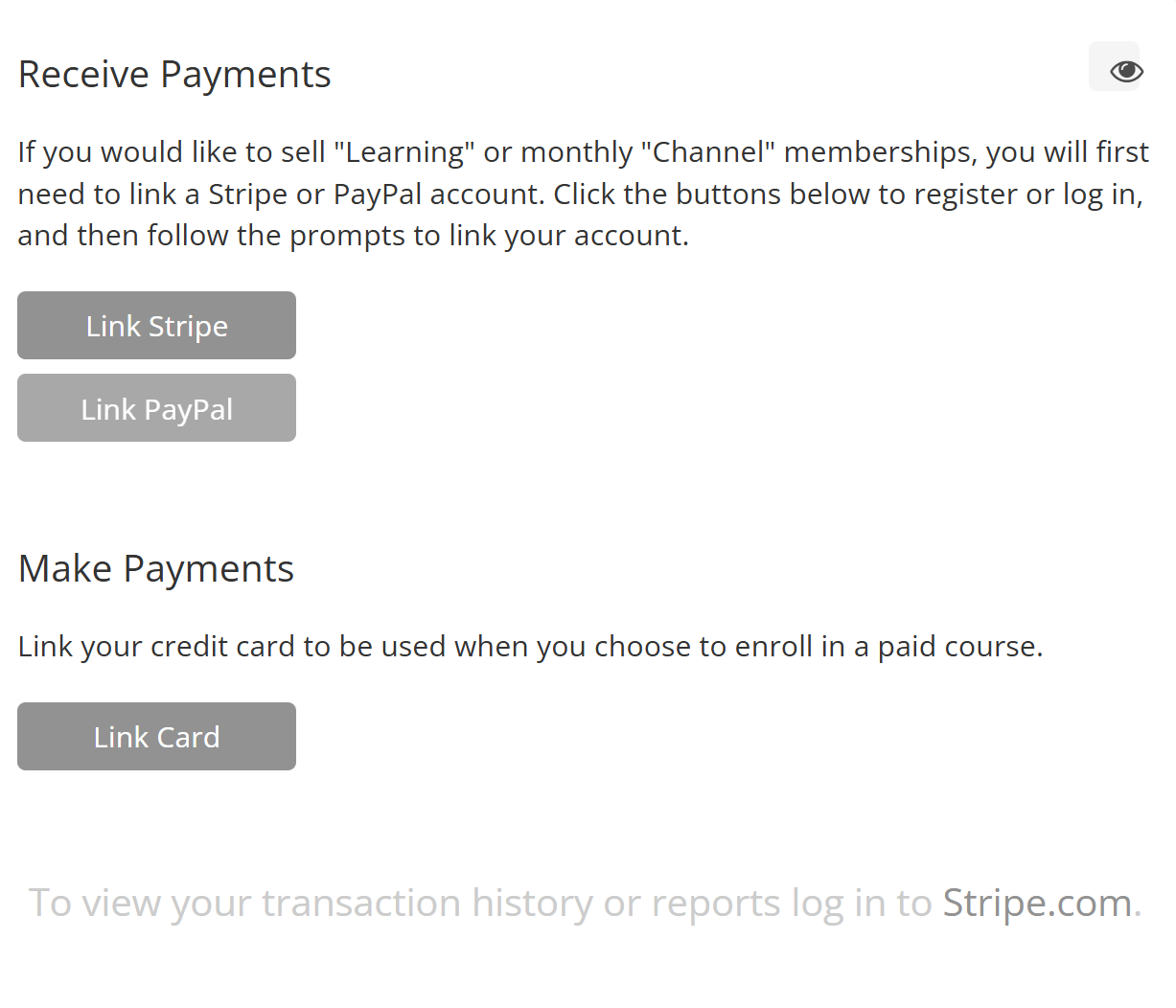
- Go to Settings > Payments.
- Under Receive Payments, click Link PayPal.
- You’ll be redirected to PayPal to log in and authorize the connection.
- Once linked, you will see PayPal already linked displayed.
- Save your settings.
- Now PayPal is available for all course sellers in your portal.
Enable Sell this Course
Once PayPal has been enabled by the Super Admin, you can start offering PayPal payments for courses.
Open your course and click Publish.
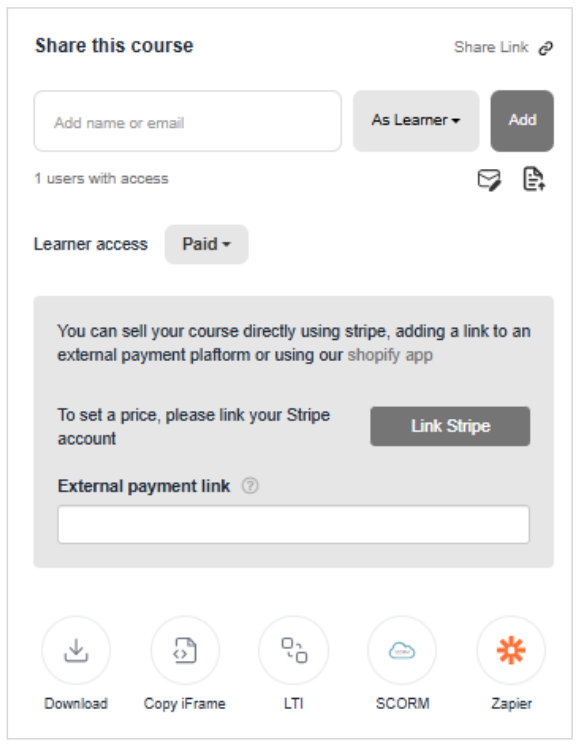
Under Share this course, select Sell this course from the dropdown.
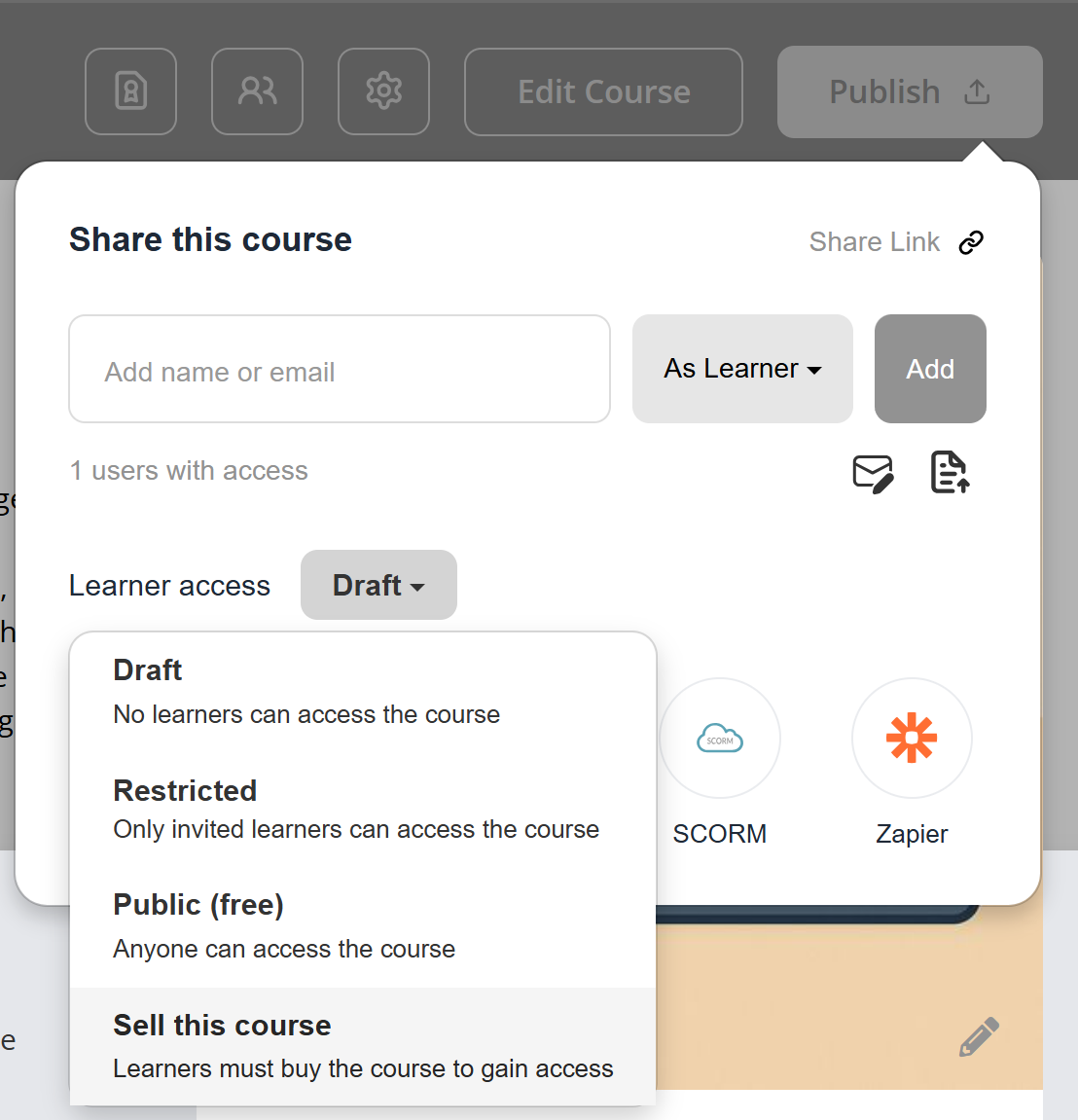
Follow the instructions on the screen. You will need to link your Stripe or Paypal Account.
Set Price & Payment Options
Once your Paypal or Stripe is linked:
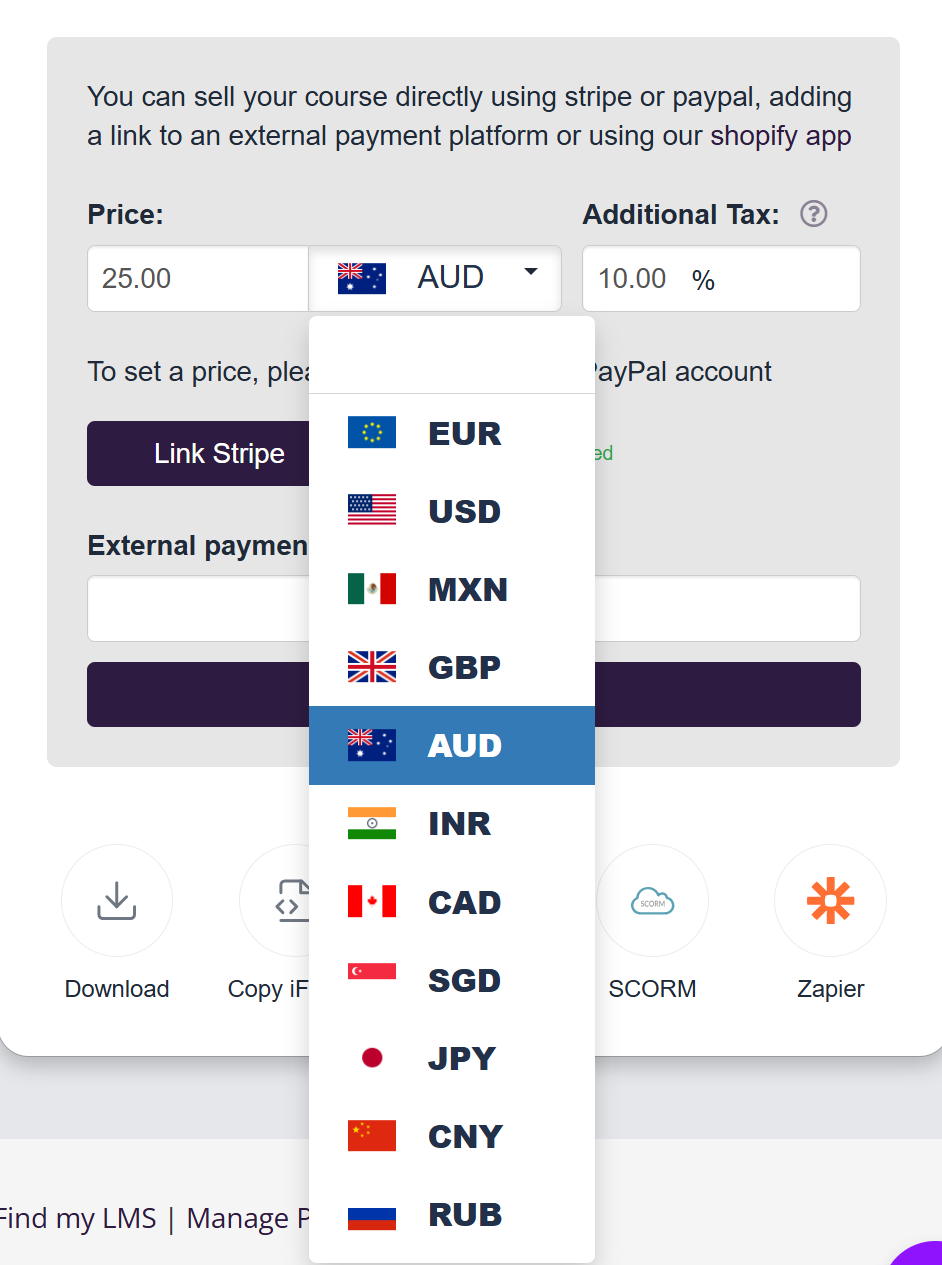
- Enter your Price, choose your Currency, and add any Additional Tax % if required.
- You’ll now see Stripe and PayPal as available payment methods (if both are linked).
External Payment Link
Optionally, add an External Payment Link, if a link is provided, the thumbnail will redirect users to an external link. (e.g., Shopify, another checkout system).
Click Save.
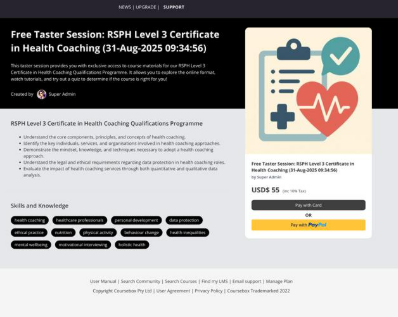
Your course will now display Pay with Card (Stripe) or Pay with PayPal options to learners on the checkout page.
Watch the Tutorial Videos found in our Demonstration Video Library.
Was this article helpful?
That’s Great!
Thank you for your feedback
Sorry! We couldn't be helpful
Thank you for your feedback
Feedback sent
We appreciate your effort and will try to fix the article