This section introduces Coursebox’s gamification features that help motivate learners and recognise achievement. You’ll learn how badges and points are used to reward course completion, build learning pathways, and make progress visible, as well as how the leaderboard brings these achievements together to showcase participation and performance across the platform.
Watch the Tutorial Videos found in our Demonstration Video Library.
Create Badges for Courses
In Coursebox, you can award points for completing a course to keep learners motivated. To create badges start:
- From your dashboard, go to Courses.
- On the right-hand side of the course tile, locate the Badges icon (?).
- Hovering over the icon will display “Click to manage badges”.
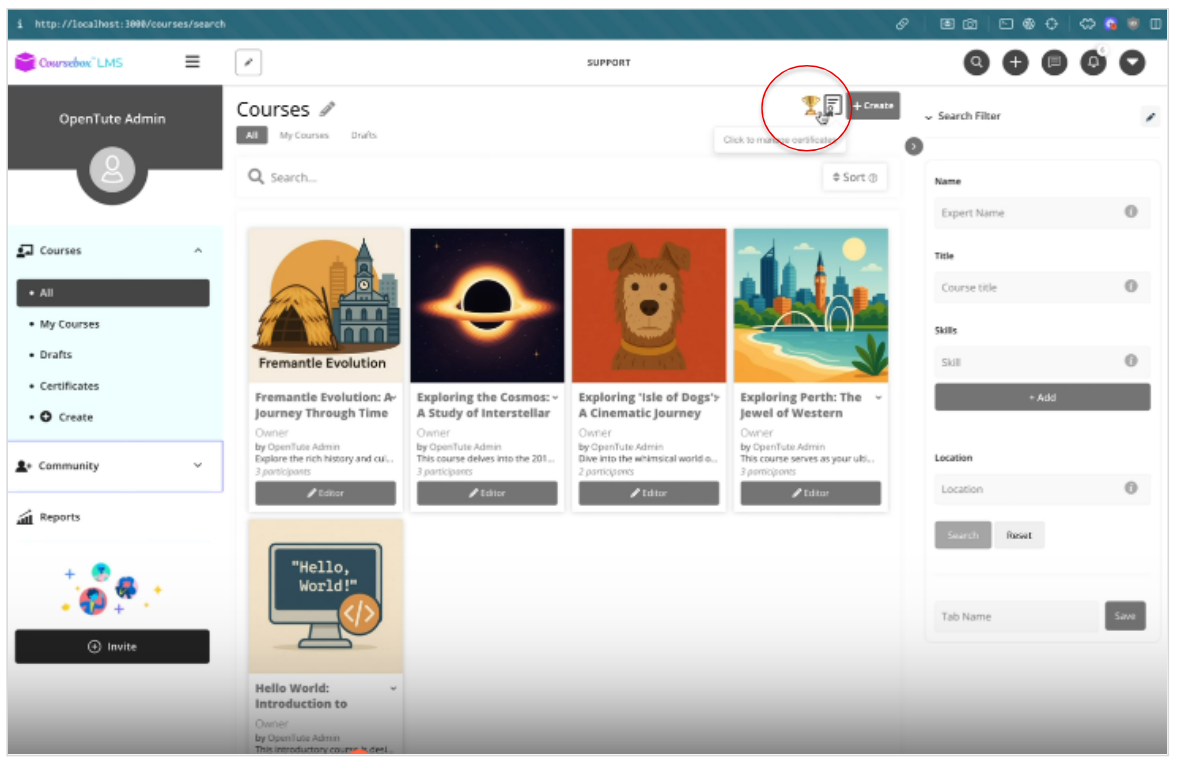
- Click the icon to open the badge management window.
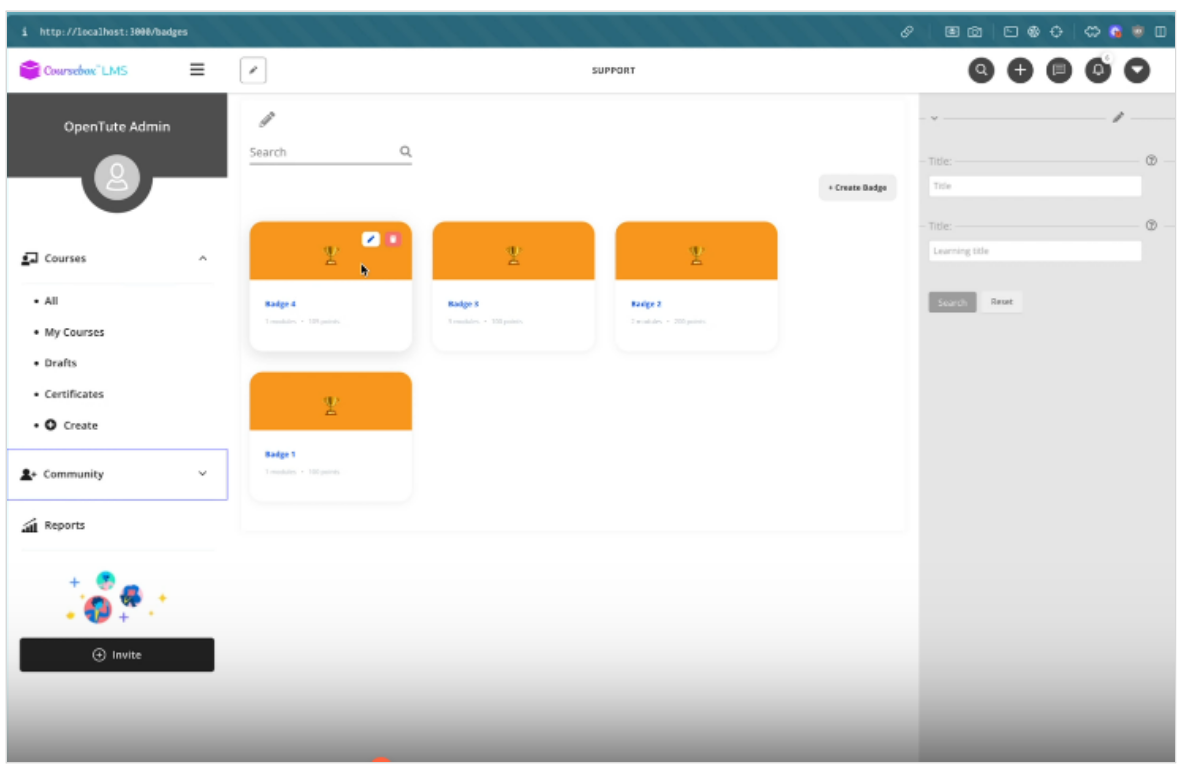
- Click on "Create a Badge" on the right-hand side
- The Create Badge screen will appear.
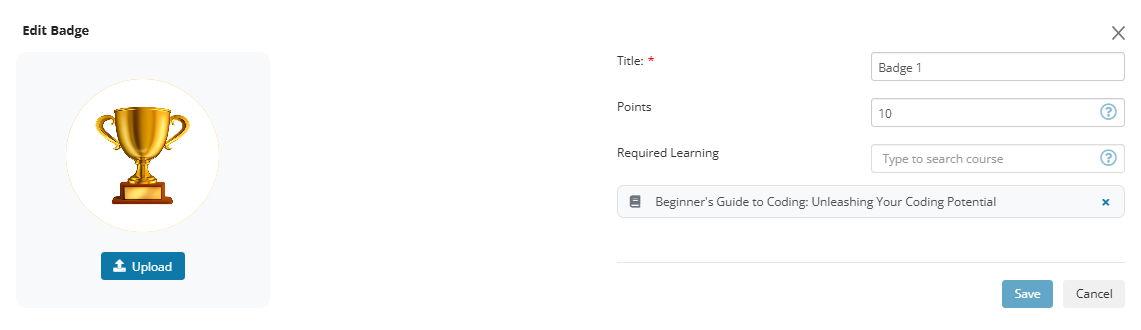
- Add the following details:
Title: Enter the award name.
Points: Assign the number of points learners will earn when achieving this badge.
Required Learning: Select the course that must be completed to unlock the badge. You can select more than one course.
(Optional) Upload a Badge Image: Click Upload to add a custom image (e.g., a trophy or icon).
Once complete, click Save.
Verify the Badge on the Course
Once you have created and saved a badge, return to your Courses view.
Locate the course where you applied the badge.
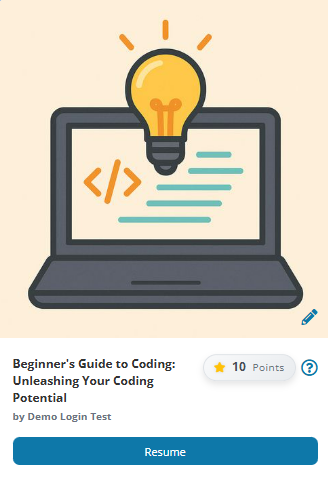
On the course tile, you will now see the badge points indicator displayed beneath the course title.
Example: Beginner’s Guide to Coding shows 10 Points awarded.
This confirms that the badge has been successfully linked to the course.
Check out our Coursebox Demonstration Video Library for Tutorials.
View Badges for Learners
Super Administrators can monitor and manage badges to boost learner motivation and recognise progress. Badges act as powerful gamification tools, encouraging learners to engage in completing a course.
Navigate to the Learner Profile
From the main menu, go to Community.
Select the learner whose achievements you want to view.
This opens their profile page, where you can see personal details, courses, and activity.
- Scroll down the learner’s profile until you reach the My Expertise section.
- Click on the Badges tab to view all badges that learner has earned.

The badge list will display all awards associated with the learner, including:
Badge name (e.g., Beginner’s Guide to Coding).
Points earned for that badge.
Progress indicators (e.g., completion percentage).
Any bonus points associated with the badge.

View Badges in My Profile
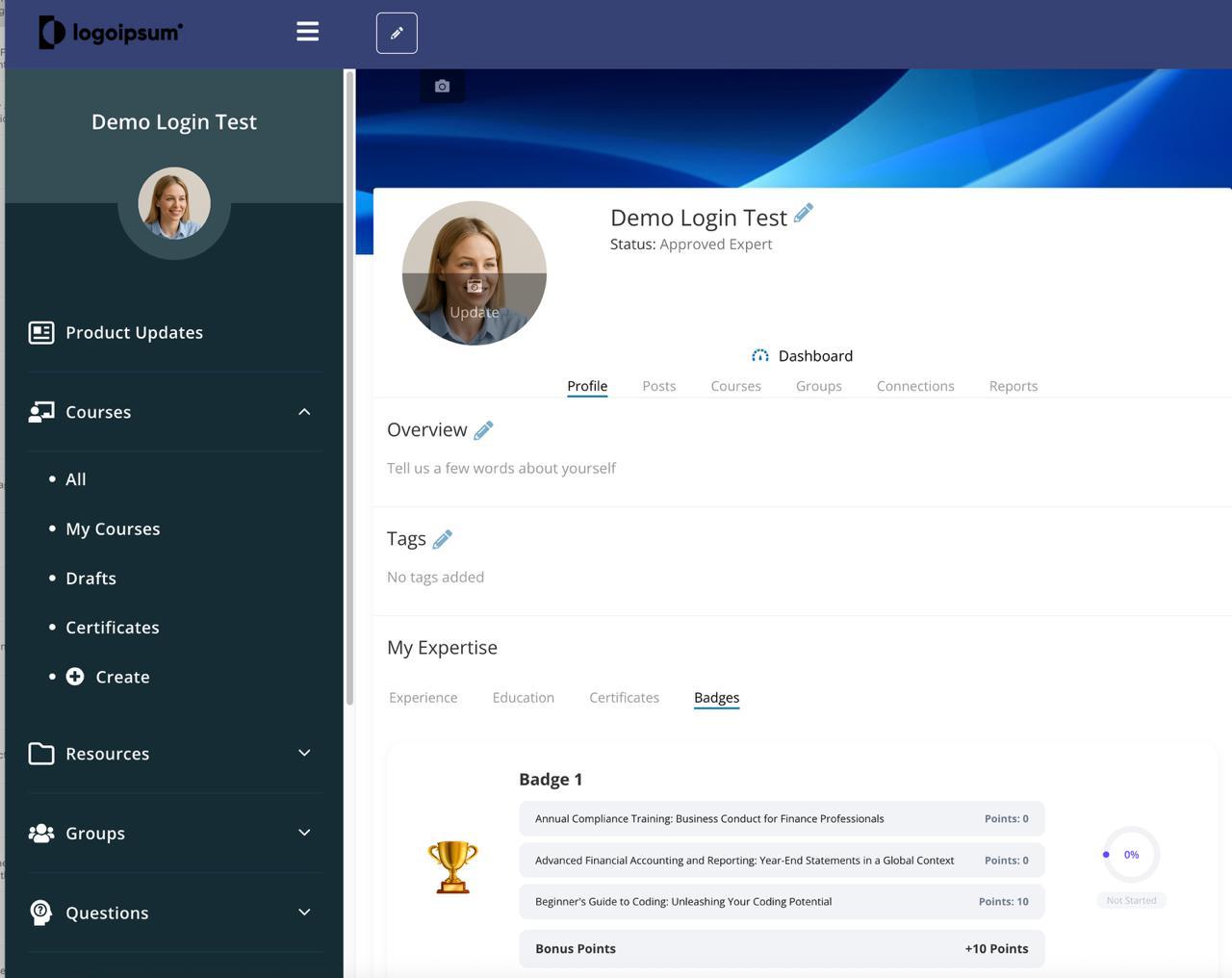
Badges learners earn in Coursebox are displayed in the learner profile. This makes it easy to track your progress and showcase your achievements.
From the dashboard, click on your Profile in the top navigation bar.
Your profile includes tabs such as Overview, Posts, Courses, Groups, Connections, and Reports.
Scroll down to the My Expertise section.
Click on the Badges tab alongside Experience, Education, and Certificates.
Here, you will see a list of badges you have earned (or are in progress).
Each badge will display:
The badge title (e.g., Badge 1).
The courses linked to the badge.
The points earned for each course.
Your progress indicator (e.g., 0% complete or fully completed)
Pathways
When more than one course is connected, this means that badges are into a structured learning journey. Instead of earning badges one at a time without context, pathways show learners the bigger picture—how each badge fits into a sequence of skills and achievements.
Access the Leaderboard
Badges serve as visible achievements, while the Leaderboard takes gamification a step further by allowing learners to see how they rank in relation to others on the platform.
Together, badges and the leaderboard create a dynamic and competitive learning environment that supports individual progress.
How the Leaderboard Works
Badges recognise learner achievements.
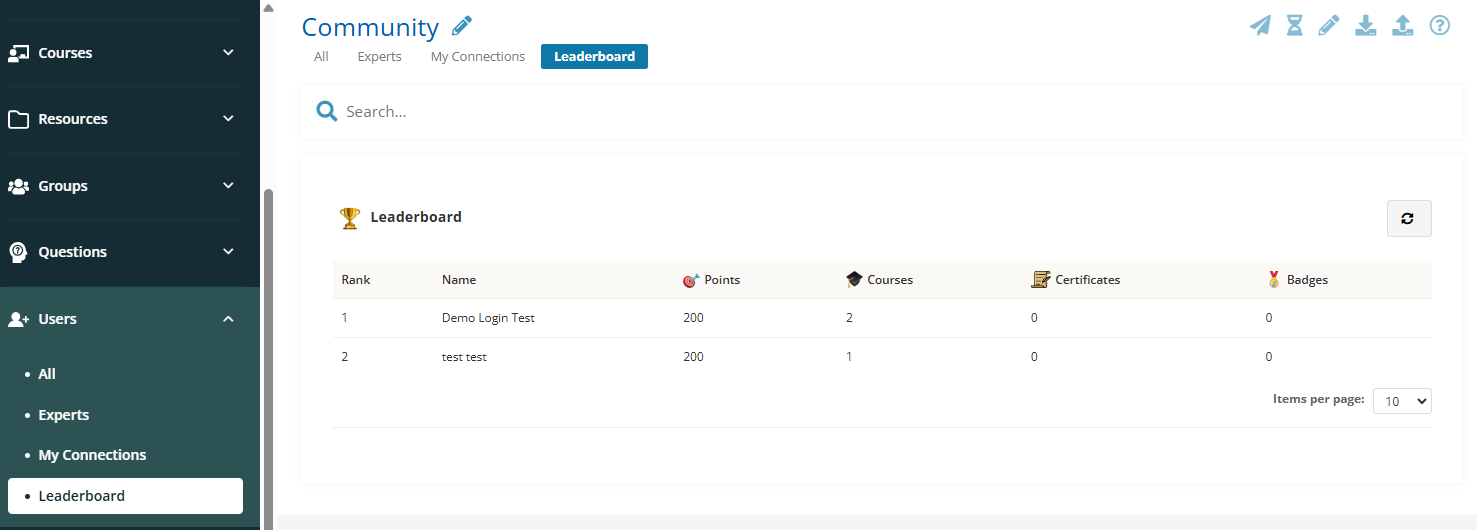
The Leaderboard displays these achievements in context, showing:
Rank – Position in comparison to other learners.
Name – Learner’s name.
Points – Total points earned.
Courses – Number of completed courses.
Certificates – Certificates awarded.
Badges – Total badges achieved.
Access the Leaderboard
From the main menu, go to Community.
Select Leaderboard from the dropdown menu.
The leaderboard screen will appear, showing learner rankings across the platform.
Setting Learning Pathways
Pathways are guided sequences of courses designed to help learners achieve a specific outcome, such as earning a badge or a certificate. They allow organisations to structure learning into clear, progressive steps.
What Pathways Are
A Pathway is a collection of related courses grouped together.
Completing all the required courses leads to an outcome:
Badge Pathways → Completing the courses awards the badge.
Certificate Pathways → Completing the courses awards the certificate.
Pathway Order and Completion
Force Completion Order (current behaviour):
Courses must be taken in a specific order if this setting is enabled.
Learners see prerequisites and locked courses until earlier ones are finished.
Important Note:
Currently, badges or certificates with more than one course only appear in the Pathways menu if Force Completion Order is enabled.
In an upcoming update, Force Completion Order will no longer be required. Multi-course pathways will be displayed by default.
Where to Find Pathways
All Pathways: Displays every pathway available in your organisation.
My Pathways: Displays only the pathways you are enrolled in.
How to Follow a Pathway
Open a pathway – Review its description, required courses, and order (if any).
Start the first course – Click the course title to begin.
Unlock the next course – If order is enforced, the next course will unlock after you complete prerequisites.
Finish all courses – Once every course in the pathway is completed, you earn the related badge or certificate (if applicable).
Tracking Your Progress
Per course: A course is marked complete when all required activities are finished.
Per pathway: The pathway shows an overall status:
Not started
In progress
Completed
Progress is displayed based on how many courses are completed.
Badges vs Certificates in Pathways
Badge Pathway: Earn the pathway badge once all courses are completed.
Certificate Pathway: Earn the pathway certificate linked to that pathway after finishing all required courses.
Both can define completion order and prerequisites depending on how the pathway is set up.
Pathways help learners move step by step toward meaningful outcomes, while giving organisations flexibility to enforce structured learning or let learners progress more freely.Was this article helpful?
That’s Great!
Thank you for your feedback
Sorry! We couldn't be helpful
Thank you for your feedback
Feedback sent
We appreciate your effort and will try to fix the article