If learners don’t have email addresses, the best way to track course completion is to enrol them using a CSV upload. While you can make a course public and protect it with a password, tracking completion requires each learner to have a unique user account.
To work around this, you can create placeholder or “fake” email addresses in the CSV (for example, using Gmail plus addressing or a consistent internal format), assign passwords, and override the email confirmation requirement. This allows learners to access the course without needing real email accounts, while still enabling you to track individual progress and completion.
You can follow this article to enrol learners using a CSV upload: User Enrolment, Removal and Updates
Upload a CSV list of Learners
When you need to enrol multiple learners at once, Coursebox makes the process simple with CSV upload functionality. This bulk import method saves time by allowing you to add dozens—or even hundreds—of learners in a single action.
By uploading a properly formatted CSV file, you can quickly assign roles, enrol users into specific courses or groups, and trigger invitation emails, all while ensuring consistency and accuracy in your learner data.
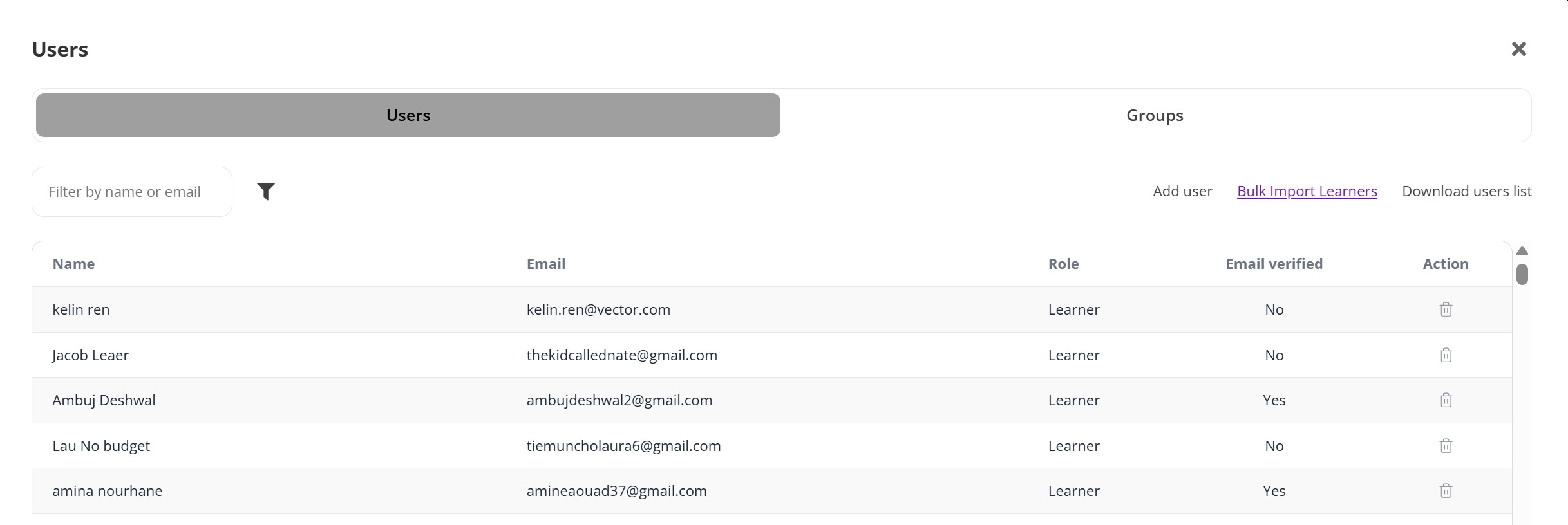
- In the Users tab, click on the Bulk Import Learners link located next to "Add user."
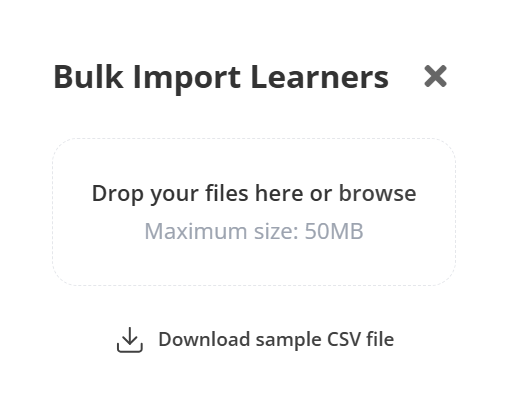
To ensure correct formatting, click "Download sample CSV file".
This file will provide a template showing the expected structure—typically including columns such as:
First Name
Last Name
Email
Headline
Password (optional)
Confirm (optional)
Send (optional)
Accepted Terms (optional)

- Using the template as a guide, fill out the required user information in your CSV file. Save the file in .csv format and ensure it’s under the 50MB limit.
- Drag and drop your CSV file into the upload box, or click “browse” to select it from your device.
Once uploaded, Coursebox will process the file and assign the roles automatically based on the CSV content. You may receive a confirmation or error message depending on the data.
Return to the Users tab to verify that the learners were successfully added, and that their roles and email verification statuses appear correctly.
Was this article helpful?
That’s Great!
Thank you for your feedback
Sorry! We couldn't be helpful
Thank you for your feedback
Feedback sent
We appreciate your effort and will try to fix the article